
Looking to make your WordPress site more engaging? Adding an image carousel is one of the best ways to showcase your photos or products in a sleek, interactive way.
Imagine grabbing your visitors’ attention the moment they land on your page—without slowing down your site or needing complex coding. In this guide, you’ll learn exactly how to add a stunning image carousel to your WordPress site, step by step.
Whether you’re a beginner or just want a quick refresher, you’ll find easy tips that save time and boost your site’s appeal. Keep reading, and watch your website transform right before your eyes!
Credit: www.wpxpo.com
Choosing The Right Plugin
Choosing the right plugin for an image carousel is key to a smooth website experience. It affects how your images look and how easy it is to manage them. A good plugin works well on all devices and loads fast. It should also fit your site’s style and needs.
Popular Carousel Plugins
Several plugins are trusted by many WordPress users. Smart Slider 3 offers many design options and is easy to use. MetaSlider is simple and supports different slide types. Soliloquy is known for its speed and responsive design. Each plugin has its own strengths and fits different types of sites.
Plugin Features To Consider
Focus on features that matter most to your site. Check if the plugin supports touch and swipe on mobile devices. Look for easy drag-and-drop interfaces. Responsive design is a must for all screen sizes. Some plugins offer animation effects and caption options. Also, verify if the plugin is updated regularly and has good support.
Installation And Activation
Installing a carousel plugin is quick and simple. Go to your WordPress dashboard and select “Plugins” then “Add New.” Search for the plugin by name. Click “Install Now,” then activate it. After activation, follow the plugin’s setup guide to create your first carousel. Most plugins provide clear instructions for beginners.
Preparing Your Images
Preparing your images is the first step to create an effective image carousel in WordPress. Well-prepared images improve your site’s appearance and load speed. This step ensures your carousel looks great and works smoothly.
Selecting High-quality Photos
Choose clear and sharp images for your carousel. Avoid blurry or pixelated pictures. High-quality photos attract visitors and keep them engaged. Use images that match your website’s style and message.
Optimizing Images For Web
Reduce image file size without losing quality. Smaller files load faster and save bandwidth. Use tools like TinyPNG or Photoshop to compress images. Save images in JPG or PNG format for best results.
Organizing Images In Media Library
Keep your media library tidy by grouping carousel images. Create folders or use tags to sort images. This makes it easier to find and manage pictures later. Consistent naming helps identify images quickly.
Creating Your First Carousel
Creating your first image carousel in WordPress is a simple way to make your website more dynamic. Carousels display multiple images in one space. Visitors can click or swipe to see different images. This keeps your site looking modern and neat. Follow these steps to build your first carousel with ease.
Setting Up A New Carousel
Start by installing a carousel plugin if your theme does not have one. Go to your WordPress dashboard and click on “Plugins.” Search for “image carousel.” Choose a plugin with good reviews and install it. Activate the plugin once installed. Then, find the carousel option in your dashboard menu. Click “Add New” to create a new carousel.
Adding Images To The Carousel
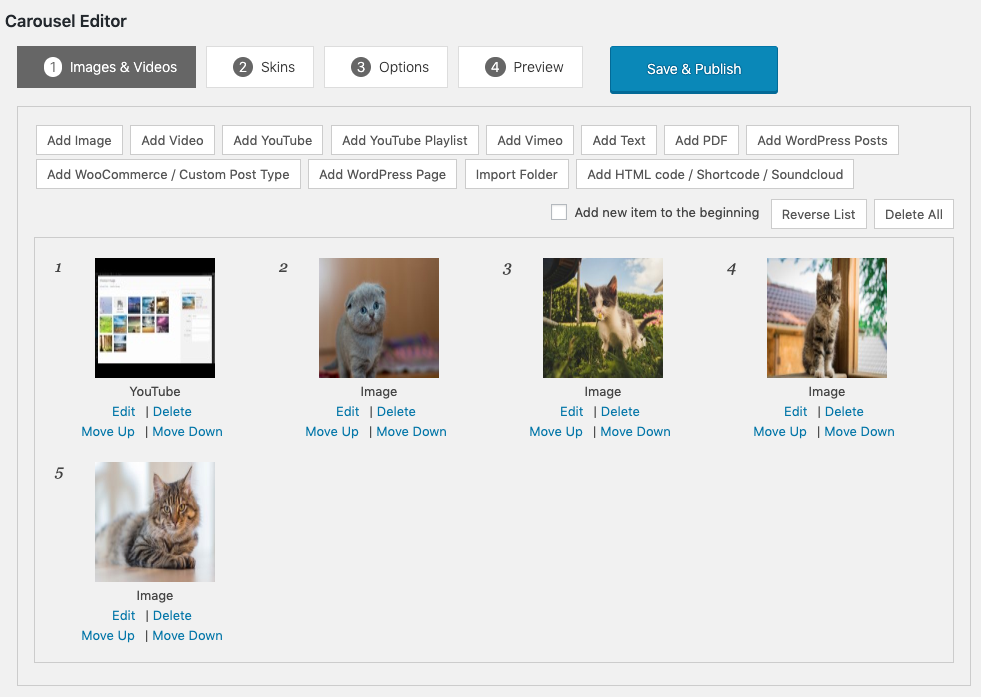
Click on the “Add Images” button to upload your pictures. You can select files from your computer or choose from the WordPress media library. Add images that are clear and relevant. Arrange the order by dragging the images left or right. This order controls how they appear in the carousel. Save your changes before moving to the next step.
Customizing Carousel Settings
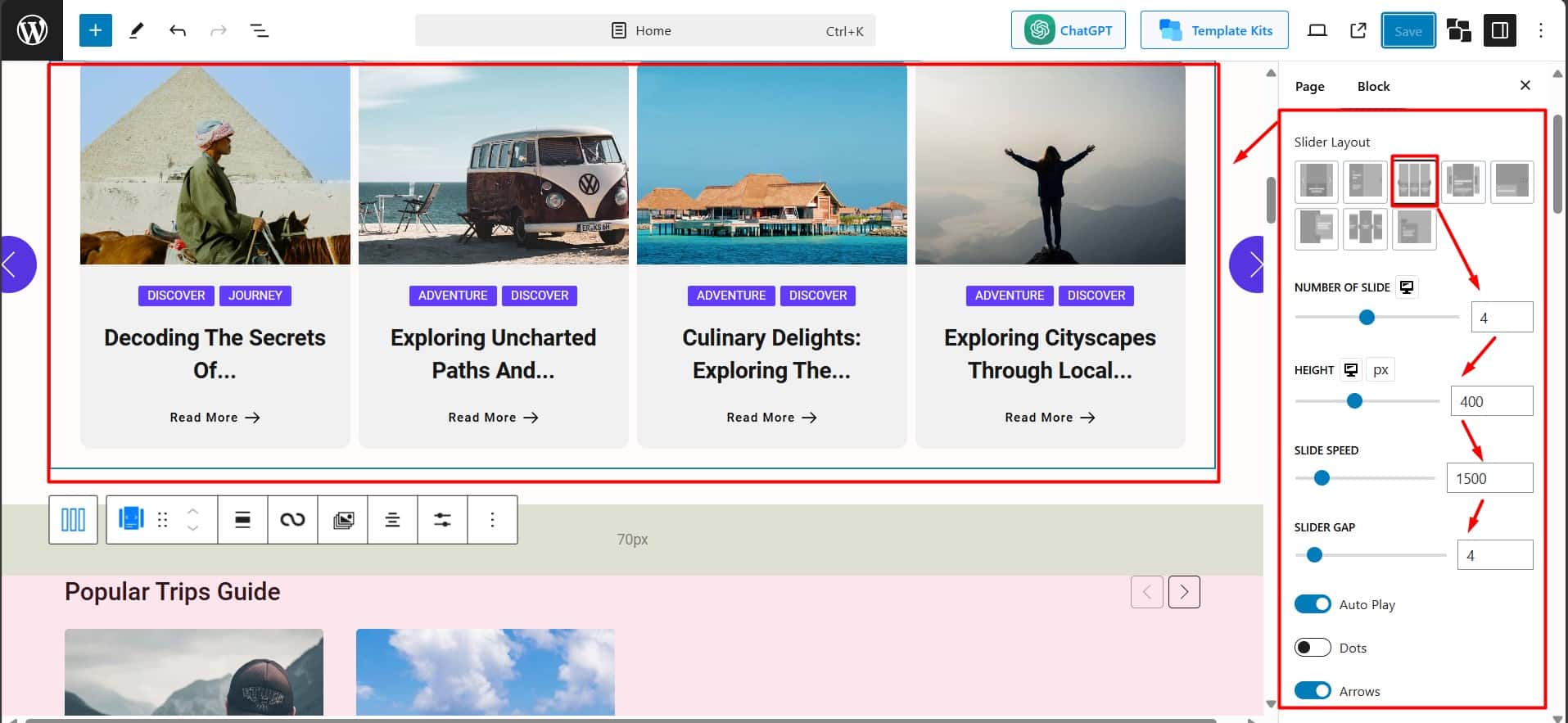
Adjust the size of the carousel to fit your page layout. Choose how fast the images change automatically. Decide if navigation arrows or dots should appear for user control. You can also set the carousel to loop or stop after the last image. Preview your carousel to see how it looks. Make small changes until you are happy with the design.
Embedding The Carousel In Your Site
Embedding an image carousel on your WordPress site is easy. You can show your images in a neat, sliding display. This section explains how to place the carousel where visitors can see it. Follow these simple steps to add the carousel to different parts of your site.
Using Shortcodes
Many carousel plugins give you a shortcode. It looks like a small code inside square brackets. Copy this shortcode. Paste it anywhere on your site to display the carousel. This method is quick and works in many places.
Shortcodes keep your site clean. They avoid extra coding. Just place the shortcode where you want the carousel to appear. Save your changes, and the carousel shows up.
Adding Carousel To Pages Or Posts
To add a carousel to a page or post, open the editor. Find the spot where you want the carousel. Paste the shortcode there. You can also use a block called “Shortcode” in the editor.
After adding the shortcode, update or publish your page or post. The carousel will display to your visitors. This method works for blogs, galleries, or product displays.
Placing Carousel In Widgets
Widgets appear in sidebars or footers. To add a carousel here, go to Appearance > Widgets in your dashboard. Add a “Text” or “Custom HTML” widget to your chosen area.
Paste the carousel shortcode inside this widget. Save it. Now, your carousel will show in the sidebar or footer. This is a great way to keep images visible on many pages.
Enhancing Carousel Appearance
Enhancing the look of your image carousel makes your website more attractive. A well-designed carousel keeps visitors interested. It also improves the overall user experience. Simple tweaks can make a big difference. Focus on layout, navigation, and extra features like captions.
Choosing Layout Styles
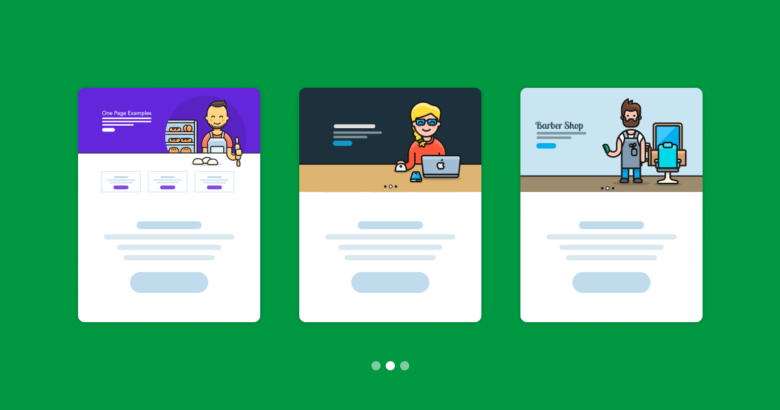
Select a layout that fits your site’s design. Common styles include full-width sliders, grid views, and thumbnails below the main image. Each style offers a unique look and feel. Choose a layout that highlights your images well. Keep your site’s color scheme and style in mind.
Adjusting Navigation And Controls
Navigation helps users move through images easily. Options include arrows, dots, or swipe gestures. Make controls visible but not distracting. Place arrows at the sides or dots at the bottom. Test navigation on mobile devices to ensure smooth use. Good controls improve user interaction.
Adding Captions And Links
Captions provide context or descriptions for each image. Use short, clear text to explain or add details. Links can direct users to related pages or products. Adding clickable captions boosts engagement and site flow. Keep captions concise and relevant to the image.
Credit: smartslider3.com
Improving Performance And Seo
Improving performance and SEO is crucial when adding an image carousel to your WordPress site. Fast loading times keep visitors happy and reduce bounce rates. Search engines favor websites that load quickly and provide good user experience. Optimizing your carousel ensures it works smoothly and helps your site rank better.
Lazy Loading Images
Lazy loading delays the loading of images until they are visible on the screen. This technique reduces initial page load time. It saves bandwidth by loading only the images users see. Use plugins or built-in WordPress features to enable lazy loading for your carousel images. This keeps your site fast and responsive.
Optimizing Carousel Speed
Keep the number of images in the carousel low. Large image files slow down your site. Compress images without losing quality using tools or plugins. Choose a lightweight carousel plugin with minimal code. Avoid too many animations or effects that can cause lag. A faster carousel improves user experience and SEO rankings.
Using Alt Text For Accessibility
Alt text describes images for search engines and screen readers. Write clear and concise alt text for each carousel image. This helps visually impaired users understand the content. Search engines use alt text to index images properly. Good alt text boosts your SEO and makes your site more accessible.
Troubleshooting Common Issues
Adding an image carousel to WordPress can enhance your site’s look and user experience. Sometimes, issues appear that stop the carousel from working correctly. Troubleshooting these problems is key to keeping your site smooth and attractive.
Below are common problems and easy fixes. These tips help you solve display issues, plugin conflicts, and keep your carousel updated.
Fixing Display Problems
Sometimes images do not show or the carousel looks broken. Check the image sizes first. Large images can slow loading or cause errors. Resize images to fit your carousel’s needs.
Clear your browser cache. Old files can stop updates from showing. Refresh the page after clearing the cache.
Check your theme’s style settings. Some themes may hide or change carousel styles. Try switching to a default theme to test this.
Resolving Plugin Conflicts
Other plugins may stop your carousel from working. Deactivate all plugins except the carousel plugin. See if the carousel works then.
Reactivate plugins one by one. This helps find the conflicting plugin. Once found, look for updates or alternatives.
Make sure your carousel plugin is compatible with your WordPress version. Outdated plugins can cause conflicts.
Updating And Maintaining Carousel
Keep your carousel plugin updated. Updates fix bugs and improve performance. Check for updates regularly in your WordPress dashboard.
Back up your site before updating plugins. This protects your content if problems happen.
Review the plugin’s settings after updates. Sometimes options reset or change with new versions.
Credit: www.wonderplugin.com
Frequently Asked Questions
What Is An Image Carousel In WordPress?
An image carousel is a slideshow that displays multiple images in rotation. It enhances website visuals and user engagement. WordPress offers plugins and built-in options to add carousels easily without coding.
How Do I Add An Image Carousel In WordPress?
To add a carousel, install a plugin like MetaSlider or Smart Slider 3. Then upload images, configure settings, and insert the carousel shortcode into your posts or pages.
Which WordPress Plugin Is Best For Image Carousels?
Popular plugins like MetaSlider, Smart Slider 3, and Soliloquy are highly rated. They offer user-friendly interfaces, responsive design, and customization options for carousels.
Can I Create A Responsive Image Carousel In WordPress?
Yes, most WordPress carousel plugins create responsive sliders. This ensures your carousel looks great on all devices, including mobiles and tablets, enhancing user experience.
Conclusion
Adding an image carousel to WordPress makes your site more lively. It helps visitors see many pictures in one place. You can choose simple plugins or build one yourself. Just pick images, set order, and add the carousel to your page.
This small step improves user experience and keeps people interested. Try it today and see your site look better. Easy to do, and worth the effort.


