

Are you looking to make your WordPress site more organized and user-friendly? Adding tabs can help you do just that.
Tabs let you display more content without cluttering your pages, making it easier for your visitors to find what they need quickly. In this guide, you’ll discover simple, step-by-step ways to add tabs to your WordPress site—even if you’re not tech-savvy.
By the end, you’ll have a clean, professional look that keeps your audience engaged and coming back for more. Ready to transform your site? Let’s dive in!
Credit: www.wonderplugin.com
Why Tabs Improve Navigation
Tabs improve navigation by making websites easier to use. They help visitors find information quickly. Tabs separate content into clear sections. This keeps pages neat and avoids clutter. Visitors spend less time searching and more time reading.
Enhancing User Experience
Tabs create a smooth browsing journey. Users can click through sections without leaving the page. This saves time and reduces frustration. Clear tabs guide visitors to the right content fast. Good navigation keeps visitors happy and engaged.
Organizing Content Effectively
Tabs arrange content into logical groups. This stops pages from looking crowded. Each tab holds related information in one place. Visitors easily switch between topics without scrolling endlessly. Organized content improves understanding and focus.
Credit: www.wpexplorer.com
Choosing The Right Tab Plugin
Choosing the right tab plugin for WordPress makes the process easier. It affects how your tabs look and work on your site. Picking a good plugin saves time and improves user experience. Some plugins offer more features, while others focus on simplicity. Understanding your needs helps find the best match for your site.
Popular Tab Plugins For WordPress
WP Tabs is a simple, user-friendly plugin. It lets you create tabs quickly without coding. Tabby Responsive Tabs adapts well to mobile devices. It keeps your tabs neat on small screens. Easy Responsive Tabs offers drag-and-drop functionality. It is great for beginners who want control. Another option is Ultimate Tabs. It supports images and videos inside tabs.
Criteria For Selection
Check plugin compatibility with your WordPress version. Read reviews to know user satisfaction. Look for regular updates to ensure security. Choose plugins with good support options. Consider ease of use for quick setup. Ensure the plugin is responsive for mobile users. Select a plugin that fits your site’s style and needs.
Creating Tabs With A Plugin
Creating tabs with a plugin makes organizing content easy and neat. Plugins offer ready tools that save time and effort. You do not need coding skills to use them. A plugin helps add tabs that visitors can click to see different content.
Tabs improve user experience by showing information in sections. This keeps pages clean and easy to read. Many WordPress plugins allow you to create tabs quickly. Follow simple steps to install, set up, and customize tabs on your site.
Installing And Activating The Plugin
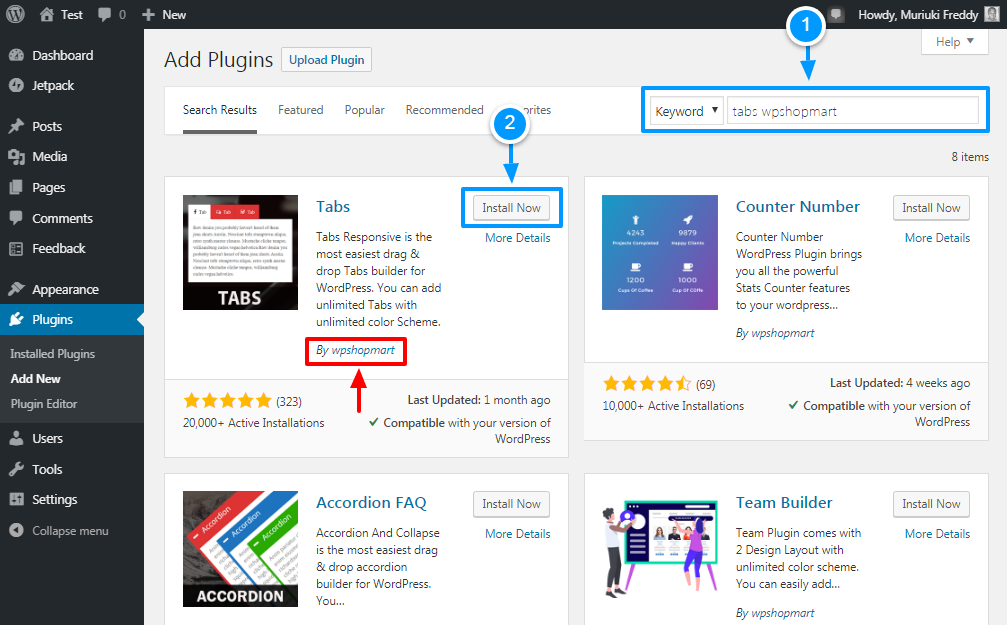
Start by going to your WordPress dashboard. Click on “Plugins” and then “Add New.” Type “tabs” in the search bar to find tab plugins. Choose a plugin with good reviews and recent updates.
Click “Install Now” next to your chosen plugin. After installation, click “Activate” to start using it. The plugin will add a new menu or option in your dashboard.
Setting Up Your First Tab
Open the plugin’s menu from your dashboard. Find the option to create a new tab group or set. Enter a name for your tab group. Add the titles for each tab you want to create.
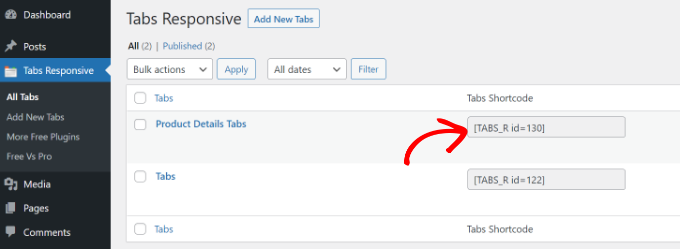
Fill in the content for each tab. This can be text, images, or other media. Save your tab group once you finish adding content. You will get a shortcode to place tabs on any page or post.
Customizing Tab Appearance
Most plugins allow basic style changes for your tabs. Choose colors for active and inactive tabs. Adjust fonts and tab size to match your website style. Some plugins offer layout options like vertical or horizontal tabs.
Preview your tabs before saving changes. Make sure they look good on both desktop and mobile. Customizing tabs helps keep your site’s design consistent. It also makes tabs easier to use for visitors.
Credit: www.wpbeginner.com
Adding Tabs Manually With Code
Adding tabs manually with code lets you control the look and feel of your tabs. You can create clean, simple tabs using basic HTML and CSS. This method requires no extra plugins. It works well for small projects or custom designs.
You write the code yourself and paste it into your pages or posts. It gives you freedom to style tabs exactly how you want. This approach suits users comfortable with basic coding.
Using Html And Css For Tabs
Start by creating the tab buttons with HTML. Use a list or div elements for each tab label. Then create content sections that match each tab.
Use CSS to hide inactive tabs and show the active one. Style the tab buttons with colors, padding, and borders. Use CSS to highlight the active tab for clarity.
Simple CSS transitions can make tab switching smooth. Keep your code clean and organized for easy changes later.
Inserting Tabs Into WordPress Pages
Switch your WordPress editor to the text or code view. Paste your HTML and CSS code directly into the content area. For better organization, place CSS in the Customizer’s Additional CSS panel.
Use unique IDs or classes for each tab set to avoid conflicts. Test your tabs on the page to ensure they switch properly. Save your changes and preview the page live.
Tips For Responsive Design
Make tabs flexible for different screen sizes. Use relative widths and avoid fixed pixel sizes. Stack tabs vertically on small screens for better readability.
Use media queries in CSS to adjust tab styles on mobile devices. Ensure clickable areas are large enough on touch screens. Test tabs on phones and tablets to confirm usability.
Managing And Editing Tabs
Managing and editing tabs in WordPress helps keep your website organized and easy to navigate. Tabs allow you to display different content sections without cluttering the page. This section guides you on how to update, reorder, and fix common tab issues.
Updating Tab Content
To update tab content, open your WordPress dashboard. Go to the page or post with tabs. Click the tab you want to edit. Change the text or media inside the tab area. Save your changes and preview the page to check updates.
Reordering Tabs
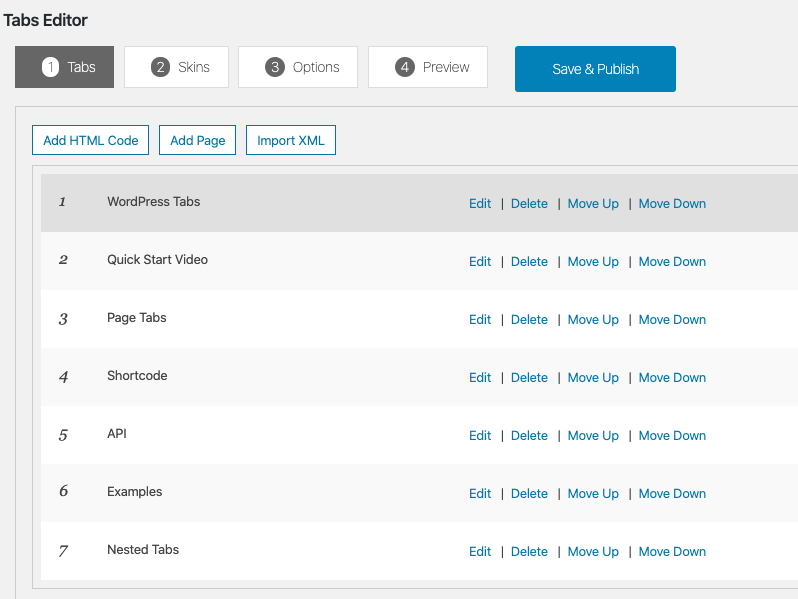
Reordering tabs helps improve user experience. Drag and drop tabs in the tab editor to change their order. Some plugins also offer up and down arrows for moving tabs. Save the new order before leaving the editor. Check the front end to ensure the order looks right.
Troubleshooting Common Issues
Tabs may not display properly due to plugin conflicts or outdated code. Clear your browser cache and refresh the page. Disable other plugins to find conflicts. Update your tab plugin and WordPress to the latest versions. If tabs still fail, try switching themes temporarily to test compatibility.
Best Practices For Tab Navigation
Good tab navigation improves user experience on your WordPress site. It helps visitors find information fast. Following best practices makes tabs easy to use and clear. It also ensures your site looks great on all devices.
Keeping Tabs Clear And Concise
Use short and simple words for each tab title. Avoid long phrases that confuse users. Make sure each tab describes its content well. Group related information under the same tab. This keeps the layout neat and organized.
Ensuring Mobile Compatibility
Check that tabs work well on phones and tablets. Use responsive design to adjust tabs for smaller screens. Make tabs big enough to tap easily with fingers. Avoid too many tabs to prevent clutter on mobile. Test your tabs on different devices to ensure smooth navigation.
Frequently Asked Questions
How Do I Add Tabs In WordPress Without Coding?
You can add tabs using WordPress plugins like WP Tabs or Tabby Responsive Tabs. These plugins offer easy drag-and-drop interfaces to create and customize tabs without any coding.
Which Plugin Is Best For Adding Tabs In WordPress?
WP Tabs and Tabby Responsive Tabs are highly recommended. They are user-friendly, mobile-responsive, and allow easy content organization within tabs for better user experience.
Can I Add Tabs In WordPress Gutenberg Editor?
Yes, some block plugins like Ultimate Addons for Gutenberg allow you to insert tab blocks directly in the editor, making tab creation simple and seamless.
How Do Tabs Improve WordPress Site Navigation?
Tabs organize content neatly, reduce page clutter, and help visitors find information faster. This improves user engagement and decreases bounce rates on your site.
Conclusion
Adding tabs in WordPress helps organize your content neatly. It makes pages easier to read and navigate. You can use plugins or simple code to create tabs. Each method fits different skill levels and needs. Try adding tabs to improve your website’s look and user experience.
Keep your content clear and simple for visitors. With practice, managing tabs becomes quick and easy. Start today and see how tabs enhance your site’s design.


