
Are you ready to get your WordPress site live on your GoDaddy domain but don’t know where to start? You’re in the right place.
Connecting WordPress to your GoDaddy domain might seem tricky, but with the right steps, you’ll have your website up and running faster than you think. Imagine your ideas, business, or blog shining online exactly where you want it. Keep reading, and you’ll discover an easy, step-by-step way to make it happen—no tech headaches, just clear instructions designed for you.
Let’s get your website out there!
Credit: onesmartsheep.com
Choose The Right Hosting Plan
Choosing the right hosting plan is key to a smooth WordPress setup on your GoDaddy domain. The hosting plan you pick affects your website’s speed, security, and uptime. It also impacts your budget and how easy it is to manage your site. Taking time to select the best hosting option helps avoid future problems and extra costs.
Compare Hosting Options
There are several hosting types: shared, VPS, and dedicated hosting. Shared hosting is affordable and simple. It suits small websites or blogs. VPS hosting offers more power and control. It fits medium-sized sites with more traffic. Dedicated hosting gives full control of a server. It is best for large sites needing high performance. Consider your website needs and growth plans. Choose a plan that matches your current and future needs.
Select Godaddy Hosting
GoDaddy offers hosting plans designed for WordPress sites. Their plans include easy WordPress installation and automatic updates. You get security features like daily backups and malware scans. Customer support is available 24/7 for help. Select a plan that fits your website size and visitor number. GoDaddy’s WordPress hosting simplifies managing your site on your domain.

Credit: www.youtube.com
Register Or Connect Your Domain
Registering or connecting your domain is the first step to set up WordPress on GoDaddy. Your domain is the website address visitors use to find you online. Choose to register a new domain or use a domain you already own. Both options work well with WordPress and GoDaddy.
Register A New Domain
GoDaddy makes it easy to register a new domain. Start by searching for a domain name that fits your website. Pick a domain that is short, clear, and easy to remember. Once you find an available domain, add it to your cart and complete the purchase.
After registration, the domain is automatically linked to your GoDaddy account. You can then connect it to your WordPress site with just a few clicks. The process is smooth and fast, allowing you to launch your site quickly.
Use An Existing Domain
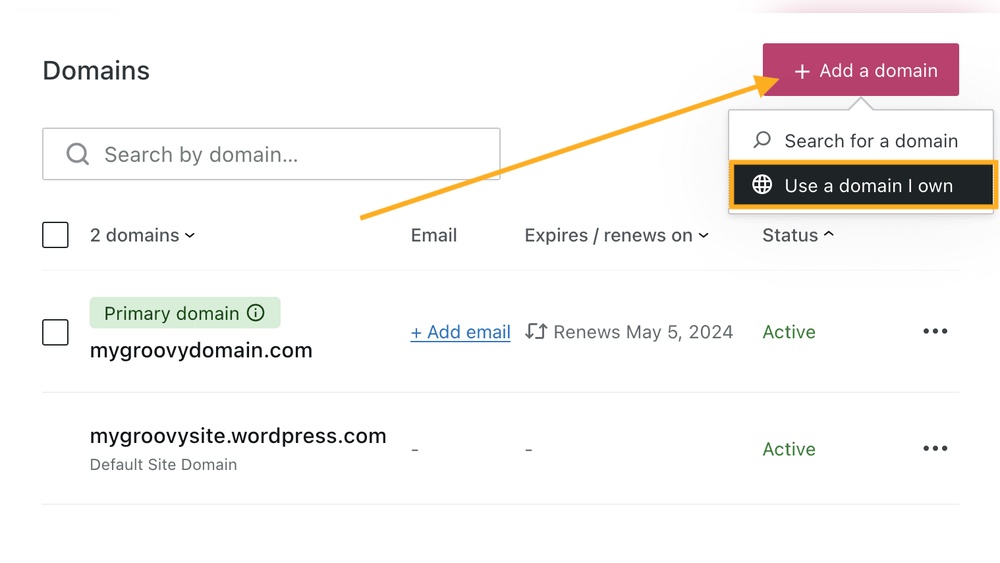
Use an existing domain if you already own one from another provider. First, log in to your GoDaddy account. Next, go to the domain management section. Select the option to connect an external domain to your GoDaddy hosting.
Update your domain’s DNS settings to point to GoDaddy’s servers. This step links your domain to your WordPress site hosted on GoDaddy. Wait for the changes to take effect, which can take a few hours. Your domain will then direct visitors to your WordPress site without issues.
Install WordPress On Godaddy
Installing WordPress on GoDaddy is simple and quick. It lets you build your website easily. No coding skills needed. Follow the steps below to start your WordPress site.
Access Godaddy Hosting Dashboard
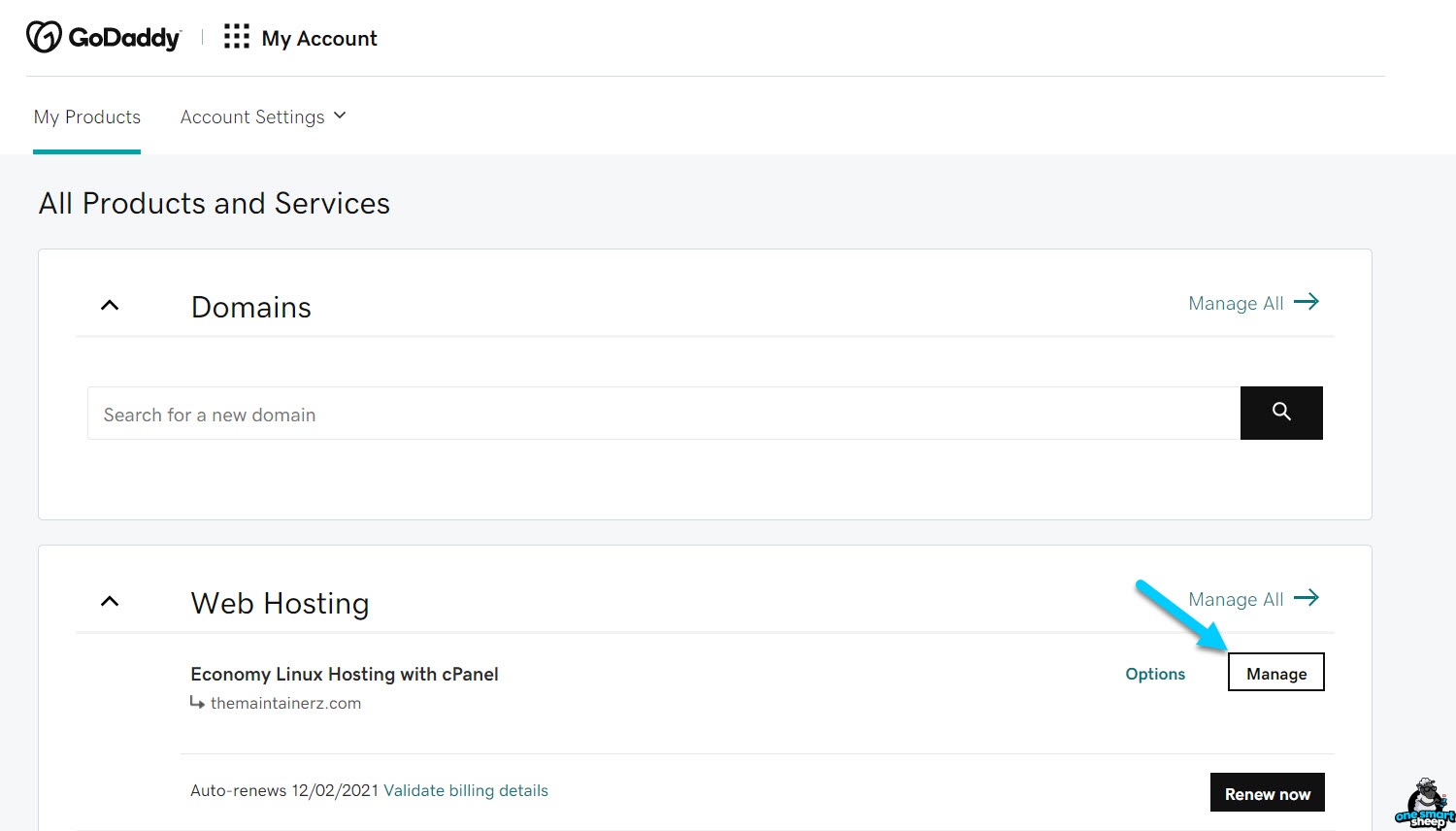
First, log in to your GoDaddy account. Go to your product page. Find your hosting plan and click “Manage.” This opens the hosting dashboard. Here, you control your website settings and tools.
The dashboard shows your domain and hosting details. It’s the main place to install WordPress. Make sure your domain is linked to your hosting account.
Use One-click WordPress Installer
Inside the hosting dashboard, find the “WordPress” or “Install Applications” section. Click on the WordPress icon. This starts the one-click installer.
Choose the domain where you want WordPress installed. Fill in your site name and admin details. Click “Install” to begin the setup.
The installer sets up WordPress automatically. It creates the database and files for you. After a few minutes, your WordPress site is ready to use.
Configure Domain Settings
Configuring domain settings is a key step to link your WordPress site with your GoDaddy domain. This setup ensures visitors can reach your website easily. It involves updating DNS records and setting your primary domain. Both actions help your domain point to your WordPress hosting correctly.
Update Dns Records
Start by logging into your GoDaddy account. Find the DNS management page for your domain. Locate the A record, which controls your domain’s IP address. Change the A record to the IP address of your WordPress host. This step directs your domain to the right server.
Next, check the CNAME record for the www subdomain. It should point to your main domain. This setup makes sure visitors typing www see your website. Save the changes and wait for them to update. DNS changes can take a few hours to take effect.
Set Primary Domain
Access your WordPress hosting control panel. Find the domain or site settings section. Choose your GoDaddy domain as the primary domain. This setting tells WordPress which domain to use for your site.
Check your website to confirm it loads with your GoDaddy domain. If the site does not show correctly, review your DNS records again. Setting the primary domain properly ensures your site looks professional and works smoothly.
Customize Your WordPress Site
Customizing your WordPress site makes it truly yours. It shapes how visitors see and interact with your content. A well-customized site feels welcoming and professional. This step is key after linking WordPress to your GoDaddy domain.
Choose A Theme
The theme controls your site’s look and layout. WordPress offers many free and paid themes. Pick one that matches your site’s purpose and style. Themes can be changed anytime without losing content. Try a few themes to find the best fit. Simple themes often work best for beginners.
Install Essential Plugins
Plugins add extra features to your site. Some plugins improve security, speed, and SEO. Others add contact forms or social sharing buttons. Only install plugins you really need. Too many plugins can slow your site down. Keep your plugins updated for better performance and safety.

Credit: wordpress.com
Secure And Optimize Your Site
Securing and optimizing your WordPress site is key to keeping it safe and fast. A secure site protects your data and builds trust with visitors. Optimization makes sure your site loads quickly and runs smoothly. Both steps help your site perform well on search engines.
Enable Ssl Certificate
SSL certificates protect your site by encrypting data. This stops hackers from stealing information. Most GoDaddy domains offer free SSL certificates. To enable SSL, log into your GoDaddy account and find your domain settings. Look for the SSL option and activate it. After activation, update your WordPress site URL to use “https”. This change shows visitors a secure padlock icon in their browser.
Set Up Backups
Backups save a copy of your website data. They help restore your site if anything goes wrong. Use a WordPress plugin to schedule automatic backups. Store backups in a safe place outside your hosting server. Regular backups reduce risks from hacks, errors, or updates. Check your backups often to confirm they work correctly.
Troubleshooting Common Issues
Troubleshooting common issues can save time and reduce frustration. Problems often occur when adding WordPress to a GoDaddy domain. Understanding these issues helps fix them quickly. This section covers two common problems and their solutions.
Fix Dns Propagation Delays
DNS propagation happens after changing domain settings. It can take up to 48 hours to complete. During this time, the website may not show correctly. Wait patiently and avoid making more changes.
Clear your browser cache to see updates faster. Use online tools to check if DNS changes spread worldwide. If delays last longer, contact GoDaddy support for help.
Resolve Installation Errors
Installation errors can stop WordPress from working properly. These errors may come from incorrect database details or server issues. Double-check your database name, username, and password.
Ensure your hosting meets WordPress requirements. Update your PHP version if it is outdated. Disable plugins or themes that cause conflicts during setup. Restart the installation process if needed.
Frequently Asked Questions
How Do I Connect WordPress To My Godaddy Domain?
To connect WordPress to a GoDaddy domain, update the domain’s DNS settings. Point the A record to your WordPress hosting IP. Alternatively, use GoDaddy’s WordPress hosting for automatic setup. This links your domain directly to your WordPress site efficiently.
Can I Install WordPress Directly On Godaddy Hosting?
Yes, GoDaddy offers one-click WordPress installation on its hosting plans. Log in to your GoDaddy account, choose your hosting, and use the WordPress installer. This simplifies setup and gets your site live quickly without technical hassles.
How Long Does Domain Propagation Take After Setup?
Domain propagation typically takes 24 to 48 hours to complete. During this time, DNS changes spread across the internet. Your site might be intermittently accessible until propagation finishes. Be patient and avoid making multiple DNS changes simultaneously.
What Dns Records Are Needed For WordPress On Godaddy?
The essential DNS records include an A record pointing to your hosting IP. Also, configure CNAME records for subdomains if used. These records ensure your domain resolves correctly to your WordPress website hosted on GoDaddy or elsewhere.
Conclusion
Adding WordPress to a GoDaddy domain is simple and quick. Follow each step carefully for best results. Your website will be live and ready to use soon. Enjoy customizing your site with WordPress tools. Keep your login details safe for easy access.
Regular updates help keep your site secure and fast. Start building your online presence with confidence today.


