
Are you looking to make your WordPress site more powerful and customized? Adding plugins is the easiest way to do just that.
Whether you want to improve your site’s speed, add contact forms, or boost security, the right plugins can transform your website instantly. But if you’re unsure how to add them, don’t worry—you’re in the right place. This guide will walk you through simple, step-by-step instructions so you can start enhancing your site today.
Keep reading and discover how easy it is to take your WordPress site to the next level!
Choosing The Right Plugin
Choosing the right plugin is key to improving your WordPress site. The right plugin adds useful features without slowing your site down. Picking a plugin requires care and some research. You want something that fits your site’s needs and works well with your theme and other tools.
Identifying Site Needs
Start by listing what your site needs. Do you want to add a contact form? Improve SEO? Make your site faster? Clear goals help narrow down plugin choices. Avoid installing plugins without a specific purpose. This keeps your site clean and secure.
Researching Plugin Options
Search the WordPress plugin directory for options. Read plugin descriptions carefully. Check if the plugin updates regularly. Frequent updates mean the developer cares about security and bugs. Compare features between similar plugins. Pick the one that best fits your goals.
Checking Compatibility And Reviews
Check if the plugin works with your WordPress version. Look at user reviews and ratings. Reviews reveal real user experiences. Watch out for complaints about bugs or poor support. Choose plugins with high ratings and positive feedback. This lowers the risk of issues on your site.
Preparing Your WordPress Site
Preparing your WordPress site is an important step before adding any plugins. It helps keep your site safe and running smoothly. Taking a few moments to prepare can save time and avoid problems later. Start by backing up your site and updating the WordPress core. These tasks create a strong base for new plugins.
Backing Up Your Site
Backing up your site means making a copy of all your files and data. This copy protects your site if something goes wrong. Use a plugin or your hosting service to create a backup. Save the backup in a safe place outside your website. You can restore your site from this backup if needed. Regular backups are a good habit.
Updating WordPress Core
Keeping WordPress updated is essential. Updates fix bugs and improve security. Check your WordPress dashboard for update notices. Click the update button to install the latest version. Updated WordPress works better with new plugins. It also protects your site from vulnerabilities. Always update before adding new plugins.
Installing Plugins From WordPress Directory
Installing plugins from the WordPress Directory is a simple way to enhance your website. The directory has thousands of free plugins. Each plugin adds new features to your site without coding. This method is safe and fast. You get updates and support from plugin developers easily.
Using The Plugin Search Feature
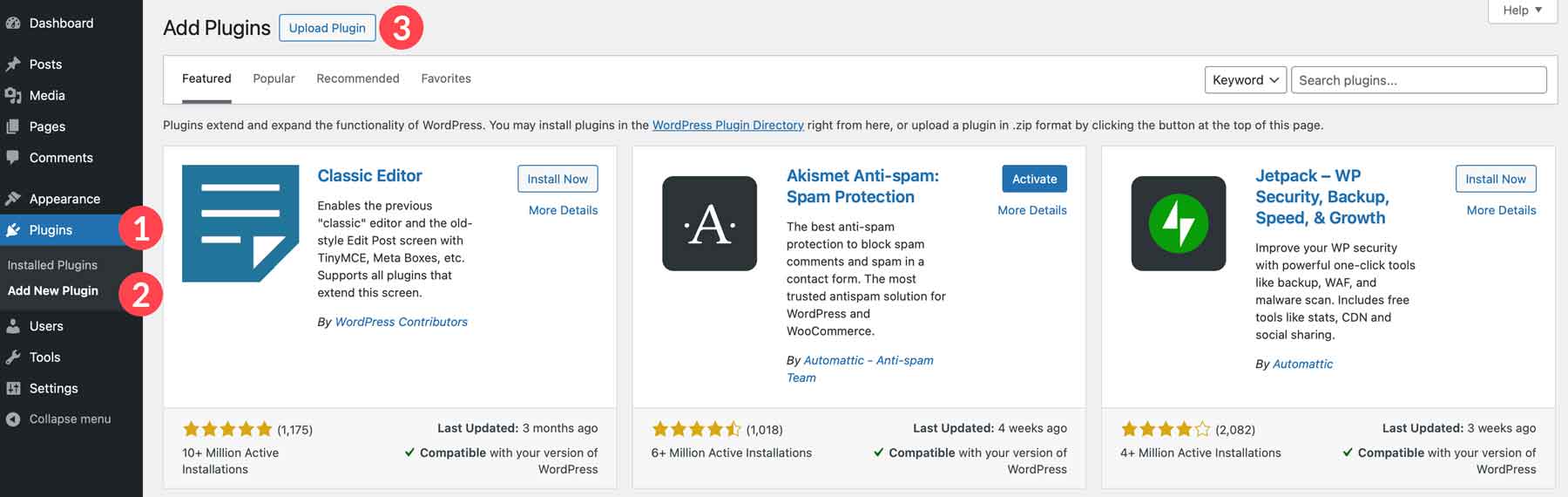
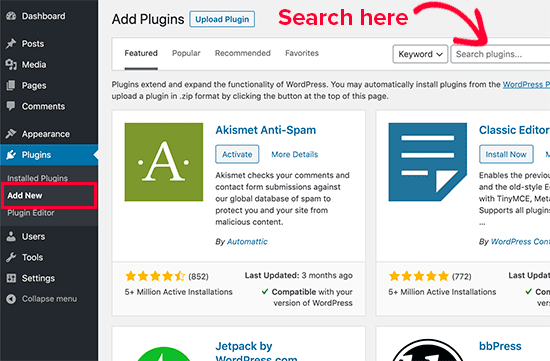
Go to your WordPress dashboard. Click on “Plugins” and then “Add New.” You will see a search bar on the top right. Type the name or keyword of the plugin you want. The directory shows many results below. You can read short descriptions and check ratings. This helps you choose the best plugin for your needs.
Installing And Activating Plugins
After finding the plugin, click the “Install Now” button. WordPress downloads and installs the plugin automatically. When done, the button changes to “Activate.” Click “Activate” to turn on the plugin. Your website can now use the new features. You can manage plugin settings from the dashboard if needed.
Uploading Plugins Manually
Uploading plugins manually is a helpful skill for WordPress users. It lets you add plugins not found in the official directory. You can also upload custom plugins or those bought from third-party sites.
This method requires downloading the plugin files first. Then, you upload them through your WordPress dashboard. The process is simple and takes just a few steps.
Downloading Plugin Files
Start by finding the plugin you want to upload. Download the plugin as a .zip file on your computer. Keep the file safe and easy to find for the next step.
Uploading Via WordPress Dashboard
Log in to your WordPress admin area. Go to the “Plugins” section and click “Add New.” Select the “Upload Plugin” button at the top.
Click “Choose File” and pick the .zip file you downloaded. Press “Install Now” to upload the plugin. Wait a few seconds while WordPress adds it to your site.
After installation, click “Activate Plugin” to start using it. Your new plugin is now ready and working on your site.
Configuring Installed Plugins
After installing plugins on your WordPress site, configuring them is the next important step. Proper setup ensures the plugin works well with your website. It also helps you control its features and improve site performance. Each plugin has unique settings to customize.
Accessing Plugin Settings
Access plugin settings from the WordPress dashboard. Look for the plugin name in the left sidebar menu. Sometimes settings appear under “Settings” or a new menu item. Click on the plugin’s link to open its configuration page. Some plugins also add quick links on the Plugins page itself. Use these links for fast access.
Customizing Plugin Options
Adjust the plugin options according to your needs. Change settings like display, functionality, or user roles. Many plugins offer toggles, dropdowns, and text fields for easy customization. Save changes after editing to apply them. Test the plugin on your site to confirm it works correctly. You can always return to tweak settings later.
Credit: www.elegantthemes.com
Troubleshooting Plugin Issues
Plugins add great features to your WordPress site. Sometimes, plugins cause problems. These issues can slow your site or break functions. Troubleshooting helps fix these problems quickly. Follow simple steps to find and solve plugin issues.
Deactivating Conflicting Plugins
Plugins may not work well together. One plugin can stop another from working. Deactivate all plugins except the one causing trouble. Check if the problem goes away. Reactivate plugins one by one. Find which plugin causes conflict. Remove or replace the conflicting plugin.
Checking For Updates
Old plugins can cause errors. Developers release updates to fix bugs. Check if your plugins have updates. Update plugins to the latest version. Updates improve security and performance. Always keep your plugins up to date.
Seeking Support
Plugin developers often offer help. Visit the plugin’s support forum or website. Describe your problem clearly. Include WordPress and plugin versions. Follow advice from support or community. You can also find tutorials and FAQs online.
Keeping Plugins Updated
Keeping plugins updated is vital for your WordPress site’s security and performance. Updates fix bugs, close security gaps, and add new features. Outdated plugins can cause errors or make your site vulnerable to attacks. Regular updates keep your website running smoothly and safely.
Enabling Auto-updates
Auto-updates allow plugins to update themselves automatically. This saves time and ensures updates are not missed. To enable auto-updates, go to your WordPress dashboard. Click on “Plugins,” find the desired plugin, and activate the auto-update option. Your site stays current without manual effort.
Manual Update Process
Manual updates give you control over plugin changes. Check for updates in the “Plugins” menu on your dashboard. If an update is available, click “Update Now.” Wait for the process to finish before using your site. Always back up your site before manual updates. This protects your data if something goes wrong.
Credit: www.omnisend.com
Credit: accessibility-helper.co.il
Frequently Asked Questions
How Do I Install A Plugin On WordPress?
To install a plugin, go to your WordPress dashboard. Click “Plugins” > “Add New. ” Search for the plugin, then click “Install Now” and activate it.
Can I Add Plugins Without Ftp Access?
Yes, you can add plugins directly from the WordPress dashboard without FTP. Use the “Add New” plugin feature to upload or search plugins.
What Are The Best Practices For Managing WordPress Plugins?
Only install trusted plugins, keep them updated, and delete inactive ones. Regular backups help prevent issues caused by plugin conflicts or updates.
How Do I Update Plugins Safely On WordPress?
Before updating, back up your website. Then, update plugins one at a time from the dashboard to avoid conflicts and ensure site stability.
Conclusion
Adding plugins to your WordPress site is simple and helpful. Plugins add new features and improve your site’s function. Always choose plugins from trusted sources to keep your site safe. Remember to update plugins regularly for best performance. Test new plugins on a test site before using them live.
This keeps your site running smoothly without errors. With the right plugins, your WordPress site can work better and serve visitors well. Keep exploring and improving step by step.


