

Are you looking to make your WordPress site easier to navigate and more user-friendly? Adding page links is one of the simplest yet most powerful ways to do that.
Whether you want to link to your About page, contact form, or a blog post, knowing how to add page links can boost your site’s engagement and keep visitors coming back. In this guide, you’ll learn exactly how to add page links in WordPress step-by-step—no confusing jargon, just clear instructions you can follow right now.
Let’s get started and make your website work better for you!
Credit: www.34sp.com
Choosing The Right Page
Choosing the right page to link is important for a good user experience. The page should match what your visitors need. This makes your website easier to use and helps visitors find information fast.
Identifying Your Target Page
Start by thinking about the goal of your link. What do you want your visitors to see or do? Find a page that fits this purpose. It could be a product page, a contact page, or a blog post. Check if the page is easy to understand and has useful content. Avoid linking to pages that are empty or unclear.
Preparing Your Content
Make sure the page you choose is ready for visitors. The content should be clear and helpful. Use simple words and short sentences. Add images or videos if they explain the topic better. Check for spelling and grammar mistakes. A well-prepared page keeps visitors interested and encourages them to explore more.
Using The WordPress Editor
Using the WordPress editor to add page links is simple and quick. WordPress offers two main editors: Gutenberg and Classic. Each editor has a unique way to insert links into your content. This section will guide you through both methods. You can choose the one that fits your style best.
Adding Links In Gutenberg
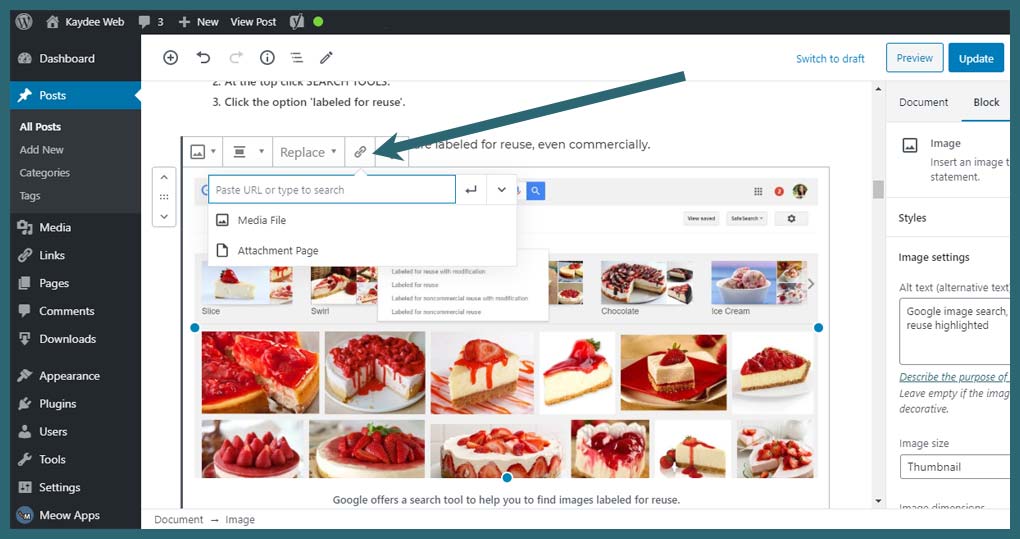
Gutenberg uses blocks to build your content. To add a link, highlight the text you want to link. A small toolbar appears above the text. Click the link icon in the toolbar. A box will pop up where you can type or paste the URL. Press Enter or click the Apply button to set the link. You can also link to existing pages on your site by searching their titles in the box.
To remove a link, click the linked text. Then click the unlink icon in the toolbar. This method keeps your content clean and easy to edit.
Using Classic Editor For Links
The Classic Editor looks like a simple text editor. Highlight the text you want to link. Click the link button in the toolbar, which looks like a chain. A popup window appears to enter your URL. Paste or type the address and click Add Link. The text now becomes a clickable link.
To edit or remove the link, click the linked text. Use the link button again to change the URL or click Remove Link. The Classic Editor is easy for beginners and works well for adding links fast.
Linking From Menus
Linking pages from menus helps visitors find important content easily. Menus appear on your website’s header, footer, or sidebar. Adding page links here improves navigation and user experience.
Menus organize your site structure clearly. Visitors can click a menu item to go directly to a page. This saves time and keeps users engaged.
Accessing The Menu Settings
Start by logging into your WordPress dashboard. Find the “Appearance” option on the left sidebar. Click “Menus” under this section. This opens the menu settings page.
Here, you can see existing menus or create a new one. Choose the menu you want to edit. This area controls all menu links and their order.
Adding Pages To Menus
On the menu settings page, find the “Pages” box on the left. It lists all your published pages. Select the page you want to add by checking its box.
Click the “Add to Menu” button below the list. The page will appear in the menu structure on the right. Drag and drop to reorder menu items as needed.
Finally, click “Save Menu” to apply your changes. Your new page link now shows in the chosen menu location.
Using Widgets For Page Links
Widgets offer a simple way to add page links on your WordPress site. They let you place links in sidebars, footers, or other widget-ready areas. This method helps visitors find important pages easily. It also improves site navigation without editing menus directly.
Using widgets for page links is perfect for beginners. You do not need coding skills. WordPress has built-in widget options that make the process quick and clear. Two common widgets for page links are Text Widgets and Custom HTML Widgets.
Adding Links Via Text Widgets
The Text Widget lets you add plain text and links. Start by going to Appearance > Widgets in your WordPress dashboard. Drag the Text Widget to your chosen widget area.
Enter the link text, like “Contact Us” or “About Page.” Then, add the URL in the following format:
This creates a clickable link. You can add multiple links by repeating the process. Save the widget to make links visible on your site.
Using Custom Html Widgets
The Custom HTML Widget allows more control over links. It accepts HTML code for styling or multiple links in one widget. Access it under Appearance > Widgets and drag it to your widget area.
Write your links using HTML anchor tags. For example:
This method supports line breaks and custom styles if needed. Press Save, and your links show up exactly as coded. It is useful for adding lists or styled links.
Best Practices For Page Links
Using page links correctly in WordPress improves user experience and SEO. Good links help visitors find information quickly. They also help search engines understand your site better. Follow these best practices to make your page links effective and clear.
Choosing Descriptive Link Text
Use clear and specific words for your link text. Avoid vague terms like “click here” or “read more.” Instead, describe what users will see after clicking. For example, “View our pricing page” is better than just “pricing.”
Descriptive text helps visitors and search engines. It makes navigation easier and improves your site’s ranking. Keep link text short but meaningful.
Checking Link Functionality
Always test your links after adding them. Broken links frustrate users and hurt your SEO. Click every link to ensure it leads to the right page. Fix any errors immediately.
Regularly review your links, especially after updates. Use tools or plugins to find broken links quickly. Keeping links functional keeps your site trustworthy and user-friendly.
Credit: kaydee.net
Troubleshooting Common Issues
Troubleshooting common issues helps keep your WordPress site working well. Broken links and redirect problems can hurt user experience. Fixing these quickly improves your site’s navigation. This section covers simple fixes for common link issues.
Fixing Broken Links
Broken links show error pages. They frustrate visitors and reduce trust. Check links regularly using tools like Broken Link Checker. Update or remove any links that lead to missing pages. Replace outdated URLs with correct ones. Keep your links accurate and active.
Handling Redirects
Redirects send users from one URL to another. They help when pages move or change names. Use 301 redirects for permanent moves. Avoid redirect chains where one redirect leads to another. Test redirects to ensure they work correctly. Proper redirects keep visitors on your site and improve SEO.

Credit: www.youtube.com
Frequently Asked Questions
How Do I Add A Page Link In WordPress Menu?
To add a page link, go to Appearance > Menus in your WordPress dashboard. Select your menu, then add pages from the left panel. Click “Add to Menu,” arrange the order, and save changes to display the page link on your site.
Can I Link A Page In WordPress Without A Menu?
Yes, you can add page links within posts or widgets. Use the editor’s hyperlink tool to insert the page URL. In widgets, add a custom HTML or text widget with the link. This creates clickable page links outside the menu structure.
How To Create A Custom Page Link In WordPress?
Go to Appearance > Menus, then click “Custom Links. ” Enter the URL and link text. Add this to your menu and save. This method allows you to link to any page or external site easily within your WordPress menu.
Is It Possible To Link Pages In WordPress Sidebar?
Yes, you can add page links in the sidebar using widgets. Go to Appearance > Widgets, add a Pages or Custom Menu widget, select the pages or menu, and save. Sidebar links improve site navigation and user experience.
Conclusion
Adding a page link in WordPress is simple and quick. You just need to follow the steps carefully. This helps visitors find important pages easily. Clear links improve your website’s navigation and user experience. Keep practicing to get comfortable with the process.
Soon, linking pages will feel natural and easy. A well-linked site keeps visitors longer and helps your SEO. Start adding links today and watch your site become more user-friendly.


