
Are you ready to expand your WordPress website but don’t know where to start? Adding a new page might seem tricky at first, but it’s easier than you think.
Whether you want to share more about your business, showcase your work, or provide helpful information, creating a new page is the key. You’ll discover simple, step-by-step instructions that anyone can follow—no tech skills needed. Keep reading, and you’ll have your new page up and running in no time!
Create A New Page
Creating a new page on your WordPress website is simple. Pages help organize your site’s content. You can add pages for About, Contact, Services, or anything else. This section guides you through the steps to create a page quickly and easily.
Access The WordPress Dashboard
Start by logging into your WordPress admin area. Use your username and password to enter the dashboard. This is the main control panel for your website. Here, you manage all your site’s content and settings.
Navigate To The Pages Section
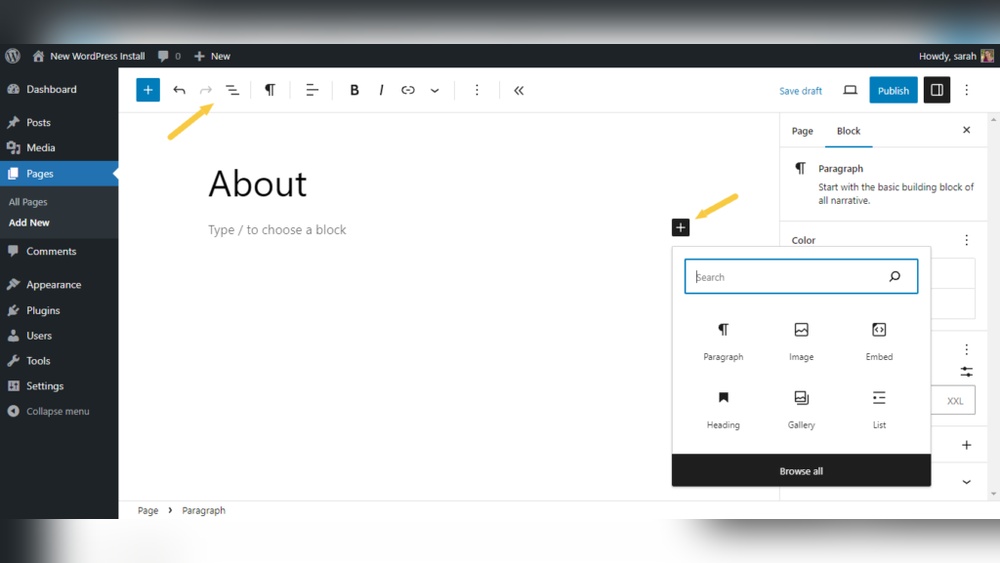
On the left menu, find and click on “Pages.” This section shows all existing pages on your site. It also lets you create new pages and edit old ones. The interface is user-friendly and easy to navigate.
Add A New Page
Click the “Add New” button at the top of the Pages screen. This opens a blank page editor. Enter your page title in the top field. Then add your content in the main area below. Use the editor tools to format text and add images.
When done, click the “Publish” button. Your new page will go live on your site immediately. You can always return to edit or update the page later.

Credit: www.wildflowersandpixels.co.uk
Customize Your Page
Customizing your new page shapes how visitors see your site. It lets you create a clear message and a good look. Simple steps help you make your page neat and easy to use. Focus on key parts that build your page’s style and content. This guide covers the basics to get you started quickly.
Set The Page Title
The page title is the first thing visitors notice. It shows in the browser tab and search results. Choose a clear and short title. Use words that match the page’s topic. This helps visitors and search engines understand your page fast. A good title improves your site’s ranking and clicks.
Add Content Blocks
Content blocks are pieces of text, images, or videos. They build the main part of your page. WordPress lets you add blocks easily with its editor. Use headings, paragraphs, and pictures to explain your message. Keep blocks simple and spaced well. This makes your page easy to read and nice to look at.
Use Page Templates
Page templates control how your page looks and works. WordPress offers many templates to choose from. Pick a template that fits your style and goal. Templates help keep your site consistent and professional. Changing templates is quick and does not need coding skills. This saves time and keeps your site tidy.
Configure Page Settings
Configuring page settings is a key step after creating a new page. These settings control who sees the page and how it fits into your website. Adjusting them properly helps organize your site and improve user experience.
Adjust Visibility And Publish Options
Set the visibility of your page to control access. Choose between Public, Private, or Password Protected. Public means anyone can see the page. Private limits the page to site admins and editors. Password Protected requires visitors to enter a password.
Select the publish option to decide when the page goes live. Publish immediately or schedule for a future date and time. Scheduling helps plan your content ahead.
Set Parent And Order
Use the Parent option to nest your page under another page. This creates a hierarchy for better navigation. For example, a “Contact” page can be under “About Us.”
Set the order to control where the page appears in menus. Lower numbers appear first. This helps arrange pages in a logical way.
Add Featured Image
Add a featured image to give your page a visual identity. This image appears in previews and social shares. Choose a clear, relevant picture to attract visitors.
Use an image that fits your site’s style and size guidelines. A good featured image enhances the look of your page.
Credit: www.seedprod.com
Publish And Review
Publishing and reviewing your new page is an important step. This step makes sure your content looks perfect before visitors see it. Careful checking helps catch errors early. It also improves the user experience on your site.
Preview Your Page
Previewing lets you see the page as visitors will. Click the “Preview” button in WordPress to open a new tab. Check the layout, images, and text. Make sure everything fits well and reads clearly. Preview on different devices if possible. This helps spot any problems with mobile or tablet views.
Publish The Page
After reviewing, it’s time to publish. Click the “Publish” button in the editor. WordPress will make the page live immediately. You can change the page status anytime later. Scheduling the page to go live at a set time is also an option.
Check The Live Site
Visit your website to see the new page live. Check the URL and navigation links. Make sure images load correctly and text is readable. Test any buttons or forms. This final check confirms your page works well for visitors.
Add The Page To Navigation
Adding a new page to your WordPress website is not enough if visitors cannot find it. You must include the page in your site’s navigation menu. The navigation menu helps users move around your website easily. This section explains how to add your new page to the menu step-by-step.
Open The Menus Section
Start by logging into your WordPress dashboard. Look for the “Appearance” option in the sidebar. Click on it, then select “Menus.” This opens the menu editor where you can manage your navigation menus.
Select Your Menu
Many websites have more than one menu. Use the dropdown at the top to choose the menu you want to edit. Usually, the main menu is called “Primary Menu” or “Main Menu.” Select the correct menu to add your page to the right place.
Add And Arrange Menu Items
On the left side, you will see a list of pages. Find the new page you want to add. Check the box next to it and click “Add to Menu.” The page appears at the bottom of the menu structure on the right.
Drag and drop the page to move it where you want. You can place it before or after other menu items. Once done, click “Save Menu” to keep your changes. Your new page is now part of your website’s navigation.
Use Plugins For Advanced Features
Plugins bring powerful features to your WordPress site. They let you add advanced tools without coding. Using plugins can improve design, SEO, security, and backups. They help create pages that work better and look great.
Page Builder Plugins
Page builder plugins let you design pages with a drag-and-drop tool. You can add text, images, and buttons easily. These plugins save time and avoid technical work. Popular options include Elementor and Beaver Builder. They offer pre-made templates for quick setup.
Seo Optimization Plugins
SEO plugins help your page rank higher in search engines. They guide you to add keywords and optimize content. Plugins like Yoast SEO provide tips for better titles and descriptions. They also check readability and suggest improvements. This helps more people find your page online.
Security And Backup Plugins
Security plugins protect your website from hackers and malware. They monitor suspicious activity and block threats. Backup plugins save copies of your site regularly. This ensures you can restore your page if problems occur. Wordfence and UpdraftPlus are trusted choices for safety.

Credit: learn.wordpress.org
Frequently Asked Questions
How Do I Add A New Page In WordPress?
To add a new page, log into your WordPress dashboard, go to Pages > Add New. Enter your page title and content, then click Publish to make it live.
Can I Customize The Layout Of WordPress Pages?
Yes, you can customize page layouts using WordPress themes or page builder plugins. These tools offer drag-and-drop features for easy design.
How Do I Set A Homepage In WordPress?
Go to Settings > Reading in your dashboard. Choose “A static page” and select the page you want as your homepage. Save changes.
Is It Possible To Delete A Page After Adding It?
Yes, go to Pages > All Pages, hover over the page you want to delete, and click Trash. The page will be removed.
Conclusion
Adding a page to your WordPress website is simple and quick. You just need to follow a few clear steps. This helps you organize your site and share more information. Keep your pages clear and easy to read. Regularly update your content to keep visitors interested.
Practice makes perfect, so try adding pages often. This skill helps your website grow and serve your audience better. Start adding pages today and improve your WordPress site easily.


