

Your website’s header is the first thing visitors see—and your logo is the heart of that first impression. Adding your logo to your WordPress header isn’t just about branding; it’s about making your site instantly recognizable and building trust with your audience.
If you’ve ever wondered how to easily place your logo in the perfect spot without any hassle, you’re in the right place. This guide will walk you through simple, step-by-step instructions to get your logo shining front and center on your WordPress site.
Ready to make your website look professional and memorable? Let’s dive in!
Choose The Right Logo
Choosing the right logo for your WordPress header is important. It helps visitors recognize your brand quickly. A good logo fits well and looks clear on your website. It should also represent your business style and values clearly.
Think about how your logo will appear on different devices. It should be simple but meaningful. A strong logo makes your site look professional and trustworthy.
Logo Size And Format
Use a logo size that fits well in the header space. Too big or too small logos can look odd. A common width is between 150 to 300 pixels. Height depends on your header design but keep it balanced.
Choose the right file format. PNG works best because it supports transparency. This lets your logo blend with the header background. Avoid using JPEG if you need a transparent background.
SVG format is great for sharp images on any screen size. It keeps your logo clear on both small and large devices. Make sure your theme supports SVG before using it.
Design Tips For Impact
Keep your logo simple. Avoid too many colors or details. Simple logos load faster and look better on small screens. Use colors that match your brand style.
Make your logo unique. It should stand out but not distract visitors. Use clear fonts if your logo has text. Make sure the text is readable at a small size.
Test your logo in the header. Check how it looks on phones and tablets. Adjust size and colors if needed to keep a good appearance.
Credit: wpforms.com
Prepare Your Logo File
Preparing your logo file is the first step before placing it in your WordPress header. A well-prepared logo looks professional and loads quickly on your website. This helps visitors recognize your brand right away. Follow these simple tips to get your logo ready for the web.
Optimize For Web
Save your logo in a web-friendly format like PNG or JPEG. PNG is best for logos with clear edges and text. JPEG works well for logos with many colors or gradients. Keep the file size small, ideally under 200 KB. Small files load faster and improve website speed. Use image editing tools to resize your logo. A width of 250 to 400 pixels usually fits well in headers.
Create Transparent Backgrounds
Make your logo background transparent to blend with any header color. This gives a clean and polished look. Use PNG format to keep transparency. Avoid white or colored backgrounds that clash with your site design. Many graphic editors like Photoshop or free tools like Canva can remove backgrounds easily. Save the logo with transparency before uploading to WordPress.
Access WordPress Customizer
Accessing the WordPress Customizer is the first step to change your site’s look. It lets you see changes live as you make them. This tool is user-friendly and perfect for beginners. You do not need any coding skills to use it. Follow simple steps to find the place where you can add your logo.
Navigate To Header Settings
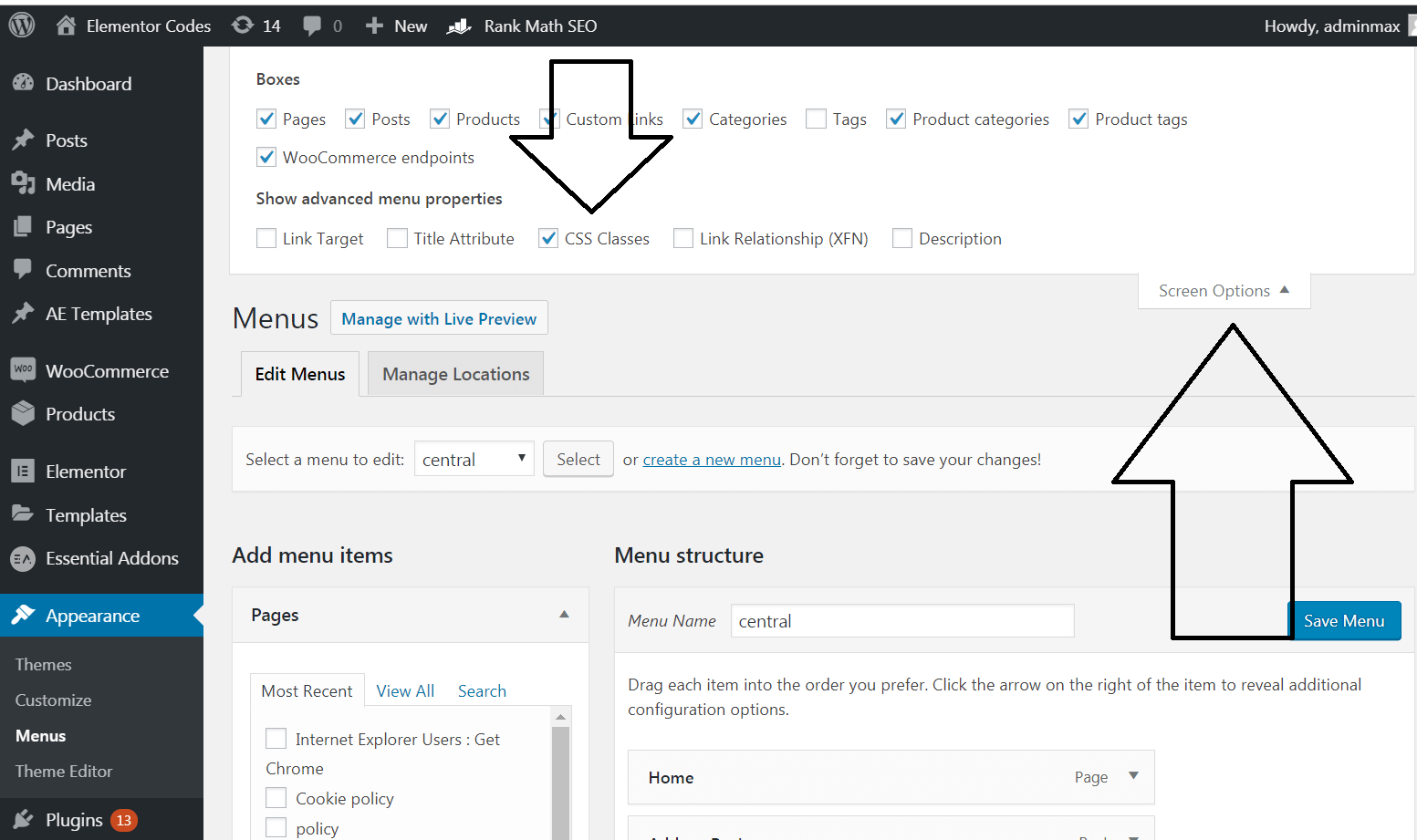
Start by logging into your WordPress dashboard. On the left menu, find and click on “Appearance.” Under this, select “Customize.” This opens the Customizer panel on the right side of your screen. Look for “Header” or “Site Identity” in the menu. Click on it to open header settings. This section controls your site’s top area look and feel.
Locate Logo Upload Option
Inside the header settings, find the logo upload option. It might say “Logo,” “Site Logo,” or something similar. Click the button to upload a new logo. You can choose a file from your computer or select one from the media library. After uploading, you can crop or adjust the logo size. Save changes to see your new logo on the site header.
Credit: element.how
Upload And Position Logo
Using a plugin to add a logo to your WordPress header offers more control. Plugins provide advanced options beyond the default theme settings. They allow you to customize the logo size, position, and even add animations. Plugins also support different devices, making your site look good on phones and tablets.
Choosing the right plugin helps you manage your site’s branding easily. No coding skills are needed. Just install, activate, and adjust settings to fit your style.
Popular Logo Plugins
Several plugins make adding logos simple and flexible. “Site Logo” is popular for basic logo placement. “Logo Carousel” helps showcase multiple logos in a slider. “WP Logo Showcase” offers grid layouts for logos. These plugins come with user-friendly interfaces to adjust your header logo quickly.
Benefits Of Plugin Use
Plugins save time by simplifying the design process. They allow easy logo changes without editing code. Many plugins support retina and high-resolution logos for sharp images. Some include options for logo links and hover effects. Plugins also offer compatibility with different themes, ensuring your logo fits perfectly.
Use A Plugin For Advanced Options
Testing your logo on different devices is essential after adding it to your WordPress header. This step ensures your logo looks clear and fits well everywhere. A logo that works on all screens strengthens your website’s professional look.
Check Mobile Responsiveness
Mobile devices have smaller screens. Your logo must resize and remain clear on phones and tablets. Open your website on various mobile devices. See if the logo is easy to see and not too big or small. Adjust the logo size in your theme settings if needed. A responsive logo improves user experience on mobile.
Ensure Cross-browser Compatibility
Different browsers show websites differently. Test your logo on popular browsers like Chrome, Firefox, Safari, and Edge. Check if the logo loads fast and displays correctly. Fix any issues by clearing cache or updating your theme. Cross-browser compatibility guarantees your logo looks good to all visitors.

Credit: vjdesign.com.au
Frequently Asked Questions
How Do I Upload A Logo To WordPress Header?
To upload a logo, go to Appearance > Customize > Site Identity. Click “Select logo,” upload your image, and save changes. Your logo will appear in the header automatically. This method works with most WordPress themes.
Can I Resize My Logo In The WordPress Header?
Yes, most themes allow resizing in the Customizer under Site Identity or Header options. You can also resize the logo image before uploading. Use CSS for advanced size adjustments if your theme lacks built-in settings.
What Image Format Is Best For WordPress Logos?
Use PNG or SVG formats for logos. PNG supports transparency and high quality, ideal for web use. SVG offers scalable vector graphics, perfect for responsive designs. Avoid JPEG as it doesn’t support transparency and can reduce quality.
Will Adding A Logo Affect My Site Speed?
A properly optimized logo won’t significantly affect site speed. Use compressed images under 200 KB to ensure fast loading. Avoid large or unoptimized files to keep your site performance smooth and user-friendly.
Conclusion
Adding a logo to your WordPress header makes your site look professional. It helps visitors recognize your brand easily. The steps are simple and quick to follow. You only need a clear logo image and access to your WordPress dashboard.
Small changes like this improve your site’s appearance a lot. Take your time to adjust the size and position. A neat header creates a good first impression. Keep your logo file ready, and update it whenever needed. This small detail can boost your website’s trust and appeal.


