
Looking to make your WordPress site easier to navigate? Adding a search box right in your header can be a game-changer.
It helps your visitors find exactly what they want, fast. Imagine your readers staying longer and coming back more often because they can quickly search your content. In this guide, you’ll learn simple, step-by-step ways to add a search box to your WordPress header—no tech skills needed.
Keep reading, and by the end, your site will be more user-friendly and powerful than ever.
Benefits Of Adding A Search Box
A search box in the WordPress header helps visitors find content quickly.
This tool makes your website easier to use and saves time for users.
Visitors can search for topics or products without browsing many pages.
Adding a search box improves the overall user experience on your site.
Improves User Navigation
A search box lets users go directly to the information they want.
This reduces frustration and keeps visitors on your site longer.
Clear navigation helps users explore your content with ease.
Increases Time On Site
Users stay longer when they find what they need quickly.
A search box encourages visitors to explore more pages.
More time on site can lead to higher engagement and better results.
Boosts Content Discoverability
Some visitors may not know where to look for specific content.
A search box helps them find hidden or less obvious pages.
This increases the chances of content being seen and read.
Enhances Mobile Experience
Mobile users benefit from a search box due to limited screen space.
It offers a quick way to find content without scrolling too much.
Better mobile navigation means happier visitors and fewer site exits.
Credit: optinmonster.com
Choosing The Right Search Plugin
Choosing the right search plugin is key to improving your WordPress site’s user experience. A good search tool helps visitors find content fast. It also makes your site look professional and easy to use.
Many plugins work well, but they differ in features and cost. Picking one that fits your needs saves time and effort.
Free Vs Paid Options
Free search plugins offer basic features. They work well for small sites with simple needs. Most free plugins include standard search boxes and basic settings.
Paid plugins provide extra features. They often include advanced filters, live search, and better speed. Paid options suit larger sites or stores with many products.
Free plugins are good to start. Paid versions offer more control and customization.
Popular WordPress Search Plugins
Many popular plugins fit different needs. “Relevanssi” improves search results with fuzzy matching. It works free with an option to upgrade.
“SearchWP” is a paid plugin. It offers deep content indexing and custom search engines. Great for complex sites.
“Ajax Search Lite” adds live search suggestions. It is free with premium features available.
Choose plugins with good reviews and regular updates. This ensures compatibility and security.
Preparing Your WordPress Site
Before adding a search box to your WordPress header, prepare your site carefully. This step helps avoid problems later. Taking simple safety steps protects your website and data. It also makes the process smoother and safer.
Start by backing up your entire site. Then, access the theme editor to add the search box code. These actions ensure your site stays safe and ready for changes.
Backup Your Site
Backing up your WordPress site saves a copy of all files and settings. It protects your site from mistakes or crashes. Use a backup plugin or your web host’s backup tool. Save the backup on your computer or cloud storage. This step takes only a few minutes but is very important.
Accessing The Theme Editor
The theme editor lets you change your site’s design and code. Find it in the WordPress dashboard under Appearance > Theme Editor. Be careful when editing files here. Small errors can break your site. Always work on a child theme or have a backup ready.
Adding Search Box Via Theme Customizer
Adding a search box to your WordPress header helps visitors find content fast. The Theme Customizer makes this task simple. It offers tools to add and style the search box without coding. This method works well for beginners and saves time.
You can place the search box exactly where you want it. The Theme Customizer shows a live preview. This way, you see changes right away. It keeps the site design smooth and user-friendly.
Using Built-in Search Widget
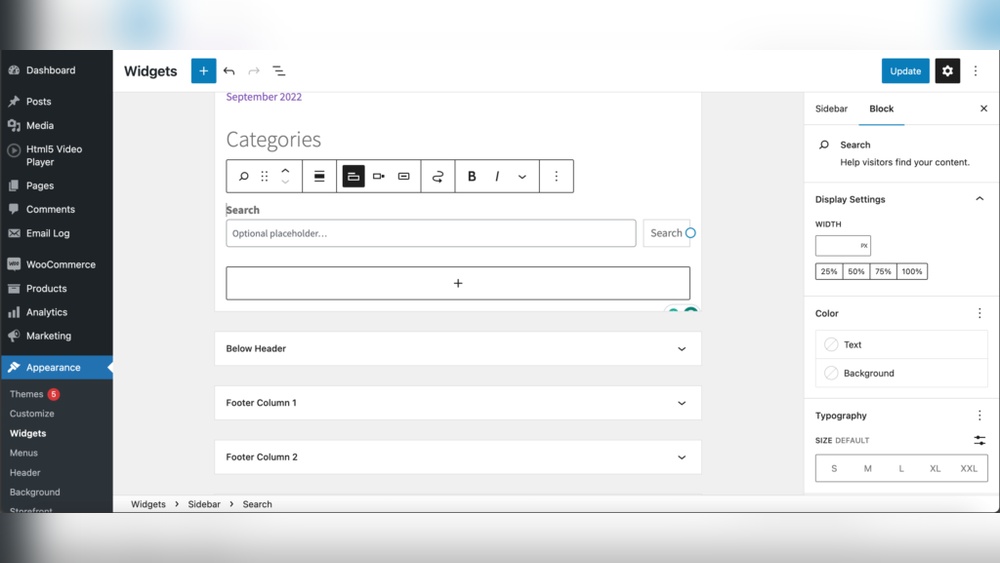
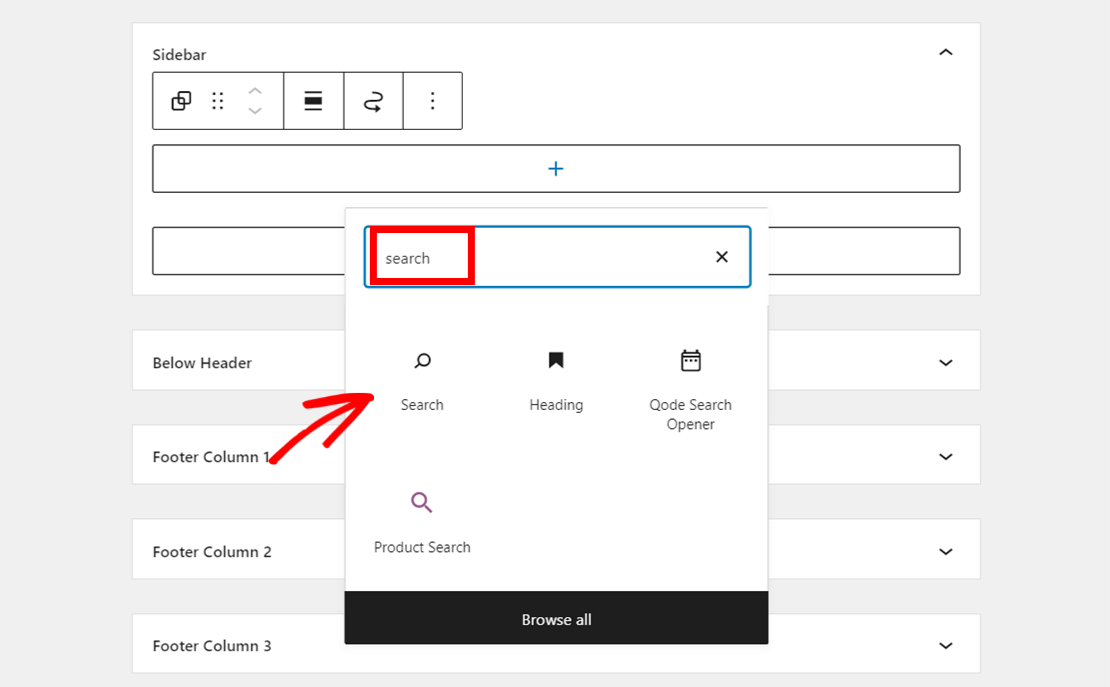
Open your WordPress dashboard and go to Appearance > Customize. Look for the Widgets section. Select the header area or a widget area near the header. Click Add a Widget and choose Search.
The search widget will appear in the header area. You can drag it to change its position. Save and publish to make it visible on your site. This widget works well for most themes with widget-ready headers.
Customizing Search Box Appearance
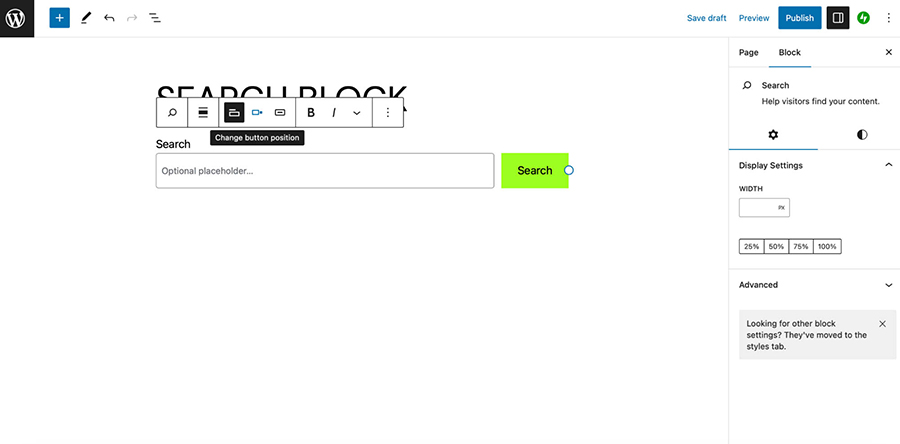
Inside the Theme Customizer, find the Search widget settings. You can change the search box size and alignment. Some themes let you adjust colors and fonts here.
For more style options, check the Additional CSS section. Add simple CSS code to match your site’s design. Customize border, background, and text color easily.
Preview all changes before saving. This helps keep the search box clear and easy to use. A well-styled search box improves user experience and site navigation.
Adding Search Box Using A Plugin
Adding a search box to your WordPress header helps visitors find content fast. Using a plugin makes this process simple and quick. Plugins offer ready-made search features that fit well with most themes. No need to touch any code.
This section explains how to add a search box using a plugin. Follow easy steps to install, set up, and place the search box in your header.
Installing And Activating The Plugin
Start by logging into your WordPress dashboard. Go to the Plugins menu and click Add New. Type “search box” or a specific plugin name in the search bar. Choose a plugin with good reviews and recent updates. Click Install Now, then Activate once the installation finishes.
Configuring Plugin Settings
After activation, find the plugin’s settings page in the dashboard. Adjust options like search box style, placeholder text, and search scope. Set preferences to match your site’s look and user needs. Save the changes before moving on.
Placing The Search Box In Header
Most plugins add a widget or shortcode for the search box. Go to Appearance and select Widgets or Customize. Drag the search widget to the Header area or use the shortcode in a header widget. Preview your site to ensure the search box fits well.

Credit: essential-addons.com
Adding Search Box Manually With Code
Adding a search box manually with code lets you control its look and place. You can put it exactly where you want in the header. This method needs editing theme files but gives a clean result. It also keeps your site fast and simple.
Editing Header.php File
Open your WordPress theme folder. Find the file named header.php. This file controls the header area of your site. Use a code editor or the WordPress theme editor. Make a backup before changing anything. Locate the spot where you want the search box. It is often near the site logo or navigation menu.
Adding Search Form Code
Insert the search form code in the chosen spot in header.php. Use this simple PHP code:
php get_search_form(); ?This code calls the default WordPress search form. It works with most themes without extra setup. Save the file and upload it back if you edited locally. Check your site to see the search box in the header area.
Styling The Search Box With Css
Use CSS to change how the search box looks. Add styles to your theme’s style.css file or customizer’s Additional CSS. Target the search form with classes like .search-form or input[type="search"]. Adjust size, color, borders, and spacing to match your design. Keep the style simple and clean for better user experience.
Testing The Search Box Functionality
Testing the search box in your WordPress header is essential. It ensures visitors can find content fast and easily. A well-functioning search box improves user experience and site navigation. Testing helps catch issues before visitors do. It saves frustration and keeps your site professional.
Checking On Different Devices
Check the search box on a desktop computer first. See if it appears correctly and works well. Next, test on a smartphone and tablet. Make sure the box fits the screen size. Try typing and submitting search terms. Confirm the search results page loads without errors. Test on popular browsers like Chrome, Firefox, and Safari. This guarantees the search box works for all visitors.
Troubleshooting Common Issues
If the search box does not show up, clear your cache. Check your theme settings to confirm the search box is enabled. If the search returns no results, check your site’s content visibility. Sometimes plugins can block search functions. Disable plugins one by one to find the culprit. Also, ensure your WordPress and plugins are updated. Fixing these issues restores smooth search functionality quickly.
Credit: jetpack.com
Optimizing Search Box For Better Ux
Optimizing the search box in your WordPress header improves user experience. A well-optimized search box helps visitors find content quickly. It reduces frustration and keeps users engaged on your site. Simple changes can make your search function faster and more accurate.
Improving Search Speed
Fast search results keep users happy and focused. Use a lightweight search plugin to reduce load time. Limit the number of search results shown at once. Cache search queries to serve repeated searches instantly. Avoid complex queries that slow down the server.
Enhancing Search Results
Show relevant results to make the search useful. Use keyword matching to find exact or similar terms. Include content types like posts, pages, and products. Display snippets or images to help users decide quickly. Add filters so users can narrow down results easily.
Frequently Asked Questions
How Do I Add A Search Box To WordPress Header?
To add a search box, go to Appearance > Widgets. Drag the Search widget to the Header widget area. Save changes, and the search box appears in your header.
Can I Customize The Search Box In WordPress Header?
Yes, you can customize the search box using CSS or plugins. Some themes also offer built-in customization options to style the search box easily.
Is Adding A Search Box In Header Good For Seo?
Yes, a search box improves user experience by helping visitors find content faster, reducing bounce rates, and indirectly supporting SEO efforts.
Which Plugins Help Add A Search Box In WordPress Header?
Popular plugins like “SearchWP” and “Ivory Search” allow advanced search box integration. They offer customizable options for better search functionality.
Conclusion
Adding a search box to your WordPress header helps visitors find content fast. It improves site navigation and user experience. You can choose from plugins or customize your theme. Each method is simple and suits different needs. Keep your header clean and easy to use.
Test your search box on desktop and mobile. A working search feature keeps visitors on your site longer. Try adding one today to boost your website’s usability.


