
Are you looking to grow your audience and keep your visitors coming back? Adding a subscribe button to your WordPress site is one of the easiest and smartest ways to do just that.
With a simple button, you can turn casual visitors into loyal followers who get your latest updates straight to their inbox. In this guide, you’ll discover clear, step-by-step instructions to add a subscribe button that fits your site perfectly. By the end, you’ll have a powerful tool to boost engagement and build a stronger connection with your readers.
Ready to get started? Let’s dive in!

Credit: natalieducey.com
Choose The Right Subscription Plugin
Choosing the right subscription plugin is key to growing your email list. The plugin should fit your website needs. It must be easy to use and reliable. A good plugin helps visitors subscribe quickly and easily. It should also work well with your WordPress theme and other tools.
Popular Plugin Options
Some plugins are well known for subscriptions. Mailchimp for WordPress is popular and user-friendly. It connects your site with Mailchimp email service. Another choice is Newsletter, which has built-in tools to manage subscribers. OptinMonster offers many design options for subscription forms. Each plugin suits different needs and skills.
Features To Look For
Check if the plugin supports multiple form types. Pop-ups, inline forms, and widgets are common. Make sure it integrates with your email service. Look for easy customization options for form design. The plugin should provide analytics for subscriber growth. Responsive design is a must for mobile visitors.
Installation Tips
Install plugins from the WordPress dashboard for safety. Always back up your website before installation. Activate the plugin and follow setup instructions carefully. Test your subscribe button to ensure it works on all devices. Keep the plugin updated to avoid security risks. Remove unused plugins to keep your site fast.

Credit: www.youtube.com
Create A Subscription Form
Creating a subscription form is a key step to grow your email list on WordPress. It allows visitors to easily sign up for your updates. A well-designed form encourages more people to subscribe and stay connected with your content.
Focus on making your form clear and simple. The easier it is to use, the more subscribers you will get.
Form Design Best Practices
Keep the form layout clean and uncluttered. Use a single column layout for better readability. Place the submit button in a visible spot. Use clear and simple text for labels and buttons. Avoid asking for too much information. Make sure the form works well on mobile devices.
Essential Fields To Include
Ask for the subscriber’s email address only. This is the most important field. Optionally, add a field for the subscriber’s first name. This helps personalize your emails. Avoid asking for phone numbers or detailed personal data. Keep it short to reduce drop-offs.
Customizing Form Appearance
Match the form colors with your website’s theme. Use contrasting colors for the submit button to stand out. Choose fonts that are easy to read. Add some padding around fields for a tidy look. Use borders or shadows to separate the form from the page background. Preview the form on different devices before publishing.
Add The Subscribe Button To Your Site
Adding a subscribe button to your WordPress site helps grow your audience. Visitors can easily sign up for newsletters or updates. This section shows simple ways to place a subscribe button on your site. You can use widgets, shortcodes, or menus. Each method fits different site layouts and styles.
Using Widgets
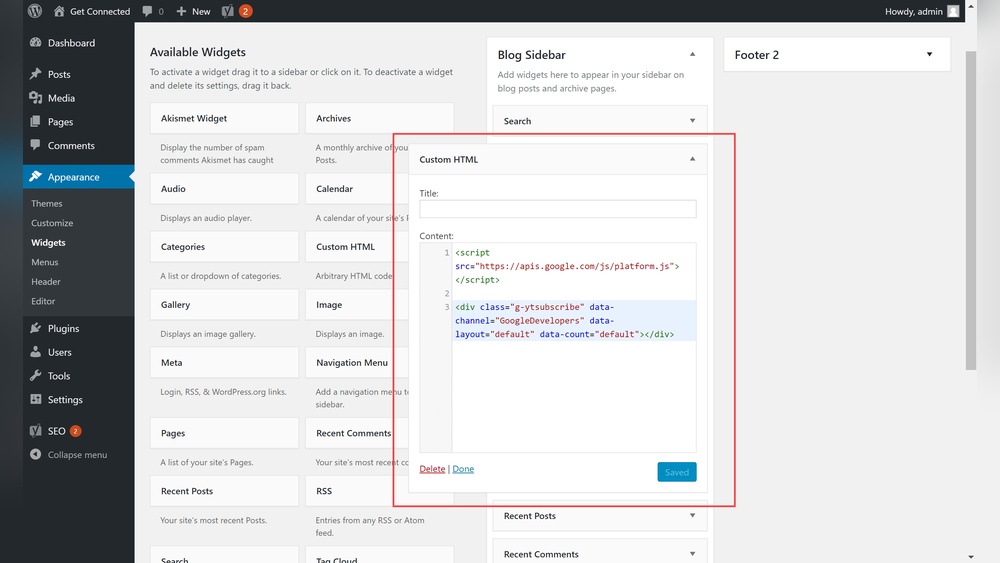
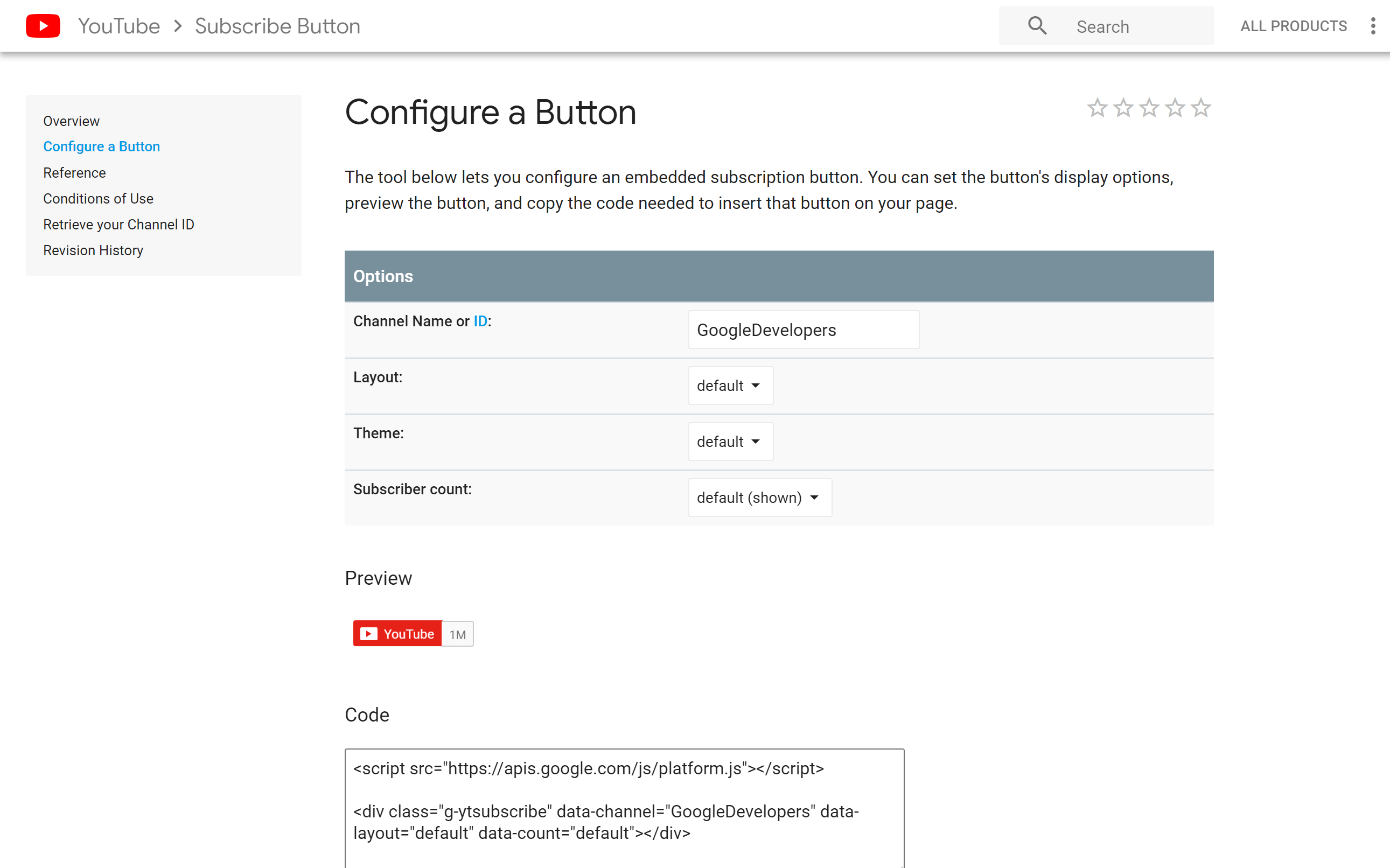
Widgets allow you to add a subscribe button to sidebars or footers. Go to your WordPress dashboard and open the Appearance menu. Click on Widgets. Find the Text or Custom HTML widget and drag it to your desired widget area. Paste the subscribe button code or a shortcode inside the widget. Save your changes. The button appears where you placed the widget. This method is quick and does not need coding skills.
Embedding Shortcodes
Shortcodes make it easy to place subscribe buttons inside posts or pages. Copy the shortcode provided by your email service or plugin. Open the editor for your post or page. Paste the shortcode where you want the button to appear. Update or publish the content. The button will display automatically. Shortcodes are flexible and let you add buttons anywhere in your content.
Placing Buttons In Menus
You can add a subscribe button to your site’s navigation menu. Go to Appearance and select Menus in your WordPress dashboard. Choose the menu where you want the button. Click on Custom Links. Enter the subscribe page URL or signup form link. Type the button text, like “Subscribe.” Click Add to Menu. Drag the new menu item to the position you want. Save the menu. Visitors will see the subscribe button in your site’s menu bar.
Optimize Button Placement
Optimizing the placement of your subscribe button can increase sign-ups significantly. The right position grabs visitors’ attention quickly. It also makes subscribing easy and natural. Poor placement might hide the button or confuse visitors. Focus on spots where users see the button without searching.
High Visibility Locations
Place the subscribe button where visitors look first. The top of the page or header is a strong spot. It stays visible as users scroll. Another good place is at the end of blog posts. Readers who enjoy your content often want to subscribe next. Sidebars also work well on desktop screens.
Mobile-friendly Positioning
Many visitors use phones to browse your site. The button must be easy to tap on small screens. Avoid placing it too close to other links or buttons. Keep it near the top or bottom of the screen for quick access. Test on different devices to ensure it looks good everywhere.
A/b Testing Strategies
Try different button placements to find what works best. Change the location and measure how many clicks you get. Compare results over several days or weeks. Use simple tools or plugins for easy A/B testing. Small changes can lead to better subscription rates.
Connect Your Subscription To Email Marketing
Connecting your WordPress subscribe button to email marketing helps you grow your audience. It sends new subscribers directly to your email list. This saves time and keeps your contacts organized. You can reach your readers with newsletters, offers, or updates easily.
Setting up this connection is simple. Use popular email marketing services. They provide tools to automate and manage your emails. This way, your subscribers get a smooth experience from signup to inbox.
Integrating With Email Services
Choose an email marketing service like Mailchimp, ConvertKit, or Sendinblue. These platforms work well with WordPress. Install a plugin to link your subscribe button to the service. The plugin transfers subscriber details automatically. This keeps your email list updated without manual work.
Automating Welcome Emails
Send a welcome email to new subscribers instantly. Most email services allow easy automation setup. Write a short, friendly message to greet your new readers. This builds trust and encourages them to stay engaged. Automating saves time and improves subscriber experience.
Managing Subscriber Lists
Organize subscribers in lists or groups. This helps send targeted emails based on interests or actions. Regularly clean your list by removing inactive contacts. A well-managed list improves email delivery and engagement. Use your email service’s dashboard to track subscriber activity and growth.
Enhance Subscriber Engagement
Enhancing subscriber engagement is key to building a strong email list. A simple subscribe button is not enough. You need to connect with your audience and keep them interested. Engaged subscribers are more likely to open your emails and visit your site. This section explores ways to boost subscriber interaction effectively.
Offering Incentives
Giving something valuable encourages visitors to subscribe. Free ebooks, discounts, or exclusive content work well. These rewards make signing up feel worthwhile. Clear and easy offers attract more subscribers. Keep incentives relevant to your audience’s interests.
Personalizing Content
Personal messages create a stronger bond with subscribers. Use their names and tailor emails to their preferences. Personalized content feels more meaningful and less like spam. Segment your list by interests or behavior for better results. This increases the chance subscribers will engage with your emails.
Using Analytics To Improve
Track how subscribers interact with your emails. Check open rates, click rates, and unsubscribe rates. Analytics show what works and what needs change. Use this data to send better content and improve timing. Regular review helps keep your list active and interested.
Troubleshoot Common Issues
Adding a subscribe button on WordPress can sometimes cause issues. These problems might stop your visitors from signing up. Troubleshooting helps you fix these common errors fast. This way, your subscription process stays smooth and user-friendly.
Button Not Showing
Check if the subscribe button is hidden by your theme settings. Sometimes, page builders block the button from appearing. Clear your site cache and refresh the page. Confirm the button shortcode or block is placed correctly. Also, verify the button color contrasts with the background. Poor contrast may make the button invisible.
Form Submission Errors
Submission errors often occur due to incorrect form settings. Make sure all required fields are filled out properly. Check if your email service is connected correctly to WordPress. Some forms need API keys to send data. Test the form with different email addresses to rule out specific email issues.
Plugin Conflicts
Conflicts between plugins can cause buttons or forms to break. Deactivate other plugins one by one to find the conflict. Look for updates for all your plugins and WordPress core. Sometimes, outdated plugins do not work well together. Use plugins from trusted sources only to avoid compatibility problems.
Credit: www.hostpapa.com
Frequently Asked Questions
How Do I Add A Subscribe Button In WordPress?
To add a subscribe button, use a plugin or embed a subscription form shortcode. Customize and place it on your site.
Which Plugin Is Best For WordPress Subscribe Buttons?
Popular plugins include Mailchimp, Newsletter, and WPForms. Choose based on ease of use and email service integration.
Can I Customize The Subscribe Button Appearance?
Yes, most plugins allow color, size, and text customization to match your site’s design and branding.
Is A Subscribe Button Necessary For Blog Growth?
Yes, it helps build an email list, increases audience engagement, and boosts repeat visits to your blog.
Conclusion
Adding a subscribe button on WordPress helps grow your audience fast. It makes it easy for visitors to follow your updates. Choose the right plugin or widget for your site. Place the button where users can easily see it. Keep the design simple and clear to attract clicks.
Test the button to ensure it works well on all devices. A subscribe button keeps readers connected and engaged with your content. Start adding it today to build your community step by step.


