
Are you looking to give someone full control over your WordPress site but don’t know where to start? Adding an admin to your WordPress site is easier than you think, and it can save you time while keeping your website running smoothly.
Whether you want to share management duties or bring in a trusted expert, knowing how to add an admin is a crucial skill. In this post, you’ll discover simple, step-by-step instructions to help you add an admin quickly and safely.
Keep reading to make your WordPress site more manageable and secure.
Accessing WordPress Dashboard
Accessing the WordPress dashboard is the first step to managing your website. This dashboard is the control center where you can add new users, change settings, and update content. Understanding how to reach and use it is essential for site management.
To start, you need to log in to your WordPress site. Once logged in, the dashboard opens automatically. It shows different menus and options for site control. This area is user-friendly and easy to navigate.
Finding The Login Page
Go to your website’s URL and add /wp-admin at the end. For example, www.yoursite.com/wp-admin. This link directs you to the WordPress login page. It is the gateway to your dashboard.
Entering Your Username And Password
Type your username or email in the first box. Then enter your password in the second box. These details must match your WordPress account. Click the “Log In” button to proceed.
Using The Dashboard Menu
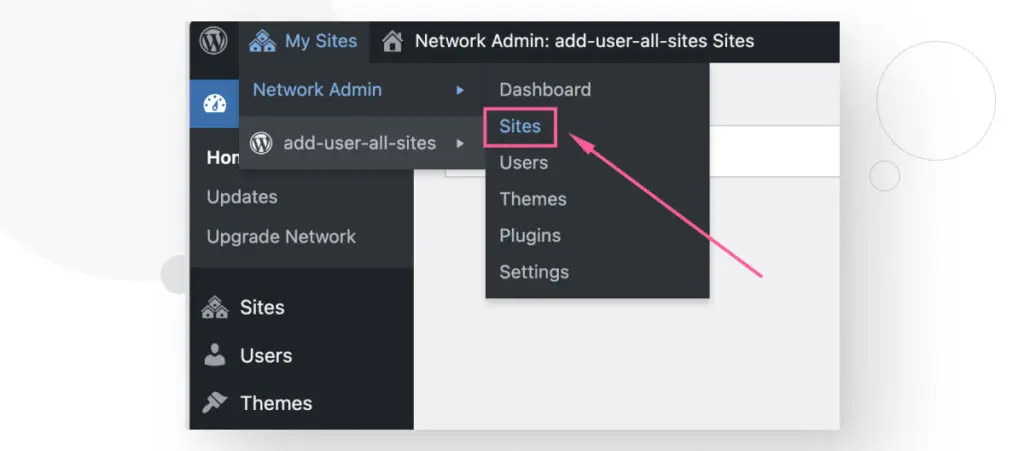
Once logged in, the dashboard menu appears on the left side. It lists options like Posts, Pages, Users, and Settings. Click “Users” to manage admins and other roles.
Credit: wcanvas.com
Navigating To User Management
Navigating to User Management in WordPress is the first step to add a new admin. This area controls user roles and permissions. Accessing it is quick and easy.
Start by logging into your WordPress dashboard. The dashboard is the main control panel for your website.
Locate The Users Menu
On the left side of the dashboard, find the menu labeled “Users.” Click it to open the user options. This menu holds all the user-related settings.
Select The Add New Option
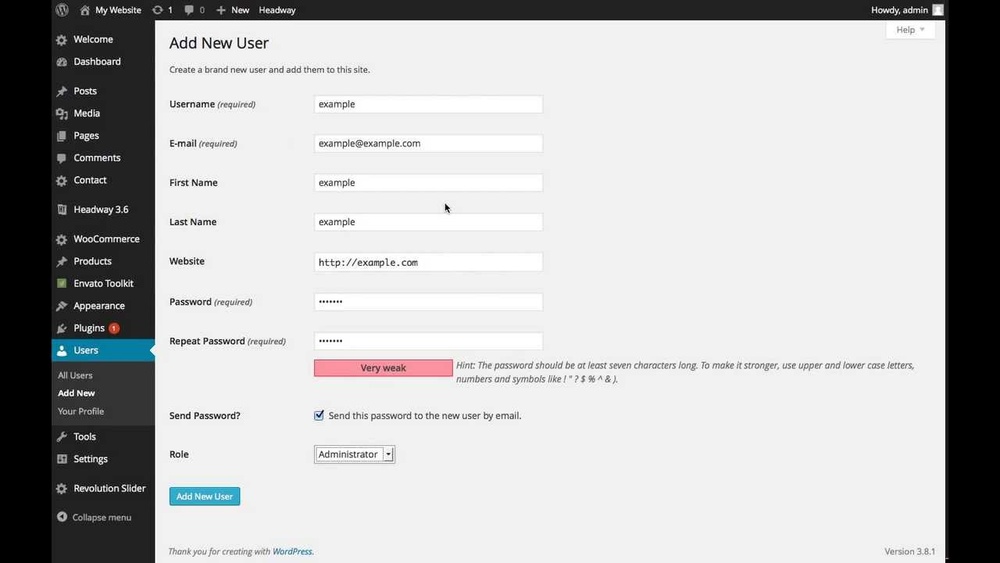
Under the “Users” menu, click on “Add New.” This option lets you create a new user account. It opens a form to fill in the new user’s details.
Understand The User Roles Section
In the form, find the “Role” dropdown menu. This menu lets you assign the user’s role. Choose “Administrator” to give full access to the site.
Adding A New User
Adding a new user to your WordPress site is simple. This lets you give others access to your site. You can control what they can do by assigning roles. Follow the steps below to add a new admin user safely and quickly.
Filling In User Details
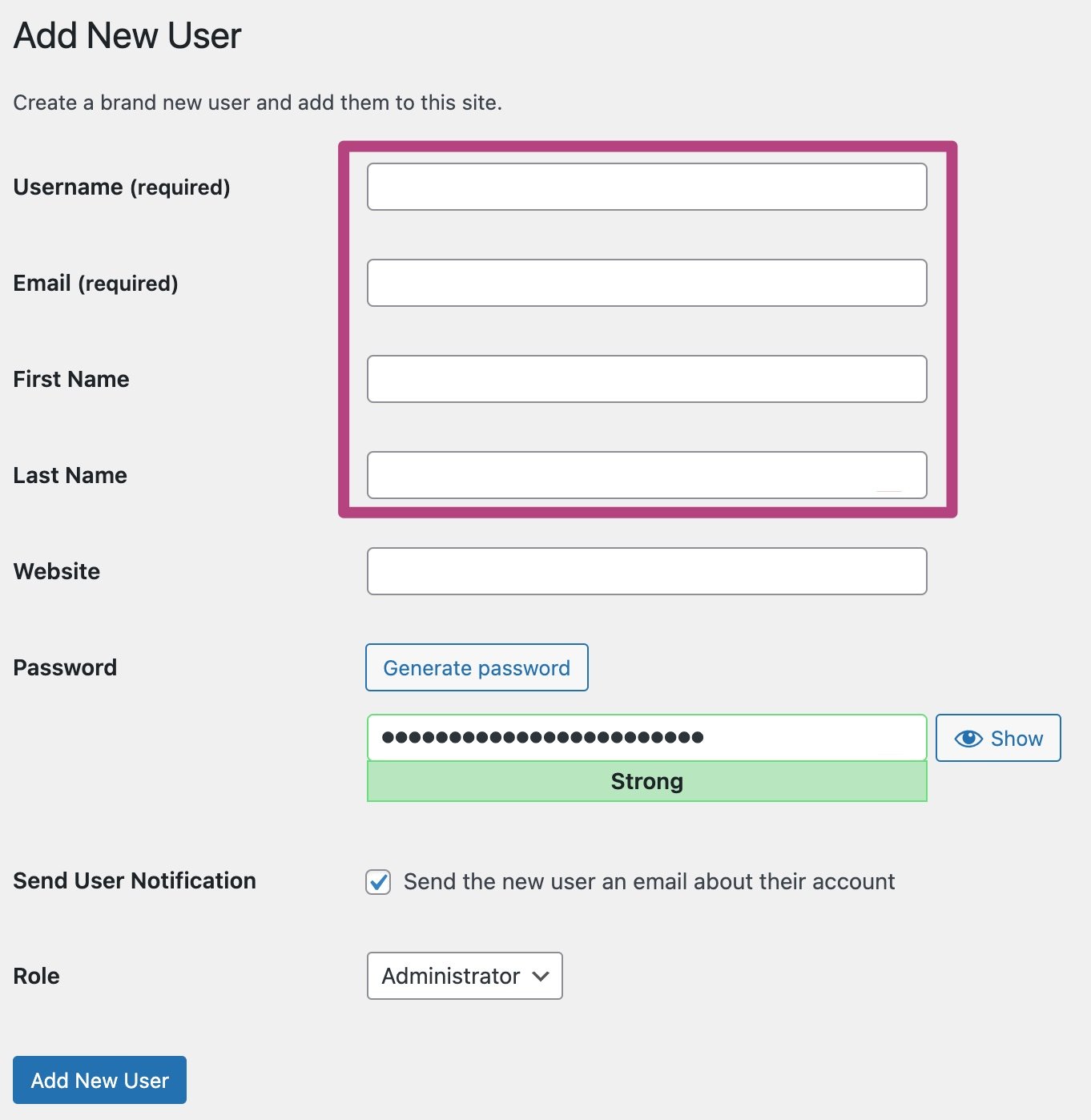
Start by going to your WordPress dashboard. Find the “Users” menu and click “Add New.” Enter the username for the new user. Choose a strong password or let WordPress generate one. Add the user’s email address carefully. This is important for account recovery and notifications. You can also fill in the first and last name. Adding a website URL is optional. Write a short bio if you want. These details help personalize the user’s profile.
Choosing The Admin Role
Scroll down to the “Role” dropdown menu. Select “Administrator” to give full control. Admins can edit, delete, and manage site settings. Be careful only to assign this to trusted users. Other roles like Editor or Author have fewer permissions. Choosing the right role keeps your site secure. After selecting the role, click “Add New User.” The new admin will receive an email with their login details. They can now log in and start managing your site.

Credit: www.youtube.com
Setting User Permissions
Setting user permissions is a key step when adding an admin to your WordPress site. It controls what the new user can do. This keeps your site safe and organized. Giving the right permissions helps avoid mistakes or security problems.
WordPress has different roles with specific abilities. Choosing the right role for a user is important. The admin role has the highest access level. Only assign this role to trusted people.
Understanding WordPress User Roles
WordPress has built-in roles like Administrator, Editor, Author, Contributor, and Subscriber. Each role has different permissions. Administrators can manage the entire site. Editors control content but cannot change settings. Authors can write and publish their own posts. Contributors can write but cannot publish. Subscribers only manage their profiles.
How To Assign The Admin Role
Go to your WordPress dashboard. Click on “Users” and then “Add New.” Fill in the user’s details. Under “Role,” choose “Administrator.” Click “Add New User” to save. The new user now has admin rights.
Best Practices For Admin Permissions
Only give admin access to trusted people. Check user roles regularly. Remove admin rights if no longer needed. Use strong passwords for admin accounts. Consider adding two-factor authentication for extra security.
Saving And Confirming New Admin
Saving and confirming a new admin on your WordPress site is a crucial step. This process ensures the new user has the right access and control. It also protects your site from unauthorized changes.
After entering the new admin details, you must save the information correctly. Confirming the new admin ensures the user can log in with full permissions. This step is quick but requires careful attention.
Saving The New Admin Details
Click the “Add New User” or “Save” button after filling out the form. This action saves the new admin’s username, email, and role. Check the information twice before saving to avoid mistakes.
WordPress immediately processes the new data. You will see a confirmation message on the screen. This message means the new admin has been added successfully.
Confirming The New Admin Access
The new admin receives an email with login details. The user must check their inbox for this message. They will find a link to set their password and log in.
Ask the new admin to log into the site. This step confirms their account is active and working. If they cannot log in, review the user details and try again.
Alternative Methods To Add Admin
Adding an admin to your WordPress site can be done in several ways. Besides the usual method through the dashboard, you can explore alternative options. These methods are useful if you face restrictions or want more control. They include using plugins or directly editing the database. Both methods have clear steps and can give you admin access quickly.
Using Plugins
Plugins simplify many tasks in WordPress. Some plugins allow you to add new users easily. They offer user-friendly interfaces to set roles and permissions. For example, User Role Editor helps you create and assign admin roles. You install the plugin, navigate to its settings, and add a new admin user. This method reduces errors and saves time. It is safe if you use trusted plugins from the official repository.
Editing The Database
Directly editing the database is a powerful method. It works if you cannot access the WordPress dashboard. You need access to your hosting control panel or phpMyAdmin. Locate the database for your site and open the users table. Insert a new user with admin rights by setting the correct user role. This method requires caution. Always back up your database before making changes to avoid data loss. Editing the database is fast but suits users with technical knowledge.
Best Practices For Admin Management
Managing admin roles on your WordPress site needs care and attention. Proper admin management helps keep your site safe and running smoothly.
Admin accounts have full control over your website. This power means you must use admin roles wisely to avoid risks. Follow these best practices to protect your site and maintain good control.
Limiting Admin Access
Only give admin access to trusted people. Too many admins increase security risks. Use the least number of admins needed to manage the site.
Assign lower roles like Editor or Author when full access is not necessary. This reduces chances of accidental or harmful changes.
Always set strong passwords for admin accounts. Use a password manager to create and store complex passwords safely.
Regularly Reviewing Users
Check your user list often. Remove old or unused admin accounts. This keeps your site secure and tidy.
Look for any unusual activity from admins. Suspicious behavior might mean a hacked account.
Update user roles if responsibilities change. Keep the admin list current to avoid confusion or security gaps.
Troubleshooting Common Issues
Adding an admin to a WordPress site is usually easy. Still, some common issues can stop the process. Knowing how to fix these problems saves time and stress. This section covers frequent troubles and quick solutions.
Incorrect User Role Assignment
Sometimes, the new user does not get admin rights. This happens if the wrong role is chosen. Double-check the role before saving. Make sure you select “Administrator” from the dropdown menu. Without this, the user won’t have full access.
User Not Receiving Invitation Email
Emails can get lost or blocked by spam filters. Ask the new admin to check their spam folder. Resend the invitation if needed. Also, verify your site’s email settings. Using a reliable SMTP plugin helps improve email delivery.
Permission Issues After Adding Admin
The new admin may still lack access to some features. This can happen due to plugin conflicts or custom code. Disable plugins one by one to find the cause. Check your theme’s functions.php file for restrictions. Fixing these restores full admin rights.
Unable To Add Admin Via Dashboard
Sometimes, the WordPress dashboard won’t save new admin users. This can occur due to server settings or security plugins. Clear your browser cache and try again. Temporarily deactivate security plugins. Contact your hosting provider if the problem continues.
Credit: yoast.com
Frequently Asked Questions
How Do I Add A New Admin To My WordPress Site?
To add a new admin, go to your WordPress dashboard. Navigate to Users > Add New. Enter the user’s details, assign the Administrator role, and click “Add New User. ” This grants full admin access securely.
Can I Add Multiple Admins To WordPress?
Yes, WordPress allows adding multiple admins. Each user can have the Administrator role. This helps manage the site efficiently and share responsibilities safely.
Is It Safe To Add Another Admin In WordPress?
Adding an admin is safe if you trust the user. Admins have full site control, so assign this role carefully to avoid security risks.
What Permissions Does A WordPress Admin Have?
Admins can manage themes, plugins, users, and site settings. They have full control over content and configurations, making them the highest-level users.
Conclusion
Adding an admin to your WordPress site keeps things running smoothly. You control who can manage content and settings. Always choose trusted people to avoid risks. Check user roles regularly to keep your site safe. Small steps like these help your site grow strong.
Now, managing your WordPress site feels easier and safer.


