
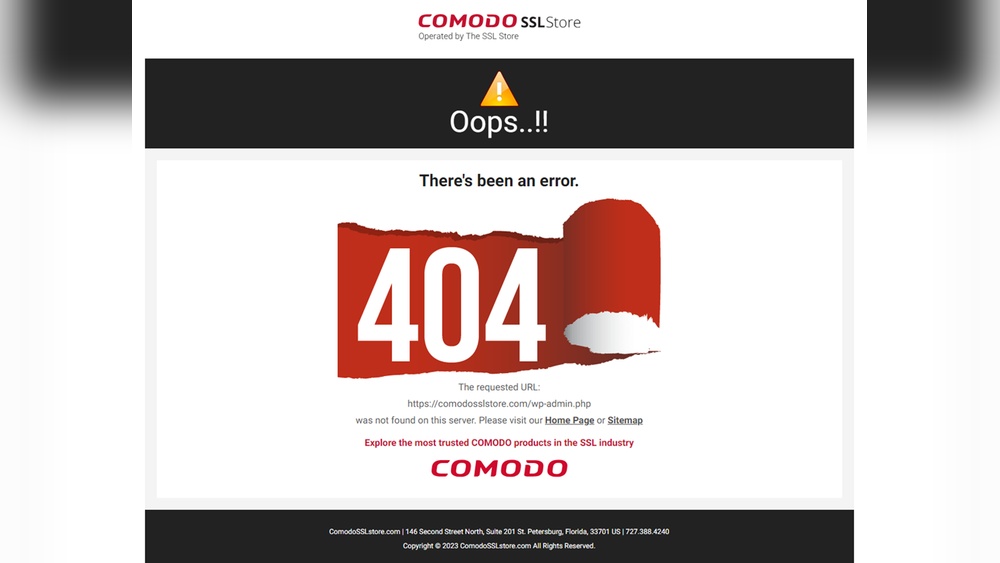
Are you trying to access your WordPress admin page but keep hitting a frustrating “Not Found” error? This problem can stop you from managing your site, updating content, or fixing issues quickly.
Don’t worry—you’re not alone, and there’s a way to fix it. You’ll discover simple, clear steps to regain access to your WordPress dashboard. Keep reading, and you’ll soon be back in control of your website without stress or confusion.
Credit: www.cloudways.com
Common Causes Of Admin Page Errors
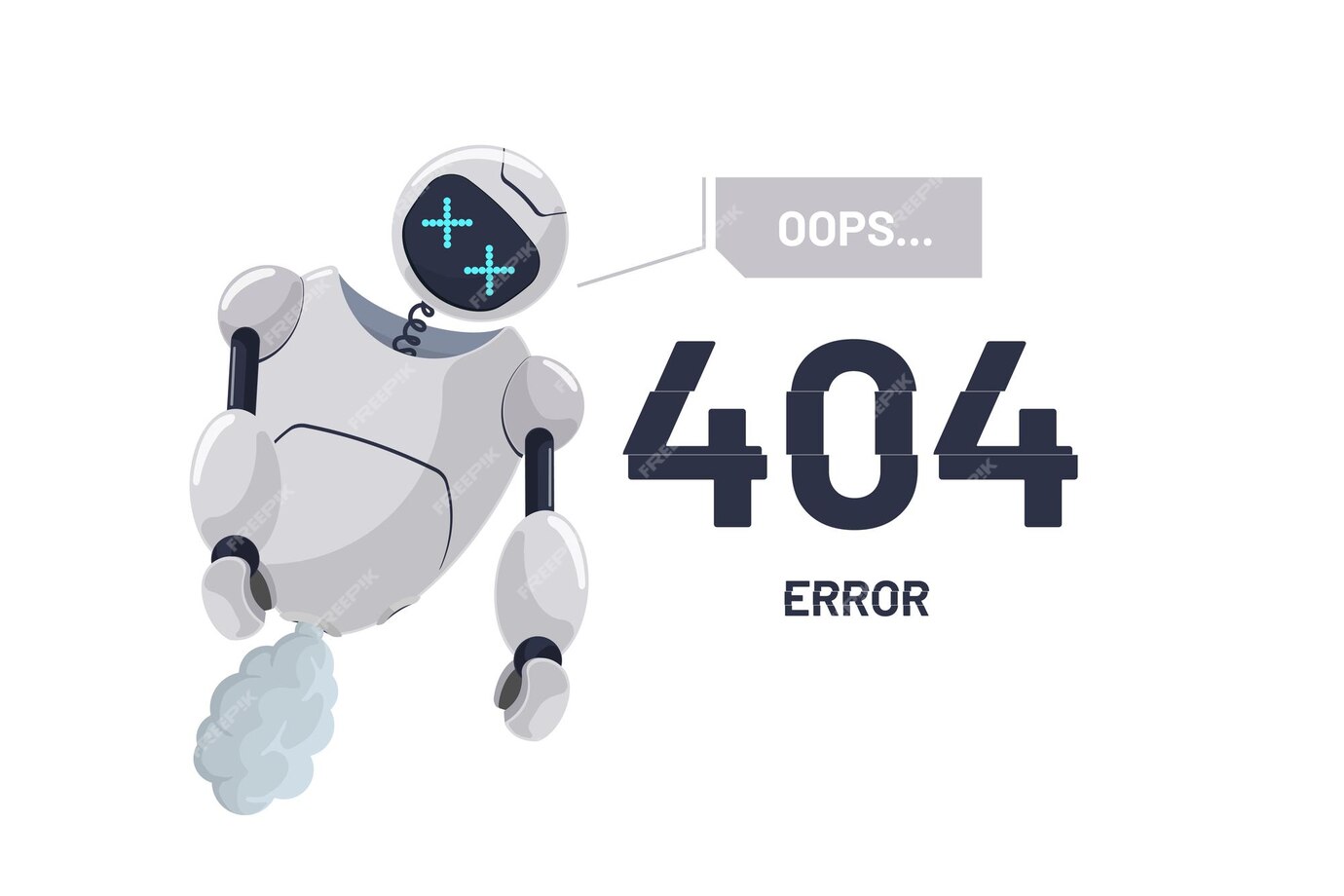
Accessing the WordPress admin page is key to managing your website. Sometimes, you may see a “Page Not Found” error instead. This error stops you from logging in and controlling your site. Several common reasons cause these admin page errors. Knowing them helps you fix the problem faster.
Incorrect Url Or Login Path
One common cause is typing the wrong URL. The default login link is usually yoursite.com/wp-admin. If you change this URL for security, you must use the new one. A small typo can block access. Double-check the address you enter in the browser.
Plugin Conflicts
Plugins add features to WordPress but sometimes clash. Two or more plugins may conflict and cause errors. A plugin could block the admin page or cause a redirect loop. Deactivating all plugins can help find the problematic one. Reactivate plugins one by one to spot the issue.
Theme Issues
The active theme controls your site’s look. A poorly coded or outdated theme can cause admin page errors. Switching to a default theme like Twenty Twenty-Three can test this. If the admin page works with a default theme, the problem is in your theme.
Corrupted .htaccess File
The .htaccess file controls site rules and redirects. A corrupted or misconfigured file can block the admin page. Renaming or deleting the .htaccess file forces WordPress to create a new one. This can fix many access problems.
Server And Hosting Problems
Sometimes, the issue is with the web server or hosting provider. Server errors, low memory, or misconfigured settings may cause admin page errors. Contact your host to check server status and error logs. They can help resolve hosting-related problems quickly.
Credit: comodosslstore.com
Basic Troubleshooting Steps
Sometimes, WordPress admin pages do not load correctly. Basic troubleshooting helps find simple issues fast. These steps fix common problems and save time. Follow the steps carefully to regain access quickly.
Clear Browser Cache And Cookies
Old cache or cookies may cause loading problems. Clear your browser cache and cookies. This removes stored files and data that might block the admin page. Restart the browser and try again. This step often solves access issues.
Try Different Browsers Or Devices
Browser settings or extensions can stop the page from loading. Use another browser like Chrome, Firefox, or Edge. Try accessing the admin page on a different device too. This helps check if the problem is browser or device related.
Reset Password Via Database
Sometimes, login problems stem from password issues. Reset the password directly in the database. Use tools like phpMyAdmin in your hosting control panel. Find the users table and update your password with a new one. This method works if email reset fails.
Fixing Plugin And Theme Conflicts
Plugin and theme conflicts often cause the WordPress admin page to not load. Fixing these conflicts helps regain access quickly. These issues happen when plugins or themes do not work well together or with WordPress updates. The steps below guide you through solving these problems safely.
Deactivate Plugins Via Ftp
Access your website files using an FTP client. Locate the wp-content/plugins folder. Rename this folder to something like plugins-old. This action deactivates all plugins at once. Try loading the admin page now. If it works, a plugin caused the issue. Rename the folder back to plugins to restore plugins. Then, deactivate plugins one by one in the admin area to find the troublemaker.
Switch To Default Theme
Sometimes, the active theme causes conflicts. Use FTP to access the wp-content/themes folder. Rename your active theme’s folder to disable it. WordPress will switch to a default theme like Twenty Twenty-One automatically. Check if the admin page loads. If yes, your theme caused the problem. Consider updating or replacing it to avoid future issues.
Identify The Problematic Plugin
After deactivating all plugins, reactivate them one at a time. Refresh the admin page after each activation. Watch for the error to appear again. The last plugin you activated before the error returns is the problem. Delete or update this plugin. Contact the plugin developer for support if needed. This process ensures your site works smoothly without conflicts.
Repairing The .htaccess File
Repairing the .htaccess file can fix many WordPress admin access issues. This file controls how your website handles links and security. A broken or corrupted .htaccess file often causes the “admin page not found” error. Fixing it is simple and takes only a few steps.
Backup Current .htaccess
First, save a copy of your current .htaccess file. Use an FTP client or file manager in your hosting control panel. Download the file to your computer. This backup keeps your settings safe. You can restore it if needed.
Create A New .htaccess File
Next, delete the old .htaccess file from your WordPress folder. Create a new one using a plain text editor. Add the default WordPress code below:
BEGIN WordPress RewriteEngine On RewriteBase / RewriteRule ^index\.php$ - [L] RewriteCond %{REQUEST_FILENAME} !-f RewriteCond %{REQUEST_FILENAME} !-d RewriteRule . /index.php [L] END WordPress Save the new file as .htaccess. Upload it to your WordPress root directory.
Reset Permalinks
Log in to your WordPress dashboard. Go to Settings > Permalinks. Click “Save Changes” without changing anything. This step refreshes permalink rules and updates the .htaccess file automatically. Your admin page should now load correctly.
Database And File Permissions
Database and file permissions are key to accessing your WordPress admin page. Problems in these areas often cause the “Not Found” error. Fixing these helps restore your site’s backend access quickly.
Check Database Connection
The WordPress admin needs a working database connection. Check the wp-config.php file for correct database name, user, and password. An incorrect entry breaks the connection.
Use your hosting control panel to confirm database details. Correct any mismatch immediately. A good connection lets WordPress load the admin page without errors.
Repair Database Via Phpmyadmin
Corrupted database tables cause admin page issues. Access phpMyAdmin from your hosting panel. Select your WordPress database from the list.
Choose all tables and select the “Repair table” option. This fixes common corruption problems. After repair, try loading the admin page again.
Adjust File And Folder Permissions
Incorrect file permissions block WordPress files from loading. Set folders to 755 and files to 644 permissions. This setup allows proper access while keeping security.
Use an FTP client or hosting file manager to change permissions. Wrong settings cause the admin page to show “Not Found” or errors. Proper permissions keep the site running smoothly.
Server And Hosting Solutions
Server and hosting problems often cause the WordPress admin page to not load. These issues can stop you from accessing your dashboard. Checking your server and hosting setup can help fix the problem quickly.
Check Server Error Logs
Server error logs show details about what went wrong. These logs record errors that happen on your site. Look for recent entries that mention your WordPress admin. This helps find the root cause of the issue. Access your hosting control panel to find these logs. Errors might include missing files or permission issues.
Increase Php Memory Limit
Low PHP memory can block your admin page. WordPress needs enough memory to run smoothly. Increase the PHP memory limit by editing the wp-config.php file. Add this line: define('WP_MEMORY_LIMIT', '256M'); This gives WordPress more memory to work with. It often solves admin page loading problems.
Contact Hosting Support
Hosting providers can check server settings and errors. They have tools to diagnose deeper problems. Contact their support team if the issue stays unresolved. Provide them with error log details. They can offer solutions or fix server-side issues. Good hosting support speeds up the recovery of your site.
Preventive Measures For Future Issues
Preventive measures help avoid problems accessing the WordPress admin page. Taking small steps can save time and effort. Protect your site and keep it running smoothly.
Regular Backups
Make backups often. Store copies of your entire website. This helps restore your site if something breaks. Use plugins or hosting tools to automate backups. Keep backup files safe in different locations.
Keep WordPress Updated
Update WordPress core regularly. Updates fix bugs and security issues. Running the latest version reduces errors. Check for updates at least once a week. Apply updates as soon as possible.
Use Reliable Plugins And Themes
Choose plugins and themes from trusted sources. Poor-quality tools can cause errors or security holes. Read reviews and check ratings before installing. Remove unused plugins and themes to reduce risks.
Implement Security Best Practices
Set strong passwords for all accounts. Limit login attempts to block hackers. Use security plugins to monitor threats. Keep user roles clear and restrict admin access. Secure your website with SSL certificates.

Credit: www.cloudways.com
Frequently Asked Questions
Why Can’t I Access My WordPress Admin Page?
You might face this issue due to incorrect URL, plugin conflicts, or corrupted. htaccess file. Clear cache, disable plugins, and check URL settings to fix it.
How To Fix WordPress Admin Page Not Found Error?
Check your site URL in the wp-config. php file. Reset permalinks via the database or. htaccess file. Disable plugins if needed to resolve conflicts.
Can A Plugin Cause WordPress Admin Page 404 Error?
Yes, incompatible or corrupted plugins can cause admin page errors. Disable all plugins and reactivate them one by one to identify the culprit.
Does .htaccess File Affect WordPress Admin Access?
Yes, a corrupted. htaccess file can block admin page access. Renaming or regenerating this file often resolves the issue quickly.
Conclusion
Facing a “WordPress admin page not found” error can feel frustrating. This issue often comes from simple problems like incorrect URLs or plugin conflicts. Checking your site’s settings and clearing the cache usually helps. Keeping backups and updating your site regularly can prevent future errors.
Remember, small fixes often restore access quickly. Stay calm and follow step-by-step solutions. Your WordPress dashboard will be back soon.


