
Want to make your WordPress blog more personal and trustworthy? Adding an author bio is one of the easiest ways to do that.
When visitors see who’s behind the content, they connect better with your message—and that builds loyalty. If you’ve been wondering how to add an author bio to your WordPress site without any hassle, you’re in the right place. Keep reading, and by the end, you’ll know exactly how to create an eye-catching author bio that highlights your expertise and keeps readers coming back for more.
Credit: www.wpbeginner.com
Benefits Of Adding Author Bio
Adding an author bio to your WordPress site offers many benefits. It helps build a connection between the writer and the reader. Readers feel more confident about the content. An author bio adds a personal touch that makes your site more trustworthy.
Author bios also help search engines understand who creates your content. This can improve your site’s ranking in search results. Plus, a well-written bio encourages readers to engage more with your posts. It invites them to explore more articles by the same author.
Boosting Reader Trust
Readers want to know who writes the content. An author bio shows the writer’s expertise and background. It makes the content feel more reliable and honest. Trust leads readers to keep coming back for more information.
Improving Seo
Search engines look for clear information about content creators. Author bios provide this important detail. Including keywords in the bio can boost your page ranking. It helps search engines understand your site better.
Enhancing Engagement
An author bio invites readers to connect with the writer. It encourages comments and questions on posts. Readers may follow the author on social media or subscribe to updates. This creates a loyal audience and more interaction on your site.
Choosing The Right Author Bio Style
Choosing the right author bio style helps readers connect with the writer. It also adds personality to your blog. The style should fit your blog’s tone and goals. A good bio builds trust and encourages readers to explore more content.
Short Vs Detailed Bios
Short bios give quick info about the author. They work well for casual blogs or guest posts. A few sentences about the author’s role and interests are enough. Detailed bios share more background and achievements. They suit professional blogs or personal brands. Choose based on how much you want to share and your audience’s needs.
Using Images And Links
Adding an image makes the bio more personal. Readers see a face behind the words. Use a clear, friendly photo that fits your blog style. Links in the bio can direct readers to social media or other posts. Keep links relevant and minimal. Too many links distract from the main content.
Customizing For Your Brand
Your author bio should match your brand’s look and voice. Use the same colors, fonts, and tone as the rest of your site. This creates a smooth, professional feel. Custom bios help your blog stand out and stay memorable. Small details like style and wording make a big difference.
Adding Author Bio With WordPress Built-in Features
Adding an author bio in WordPress can help readers connect with your content. WordPress has built-in tools that make this simple. You do not need extra plugins or coding skills. Just use the default settings to add and show author details.
Editing User Profile Information
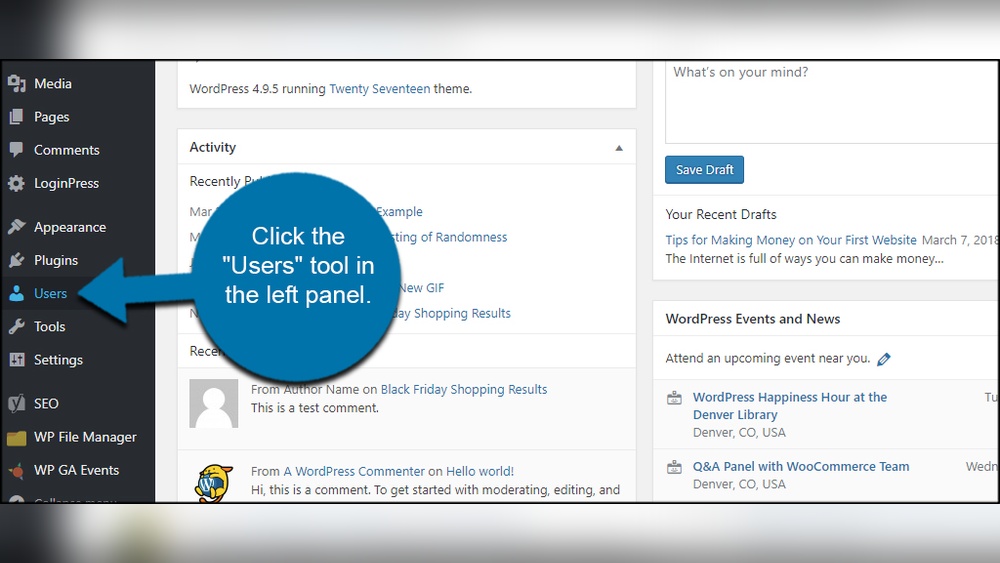
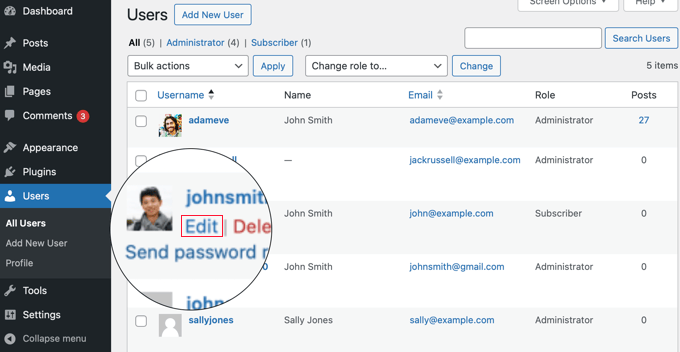
Start by going to the WordPress dashboard. Click on “Users” and then “Profile.” Here, you can enter the author’s name and a short bio. You can also add a website or social media links. This information appears under each post by the author. Make sure to save the changes before leaving the page.
Displaying Bio In Posts
Most WordPress themes show the author bio automatically. It usually appears at the end of each post. If your theme does not show it, check the theme settings. Some themes allow you to turn the author box on or off. You may need to enable this option to display the bio.
Limitations To Consider
Built-in features offer only basic options. You cannot customize the author bio design much. No support for multiple authors on one post. No options for adding images or rich media easily. For more features, plugins or custom code may be required. Still, the default method suits simple author bios well.
Credit: www.wpbeginner.com
Using Plugins For Author Bio
Adding an author bio using plugins is a simple way to show information about the writer. Plugins save time and offer many design choices. They work well for websites with multiple authors. Most plugins let you add photos, social links, and short descriptions.
Top Author Bio Plugins
Many plugins help create author bios easily. “Simple Author Box” is popular for its clean look. “WP Author Bio” offers extra style options. “Starbox” adds social media icons for better connection. Choose a plugin that fits your website style and needs.
Installation And Setup
Go to your WordPress dashboard. Click “Plugins” then “Add New.” Type the plugin name in the search box. Click “Install Now” and then “Activate.” After activation, find the plugin settings in the dashboard menu. Follow the setup guide for first use. Most plugins have step-by-step instructions.
Customizing Plugin Options
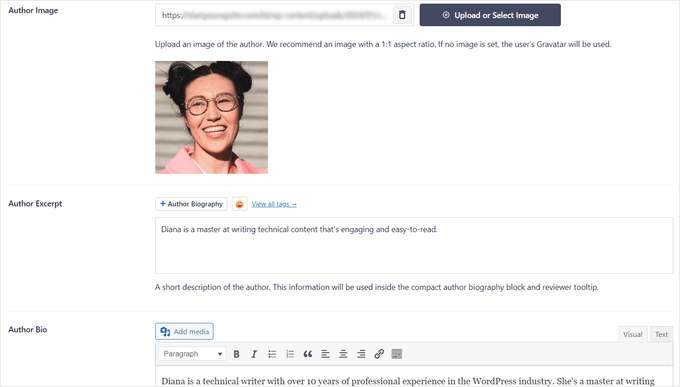
Open the plugin settings page. Choose the bio layout that looks best. Upload an author photo or avatar. Add a short description or bio text. Fill in social media links if supported. Save changes and check your posts to see the bio. Adjust settings to fit your website’s style.
Manual Method: Adding Author Bio Via Code
Adding an author bio manually in WordPress gives you full control over its appearance and placement. This method involves editing your theme files and using simple code snippets. It suits users who want a custom look without relying on plugins. The process requires basic knowledge of PHP and HTML.
Editing Theme Files Safely
Always back up your site before editing theme files. Use a child theme to keep changes safe from updates. Access your theme files via the WordPress dashboard or FTP. Focus on files like single.php or content-single.php where posts are shown. Insert the author bio code carefully to avoid breaking your site.
Using Template Tags
WordPress offers template tags to display author information easily. Use get_the_author_meta() to fetch author details. For example, get_the_author_meta('description') shows the author’s bio text. Combine this with tags like get_the_author_meta('display_name') for the name. Place these tags inside HTML to create a bio section below posts.
Styling The Bio Section
Add CSS styles to make the bio section look neat and match your site. Use a custom class or ID for the bio container. Style fonts, colors, and spacing for better readability. Include author images by linking to their avatar. Keep styles simple and responsive for all devices.

Credit: wpengine.com
Tips For Writing An Engaging Author Bio
Writing an engaging author bio helps connect readers with the writer. It builds trust and shows credibility. A well-crafted bio can make readers want to explore more content. Keep the bio clear, simple, and interesting. Focus on what makes the author unique and trustworthy.
Highlighting Expertise
Show the author’s skills and knowledge. Mention relevant experience or education. Use simple words to explain expertise. This helps readers understand why the author is reliable. Avoid long lists or complicated terms. Just a few strong points work best.
Adding Personal Touch
Share a little about the author’s personality. A small detail about hobbies or interests makes the bio relatable. It creates a friendly tone and human connection. Keep it brief and relevant to the blog’s topic. This makes the author seem approachable.
Including Call To Actions
Invite readers to engage further. Suggest following on social media or signing up for newsletters. Use clear and gentle prompts. This encourages readers to stay connected. Keep calls to action short and easy to understand.
Testing And Optimizing Author Bios
Testing and optimizing author bios improves reader connection and site trust. It helps make bios clear, interesting, and relevant. Small changes can increase reader interest and boost engagement. Regular checks ensure bios stay effective and fresh.
Gathering Reader Feedback
Ask readers what they think about the author bio. Use simple surveys or comment sections for quick opinions. Listen to their suggestions about content and style. Feedback shows what readers like and what needs change.
Analyzing Engagement Metrics
Track how many visitors read the author bio. Use tools like Google Analytics to see the time spent on the page. Check click rates on author links or social profiles. These numbers reveal if bios attract reader attention or not.
Making Continuous Improvements
Update author bios based on feedback and data. Change photos, text, or layout to make bios clearer. Test different bio lengths to see what works best. Keep refining to keep reader interest high and improve trust.
Frequently Asked Questions
How Do I Add An Author Bio In WordPress?
You can add an author bio by editing your user profile. Fill in the Biographical Info section, and use plugins or widgets for display.
Can I Customize The Author Bio Layout In WordPress?
Yes, many themes and plugins allow you to customize the bio’s look. You can change fonts, colors, and position easily.
Is It Possible To Show Multiple Author Bios On One Post?
Yes, with co-author plugins, you can display bios for multiple authors on a single post.
Why Should I Include An Author Bio On My Blog?
An author bio builds credibility, connects readers with the writer, and improves SEO by adding relevant content.
Conclusion
Adding an author bio helps build trust with your readers. It shows who writes the content and adds a personal touch. WordPress makes it easy to create and display this information. Keep your bio clear and short for best results.
Regular updates keep your site fresh and engaging. Your readers will appreciate knowing more about you. Start adding your author bio today to connect better. Small steps like this improve your blog’s professionalism and reader experience.


