
Are you looking to make your WordPress website more organized and user-friendly? Adding a sub menu in Elementor is a simple way to help your visitors find what they need quickly.
Whether you want to showcase more options without cluttering your main menu or create a smooth navigation experience, this guide will show you exactly how to do it step-by-step. Keep reading to discover how easy it is to add a professional-looking sub menu that keeps your visitors engaged and coming back for more.
Set Up Your Main Menu
Setting up your main menu is the first step to organizing your website’s navigation. A clear menu helps visitors find information fast. It also improves your site’s overall look and user experience.
This section guides you through creating and managing your main menu in WordPress. You will learn how to access menu settings, create a new menu, and add main menu items.
Access WordPress Menu Settings
Log in to your WordPress dashboard. On the left sidebar, find the “Appearance” tab. Click on “Menus” under Appearance. This opens the menu editor where you control your site’s navigation.
Create A New Menu
In the menu editor, click on “Create a new menu.” Give your menu a simple name like “Main Menu.” Click the “Create Menu” button. Now your new menu is ready for items.
Add Main Menu Items
Look at the left side for pages, posts, or custom links. Select the items you want to add to your menu. Click “Add to Menu.” Arrange items by dragging them up or down. Save the menu to apply changes.
Create Sub Menu Items
Creating sub menu items in WordPress Elementor makes your website easier to navigate. Sub menus help group related pages under one main menu item. This way, visitors find what they need faster. Follow these steps to create clear and organized sub menus.
Add Submenu Pages
First, open your WordPress dashboard. Go to Appearance and click on Menus. Choose the menu you want to edit or create a new one. Add pages by selecting them from the left side and clicking “Add to Menu”. Drag the pages slightly to the right under a main menu item. This action turns them into sub menu items.
Organize Menu Hierarchy
Arrange your sub menu items in the order visitors expect. Place the most important or popular pages at the top. Use the drag-and-drop feature to reorder items easily. Make sure sub menus are indented under their parent menu. This structure shows the relationship between pages clearly.
Save Your Menu Structure
After organizing your menu and sub menus, click the “Save Menu” button. This step ensures all changes apply to your website. Check your website’s front end to see how the sub menus appear. Adjust the menu if needed for better usability and appearance.
Integrate Menu With Elementor
Integrating your menu with Elementor lets you design a clear, easy-to-use navigation. This step helps visitors find what they need on your site quickly. Elementor gives you tools to build menus that fit your style and site layout perfectly.
Open Elementor Theme Builder
Start by opening the Elementor Theme Builder. This tool controls parts of your website like headers and footers. Find it in the WordPress dashboard under Elementor. Click “Theme Builder” to open it. Here, you can create or edit your site’s header where the menu lives.
Insert Nav Menu Widget
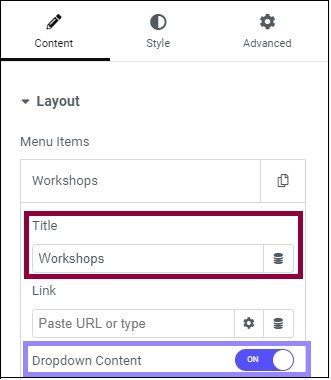
Next, add the Nav Menu widget to your header area. Drag the widget from the Elementor panel into your header section. This widget shows your menu on the page. It lets you customize menu styles and how it looks on different devices.
Select Your Menu
Choose the menu you want to display from the widget settings. Your site’s menus are created in WordPress under Appearance > Menus. Pick the one with your main links and submenus. This menu will now appear in your Elementor header. You can also adjust menu layout and colors here.
Credit: elementor.com
Customize Sub Menu Appearance
Customizing your sub menu appearance in Elementor helps your website look professional. It improves user experience by making navigation clear and attractive. You can change styles, fonts, colors, and how the menu behaves on different devices. These tweaks make your sub menu match your site’s design perfectly.
Adjust Dropdown Styles
Start by opening the Elementor menu widget settings. Look for the dropdown style options. You can change the background color to match your theme. Add borders or shadows to make the dropdown stand out. Adjust padding and spacing to give items room to breathe. These changes help your sub menu look neat and easy to read.
Modify Fonts And Colors
Fonts and colors affect how users see your menu. Choose simple fonts that are easy to read. Change font size for better visibility. Use colors that contrast well with the background. Highlight hover or active states with different colors. This guides users to know where they are in the menu.
Set Responsive Behavior
Responsive menus work well on phones and tablets. In Elementor, check the responsive settings for the menu. You can hide or show sub menus on smaller screens. Adjust dropdown width so it fits mobile displays. Make sure touch targets are large enough for easy tapping. This keeps your menu user-friendly on all devices.
Test And Troubleshoot Sub Menus
Testing and troubleshooting sub menus is key to a smooth website experience. Sub menus must work well on all devices. They should appear without glitches or delays. Testing helps find small issues early. Fixing these issues keeps visitors happy. Let’s explore how to test and fix sub menus in Elementor.
Preview On Different Devices
Elementor lets you preview your site on various devices. Check how the sub menu looks on desktop, tablet, and phone. Each device shows the menu differently. Make sure the menu is easy to use on small screens. Look for overlapping text or hidden options. Adjust the menu style if needed to improve visibility.
Fix Common Display Issues
Some common problems include menus not opening or showing incorrectly. Check the menu’s settings in Elementor. Confirm that the submenu is linked to the right parent menu. Clear any custom CSS that may block the menu. Try disabling plugins that might conflict with Elementor. Fixing these issues helps the menu work smoothly.
Clear Cache For Updates
Changes may not appear immediately due to cached files. Clear your browser cache after updating menus. If you use caching plugins, clear their cache too. This forces the site to load the newest menu version. Refresh the page several times to confirm the update. Clearing cache solves many update display problems.
Credit: elementor.com

Credit: www.youtube.com
Frequently Asked Questions
How Do I Create A Submenu In Elementor?
To create a submenu in Elementor, first design your main menu in WordPress. Then, assign child pages under a parent page. Elementor automatically displays these as submenus in your navigation menu for a clean dropdown effect.
Can I Customize Submenu Style In Elementor?
Yes, Elementor allows full customization of submenu styles. You can change fonts, colors, spacing, and hover effects using the Elementor menu widget’s style settings. This helps your submenu match your site’s design perfectly.
Why Is My Submenu Not Showing In Elementor?
If your submenu isn’t showing, ensure you have child pages assigned correctly under a parent page. Also, check if your menu widget is set to display the correct menu location. Clearing cache can also resolve display issues.
Is It Possible To Add Icons To Submenu Items?
Yes, you can add icons to submenu items in Elementor by using custom CSS or plugins that support menu icon integration. This enhances navigation clarity and improves the user experience on your site.
Conclusion
Adding a submenu in WordPress Elementor is simple and quick. You only need a few steps to organize your menu well. Submenus help visitors find pages easily on your site. Clear menus improve user experience and keep visitors longer. Try these steps on your website today.
Watch your navigation become cleaner and more helpful. Keep exploring Elementor for more ways to improve your site.


