
Are you looking to understand your website visitors better and grow your online presence? Adding Google Analytics to your WordPress site is the key.
It gives you clear insights into who is visiting, what they like, and how they interact with your content. But if you’re unsure how to add the Google Analytics code to your WordPress site, don’t worry. This guide will walk you through simple, step-by-step instructions so you can start tracking your site’s performance today.
Keep reading, and you’ll have powerful data working for you in no time.
Credit: www.hostinger.com
Choose The Right Google Analytics Account
Choosing the right Google Analytics account is the first step to track your WordPress site’s visitors. It helps you collect accurate data about user behavior and site performance. A correct setup ensures you see useful insights and make better decisions for your website.
Create Or Sign In To Google Analytics
Go to the Google Analytics website. Use your Google account to sign in. If you do not have an account, create one. This account will store all your website data securely. Use an email that you check often. It makes managing your analytics easier.
Set Up A New Property For Your Website
After signing in, create a new property in your Google Analytics account. A property represents your WordPress website. Enter your website’s name and URL carefully. Choose the right time zone and currency. This setup allows Google Analytics to collect data from your site properly.
Credit: www.monsterinsights.com
Get Your Google Analytics Tracking Code
Getting your Google Analytics tracking code is the first step in measuring your website traffic. This code helps you see how visitors use your site. You need to find and copy this code correctly. Then, you can add it to your WordPress site for tracking.
Locate The Tracking Id
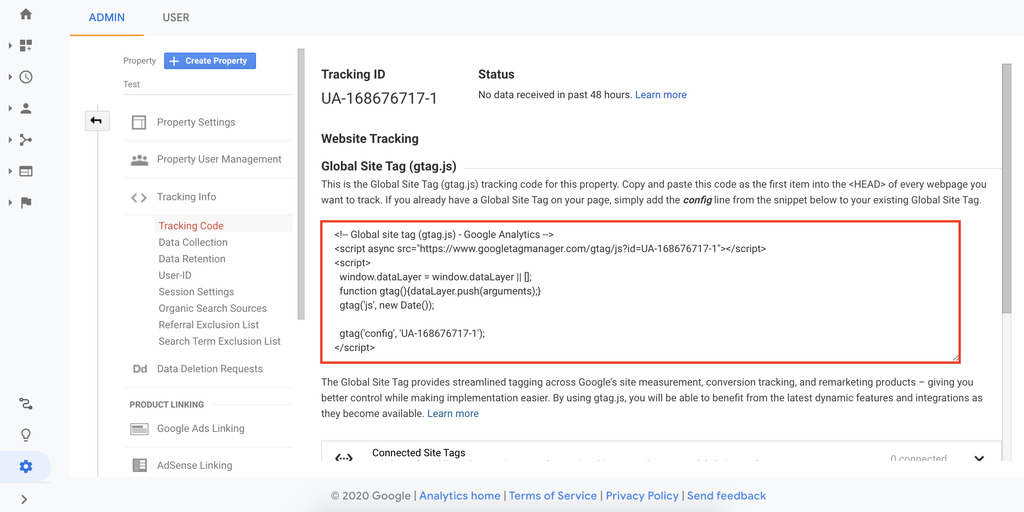
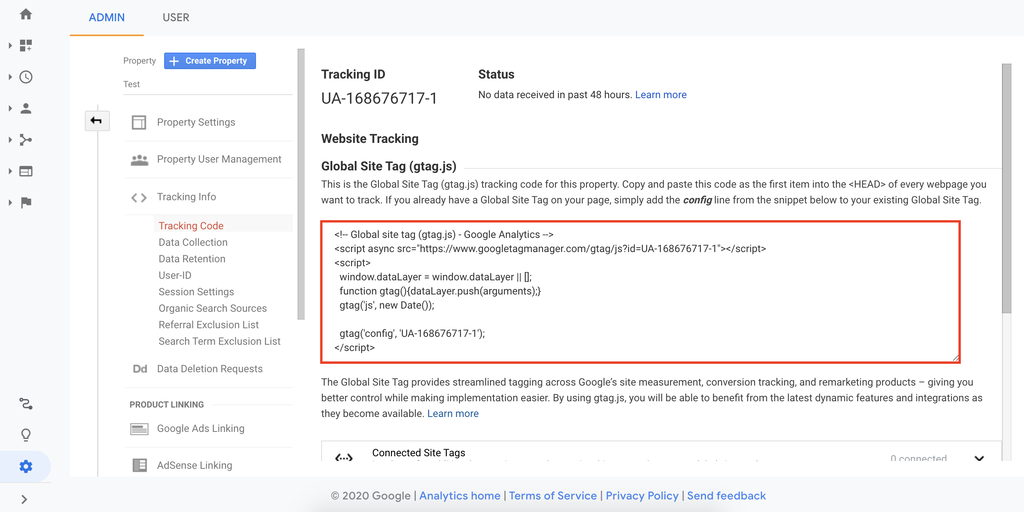
Sign in to your Google Analytics account. Select the property for your website. Go to the Admin section at the bottom left. Under the Property column, click on “Tracking Info.” Then, choose “Tracking Code.”
Your Tracking ID appears at the top. It looks like “UA-XXXXXXXXX-X.” This ID is unique to your website. Keep it handy for the next step.
Copy The Global Site Tag
Below the Tracking ID, find the Global Site Tag code. It starts with and ends with . This entire script must be copied.
Click inside the box to highlight the code. Press Ctrl+C (Windows) or Cmd+C (Mac) to copy it. This tag sends visitor data to Google Analytics.
Add Code Manually To WordPress
Adding Google Analytics code manually to WordPress helps track your website traffic accurately. This method gives you full control over where the code goes. It works well for users comfortable editing theme files. Follow simple steps to add the code safely and correctly. Always back up your site before making changes.
Access Theme Editor Safely
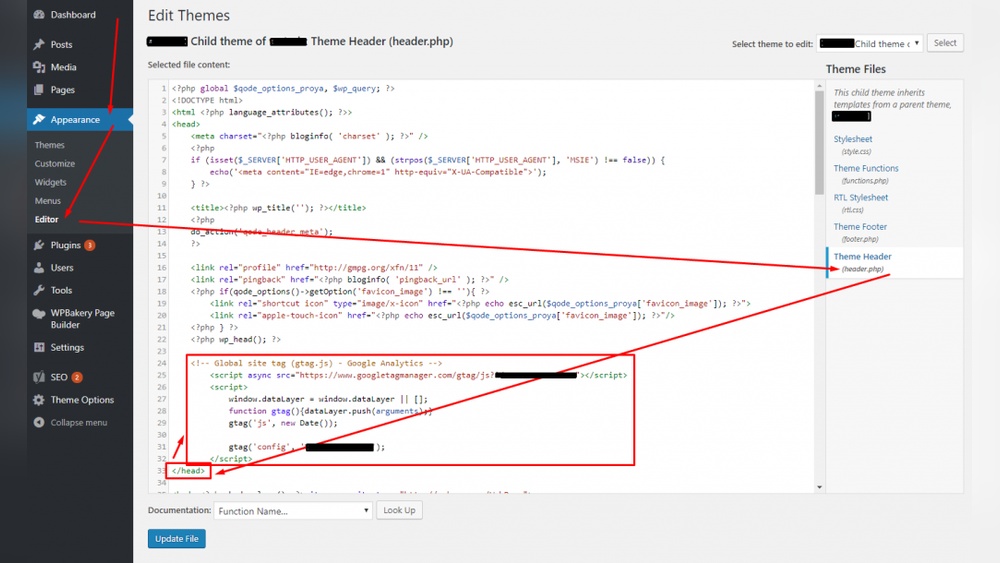
Log in to your WordPress dashboard. Go to Appearance, then select Theme Editor. Look for the theme files on the right side. Find the file named header.php. Before editing, create a full backup of your site. Use a child theme to avoid losing changes after updates. Editing the main theme directly can cause problems if updated.
Insert Code Into Header.php
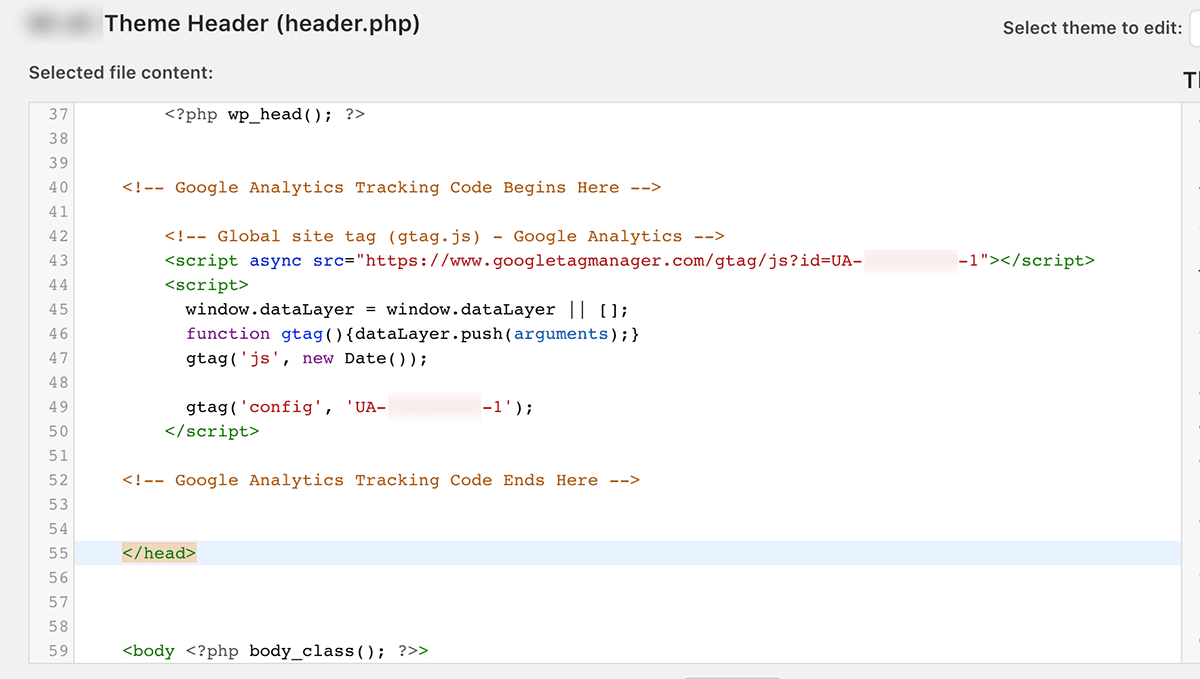
Open the header.php file carefully. Locate the tag near the top. Paste your Google Analytics tracking code right before the closing tag. Ensure the entire code snippet is copied exactly. Avoid changing any other code in this file. Save your changes after pasting the code.
Save And Verify Changes
Click the Update File button to save your edits. Clear your website cache if you use caching plugins. Open your website in a new browser tab. Use Google Tag Assistant or the Analytics real-time report to check the code. The tracking code should start sending data within minutes. If no data appears, review the code placement again.
Use A Plugin To Add Google Analytics
Using a plugin is the easiest way to add Google Analytics to WordPress. Plugins simplify the process by handling the code for you. This method is perfect for beginners. No need to edit theme files or touch any code. Just install, connect, and configure. The plugin does the rest, so your site can start tracking visitors quickly.
Install A Trusted Analytics Plugin
Log in to your WordPress dashboard. Go to Plugins > Add New. Search for a popular Google Analytics plugin. Look for high ratings and many active installs. Choose one that updates regularly. Click “Install Now” and then “Activate.” The plugin is now ready to use.
Connect Plugin To Your Google Account
Open the plugin settings from your dashboard. Find the option to connect your Google account. Follow the prompts to sign in. Grant permission for the plugin to access your Analytics data. This connection links your website with Google Analytics.
Configure Plugin Settings
Set the tracking options inside the plugin. Choose what type of data to collect. Enable features like tracking page views and user behavior. Save your settings. Your website now sends visitor data to Google Analytics automatically.
Verify Google Analytics Is Working
After adding Google Analytics code to your WordPress site, confirming it works is vital. This ensures your site data is accurate. Without verification, tracking errors may go unnoticed. Simple tools help you verify Google Analytics quickly. These checks improve your confidence in data collection.
Use Real-time Reports
Real-Time Reports in Google Analytics show live user activity on your site. Open your Google Analytics dashboard and go to the “Real-Time” section. Visit your website in another browser tab or device. Watch the report update as you browse pages. Seeing your actions appear confirms the tracking code works. It also helps identify if pageviews or events register correctly.
Check Tracking Status With Tag Assistant
Tag Assistant is a free Chrome extension by Google. It helps verify Google Analytics tags on your WordPress site. Install the extension and activate it on your site page. Tag Assistant will scan for the Analytics code and display status messages. Look for green check marks indicating proper setup. It also shows warnings or errors to fix. Using Tag Assistant ensures your tracking code is installed correctly and firing as expected.
Credit: www.hostinger.com
Troubleshoot Common Issues
Adding Google Analytics to WordPress may cause some common issues. These problems can stop your tracking from working right. Fixing them quickly helps you get accurate data. This section covers simple ways to solve these common problems. Follow the tips below to keep your analytics running smoothly.
Fix Tracking Code Errors
Check the tracking code for mistakes. Copy the code exactly from Google Analytics. Even small changes can break the code. Place the code in the correct spot, usually in the header. Use a plugin or your theme’s header file. Clear your site cache to update changes. Test the code with Google Tag Assistant or similar tools. Make sure the tracking ID matches your property.
Resolve Plugin Conflicts
Sometimes plugins clash and stop tracking. Deactivate all plugins except the one for analytics. Check if tracking works now. Activate plugins one by one to find the conflict. Update all plugins to their latest versions. Use only one plugin for Google Analytics. Avoid plugins that add extra scripts to headers. Conflicts often happen with caching or security plugins.
Frequently Asked Questions
How Do I Add Google Analytics To WordPress?
You can add Google Analytics by installing a plugin like “Site Kit” or by manually inserting the tracking code into your theme’s header. php file.
Is A Plugin Necessary For Google Analytics On WordPress?
No, a plugin isn’t necessary but it simplifies setup and management. Manual code insertion works too but requires technical skill.
Where Do I Find The Google Analytics Tracking Code?
Log in to Google Analytics, go to Admin > Property > Tracking Info > Tracking Code, and copy the Global Site Tag (gtag. js).
Can Google Analytics Slow Down My WordPress Site?
Google Analytics code is lightweight and loads asynchronously, so it has minimal impact on site speed.
Conclusion
Adding Google Analytics to WordPress helps track your website’s visitors. You can see what pages they like and how they find you. This information helps improve your site and grow your audience. The process is simple and does not take much time.
Follow the steps carefully, and your data will start to show. Keep checking your reports to understand your visitors better. This small step can make a big difference for your website’s success.


