
Are you wondering if you can cancel your WordPress subscription without hassle? Maybe you’re no longer using your site or want to switch to another platform.
Whatever your reason, understanding how to cancel your WordPress subscription is important. You don’t want to keep paying for something you no longer need. You’ll discover exactly how to cancel your WordPress plan easily and what to watch out for.
Keep reading to take control of your subscription and avoid unnecessary charges.
Credit: yoast.com
WordPress Subscription Types
WordPress offers several subscription types. Each plan fits different needs and budgets. Understanding these plans helps you choose the best option for your website.
Subscriptions range from free plans to advanced paid plans. Each one has unique features and limits. Knowing these differences is key before subscribing or canceling.
Free Vs Paid Plans
The free plan is a good start for beginners. It includes basic tools to build a simple website. You get limited storage and free themes. Ads may appear on your site.
Paid plans offer more options and control. They remove ads and add custom domain names. You get more storage and access to premium themes. Support and advanced tools come with paid plans.
Features Of Each Plan
Free plans include basic design tools and WordPress subdomains. Paid plans provide extra storage, custom domains, and no ads. They also include SEO tools and Google Analytics.
Higher-tier paid plans offer eCommerce features and advanced customization. You can install plugins and use more payment options. Support is faster and available 24/7 on paid plans.

Credit: wordpress.com
Reasons To Cancel
Cancelling a WordPress subscription happens for many reasons. People start with excitement but later find the service no longer fits their needs. Some face budget issues, while others want to try different platforms. Sometimes, the website is no longer needed. Understanding these reasons helps users decide wisely.
Cost Concerns
Many users cancel due to monthly or yearly fees. The cost may feel too high for the value received. Budget cuts or financial changes also affect this choice. Some find cheaper or free alternatives that meet their needs.
Switching Platforms
Users often switch to platforms that offer better tools or features. Some want simpler options, while others need more control. Moving to a new platform can improve website performance. Switching also happens if another service feels easier to use.
No Longer Needed
Some websites serve short-term purposes like events or projects. After completion, the site may no longer be necessary. Business closures or changes in plans also lead to cancellation. Keeping an unused subscription wastes money and effort.
Canceling WordPress Subscription
Cancelling a WordPress subscription is a straightforward process. Many users decide to stop their plans for various reasons. Some want to switch platforms, while others no longer need premium features. Understanding how to cancel helps avoid unexpected charges.
WordPress offers clear options to manage or cancel your subscription. Knowing the steps ensures a smooth experience. It also helps to know what happens after cancellation.
Step-by-step Guide
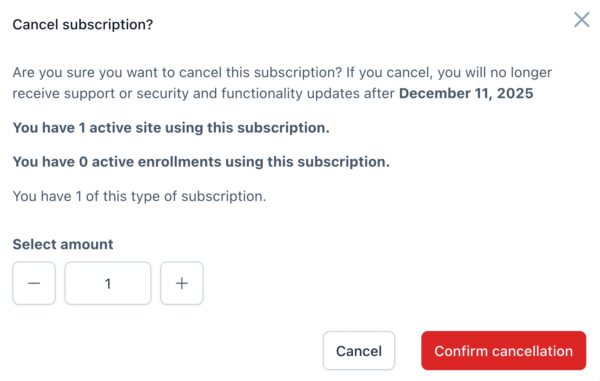
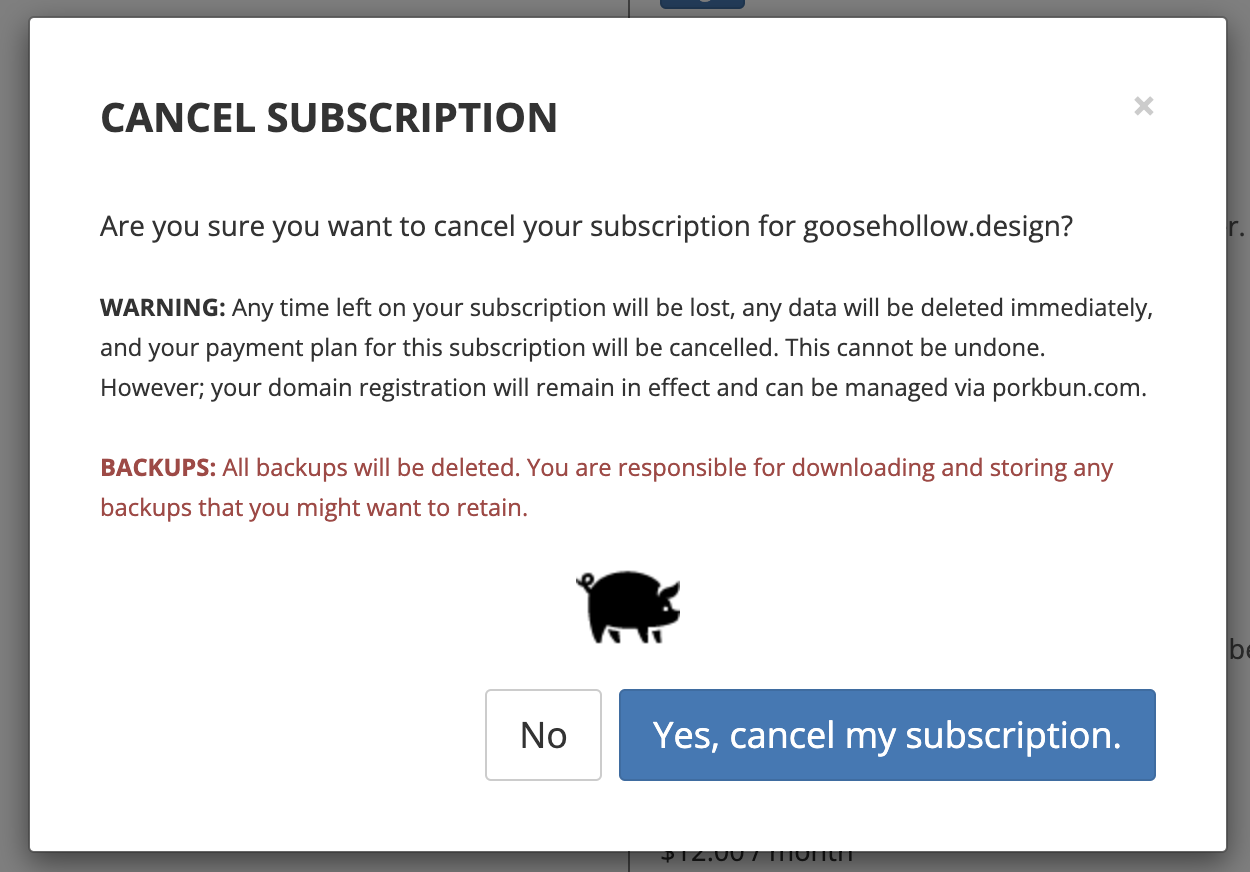
First, log in to your WordPress account. Go to the “Plans” or “Billing” section. Look for the active subscription you want to cancel. Click on “Cancel Plan” or similar option. Follow the prompts to confirm your cancellation. You might be asked why you are cancelling. Provide feedback if you wish. Complete the process by clicking “Confirm.” You will receive an email confirming the cancellation.
What Happens After Cancellation
Your subscription stays active until the current billing period ends. After that, premium features will stop working. Your website will revert to the free plan. Any paid themes or plugins may no longer be available. Your content stays safe, but some tools will be limited. You can always upgrade again later if needed. No extra charges will occur after cancellation.
Credit: kb.porkbun.com
Saving Time During Cancellation
Cancelling a WordPress subscription can take time. Saving time during cancellation helps reduce stress. Planning and knowing steps speeds up the process.
Two main ways save time: preparing your data and using WordPress support. Both make cancellation smoother and faster.
Preparing Your Data
Before cancelling, save your website content. Download all posts, images, and important files. Keep backups on your computer or cloud storage. This prevents data loss after cancellation.
Export your site using WordPress tools. Go to the dashboard and find the export option. Choose what to save and start the download. This simple step saves time later.
Using WordPress Support
Contact WordPress support for help with cancellation. They guide you through the process quickly. Use chat or email for faster responses.
Support can answer questions and fix issues fast. This avoids confusion and delays. Keep your account details ready to speed up verification.
Alternatives To Cancellation
Cancelling your WordPress subscription is not the only option. There are other ways to manage your account without losing everything. These choices can save money and keep your site active. Consider these alternatives before making a final decision.
Downgrading Your Plan
Downgrading lets you keep your website but pay less. Choose a smaller plan that fits your budget. Some features may be removed, but your content stays safe. This option suits those who need fewer tools or less storage. It keeps your site online without full cancellation.
Pausing Your Subscription
Pausing your plan stops charges temporarily. Your website remains visible but with limited updates. This option is ideal if you plan to return later. It prevents losing data or settings. Pausing gives time without fully ending your service.
Common Issues And Solutions
Cancelling a WordPress subscription can sometimes cause issues. Many users face common problems during or after cancellation. Knowing these issues helps you solve them quickly.
This section explains the most common problems and their solutions. It guides you through billing concerns and what happens to your access after cancellation.
Billing Problems
Billing problems occur if charges continue after cancellation. Sometimes, the cancellation does not process correctly. Check your payment method for any pending charges.
Contact WordPress support to confirm your subscription status. Request a refund if you were charged by mistake. Keep records of all communications for proof.
Ensure you cancel the subscription before the renewal date. This prevents unwanted charges. Review your billing settings regularly to avoid surprises.
Access After Cancellation
Access changes after you cancel your WordPress subscription. Paid features may stop working immediately or at the end of the billing cycle. Your website may switch to a free plan with limited tools.
Back up your content before cancelling. This keeps your data safe if access is lost. Know that some custom domains may stop working after cancellation.
You can still view your site on the free plan but with fewer options. Plan ahead to avoid losing important features or content.
Frequently Asked Questions
How Do I Cancel My WordPress Subscription?
To cancel your WordPress subscription, log into your account. Go to the Plans or Subscriptions section. Select the subscription you want to cancel, and follow the prompts to cancel it. You will receive confirmation once the cancellation is successful.
Can I Get A Refund After Canceling WordPress?
WordPress refund policies vary by plan and region. Generally, annual plans may offer prorated refunds if canceled early. Monthly plans usually don’t provide refunds. It’s best to review the specific refund policy on WordPress before canceling your subscription.
Will My Website Be Deleted After Cancellation?
Your WordPress site will remain active until the subscription expires. After that, your website may be taken down or limited. It’s important to back up your content before cancellation to avoid data loss or downtime.
Can I Reactivate My Canceled WordPress Subscription?
Yes, you can reactivate your WordPress subscription anytime before expiration. Log into your account and choose to renew or reactivate the plan. Reactivating quickly helps avoid loss of content or site functionality.
Conclusion
Canceling a WordPress subscription is simple and clear. You control your plan and billing anytime. Just follow the steps in your account settings. Keep in mind, some charges might still apply after canceling. Always check WordPress’s refund and cancellation policies.
This way, you avoid surprises and save money. Managing your subscription helps keep your website budget-friendly. Take your time to decide what fits your needs best. Your website journey stays in your hands.


