
Are you wondering if you can use WordPress on GoDaddy? If you want a simple way to build your website, this question is probably on your mind.
You might have heard that GoDaddy is a popular hosting service, but is it the right choice for your WordPress site? You’ll discover how easy it is to get started, what tools you’ll have at your fingertips, and what to watch out for.
Keep reading, and by the end, you’ll know exactly how to use WordPress on GoDaddy to create the website you’ve been dreaming of.
Credit: www.elegantthemes.com
Godaddy Hosting Options
GoDaddy offers several hosting options for WordPress users. Each plan fits different needs and budgets. Understanding these options helps you pick the right one for your website.
Shared Hosting Plans
Shared hosting means your website shares a server with others. This option is affordable and good for small websites. It includes basic features like email, storage, and bandwidth. Shared hosting is easy to set up and manage.
WordPress Hosting Features
GoDaddy’s WordPress hosting is tailored for WordPress sites. It offers one-click WordPress installation and automatic updates. Built-in security helps protect your site. The hosting also includes daily backups and fast loading speeds.
Managed Vs Unmanaged Hosting
Managed hosting means GoDaddy handles technical tasks. It includes updates, backups, and security. Unmanaged hosting gives you full control but requires technical skills. Choose managed if you want less hassle. Pick unmanaged for more control and flexibility.
Installing WordPress On Godaddy
Installing WordPress on GoDaddy is a straightforward process. It allows you to create a website quickly without much technical knowledge. GoDaddy offers tools that help beginners and experienced users set up WordPress with ease.
This section explains two ways to install WordPress on GoDaddy. It also covers common problems during installation and how to fix them.
Using One-click Installation
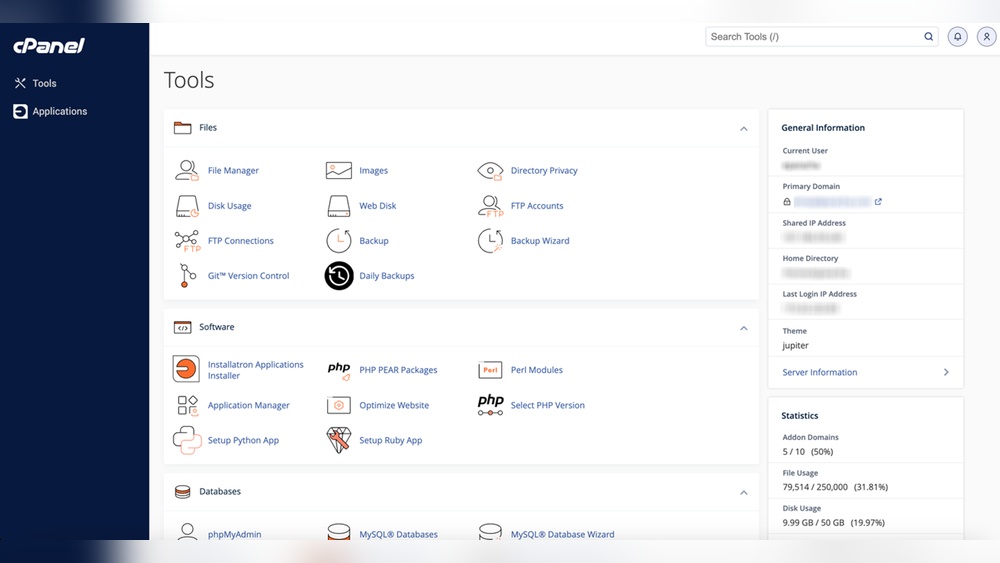
GoDaddy provides a one-click installation feature for WordPress. It saves time and effort by automating the setup. You start by logging into your GoDaddy account and going to the hosting dashboard. Find the WordPress option and click on it. Then, follow the simple prompts to install WordPress on your domain. The system handles database creation and file setup automatically. This method suits beginners who want to launch a site fast.
Manual WordPress Setup
Manual installation gives more control over the process. First, download the latest WordPress package from the official site. Next, upload the files to your GoDaddy hosting via FTP or the file manager. Create a MySQL database from the hosting control panel. Connect the database details in the WordPress setup script. Finally, run the WordPress installation by opening your domain in a browser and filling in site information. This method is good for users who want customized configurations.
Common Installation Issues
Sometimes, users face issues during WordPress installation on GoDaddy. One common problem is incorrect database credentials. Double-check the database name, username, and password. Another issue is file permission errors. Ensure your WordPress files have proper permissions for security and access. Slow installation or timeouts can happen due to server limits. Contact GoDaddy support for help in such cases. Following instructions carefully reduces most errors.
Configuring Your WordPress Site
Configuring your WordPress site on GoDaddy sets the foundation for a smooth experience. After installation, focus on organizing your site clearly and attractively. This helps visitors find information quickly and enjoy their visit. Proper setup improves site performance and search engine ranking. Below are key steps to get your site ready.
Choosing Themes And Plugins
Select a theme that fits your site’s purpose and style. Themes control the look and feel of your website. Pick one that is simple and mobile-friendly. Too many features can slow your site down.
Plugins add extra functions to your site. Install only the plugins you need. Popular choices include contact forms, SEO tools, and security plugins. Keep plugins updated to avoid conflicts or security risks.
Setting Up Permalinks
Permalinks are the web addresses of your pages and posts. A clear permalink structure helps visitors and search engines understand your content. Go to Settings > Permalinks in your WordPress dashboard.
Choose the “Post name” option for clean and readable URLs. This format shows the title of your post in the link. Save changes and test your links to ensure they work.
Creating Essential Pages
Start by creating important pages like Home, About, Contact, and Privacy Policy. These pages build trust and provide key information. Use clear titles and easy language.
Keep the layout simple with headings and short paragraphs. Add contact forms or maps on the Contact page. Update pages regularly as your site grows.
Optimizing Performance On Godaddy
Optimizing your WordPress site on GoDaddy is key to fast loading times and better user experience. Slow websites lose visitors and rank lower on search engines. Simple steps can improve your site’s speed and performance. Focus on caching, image optimization, and database management for the best results.
Caching Solutions
Caching stores parts of your website temporarily. This helps pages load faster for returning visitors. Use caching plugins like W3 Total Cache or WP Super Cache. These plugins reduce the load on GoDaddy servers. Enable browser caching to save site files on users’ devices. Faster loading improves user experience and SEO ranking.
Image Optimization
Large images slow down your WordPress site on GoDaddy. Resize images to fit your site’s layout. Compress images using tools like TinyPNG or ShortPixel. Use next-gen formats like WebP for better compression. Optimized images load faster and use less bandwidth. This keeps your website smooth and quick for visitors.
Database Management
Your WordPress database stores all your site’s content and settings. Over time, it can get cluttered with old data. Use plugins like WP-Optimize to clean and optimize the database. Remove spam comments, post revisions, and unused tables. A clean database improves site speed and reduces server load on GoDaddy. Regular database care keeps your site healthy.
Securing Your WordPress Site
Keeping your WordPress site safe on GoDaddy is very important. A secure site protects your data and your visitors’ information. It also helps your website rank better in search engines. This section explains easy ways to secure your WordPress site on GoDaddy.
Ssl Certificates On Godaddy
SSL certificates create a secure connection between your site and visitors. They show a padlock icon in the browser address bar. This builds trust and protects sensitive data like passwords and credit cards. GoDaddy offers SSL certificates that you can add to your WordPress site. Installing one is simple and improves your site’s security and SEO.
Backup Strategies
Backing up your site regularly saves your work and data. It helps you restore your site if something goes wrong. Use GoDaddy’s backup tools or WordPress plugins to schedule automatic backups. Store backups in a safe place, like cloud storage or an external drive. Having recent backups reduces stress during emergencies.
Protecting Against Malware
Malware can harm your site and steal information. Protect your WordPress site by using security plugins that scan for malware. Keep your WordPress version, themes, and plugins updated to close security gaps. Avoid using free themes or plugins from unknown sources. Taking these steps lowers the risk of malware attacks on your site.

Credit: onesmartsheep.com
Troubleshooting Common Issues
Using WordPress on GoDaddy can sometimes cause small issues. These problems can stop your site from working well. Fixing these quickly helps keep your site running smoothly. Here are some common problems and easy ways to solve them.
Fixing Plugin Conflicts
Plugins add features to WordPress but can clash. Conflicts cause errors or stop pages from loading. To fix this, deactivate all plugins first. Then, activate them one by one. This shows which plugin causes trouble. Update the problem plugin or find an alternative. Keep plugins updated to avoid conflicts.
Resolving Login Problems
Login issues often happen after updates or wrong passwords. Clear your browser cache and cookies first. Reset your password using the WordPress password reset link. If that fails, access your site via GoDaddy’s file manager. Rename the plugins folder to disable all plugins. Try logging in again. This stops plugins from blocking access.
Handling Slow Loading Times
Slow sites lose visitors fast. Check your images and make them smaller. Use a caching plugin to speed up your pages. Limit the number of active plugins to reduce load. Choose a GoDaddy hosting plan that matches your site size. Regularly update WordPress, themes, and plugins for better speed.
Migrating WordPress To Godaddy
Migrating WordPress to GoDaddy lets you manage your site with ease. GoDaddy offers reliable hosting and easy WordPress installation. Moving your site requires careful steps to avoid downtime or data loss. Preparing your site and checking it after migration is important. Using the right tools can make the process smooth and fast.
Preparing Your Site For Migration
Start by backing up your entire WordPress site. Include all files and the database in the backup. Clean up unnecessary files and plugins to reduce size. Check that your WordPress version is updated to the latest. Disable caching and security plugins before migration to avoid conflicts.
Using Migration Plugins
Migration plugins simplify moving WordPress to GoDaddy. Popular plugins like Duplicator or All-in-One WP Migration handle backups and transfers. Install the plugin on your current site and create a package. Upload the package to your new GoDaddy hosting account. Follow the plugin’s instructions to complete the process.
Post-migration Checks
After migration, check your website carefully. Verify all pages load correctly and images appear. Test site speed to ensure good performance on GoDaddy. Check plugins and themes for compatibility issues. Update permalinks and clear caches to avoid errors. Finally, confirm your SSL certificate is active for security.

Credit: www.godaddy.com
Frequently Asked Questions
Can WordPress Be Installed Directly On Godaddy Hosting?
Yes, WordPress can be easily installed on GoDaddy hosting using their one-click installer. It simplifies setup for beginners and experts alike.
Is Godaddy Good For WordPress Website Hosting?
GoDaddy offers reliable hosting with good speed and uptime, making it suitable for most WordPress websites. It also provides 24/7 support.
How Do I Manage WordPress Updates On Godaddy?
GoDaddy’s hosting dashboard allows you to manage WordPress updates automatically or manually, ensuring your site remains secure and up-to-date.
Can I Use Custom Themes On WordPress With Godaddy?
Yes, you can upload and use any custom WordPress theme on GoDaddy hosting without restrictions for full design flexibility.
Conclusion
WordPress works well on GoDaddy hosting plans. Setting it up is simple and quick. You can build websites or blogs easily. GoDaddy offers tools that support WordPress use. Performance and support meet most user needs. Many beginners find this combination very helpful.
Consider your site’s goals before choosing a plan. Overall, GoDaddy and WordPress make a good pair for many users. Explore their features to find what fits you best.


