
Are you looking to customize your WordPress site but don’t know where to start with adding code? You’re not alone.
Adding code to WordPress can seem tricky, but it’s easier than you think—and it gives you the power to make your site truly yours. Whether you want to add a simple snippet or customize your theme, this guide will walk you through every step.
By the end, you’ll feel confident making changes that improve your site’s look and functionality. Ready to take control of your WordPress site? Let’s dive in.
Why Add Code In WordPress
Adding code in WordPress lets you control your website better. It helps you change how your site looks and works. You do not need to rely only on themes or plugins. Small code snippets can make a big difference.
This ability is useful for all types of WordPress users. Beginners can start with simple changes. Advanced users can create custom features. Code gives you the power to make your site unique.
Enhance Functionality
Adding code can bring new features to your site. You can create custom forms, buttons, or menus. Code allows you to connect with other tools or services. This improves user experience and keeps visitors engaged.
Customize Appearance
Code lets you change how your site looks exactly. You can adjust fonts, colors, or layouts. This helps your website match your brand style. Small CSS changes can make big visual improvements.
Improve Performance
Code can help your website load faster and run smoother. You can remove unnecessary scripts or optimize images. Better performance keeps visitors happy and reduces bounce rates. Fast sites also rank better in search engines.
Types Of Code To Add
Adding code in WordPress can improve your site’s look and function. Different types of code serve different purposes. Knowing these types helps you choose the right one. This section explains the main types of code you can add.
Html
HTML is the basic building block of web pages. It creates the structure and content of your site. You can add text, images, links, and more using HTML. It is easy to learn and use in WordPress posts or pages.
Css
CSS controls the style and appearance of your website. It changes colors, fonts, spacing, and layout. Adding CSS code lets you customize your site’s look without changing the content. It helps make your site unique and attractive.
Javascript
JavaScript adds interactivity to your website. It allows animations, pop-ups, and dynamic content changes. Adding JavaScript can improve user experience. Use it carefully to keep your site fast and secure.
Php
PHP is the language WordPress runs on. It controls how your site works behind the scenes. Adding PHP code can change site functions, create new features, or fix issues. This type requires more care and knowledge to avoid errors.
Safe Methods To Add Code
Adding code to WordPress can improve your site’s features and design. It is important to use safe methods to avoid breaking your site or losing changes. Safe methods help keep your site secure and easy to update. Below are some simple ways to add code safely.
Using Code Snippet Plugins
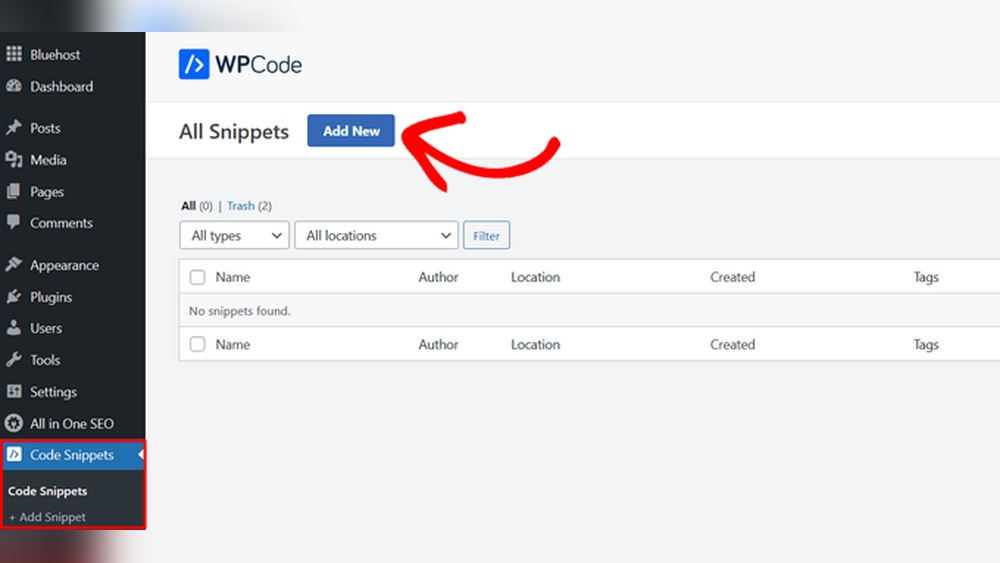
Code snippet plugins let you add small pieces of code without touching theme files. They keep your changes separate from the main code. This means your code stays active even after theme updates. Plugins like “Code Snippets” make it easy to manage and organize your custom code. You can turn snippets on or off anytime.
Child Themes
A child theme is a copy of your main theme. It allows you to make changes without affecting the original files. Use a child theme to add code to functions.php or template files safely. Your changes stay safe even when the parent theme updates. Creating a child theme keeps your website stable and easy to maintain.
Custom Css Options
Many WordPress themes offer a custom CSS box in the theme customizer. This area lets you add CSS code safely without changing theme files. Your custom styles stay intact after theme updates. This method is simple and perfect for style changes. No need for extra plugins or complex coding.
Theme Editor Cautions
The theme editor allows direct code changes in WordPress. It is risky because a small mistake can break your site. Changes made here can be lost after theme updates. Avoid editing core theme files directly. Always back up your site before using the theme editor. Use safer methods whenever possible.
Credit: kb.hosting.com
Step-by-step Guide To Adding Code
Adding code to your WordPress site can improve its look and function. This guide helps you do it safely and easily. Follow each step to avoid mistakes and keep your site secure. The process includes backing up your site, editing files, using plugins, and testing changes.
Each method suits different needs. Pick the one that fits your skills and the type of code you want to add. Start with a backup to protect your work.
Backup Your Site
Backing up your site saves a copy before changes. It protects your data if something goes wrong. Use a plugin or your hosting control panel to create a backup. Store the backup in a safe place. Never skip this step.
Accessing The Theme Editor
The Theme Editor lets you add code directly to theme files. Go to WordPress dashboard, then Appearance > Theme Editor. Choose the file you want to edit, such as functions.php or style.css. Add your code carefully. Save changes only after double-checking.
Adding Code With Plugins
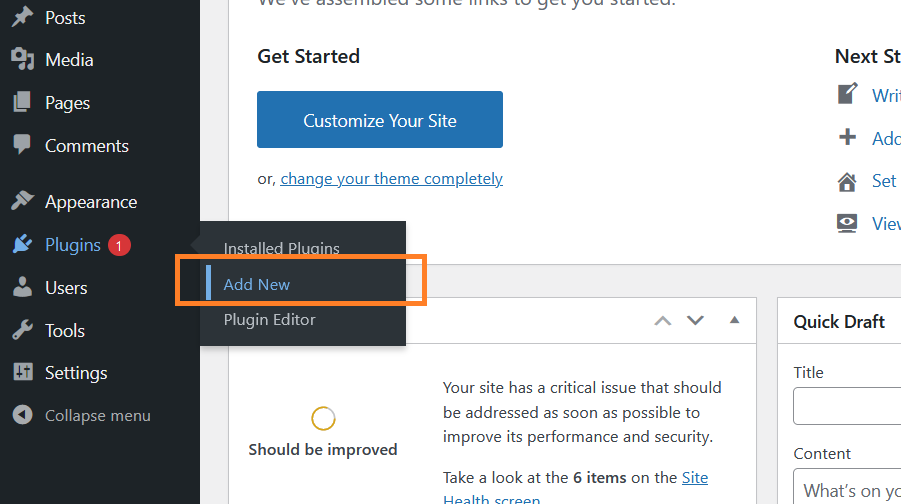
Plugins simplify code adding without editing files. Search for “Code Snippets” or similar plugins. Install and activate the plugin. Use the plugin interface to add your code. This method is safer and easier for beginners.
Using The Customizer For Css
To add custom CSS, use the WordPress Customizer. Go to Appearance > Customize > Additional CSS. Paste your CSS code in the box. The changes will show live on your site. Save and publish your custom styles.
Testing Your Changes
Test your site after adding code. Check different pages and functions. Look for errors or display issues. Use different browsers and devices to test. If problems appear, revert the changes or restore the backup. Testing ensures your site works well.
Common Mistakes To Avoid
Adding code to WordPress can improve your site’s look and function. But mistakes happen easily. These errors can break your site or cause other problems. Avoiding common mistakes saves time and stress. It helps keep your website safe and working well.
Skipping Backups
Never skip making a backup before adding code. Backups protect your site if something goes wrong. Without a backup, you might lose your work or data. Always save a copy of your site first. It makes fixing errors easier and faster.
Editing Parent Themes Directly
Editing the parent theme files is risky. Updates to the theme will erase your changes. Use a child theme instead. This keeps your custom code safe during updates. It also helps keep your site stable and secure.
Ignoring Syntax Errors
Syntax errors stop your code from running. Even small mistakes like missing commas cause problems. Always check your code carefully before saving. Use online tools or editors to find errors. Fixing these saves you from site crashes.
Not Testing On Different Devices
Code can look or work differently on phones, tablets, or computers. Test your site on many devices to check if everything works. This ensures all visitors have a good experience. Don’t assume your site looks perfect on just one screen.

Credit: wp-expert.net
Tools And Resources
Adding code to WordPress can be easier with the right tools and resources. These help you write, test, and fix your code safely. Using good tools saves time and avoids errors.
Code Editors
Code editors help you write and organize your code. They show colors for different parts of the code. This makes the code easier to read. Popular editors include Visual Studio Code and Sublime Text. These editors support many programming languages. They also have features like auto-complete and error checking.
Debugging Tools
Debugging tools find and fix problems in your code. They help you see where the code stops working. Tools like Query Monitor and Debug Bar work well with WordPress. They show errors and warnings clearly. Using these tools helps keep your site running smoothly.
WordPress Community Forums
Forums are great places to ask questions and learn from others. The WordPress community is large and helpful. Many users share code snippets and tips. You can find answers to common problems fast. Participating in forums builds your confidence with WordPress coding.

Credit: www.youtube.com
Frequently Asked Questions
How Can I Add Custom Code To WordPress Safely?
You can add custom code via a child theme’s functions. php or use plugins like Code Snippets. Always backup your site before editing. This prevents errors and keeps your website secure.
What Is The Easiest Way To Insert Code In WordPress?
Using a plugin like “Insert Headers and Footers” is the simplest method. It allows you to add code without editing theme files. This is beginner-friendly and reduces risk of site issues.
Can I Add Html, Css, And Javascript In WordPress?
Yes, WordPress supports HTML, CSS, and JavaScript. You can add these codes in the theme editor, widgets, or plugins designed for code insertion. Always test changes on a staging site first.
How Do I Add Php Code To WordPress?
Add PHP code in your child theme’s functions. php file or use a plugin like Code Snippets. Avoid editing the main theme directly to prevent code loss during updates.
Conclusion
Adding code to WordPress can seem hard at first. Start with simple steps and take your time. Always back up your site before making changes. Use the right tools to add code safely. Testing your changes helps avoid problems later.
Keep your site updated to protect it. Practice often, and you will get better. Coding can improve your website’s look and function. Stay patient, and enjoy learning new skills.


