
Are you ready to turn your WordPress website into a powerful online store? Adding a shopping cart might sound tricky, but it’s simpler than you think.
Imagine your visitors browsing your products and easily adding them to their cart with just a few clicks. This not only boosts sales but also makes your site look professional and trustworthy. You’ll discover step-by-step how to add a shopping cart to your WordPress site quickly and without any technical headaches.
Keep reading, and you’ll have your store up and running in no time!
Choosing The Right Shopping Cart Plugin
Choosing the right shopping cart plugin is key for your WordPress store. The right plugin helps customers buy easily. It also makes managing orders simple for you. Picking a plugin that fits your needs saves time and money.
Focus on what features matter most. Think about ease of use and support. The plugin should work well with your site’s design. It must be reliable and secure for payment processing.
Popular Plugins Comparison
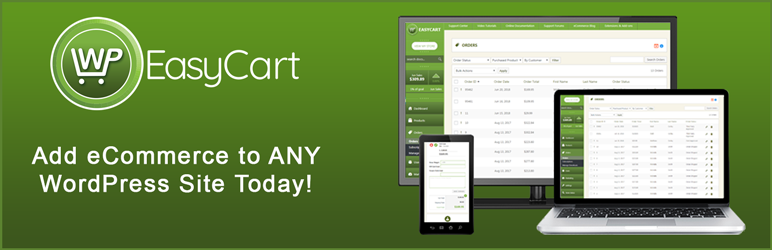
WooCommerce is the most popular choice. It offers many extensions and payment options. Easy Digital Downloads works well for selling digital products. WP Easy Cart is simple and good for small stores. BigCommerce for WordPress helps if you want a big online shop. Compare these plugins by features and user reviews.
Features To Consider
Look for payment gateways like PayPal and Stripe. Check if the plugin supports multiple currencies. Mobile-friendly design is a must. Inventory management helps track stock automatically. Coupons and discounts can boost sales. Good plugins offer easy checkout to reduce cart abandonment.
Plugin Compatibility
Make sure the plugin works with your WordPress version. It should be compatible with your theme and other plugins. Avoid conflicts that can break your site. Check for regular updates and support from the developer. A well-supported plugin stays secure and runs smoothly.
Credit: wordpress.org
Installing The Shopping Cart Plugin
Installing a shopping cart plugin is the next step after choosing the right plugin. This process lets you add eCommerce features to your WordPress site. The plugin will help your visitors pick products and pay safely.
The installation is simple and takes only a few minutes. Follow the steps carefully to avoid errors. Let’s break down the installation into three clear parts for easy understanding.
Downloading The Plugin
Start by finding the shopping cart plugin you want. Visit the plugin’s official website or the WordPress plugin directory. Click the download button to save the plugin file to your computer. The file will be in a .zip format, ready for upload.
Uploading To WordPress
Log in to your WordPress dashboard. Go to the “Plugins” menu and select “Add New.” Click the “Upload Plugin” button at the top. Choose the .zip file you downloaded. Click “Install Now” to upload the plugin to your site.
Activating The Plugin
After the upload finishes, WordPress will ask you to activate the plugin. Click “Activate Plugin” to enable it on your website. Once active, the plugin’s settings will appear in your dashboard. Customize these settings to fit your store’s needs.
Configuring Basic Settings
Configuring basic settings is the first step after installing your shopping cart plugin. These settings control how your online store works. They help you set up money handling, shipping, taxes, and how the cart looks. Proper settings make your store easy to use and trustworthy for buyers.
Setting Up Currency And Payment Options
Choose the currency your store will use. This helps customers see prices clearly. Select payment methods you want to accept, such as credit cards or PayPal. Make sure the options are safe and easy to use. Test payments to confirm everything works smoothly.
Shipping And Tax Settings
Decide where you will ship your products. Enter shipping rates or use rules based on weight or location. Set tax rates according to local laws. Some plugins calculate taxes automatically. Clear shipping and tax info avoids confusion and extra costs for buyers.
Customizing Cart Appearance
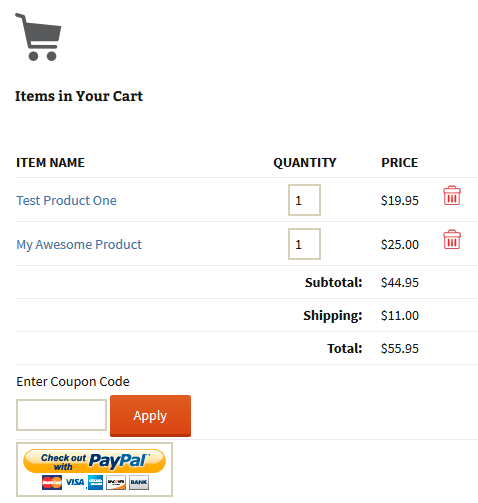
Change the look of your shopping cart to match your website style. Adjust colors, fonts, and button shapes. A clean, simple design helps customers check out faster. Preview changes before saving to ensure the cart looks good on all devices.
Credit: www.tipsandtricks-hq.com
Adding Products To Your Store
Adding products to your online store is a key step in building a WordPress shopping site. It lets customers see what you sell and start buying. This process involves creating clear product listings, keeping track of stock, and grouping products smartly.
Each part helps your store run smoothly and makes shopping easy for visitors. Let’s explore how to do this well.
Creating Product Listings
Create a new product in your WordPress dashboard. Enter a clear product name and description. Use simple words to describe the product’s features and benefits. Add good-quality images to show the product from different angles. Set the price and choose if the product is physical or digital. Add variations like size or color if needed. Save the product to make it live on your site.
Managing Inventory
Track stock levels to avoid selling products that are out of stock. Set the quantity available for each product. Enable stock management in your WordPress shopping cart plugin. Get alerts when stock is low. Hide or disable products that are no longer available. This keeps your store accurate and customers happy.
Organizing Products By Categories
Create categories to group similar products. For example, use “Clothing,” “Accessories,” or “Electronics.” Assign each product to one or more categories. This helps customers find products faster. Use clear and simple category names. Display categories in menus or sidebars for easy navigation. Well-organized products improve the shopping experience.
Integrating The Cart With Your Website
Integrating the shopping cart with your WordPress website makes online selling easy. A well-integrated cart helps visitors buy products quickly and smoothly. This section explains how to add the cart to your pages, use shortcodes and widgets, and test the cart to ensure it works well.
Adding Cart To Pages
Most WordPress e-commerce plugins let you add the cart to your pages easily. Go to the page where you want the cart to appear. Use the plugin’s options to insert the cart. This shows the cart summary or full cart on that page. Common pages include the homepage, product page, or checkout page. Adding the cart here keeps customers aware of their items. It also helps them manage their orders faster.
Using Shortcodes And Widgets
Shortcodes are small code snippets that display cart features anywhere on your site. Copy the shortcode from your cart plugin’s settings. Paste it into posts, pages, or widgets. Widgets are blocks you add to sidebars or footers. Many cart plugins offer widgets for quick cart access. Use widgets to show the cart in a visible spot on all pages. This improves user experience and keeps the cart handy.
Testing The Cart Functionality
Test the cart to avoid errors during checkout. Add products to the cart and check if they appear correctly. Try removing items and changing quantities. Proceed to checkout and follow the payment steps. Make sure the cart updates in real time. Check the cart on different devices and browsers. Fix any issues before going live. A smooth cart experience builds trust and boosts sales.

Credit: sellfy.com
Optimizing For User Experience
Optimizing user experience is key to a successful online store. A smooth, clear shopping journey keeps visitors happy. This can lead to more sales and repeat customers. Small changes make a big difference in how users feel and act on your site.
Improving Checkout Process
Make the checkout simple and quick. Use fewer steps to finish a purchase. Show clear instructions and progress indicators. Allow guest checkout to avoid forcing account creation. Offer multiple payment options for convenience. Confirm orders with a clear summary and confirmation message.
Mobile-friendly Design
Many users shop on phones. Ensure your cart works well on all devices. Use responsive themes that adjust to screen sizes. Make buttons large and easy to tap. Avoid pop-ups that block the screen. Test your site on different phones and tablets.
Speed And Performance Tips
Fast loading pages keep users engaged. Compress images to reduce file size. Use caching plugins to speed up repeat visits. Choose a reliable hosting service with good uptime. Minimize the number of plugins to avoid slowdowns. Regularly update your site and plugins for best performance.
Securing Your Online Store
Securing your online store is essential for building trust with customers. A safe store protects your business and your buyers. Without proper security, hackers can steal data and harm your reputation. Follow these steps to keep your WordPress shopping cart safe and secure.
Implementing Ssl Certificates
SSL certificates create a secure connection between your website and visitors. They encrypt data like passwords and credit card details. Most hosting providers offer free SSL certificates. Activate SSL to change your site’s URL from http to https. This small step reassures customers their information is safe.
Setting Up Secure Payment Gateways
Payment gateways process customers’ payments safely. Choose gateways that comply with PCI DSS standards. Popular options include PayPal, Stripe, and Square. These gateways handle sensitive data outside your site. They reduce the risk of fraud and make checkout smooth.
Protecting Customer Data
Customer data includes names, addresses, and payment details. Store this information securely using encryption and strong passwords. Regularly update your WordPress, plugins, and themes. Limit access to sensitive data only to trusted staff. Back up your site often to recover from attacks.
Managing Orders And Customers
Managing orders and customers is a key part of running a WordPress online store. It keeps your business organized and your customers happy. Good management helps avoid mistakes and delays. It also builds trust with buyers. Let’s explore how to track orders, handle returns, and communicate well with customers.
Tracking Orders
Tracking orders means knowing the status of each purchase. Use tools in your WordPress shopping cart plugin to see new, processing, and completed orders. Check order details like payment and delivery address. Update orders as they move through shipping. This keeps you informed and ready to solve problems fast.
Handling Returns And Refunds
Returns happen in every store. Make the process clear and simple. Use your WordPress system to mark returned items and process refunds quickly. Set rules for what can be returned and the time frame. Communicate these rules clearly on your site. Fast refunds improve customer satisfaction and trust.
Communicating With Customers
Good communication builds strong relationships. Send order confirmations and shipping updates automatically. Answer questions quickly through messages or email. Use polite and clear language. Let customers know you care about their experience. This encourages repeat business and positive reviews.
Frequently Asked Questions
What Plugins Help Add A Shopping Cart To WordPress?
Popular plugins like WooCommerce, Easy Digital Downloads, and Cart66 enable adding shopping carts easily. They offer customizable features and secure payment options. Choose based on your product type and budget for the best experience.
How Do I Integrate Payment Gateways In WordPress Carts?
Most WordPress cart plugins support popular gateways like PayPal, Stripe, and Square. Integration involves configuring API keys in plugin settings. This ensures secure and smooth transactions for your customers.
Can I Customize The Shopping Cart Design On WordPress?
Yes, WordPress cart plugins offer design customization options. You can change colors, layouts, and button styles to match your site’s branding. Some plugins also support custom CSS for advanced tweaks.
Is Adding A Shopping Cart To WordPress Free?
Many basic shopping cart plugins are free with essential features. However, premium add-ons or themes may require payment. Assess your store’s needs to decide if free or paid options suit you best.
Conclusion
Adding a shopping cart to your WordPress site is simple and effective. Choose the right plugin that fits your needs. Set up products, prices, and payment methods with care. Test your cart to ensure smooth customer experience. Keep your site updated for security and speed.
This small step can help your online business grow steadily. Start now and watch your website become more user-friendly and profitable.


