
Are you looking to make your WordPress site easier to navigate? Adding a navigation bar is one of the best ways to help your visitors find what they need quickly.
Imagine your visitors landing on your page and instantly seeing clear paths to important content. This simple change can boost user experience and keep people coming back. In this guide, you’ll learn exactly how to add a navigation bar to your WordPress site—step by step, with no confusing jargon.
Ready to make your website more user-friendly? Let’s dive in!
Credit: themelooks.com
Choosing The Right Theme
Choosing the right theme is important for adding a navigation bar in WordPress. The theme controls the look and feel of your site. It also affects how easy it is to create menus. A good theme offers clear options to build and manage your navigation bar. This saves time and avoids extra plugins.
Focus on themes that support menus well. They let you organize pages, posts, and links simply. Also, check if the theme works well on phones and tablets. A responsive menu improves user experience on all devices.
Themes With Built-in Navigation
Some themes come with built-in navigation bars. These are ready to use after activation. They often include drop-down menus for subpages. This feature helps keep your menu clean and easy to follow.
Built-in navigation means fewer steps to set up. You do not need extra tools or coding. The theme handles the style and placement of the menu. This option is good for beginners and busy site owners.
Customizable Menu Options
Themes with customizable menu options let you change colors, fonts, and layout. You can match the navigation bar to your brand style. Some themes allow you to move the menu to different parts of the page.
Customizable menus give control over user experience. You can add icons or search bars inside the navigation. This helps visitors find content faster. Choose themes that offer easy menu editing in the WordPress Customizer.

Credit: learn.wordpress.org
Creating A Menu In WordPress
Creating a menu in WordPress helps visitors find content quickly. Menus organize your site’s pages and links in a clear way. WordPress offers a simple tool to build and manage menus. This tool lets you control what appears in your navigation bar.
Accessing The Menu Settings
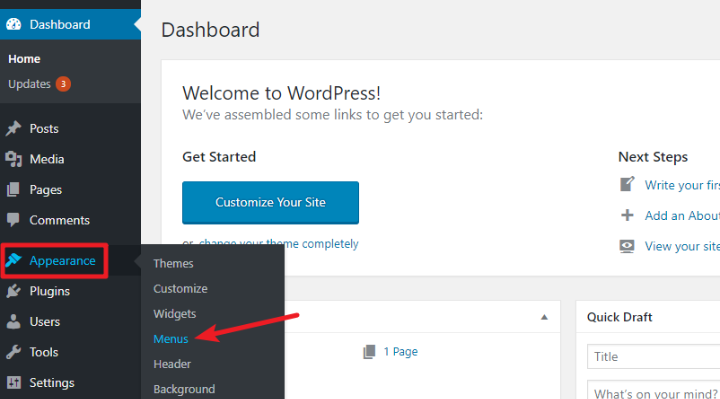
Start by logging into your WordPress dashboard. Go to the “Appearance” section on the left side. Click on “Menus” to open the menu settings page. Here, you can create new menus or edit existing ones. This area is where you manage all menu items.
Adding Pages And Links
On the menu settings page, find the box labeled “Pages.” It shows a list of your site’s pages. Check the boxes next to the pages you want to add. Click “Add to Menu” to include them in your navigation. You can also add custom links using the “Custom Links” box. Enter the URL and link text, then add it to your menu.
Organizing Menu Items
After adding items, arrange them by dragging and dropping. Place important pages at the top for easy access. Create sub-menus by moving items slightly to the right. This helps group related pages under one menu item. Save the menu once you finish organizing it.
Placing The Navigation Bar
Placing the navigation bar correctly is key to a good website. It helps visitors find pages easily. WordPress offers simple ways to position your menu. This section explains two common methods to place your navigation bar.
Using Theme Locations
Many WordPress themes have built-in menu spots called theme locations. These spots are ready for navigation bars. To use them, go to the WordPress dashboard. Select Appearance > Menus. Assign your menu to a theme location like ‘Primary’ or ‘Header’.
The menu will then appear where the theme expects. This method is fast and clean. It fits most themes well. You do not need to touch any code. Just pick a menu and a location. Save your settings and check your site.
Adding A Menu Widget
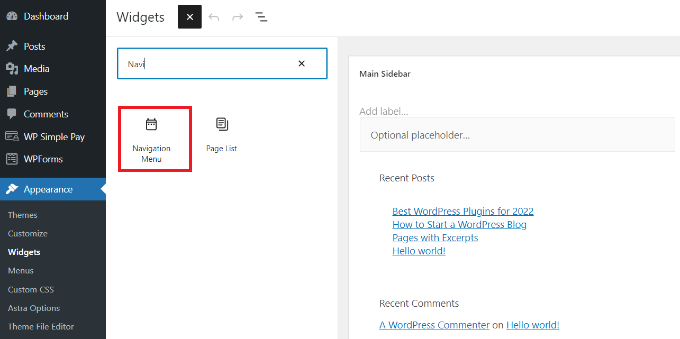
Widgets allow placing menus in sidebars or footers. Go to Appearance > Widgets in your dashboard. Find the ‘Navigation Menu’ widget and drag it to a widget area. Choose the menu you want to show.
Widgets are flexible. They let you put menus in unusual spots. Great for extra navigation or small menus. Update the widget and view your site. The menu should appear where you placed the widget.
Credit: www.wpkube.com
Customizing The Navigation Bar
Customizing the navigation bar makes your website unique and easy to use. It helps visitors find what they want quickly. Small changes in style or layout can improve user experience. You do not need to be a designer to customize your menu. WordPress offers simple tools to change colors, fonts, and menu layout.
Changing Colors And Fonts
Colors and fonts set the tone of your website. Choose colors that match your brand or theme. Use the WordPress Customizer to change these settings easily. Fonts can be bold or simple, depending on your style. Pick fonts that are easy to read on all devices. Keep contrast high between text and background for clarity.
Adjusting Menu Layout
The menu layout controls how your links appear. You can arrange menu items horizontally or vertically. Some themes allow you to center or align menus to the left or right. Organize your menu so visitors find pages without confusion. Use spacing and separators to keep the menu clean and neat.
Adding Dropdown Menus
Dropdown menus show sub-items under main menu links. They save space and keep menus tidy. To add dropdowns, create parent and child menu items in WordPress. Drag child items under a parent in the menu editor. Dropdowns help visitors explore sections without leaving the main page.
Using Plugins For Advanced Navigation
Using plugins for advanced navigation makes your WordPress site more user-friendly. Plugins offer extra features beyond the basic menu options. They help create menus that fit your site’s needs perfectly. Plugins also save time and reduce coding efforts. You can build complex menus easily with a plugin.
Popular Navigation Plugins
Many plugins improve WordPress navigation. Max Mega Menu is great for creating large, multi-column menus. WP Mega Menu offers drag-and-drop features and icons. Responsive Menu adapts menus for mobile devices easily. UberMenu is a premium option with advanced styling. These plugins suit different site types and skill levels.
Enhancing Menu Functionality
Plugins add useful functions to menus. You can add icons, images, and badges to menu items. Some plugins support custom fonts and colors. Sticky menus keep navigation visible while scrolling. Dropdown animations make menus look smooth and modern. Plugins also help create mobile-friendly menus. All these features improve user experience and site navigation.
Troubleshooting Common Issues
Troubleshooting common issues with WordPress navigation bars is important. Problems can stop your menu from showing or cause links to behave oddly. Fixing these issues helps visitors use your site easily. This section explains common problems and simple solutions.
Menu Not Showing
Menus may not appear due to incorrect theme settings. Check if you assigned the menu to the correct location in Appearance > Menus.
Clear your site cache. Cached pages can hide recent changes. Also, deactivate plugins one by one. Some plugins block menu display.
Make sure your theme supports menus. Older or custom themes might not show menus properly.
Incorrect Link Behavior
Links in the navigation bar may lead to wrong pages. Check each menu item’s URL for typos or errors.
Use the WordPress URL editor to fix incorrect links. Avoid copying links with extra spaces or characters.
Sometimes, permalink settings cause link issues. Go to Settings > Permalinks and save changes to refresh URLs.
Frequently Asked Questions
How Do I Create A Navigation Bar In WordPress?
To create a navigation bar, go to Appearance > Menus in your WordPress dashboard. Add pages or custom links, then save and assign the menu to your theme’s primary location.
Can I Customize The WordPress Navigation Bar Appearance?
Yes, you can customize the navigation bar using the WordPress Customizer or by adding custom CSS. Many themes also offer built-in styling options for menus.
What Are The Best Plugins For WordPress Navigation Bars?
Popular navigation bar plugins include Max Mega Menu, WP Mega Menu, and Responsive Menu. These plugins add advanced features and improve menu functionality without coding.
How Do I Add Dropdown Menus To WordPress Navigation?
In the Menu editor, drag menu items slightly to the right below a parent item. This creates a dropdown submenu visible on hover or click.
Conclusion
Adding a navigation bar in WordPress helps visitors find pages easily. You can create menus quickly through the WordPress dashboard. Choose clear labels for your links to guide users well. Test the navigation bar on different devices to ensure it works smoothly.
Regular updates keep your menu relevant and user-friendly. Simple steps lead to better website navigation and user experience. Start building your menu today to improve your site’s flow.


