
Have you ever found yourself staring at your WordPress dashboard, wondering how to keep your Themeforest theme fresh and functional? You’re not alone.
Updating your theme can feel like an intimidating task, especially with the constant evolution of design trends and technology. But here’s the good news: updating your Themeforest theme is easier than you might think, and it’s essential for maintaining your website’s performance and security.
Imagine a website that not only looks stunning but also runs seamlessly, offering your visitors a flawless experience. By updating your Themeforest theme, you ensure your site is equipped with the latest features and improvements, keeping it ahead of the curve. You’ll also protect it from potential vulnerabilities, which is crucial in today’s digital landscape. In this guide, we’ll walk you through the simple steps to update your Themeforest theme in WordPress. Whether you’re a seasoned developer or a beginner just starting out, you’ll find the process straightforward and rewarding. So, are you ready to give your website the upgrade it deserves? Let’s dive in and ensure your WordPress site remains a powerful tool in your digital arsenal.
Preparing For The Update
Always backup your website before updates. Use plugins for easy backups. Save your files on cloud or hard drive. This protects your data from loss. It is a crucial step to keep everything safe.
Visit Themeforest to check for updates. Log in to your account. Go to downloads section. Look for latest version of your theme. Update if there’s a new version. This ensures you have the latest features.
Check compatibility with your plugins and WordPress version. Look at theme details for compatibility info. Update plugins if needed. Ensure everything works together smoothly. This prevents errors and problems after update.

Credit: webdesign.tutsplus.com
Downloading The Updated Theme
Accessing Themeforest Account: Log into your Themeforest account. Find the dashboard on the home page. Search for your purchased themes list. Click on the list to view all themes. Ensure you are logged in with the correct email.
Locating Purchased Themes: Navigate to the “Downloads” section. This section shows all themes you bought. Look for the theme you need. It is usually listed by the theme name. Make sure to check the theme version.
Downloading the Latest Version: Click on the “Download” button next to your theme. Choose the “Installable WordPress file only” option. This ensures you get the right file. Save the file to your computer. Remember the location where you saved it. You will need this file to update your WordPress theme.
Updating Theme Via WordPress Dashboard
Deactivate the current theme first. Go to your WordPress dashboard. Click on ‘Appearance’ and then ‘Themes’. Find the active theme and click ‘Deactivate’. This step is important to avoid errors.
Next, upload the new theme version. In the same ‘Themes’ section, click ‘Add New’ and then ‘Upload Theme’. Choose the theme file you downloaded from Themeforest. Click ‘Install Now’. Wait for the upload to complete.
Finally, activate the updated theme. Once the upload finishes, find the new theme in the ‘Themes’ list. Click ‘Activate’. Your updated theme is now live. Check your site to ensure everything looks good.

Credit: www.youtube.com
Using Ftp For Theme Update
Easily update your Themeforest theme in WordPress using FTP. First, download the latest theme version from Themeforest. Next, upload it to your WordPress site via FTP, replacing the old theme files. Your theme is now updated and ready to use.
Connect To Your Server
First, open your FTP client and enter your server details. This means your hostname, username, and password. Look for the connect button and click it. Now, you are connected to your server.
Navigate To Theme Directory
Find the folder named wp-content. Inside it, locate the themes folder. This is where your theme files are kept. You need to open this folder now.
Replace Old Theme Files
Download the new theme files from Themeforest. Use your FTP client to upload these files to the themes folder. This will replace the old files. Be careful not to delete anything else.
Troubleshooting Common Issues
Updating your Themeforest theme in WordPress can solve many issues. First, download the updated theme from Themeforest. Then, use the WordPress dashboard to upload and activate the new theme version.
Resolving Activation Errors
Activation errors can be frustrating. Check if your license key is correct. Sometimes, servers block connections. Try using a VPN to activate the theme. Ensure WordPress is up-to-date. This helps solve many errors. Still facing issues? Contact the theme’s support team.
Fixing Styling Problems
Styling problems might ruin the look of your site. Clear your browser’s cache first. This often fixes display issues. Next, check if your child theme is active. Ensure all CSS files are loaded. Use tools like Inspect Element to find CSS problems. Make changes to the style.css file.
Handling Compatibility Conflicts
Compatibility issues are common with plugins. Deactivate all plugins and activate them one by one. This helps find the culprit. Ensure all plugins are compatible with the theme. Update them to the latest version. If the issue persists, reach out to the developer for help.
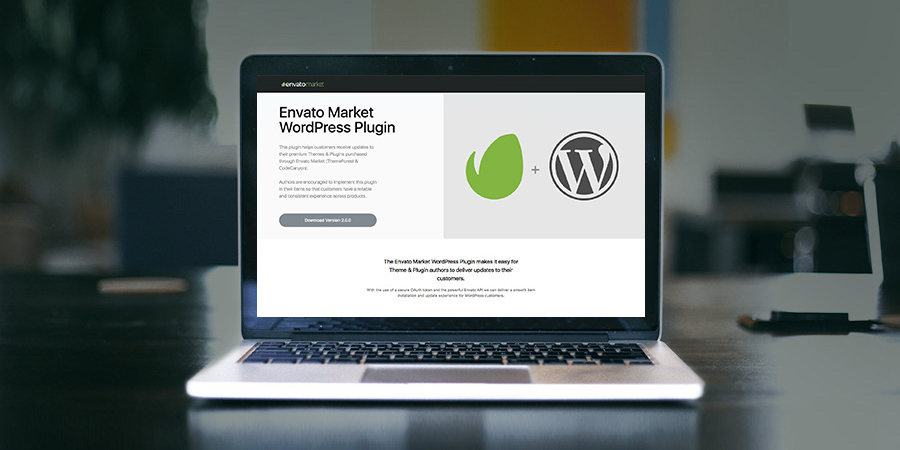
Credit: www.wpexplorer.com
Post-update Checks
After updating your theme, always verify site functionality. Check all pages. Make sure they load correctly. Look for broken links. Test buttons and menus. Ensure everything works smoothly.
Next, test theme features. Check sliders, galleries, and widgets. Confirm they display as expected. Try out special features. Ensure they function well.
Finally, review customizations. Check your custom CSS and scripts. Make sure they are still active. Verify any changes you made. Ensure nothing is missing. If something seems off, reapply your custom settings.
Frequently Asked Questions
How Do I Update A Theme In WordPress?
To update a WordPress theme, go to your dashboard. Click “Appearance” then “Themes”. Find the theme needing updates. Click “Update” if available. Ensure you have a backup before updating. For themes purchased outside WordPress, download the latest version and upload it manually via FTP or the theme uploader.
How Do I Upload A Themeforest Theme On WordPress?
To upload a Themeforest theme, log into WordPress. Go to Appearance > Themes > Add New > Upload Theme. Choose the theme’s. zip file and click Install Now. Once uploaded, activate the theme. Ensure the theme is compatible with your WordPress version for optimal performance.
How Do I Refresh My WordPress Theme?
Go to your WordPress dashboard. Navigate to “Appearance” and select “Themes. ” Click on “Customize” and make desired changes. Save changes to refresh your theme.
How To Update WordPress Theme In Envato?
Log in to your Envato account. Go to “Downloads” and locate your purchased theme. Click “Download” and select “Installable WordPress file only. ” In WordPress, navigate to “Appearance” > “Themes” > “Add New” > “Upload Theme. ” Upload the downloaded file, activate the theme, and update it.
Conclusion
Updating your Themeforest theme in WordPress is simple. Just follow the steps. First, back up your site. This ensures safety. Next, download the latest theme files from Themeforest. Upload them via the WordPress dashboard. Overwrite existing files. Check your website after updating.
Ensure everything works smoothly. Regular updates enhance security and performance. Stay current with your theme to avoid issues. Regular maintenance is key. Don’t delay updates. Keep your WordPress site secure and optimized. Enjoy a seamless experience with your updated theme!


