
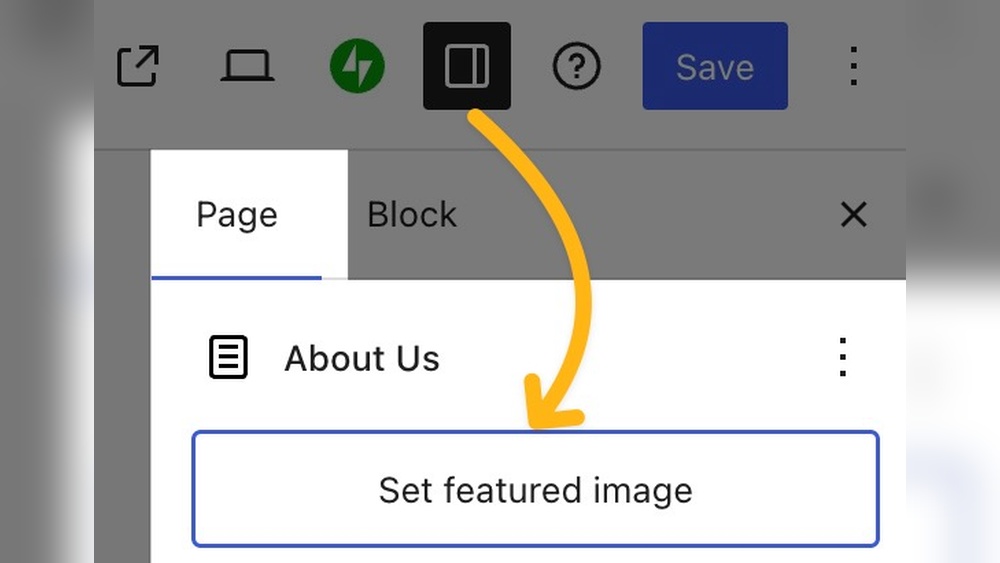
Are you struggling to make your WordPress posts stand out? Adding a featured image can grab your readers’ attention instantly and give your content a professional look.
It’s a simple step that can boost your blog’s appeal and increase clicks. In this guide, you’ll learn exactly how to add a featured image on WordPress quickly and easily, even if you’re a beginner. Keep reading, and you’ll discover the tricks to make your posts more eye-catching and engaging right away.
Choosing The Right Image
Choosing the right image for your WordPress featured image is important. It grabs attention and sets the tone of your post. The right picture also helps your content look professional and trustworthy. Keep your audience in mind. Pick images that match your topic and message clearly.
Quality matters. A blurry or pixelated image can hurt your site’s appeal. Think about size, format, and legal use. These details affect how your image looks and how fast your page loads. Below are key points to consider when selecting your featured image.
Image Size And Dimensions
Choose an image size that fits your theme layout. Large images slow down your website. Small images may look blurry or stretched. Check your WordPress theme’s recommended image dimensions. Use those to keep your site neat and fast. A common size is 1200 by 628 pixels. This size works well on most devices and social media.
File Formats And Quality
Save your image in a web-friendly format like JPEG or PNG. JPEG files are smaller and load faster. PNG files keep transparency and sharp edges. Avoid using BMP or TIFF files. They are large and slow to load. Keep image quality high but file size low. Use tools to compress images without losing clarity.
Image Licensing And Copyright
Always use images you have rights to. Free stock photos with a Creative Commons license are safe choices. Avoid copying images from other websites without permission. This could cause legal problems. Give credit if required by the license. Using your own photos is best. It ensures originality and full control over the content.
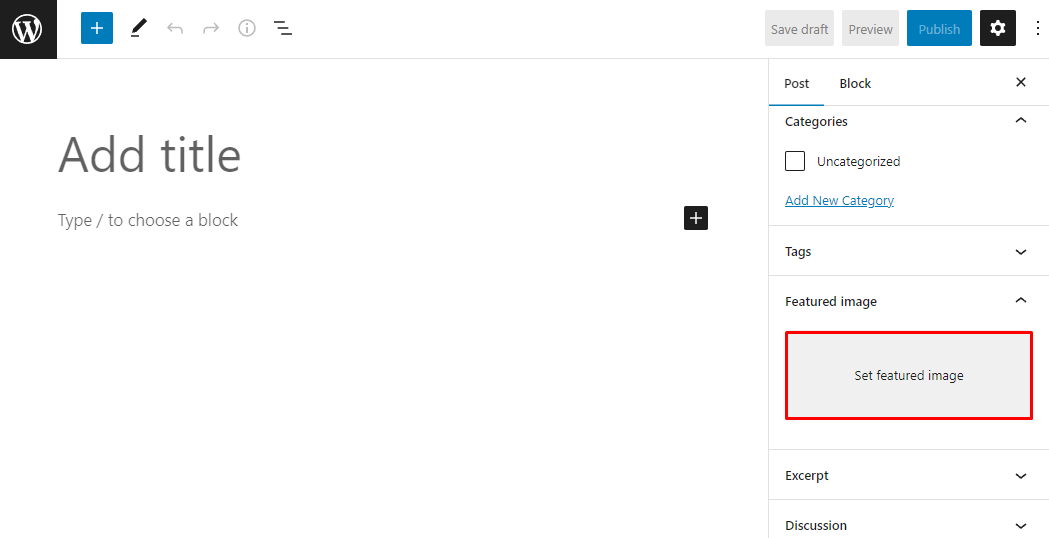
Credit: www.hostinger.com
Accessing The Featured Image Section
Adding a featured image to your WordPress post makes it visually appealing. It also helps readers understand the content quickly. The featured image section is where you set this image. Accessing this section depends on the editor you use. WordPress mainly offers two editors: the Classic Editor and the Block Editor (Gutenberg). Each editor has a slightly different way to find and use the featured image area.
Using The Classic Editor
In the Classic Editor, the featured image box is usually on the right side. Scroll down the page if you do not see it immediately. Sometimes, the box may be hidden. Click on “Screen Options” at the top right corner. Ensure the “Featured Image” checkbox is checked. This action will show the featured image box. Click “Set featured image” inside the box. A media library window will open. Choose an image or upload a new one. Click “Set featured image” to confirm your choice. The image will now appear in the featured image box.
Using The Block Editor (gutenberg)
The Block Editor places the featured image section differently. Look to the right sidebar of the editor screen. If you do not see the sidebar, click the gear icon at the top right. Scroll down in the sidebar to find the “Featured Image” panel. Click on it to expand the panel. Click “Set featured image” to open the media library. Select an image or upload a new one. Press “Set featured image” to apply it. The chosen image will display in the panel. This image will show on your post preview and homepage.
Uploading And Selecting An Image
Adding a featured image makes your WordPress post more attractive. It helps readers understand your content quickly. You can either upload a new image or choose one from your existing media library. Both ways are simple and fast.
Follow the steps below to upload or select your featured image with ease. This will improve your post’s look and catch more attention.
Uploading From Your Computer
Click on the “Set featured image” option in your post editor. A new window will open for image selection. Choose the “Upload Files” tab to add an image from your computer. Click “Select Files” and find the image on your device. Wait a few seconds as WordPress uploads the image. Once uploaded, click “Set featured image” to confirm. Your image now appears as the featured image for the post.
Selecting From Media Library
Open the “Set featured image” option in your post editor. Select the “Media Library” tab to view all uploaded images. Scroll or search to find the image you want. Click on the image to select it. Then, click “Set featured image” to apply it. The chosen image will show as the featured image on your post.
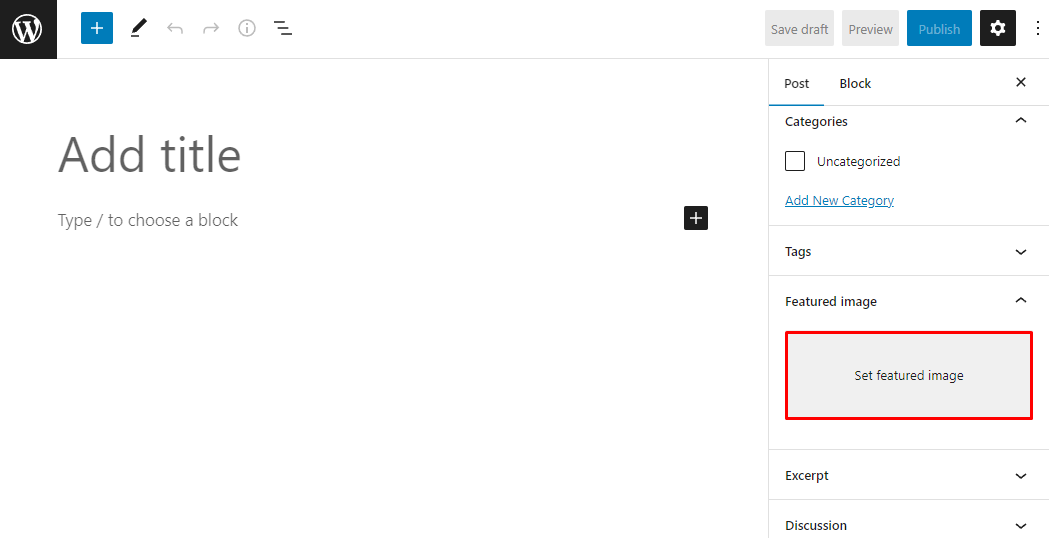
Credit: www.hostinger.com
Setting And Removing A Featured Image
Setting and removing a featured image in WordPress is simple. This image represents your post or page. It shows on your site’s homepage, archives, and social shares. Managing this image helps keep your site clean and attractive.
Changing the image is easy too. You can update it anytime to match your content. Removing the image is just as quick if you want a fresh look or no image at all.
How To Set A Featured Image
Go to your post or page editor in WordPress. On the right side, find the “Featured Image” box. Click the “Set featured image” link inside the box. Upload a new image or select one from your media library. Choose the image and click “Set featured image.” The image will now show as your post’s main picture.
How To Remove Or Change The Featured Image
Open the post or page editor where you want to change the image. Find the “Featured Image” box on the right side. To remove the image, click “Remove featured image.” If you want to change it, click “Replace featured image.” Pick a new image from your library or upload one. Click “Set featured image” to save the change.
Troubleshooting Common Issues
Troubleshooting common issues with featured images helps keep your WordPress site looking great. Problems can happen, but most have simple fixes. Knowing what to check saves time and effort. Below are common issues and how to solve them quickly.
Featured Image Not Showing
Sometimes the featured image does not appear on your post or page. Check if you set the image correctly in the post editor. Make sure your theme supports featured images. Some themes need extra settings to show them. Clear your site cache and browser cache to see changes. If the image still does not show, try switching to a default theme to test.
Image Size Problems
Featured images may look too small or too large. This happens if your image size does not match theme requirements. Resize your image before uploading. Use dimensions recommended by your theme. You can also crop images in the WordPress media library. Check your theme’s settings for image size options. Proper sizes help your site load faster and look better.
Plugin Conflicts
Some plugins can stop featured images from showing or cause errors. Deactivate all plugins except essential ones to find the conflict. Reactivate plugins one by one to see which causes the problem. Update all plugins and WordPress to the latest versions. Conflicts often happen with caching or image optimization plugins. Consider using trusted plugins that work well with your theme.

Credit: ostraining.com
Tips For Optimizing Featured Images
Optimizing your featured images is key to improving your WordPress site’s performance. Well-optimized images help your site load faster and rank better on search engines. They also create a better experience for your visitors.
Focus on simple, effective strategies to get the most from your featured images. Use the right file types, sizes, and descriptions. These small steps make a big difference in your site’s success.
Seo Best Practices
Choose images that relate closely to your post content. Use descriptive file names with keywords. Avoid generic names like “image1.jpg.”
Include keywords in your image title and caption. This helps search engines understand your image. It also improves your post’s relevance.
Improving Page Load Speed
Use compressed image files to reduce size without losing quality. JPEG and WebP formats offer good compression. Avoid using large images that slow your site down.
Resize images to fit your theme’s recommended dimensions. This prevents unnecessary loading of large files. Fast loading keeps visitors engaged and lowers bounce rates.
Using Alt Text Effectively
Write clear and descriptive alt text for every featured image. Describe the image content in simple words. This helps screen readers and boosts SEO.
Include relevant keywords naturally in the alt text. Avoid keyword stuffing to keep it readable. Alt text improves accessibility and search visibility.
Frequently Asked Questions
How Do I Add A Featured Image In WordPress?
To add a featured image, open your post editor. Find the “Featured Image” box on the right. Click “Set featured image,” upload or select an image, and then click “Set featured image. ” Save or update your post to apply it.
Why Is A Featured Image Important In WordPress?
Featured images visually represent your content. They improve user engagement and make posts more attractive. Search engines also use them to display thumbnails, enhancing SEO and click-through rates.
Can I Change A Featured Image After Publishing?
Yes, you can change a featured image anytime. Open the post editor, find the current featured image, click “Remove featured image,” then set a new one. Update the post to save changes.
What Image Size Is Best For WordPress Featured Images?
The ideal size varies by theme but generally 1200×628 pixels works well. Use high-quality images for better display on all devices. Check your theme’s recommended dimensions for best results.
Conclusion
Adding a featured image on WordPress is simple and quick. It helps your posts look better and attract more readers. Just follow the steps carefully, and you will see the difference. A good image makes your content more interesting and clear.
Try adding different images to see what works best. Keep practicing, and soon it will become a natural part of your writing. Your WordPress posts will look more professional and inviting with a featured image.


