

Are you new to WordPress and wondering how to find your way to the dashboard? The dashboard is where all the magic happens—it’s your control center for creating posts, managing pages, and customizing your site.
If you’re feeling lost or unsure about how to get there, don’t worry. In this guide, you’ll learn simple, step-by-step instructions to reach your WordPress dashboard quickly. By the end, you’ll feel confident navigating your site and ready to take full control.
Keep reading, and let’s unlock your WordPress dashboard together!
Credit: jetpack.com
Accessing The WordPress Login Page
Accessing the WordPress login page is the first step to managing your website. This page lets you enter your username and password to reach the dashboard. The dashboard is where you control your site’s content, design, and settings. Knowing how to find the login page saves time and helps you start working quickly.
Using The Default Url
The default WordPress login URL is simple and easy to remember. Just add /wp-login.php or /wp-admin after your website’s main address. For example, if your site is www.example.com, go to www.example.com/wp-login.php. This will open the login screen where you enter your details.
Custom Login Urls
Some websites change the default login URL to increase security. This means the login page uses a unique address instead of the standard one. If your site has a custom URL, ask your website manager or check your setup email. Using the correct URL is important to reach your login page without trouble.
Logging Into Your WordPress Account
Logging into your WordPress account is the first step to managing your website. It lets you access the dashboard where you can create posts, change settings, and add new pages. The process is simple and quick.
Knowing how to log in safely keeps your site secure. This section explains how to enter your username and password and what to do if you forget your password.
Entering Username And Password
Go to your WordPress login page. Usually, it is your website address followed by /wp-admin or /wp-login.php.
Type your username in the first box. This is the name you chose when setting up your site.
Next, enter your password in the box below. Make sure to type it carefully to avoid errors.
Click the “Log In” button. If your details are correct, WordPress will take you to the dashboard.
Recovering Forgotten Passwords
Forgot your password? Don’t worry. Click the “Lost your password?” link on the login page.
Enter your username or email address. WordPress will send a reset link to your email.
Open the email and click the link. It will take you to a page to create a new password.
Choose a strong, easy-to-remember password. Then log in using your new password.
Navigating To The Dashboard
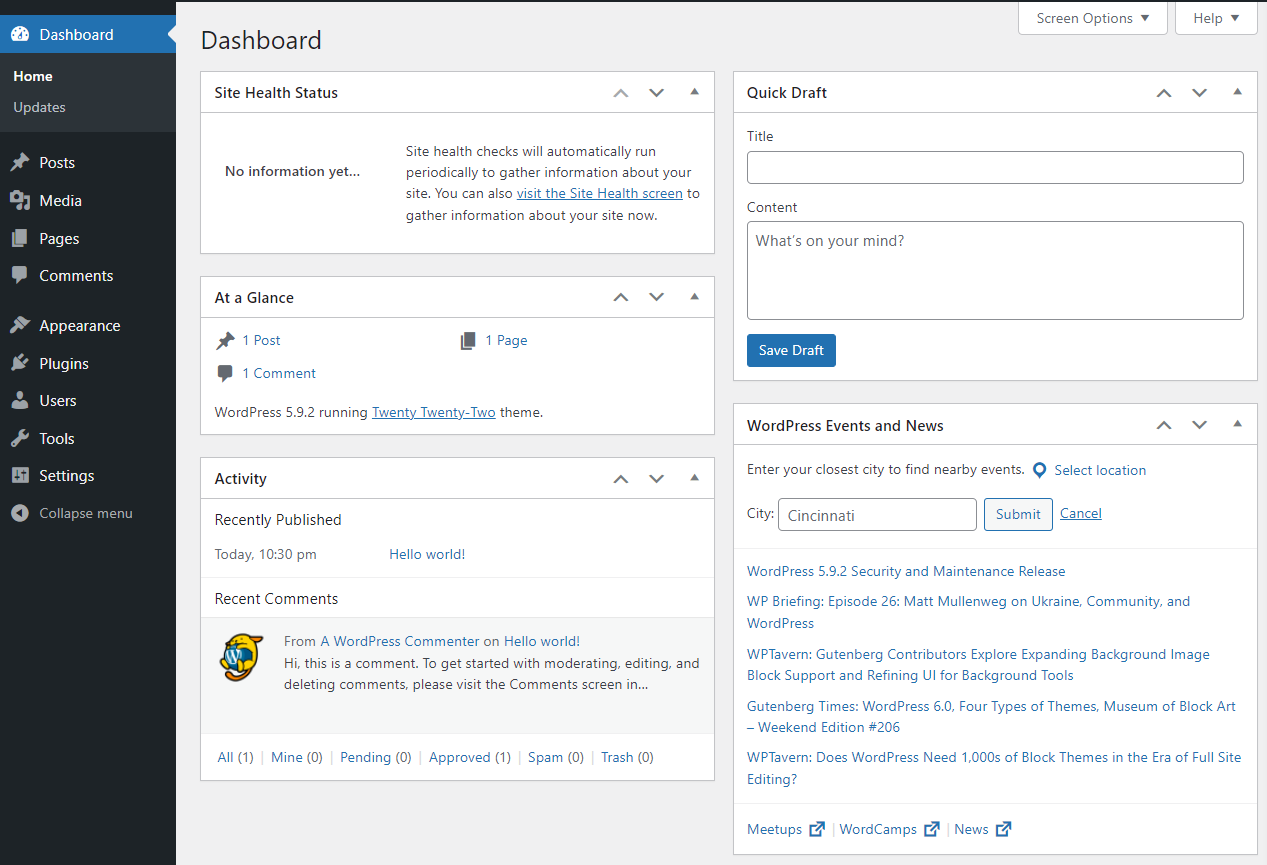
Accessing the WordPress dashboard is the first step to managing your website. The dashboard is the control center. It gives you access to all your site’s settings, posts, and features. Navigating to the dashboard is simple and quick.
Start by logging into your WordPress site. Enter your username and password on the login page. After logging in, you will be directed to the dashboard automatically. If not, you can type “/wp-admin” after your website URL to reach it directly.
What The Dashboard Shows
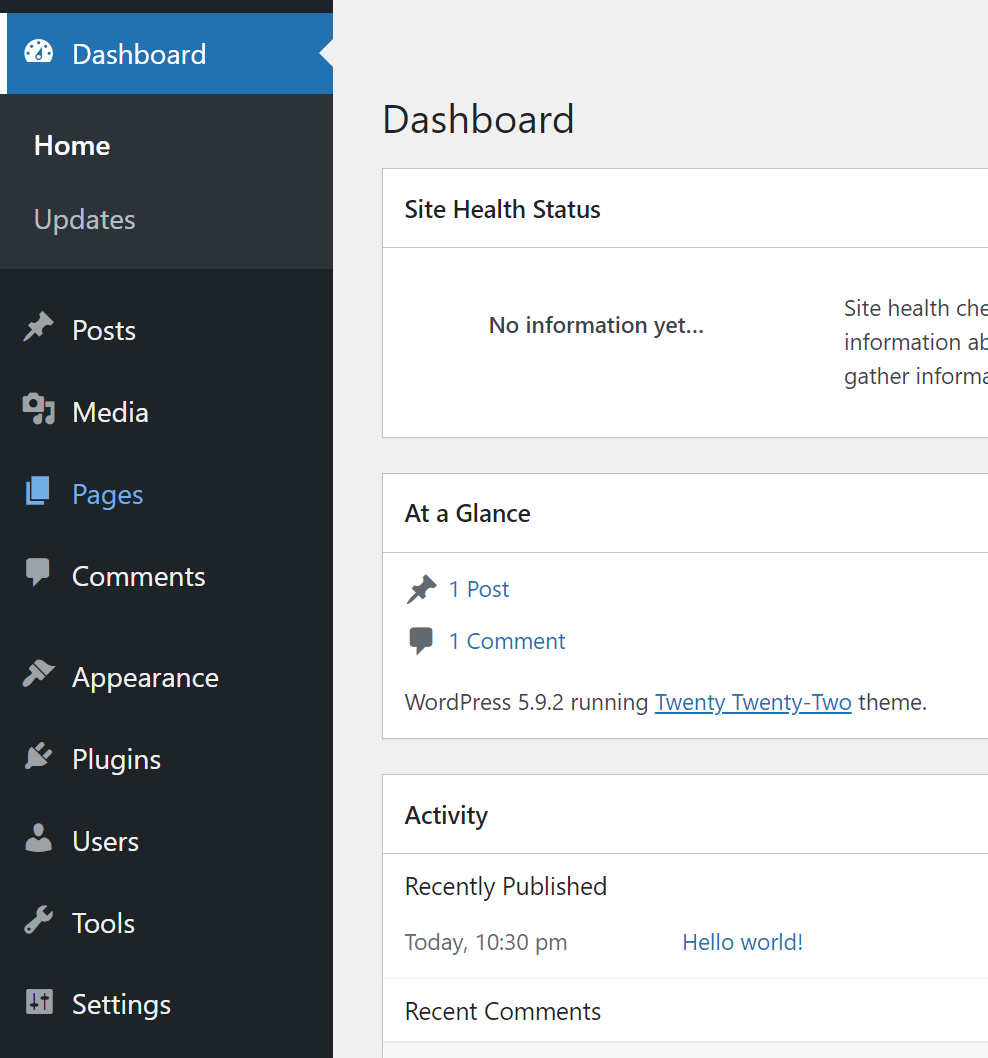
The dashboard displays an overview of your website’s activity. You see your site’s latest posts, comments, and updates. It shows quick links to create new posts and pages. You can also view site health and statistics here. Everything is organized for easy access.
Using The Admin Toolbar
The admin toolbar appears at the top of your screen after login. It helps you move around the dashboard fast. You can open new posts, visit your site, or log out from here. The toolbar saves time and keeps important tools close.
Troubleshooting Access Issues
Access problems can stop you from reaching your WordPress dashboard. Many users face these issues. They can be frustrating but often simple to fix. This section helps you solve common access problems quickly.
Clearing Browser Cache And Cookies
Old cache and cookies can block dashboard access. Browsers save site data to load faster. But outdated data may cause login errors. Clear your browser cache and cookies. This refreshes stored information. After clearing, try logging in again. Most browsers offer easy steps to do this in settings.
Handling Login Errors
Login errors happen for many reasons. You might enter the wrong username or password. Check that your caps lock is off. Reset your password using the “Lost your password?” link. Sometimes plugins or themes cause login problems. Disable plugins by renaming the plugins folder via FTP. This can fix conflicts and restore access. Also, check your site URL in the database. Wrong URL settings can block login. Fix these issues step-by-step for smooth access.
Tips For Faster Dashboard Access
Accessing your WordPress dashboard quickly saves time and keeps your workflow smooth. Simple steps help you reach your dashboard faster every day. These tips make logging in easy and reduce delays.
Bookmarking The Login Page
Create a bookmark for your WordPress login page in your browser. This lets you open the page with one click. No need to type your URL every time. Save the link as “My WordPress Login” or something clear. Keep bookmarks organized for quick access.
Using Password Managers
Password managers store your WordPress login details securely. They fill your username and password automatically. This avoids typing errors and speeds up login. Choose a trusted password manager for safety. It also helps generate strong passwords for your site.

Credit: gloriathemes.com
Credit: jetpack.com
Frequently Asked Questions
How Do I Access The WordPress Dashboard?
To access the WordPress dashboard, log in to your website by visiting yoursite. com/wp-admin. Enter your username and password. After logging in, you will be redirected to the dashboard, where you can manage your site’s content, settings, and plugins easily.
What Is The WordPress Dashboard Url?
The WordPress dashboard URL is yoursite. com/wp-admin. Replace “yoursite. com” with your website’s domain. This URL takes you directly to the login page. After logging in, it opens the dashboard to manage your website efficiently.
Can I Customize The WordPress Dashboard?
Yes, you can customize the WordPress dashboard. Use plugins or built-in options to add widgets, rearrange panels, and personalize the admin area. This helps improve workflow and makes managing your site simpler and faster.
Why Can’t I Reach The WordPress Dashboard?
If you can’t reach the WordPress dashboard, check your login credentials. Clear your browser cache or disable conflicting plugins. Ensure your URL is correct (yoursite. com/wp-admin). Sometimes, server or permission issues may also block access.
Conclusion
Accessing the WordPress dashboard is simple and quick. Just enter your website’s login URL and use your credentials. Once logged in, the dashboard lets you manage posts, pages, and settings easily. Spend some time exploring the menu to get familiar with all tools.
Regular visits to the dashboard help keep your site updated and secure. With practice, navigating WordPress becomes a smooth task. Start today, and control your website with confidence.


