
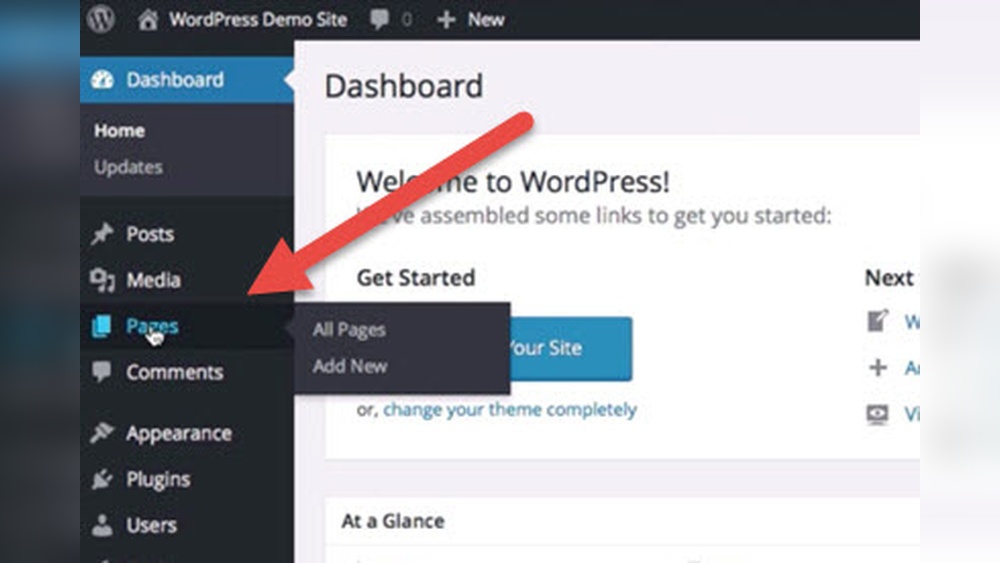
Are you wondering how to make your WordPress homepage truly yours? Your homepage is the first thing visitors see, and it should grab attention instantly.
But editing it can feel confusing if you’re not sure where to start. Don’t worry—this guide will walk you through simple steps to customize your homepage exactly the way you want. By the end, you’ll have a homepage that looks great and works perfectly for your goals.
Ready to take control and make your website shine? Let’s dive in!
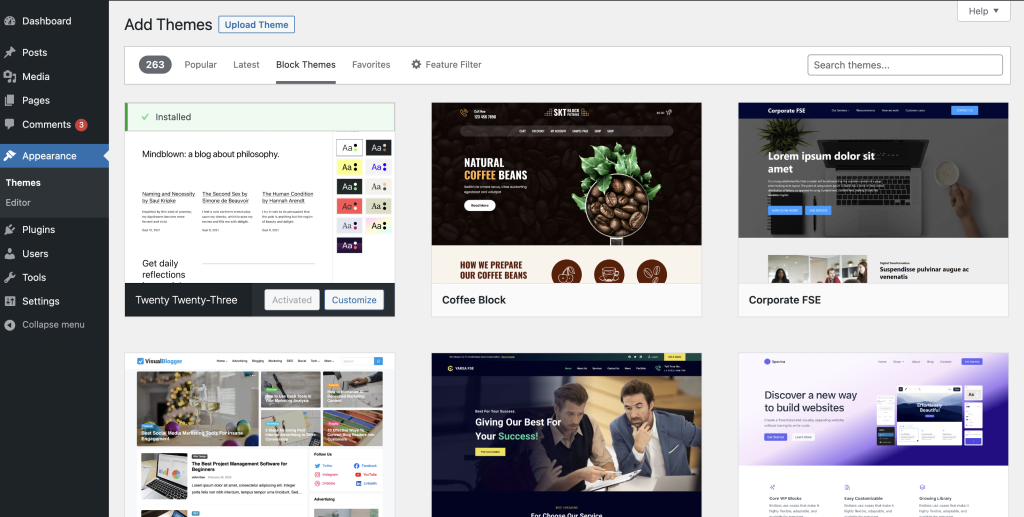
Credit: wordpress.org
Accessing The WordPress Dashboard
Editing your WordPress homepage starts with finding the right settings. This area controls what visitors see first on your site. Accessing these settings lets you choose how your homepage looks and works.
WordPress offers simple options to set your homepage. You can pick a static page or show your latest posts. Both choices affect the user experience and site style.
Choosing A Static Front Page
A static front page means your homepage stays the same all the time. You can create a special page and set it as the front page. This works well for business sites or portfolios. It gives a clean, focused look to visitors.
To set a static front page, go to your WordPress dashboard. Click on “Settings” then “Reading.” Find the option called “Your homepage displays.” Select “A static page.” Then pick the page you want as your homepage from the dropdown menu.
Using Your Latest Posts
Using your latest posts means your homepage shows new blog entries. This option keeps your site fresh and active. Visitors see your newest content first. It works great for blogs and news sites.
To show latest posts, head to “Settings” and then “Reading.” Under “Your homepage displays,” choose “Your latest posts.” Save changes, and your homepage will update automatically with recent posts.

Credit: www.reddit.com
Locating The Homepage Settings
The WordPress Customizer lets you change your homepage easily. It shows a live preview of your site. This helps you see changes before saving them. You can adjust many parts of your homepage here. No coding skills needed.
Start by going to your WordPress dashboard. Click on “Appearance” and then “Customize.” The Customizer opens with options on the left and a live preview on the right. This makes editing simple and clear.
Editing Site Identity
Site Identity includes your site title, tagline, and logo. These elements represent your brand. Click on “Site Identity” in the Customizer menu. Enter your site title and a short tagline. Upload your logo if you have one. You can also add a site icon. This icon appears in browser tabs and bookmarks.
Modifying Homepage Sections
The homepage usually has different sections like banners, services, and testimonials. In the Customizer, find the section called “Homepage Settings.” Choose what to display on your homepage. You can select a static page or your latest posts. To change content in sections, look for theme-specific options. These may be under “Widgets,” “Homepage Sections,” or a similar name. Edit each section by adding text, images, or buttons. Preview changes live to make sure everything looks right.
Using The WordPress Customizer
Adding widgets to your WordPress homepage gives you more control over what visitors see first. Widgets are small blocks that add content or features. You can place them in different areas of your homepage. This makes your site more useful and interesting.
Selecting And Placing Widgets
Go to the WordPress dashboard and find the Appearance menu. Click on Widgets to see available options. Choose widgets like search bars, recent posts, or calendars. Drag and drop them into the homepage widget areas. You can add multiple widgets to different sections. This lets you organize content clearly and attractively.
Customizing Widget Appearance
After placing widgets, customize how they look. Many widgets allow changing titles, colors, and sizes. Use simple styles that match your site design. Avoid clutter by keeping widgets neat and easy to read. Preview changes on your homepage to ensure everything fits well. Adjust settings until the layout looks balanced and clean.
Editing Homepage Content With Page Builders
Optimizing your WordPress homepage for mobile devices is essential. Many users visit websites using smartphones or tablets. A mobile-friendly homepage improves user experience and keeps visitors engaged. It also helps your site rank better in search engines.
Mobile optimization involves checking how your homepage looks on small screens and making necessary adjustments. The goal is to make navigation easy and content clear on all devices. This section guides you through testing and adjusting your homepage for mobile.
Testing Responsive Design
Start by checking if your homepage adapts to different screen sizes. Use tools like Google’s Mobile-Friendly Test or browser developer tools. These tools show how your site looks on phones and tablets. Look for issues such as text that is too small or images that do not fit the screen.
Try resizing your browser window on a desktop to see how the layout changes. Make sure buttons and links are easy to tap. Responsive design means your homepage adjusts automatically to fit any screen size.
Making Mobile-friendly Adjustments
After testing, fix any problems found on mobile devices. Increase font sizes to improve readability. Reduce large images to speed up loading times. Remove unnecessary content that clutters the small screen.
Use simple menus or hamburger icons for easy navigation. Keep buttons large enough for fingers to tap easily. Check that all interactive elements work well on touchscreens.
These steps make your homepage easier to use on mobile devices. A smooth mobile experience keeps visitors on your site longer.

Credit: www.reddit.com
Frequently Asked Questions
How Do I Access WordPress Homepage Settings?
Log in to your WordPress dashboard. Go to Appearance > Customize. Click on Homepage Settings to edit content or layout.
Can I Use A Page Builder To Edit My Homepage?
Yes, page builders like Elementor or Beaver Builder offer drag-and-drop editing. They simplify homepage customization without coding knowledge.
How Do I Change The Homepage Layout In WordPress?
Navigate to Appearance > Customize > Homepage Settings. Choose between your latest posts or a static page to adjust layout.
What Is A Static Homepage In WordPress?
A static homepage is a fixed page set as the front page. It remains the same, unlike dynamic posts that update regularly.
Conclusion
Editing your WordPress homepage is easier than it seems. You can change text, images, and layout quickly. Use the WordPress editor or a page builder plugin to make changes. Always save your work before previewing. Keep your homepage clear and simple for visitors.
Regular updates help your site stay fresh and useful. Try different designs until you find what fits best. Your homepage is the first impression—make it count. Start editing today and see the difference yourself.


