
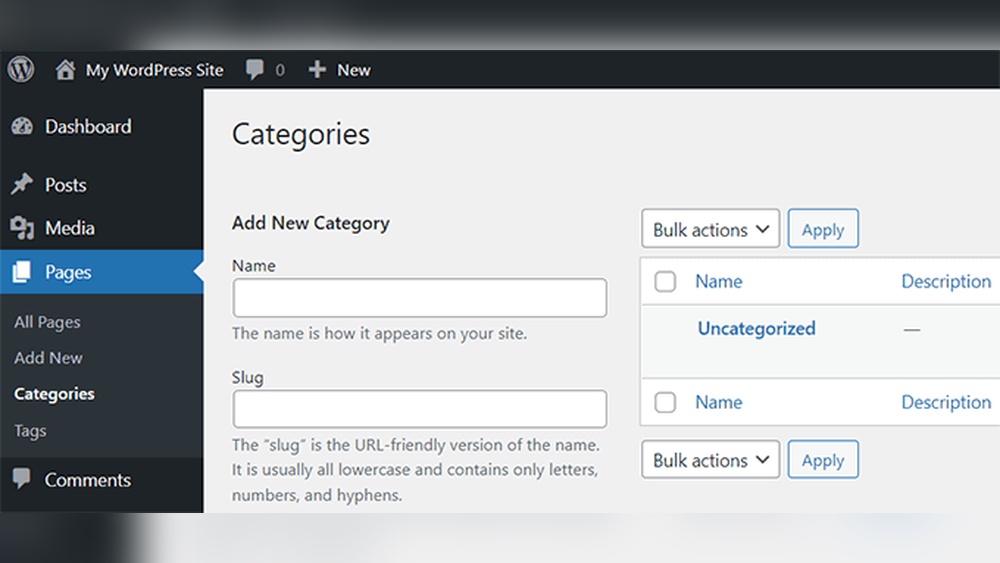
Are you struggling to organize your WordPress site better? Adding categories to your pages can make a huge difference in how visitors find and navigate your content.
But here’s the catch—WordPress doesn’t let you add categories to pages by default. Don’t worry, though. You’ll discover simple, step-by-step methods to add categories to your pages quickly and easily. By the end, you’ll have a well-structured site that keeps your visitors engaged and coming back for more.
Ready to take control of your website’s organization? Let’s dive in!
Categories Vs Pages In WordPress
Understanding the difference between categories and pages in WordPress helps you organize your website better. Pages and categories serve different purposes. Knowing this makes your site easier to manage and navigate.
Differences Between Posts And Pages
Posts are timely content like news or blogs. They show up in order by date. Pages are static and hold permanent info, like About or Contact pages. Posts can be grouped using categories. Pages do not use categories by default. Posts allow readers to comment, while pages usually do not. Posts appear on your blog feed; pages do not.
Role Of Categories In WordPress
Categories group related posts together. They create a structure for your content. Categories help visitors find topics quickly. They improve site navigation and user experience. Categories also help search engines understand your content. This can boost your SEO performance. Pages do not have categories because they are standalone. Categories are mainly for blog posts, not pages.
Credit: pagely.com
Why Add Categories To Pages
Adding categories to pages in WordPress helps keep your website tidy and clear. Categories group similar content together. This makes your site easier to manage and understand.
Categories also help visitors find what they want quickly. They create a better browsing experience. Organizing pages with categories benefits both site owners and users.
Benefits For Site Organization
Categories group pages by topic or purpose. This simplifies site structure. You can manage content easily and update it faster.
Clear organization reduces clutter. It helps keep your site clean and professional. You avoid confusion with many pages.
Improved User Navigation
Visitors find related content faster with categories. Navigation menus can show categories for easy browsing. Users spend less time searching.
Good navigation lowers bounce rates. Users stay longer and explore more pages. This improves site engagement and user satisfaction.
Creating Categories In WordPress
Creating categories in WordPress helps organize your content. It makes your site easy to navigate and improves SEO. Categories group similar posts or pages, letting visitors find topics faster. Setting up categories is simple and takes just a few steps.
Accessing The Categories Menu
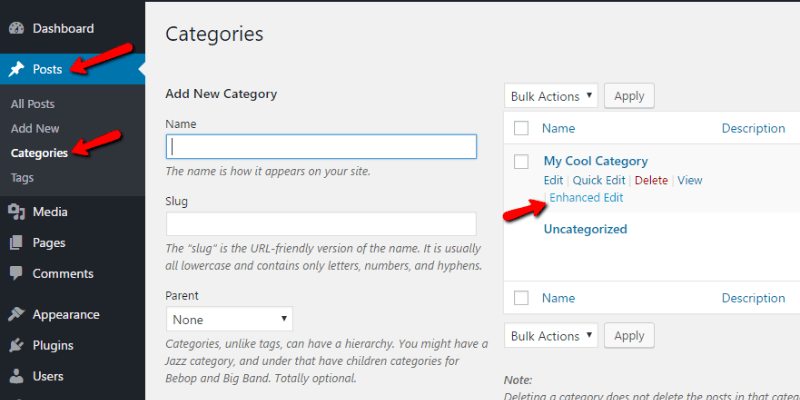
Log in to your WordPress dashboard first. Look for the “Posts” section in the left menu. Click on “Categories” under this section. This opens the Categories menu. Here, you see existing categories and options to add new ones.
Adding New Categories
In the Categories menu, find the “Add New Category” form. Enter a name for your category. Choose a parent category if you want to create a subcategory. Add a description if needed, but this is optional. Click the “Add New Category” button to save it. Your new category appears in the list instantly.
Credit: pagely.com
Assigning Categories To Pages Using Plugins
Assigning categories to pages in WordPress is not possible by default. Pages are usually for static content, and categories work with posts only. Plugins help to change this and allow categories on pages. This makes organizing your site easier and improves navigation for visitors.
Choosing The Right Plugin
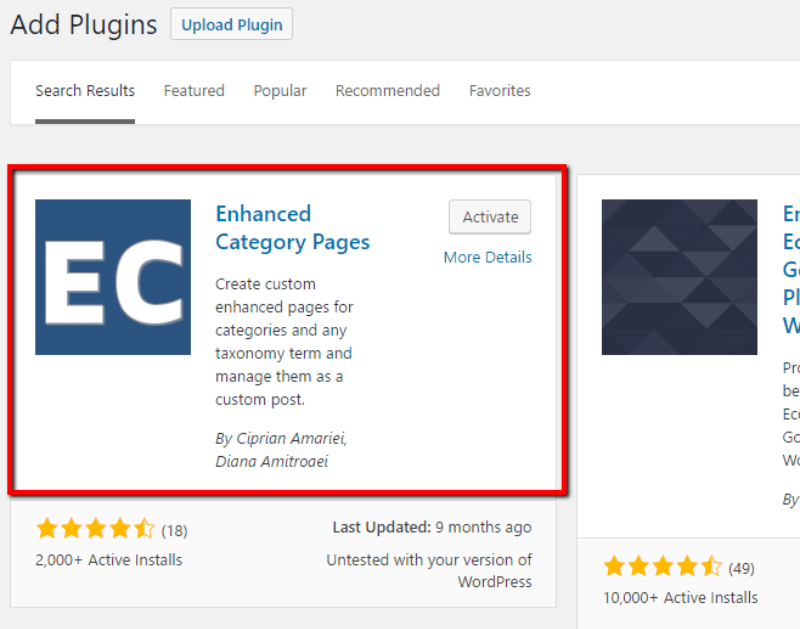
Select a plugin that is simple and popular. Check user reviews and updates to ensure it works well. Look for plugins that specifically add category support to pages. Avoid plugins with poor ratings or no recent updates.
Step-by-step Plugin Setup
First, go to the WordPress dashboard and click on “Plugins.” Choose “Add New” and search for your plugin. Click “Install Now” and then “Activate.” After activation, find the plugin settings in the menu. Follow the instructions to enable categories for pages.
Adding Categories To Pages
Open the page editor for any page you want to categorize. You will see a new category box similar to posts. Select existing categories or create new ones. Save or update the page to apply the changes. The page will now appear under the chosen categories.
Manual Methods To Categorize Pages
Manual methods to categorize pages in WordPress give you full control over your site structure. These methods let you organize content without relying on plugins. They require some basic coding knowledge or theme editing. This approach suits users who want custom solutions and better site management.
Using Custom Taxonomies
Custom taxonomies help create new categories for pages. WordPress supports custom taxonomies like categories and tags for posts, but pages don’t have these by default. You can register custom taxonomies to assign categories to pages. This method requires adding code to your theme’s functions.php file.
To create a custom taxonomy, use the register_taxonomy() function. This lets you define a new category type that applies to pages. After registering, you can add categories in the WordPress admin area when editing pages. This method keeps your site organized and easy to navigate.
Editing Theme Files
Editing theme files allows you to display page categories on your site. After adding categories through custom taxonomies, modify your theme to show them. You can edit files like page.php or create custom templates.
Use WordPress functions like get_the_terms() to fetch categories assigned to a page. Then, display them with simple HTML code. Be sure to back up your theme files before making changes. This method provides a tailored look and better user experience.

Credit: wpsites.net
Displaying Categories On Your Pages
Displaying categories on your WordPress pages helps visitors find related content easily. Categories organize your site and improve navigation. Showing them on pages makes your site clearer and user-friendly.
Using Widgets
Widgets offer a simple way to show categories on your pages. Go to Appearance > Widgets in your WordPress dashboard. Drag the “Categories” widget to the sidebar or footer area. This shows a list or dropdown of categories on all pages where the widget area appears.
You can customize the widget settings. Choose to display as a list or dropdown. Decide whether to show post counts or hide empty categories. Widgets update automatically when you add new categories.
Customizing Page Templates
Editing page templates lets you place categories exactly where you want. Access your theme files via Appearance > Theme Editor or use a child theme. Open the page template file, usually named page.php or a custom template.
Insert the PHP code php the_category(); ? inside the loop. This code displays categories linked to the current page or post. Style the output with CSS to match your site design.
This method needs basic coding knowledge but offers full control. You can add categories below the title, at the end of content, or in a sidebar area. It helps keep your pages organized and easy to browse.
Troubleshooting Common Issues
Troubleshooting common issues helps keep your WordPress site running smoothly. Adding categories to pages sometimes faces simple problems. Knowing how to fix these saves time and frustration. Below are common issues and easy fixes.
Categories Not Showing
Sometimes, categories do not appear on the page editor. This can happen if the category box is hidden. Check the top right corner of the editor for “Screen Options.” Click it and make sure “Categories” is checked. If it is unchecked, the categories panel will stay hidden.
Another reason could be your theme. Some themes do not show categories on pages by default. You may need to add custom code or use a plugin to display them. Test this by switching to a default theme like Twenty Twenty-One and see if categories appear.
Plugin Conflicts
Plugins can sometimes cause conflicts with categories on pages. A plugin might disable or hide category options. To find the cause, deactivate all plugins temporarily. Check if categories appear after this.
If categories show up, activate plugins one by one. This helps find the plugin causing the issue. Once identified, consider replacing that plugin or contacting the developer for support.
Tips For Managing Categories Effectively
Managing categories well helps keep your WordPress site clear and easy to use. Good category management improves navigation for visitors. It also boosts your site’s SEO by organizing content logically. Simple steps can make a big difference.
Naming Conventions
Choose clear and simple names for categories. Use words your readers understand easily. Avoid long or confusing titles. Keep names consistent across the site. This helps visitors find content quickly. Search engines also read categories better when names are simple.
Regular Category Maintenance
Check categories often to keep them up to date. Remove old or unused categories to reduce clutter. Merge similar categories to avoid confusion. Make sure each page belongs to the right category. Regular updates help your site stay organized and user-friendly.
Frequently Asked Questions
How Do I Add A Category To A WordPress Page?
By default, WordPress doesn’t support categories for pages. You can enable this feature using a plugin or by adding custom code to your theme’s functions. php file.
Can I Use Categories To Organize WordPress Pages?
Yes, with custom code or plugins, you can assign categories to pages. This helps improve site organization and navigation for visitors.
What Is The Best Plugin To Add Categories To Pages?
“Category Tag Pages” and “Post Tags and Categories for Pages” are popular plugins. They enable category support for pages without coding.
Will Adding Categories Affect Seo For My Pages?
Properly categorizing pages can improve SEO by enhancing site structure and user experience. Use relevant categories to boost search rankings.
Conclusion
Adding categories to your WordPress pages helps organize your site well. It makes content easier to find for visitors and search engines. You can improve your site’s structure with just a few simple steps. Keep your categories clear and relevant for the best results.
Try adding categories today to see how it helps your website grow. Small changes can lead to better user experience and SEO success.


