
Are you tired of spam bots flooding your WordPress website with fake comments and unwanted messages? Adding a CAPTCHA to your site is one of the simplest and most effective ways to stop those automated attacks.
But if you’re not sure how to do it, don’t worry—this guide will walk you through every step. By the time you finish reading, you’ll know exactly how to protect your website and keep it running smoothly. Ready to secure your site and save yourself from endless spam?
Let’s dive in!
Credit: kinsta.com
Why Add Captcha To WordPress
Adding Captcha to your WordPress site protects it from spam and harmful bots. Captcha challenges help confirm that users are real humans. This simple step keeps your site cleaner and safer. It also improves the overall user experience and site efficiency.
Preventing Spam And Bots
Spam comments and fake registrations harm your website’s reputation. Bots often flood forms with junk messages. Captcha stops automated tools from submitting these forms. This reduces unwanted content and keeps your site professional. It saves time by lowering manual spam removal.
Enhancing User Security
Captcha adds a security layer to your WordPress site. It blocks bots trying to hack user accounts. This protects personal data and login areas. Real users gain confidence knowing the site is safer. It prevents misuse that could affect your site’s trust.
Improving Website Performance
Spam and bot traffic slow down your website. Captcha lowers fake visits and reduces server load. This helps your site load faster for real visitors. Better performance keeps users happy and engaged. It also helps your site rank higher in search results.
Types Of Captcha For WordPress
Captcha helps protect WordPress sites from spam and bots. It stops fake users from filling forms or sending messages. Different types of Captcha offer various ways to check if a visitor is human. Choosing the right one improves user experience and site security.
Image-based Captcha
This type shows pictures or letters for users to identify. Visitors must pick matching images or type the shown letters. It is simple and clear for most users. Image-Based Captcha works well on contact forms and registration pages.
Recaptcha By Google
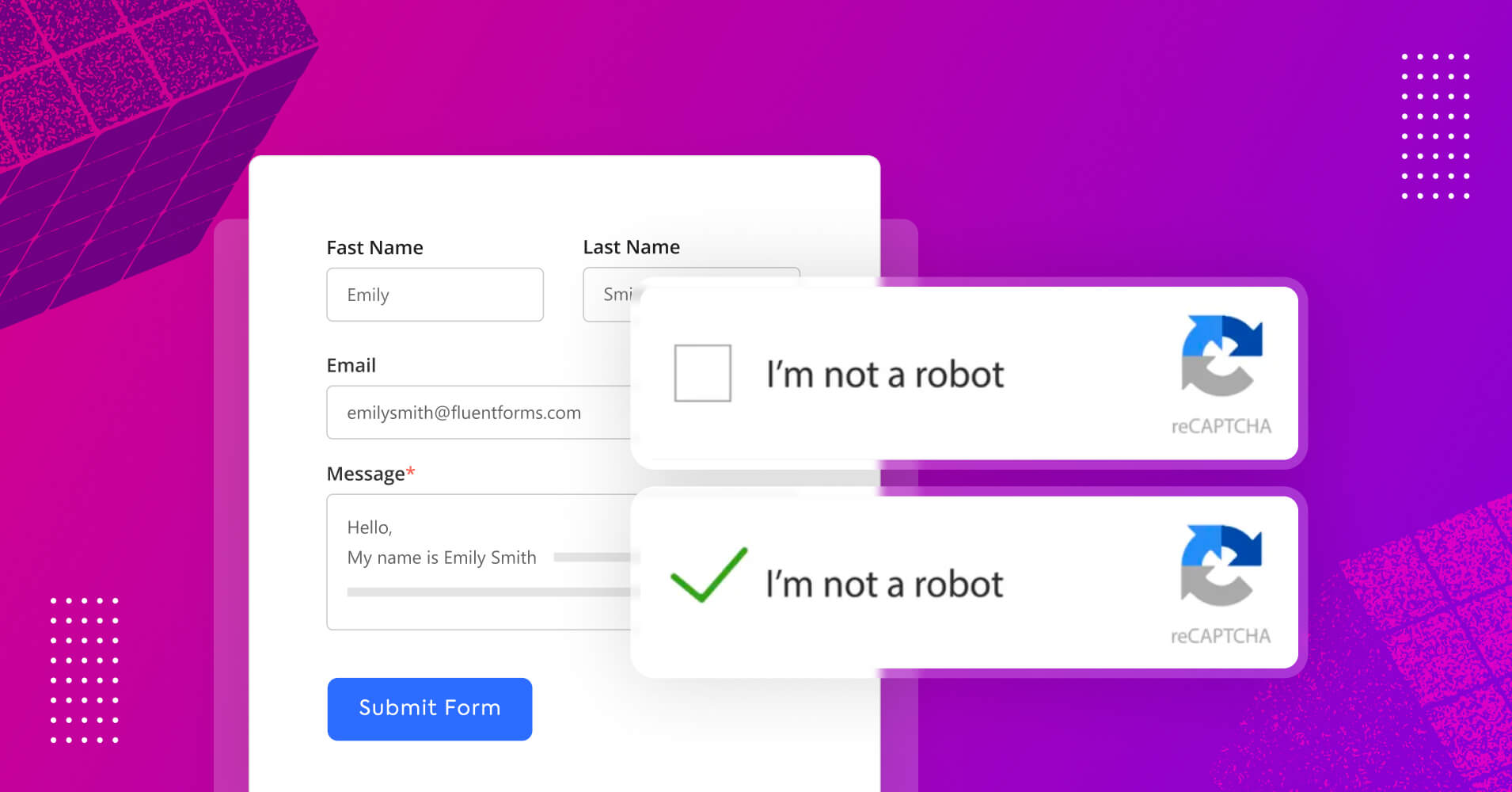
Google’s reCAPTCHA is popular and widely trusted. It asks users to click a box or solve a challenge. It uses advanced technology to spot bots without much hassle. This type fits well with WordPress plugins and offers strong protection.
Invisible Captcha
Invisible Captcha works quietly in the background. Visitors don’t see any challenge or test. It tracks behavior to detect bots silently. This type keeps forms simple and fast, making it user-friendly for websites.
Mathematical Captcha
This Captcha asks users to solve a small math problem. For example, “What is 3 plus 4?” Users enter the answer to prove they are human. It is easy for most people and blocks automated spam bots effectively.
Choosing The Right Captcha Plugin
Choosing the right captcha plugin is important for your WordPress website. Captchas help protect your site from spam and bots. The right plugin balances security with user experience. It must be easy to use and reliable. Consider features, compatibility, and user feedback before deciding.
Popular WordPress Captcha Plugins
Several captcha plugins are popular among WordPress users. Google reCAPTCHA is widely used and trusted. It offers invisible and checkbox options. Another option is Really Simple CAPTCHA, known for its simplicity. WPForms also includes built-in captcha features. Choose a plugin that fits your site’s needs and traffic.
Plugin Compatibility And Updates
Check if the captcha plugin works with your WordPress version. Compatibility avoids conflicts with themes and other plugins. Frequent updates show the plugin is maintained well. An outdated plugin may cause security risks or errors. Always pick plugins that receive regular updates from developers.
User Reviews And Ratings
Read user reviews to learn about real experiences. High ratings often indicate a reliable plugin. Pay attention to comments about ease of use and support. Negative reviews can reveal common problems. Use reviews to find a plugin trusted by many website owners.
Credit: fluentsmtp.com
Step-by-step Guide To Add Captcha
Adding Captcha to your WordPress site helps block spam and bots. It protects your login and registration forms from unwanted access. Follow this simple step-by-step guide to set up Captcha easily. Each step is clear and easy to follow for all skill levels.
Installing The Captcha Plugin
First, log in to your WordPress dashboard. Go to the Plugins menu and click “Add New”. Type “Captcha” in the search bar. Find a well-rated plugin like “Google Captcha (reCAPTCHA) by BestWebSoft”. Click “Install Now” and then “Activate”. The plugin is now ready to use.
Configuring Captcha Settings
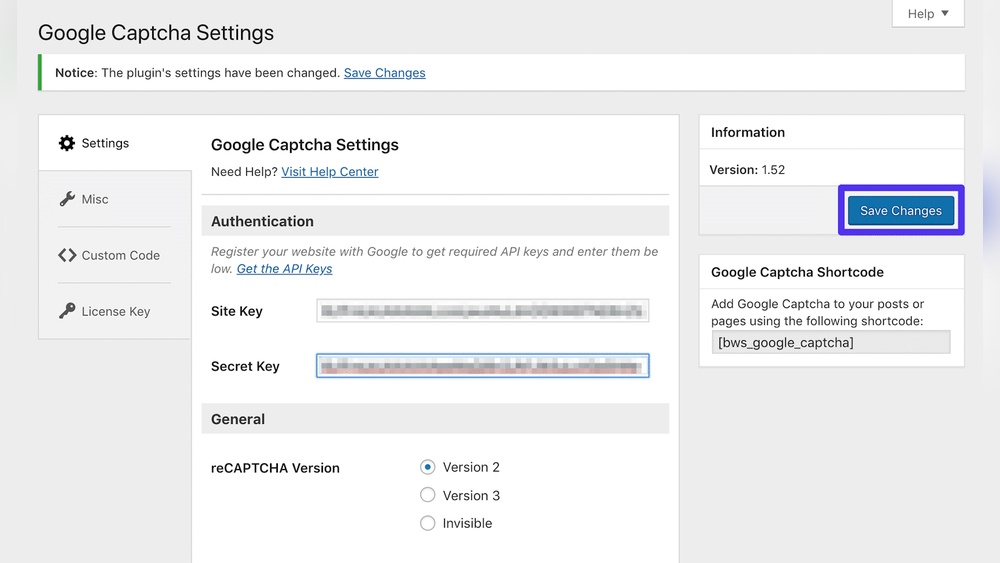
Next, open the plugin settings from the WordPress dashboard. Enter your site key and secret key. These keys come from Google reCAPTCHA’s website. Choose the Captcha type (checkbox or invisible). Adjust where the Captcha appears, such as login or registration forms. Save your changes to apply the settings.
Adding Captcha To Login And Registration Forms
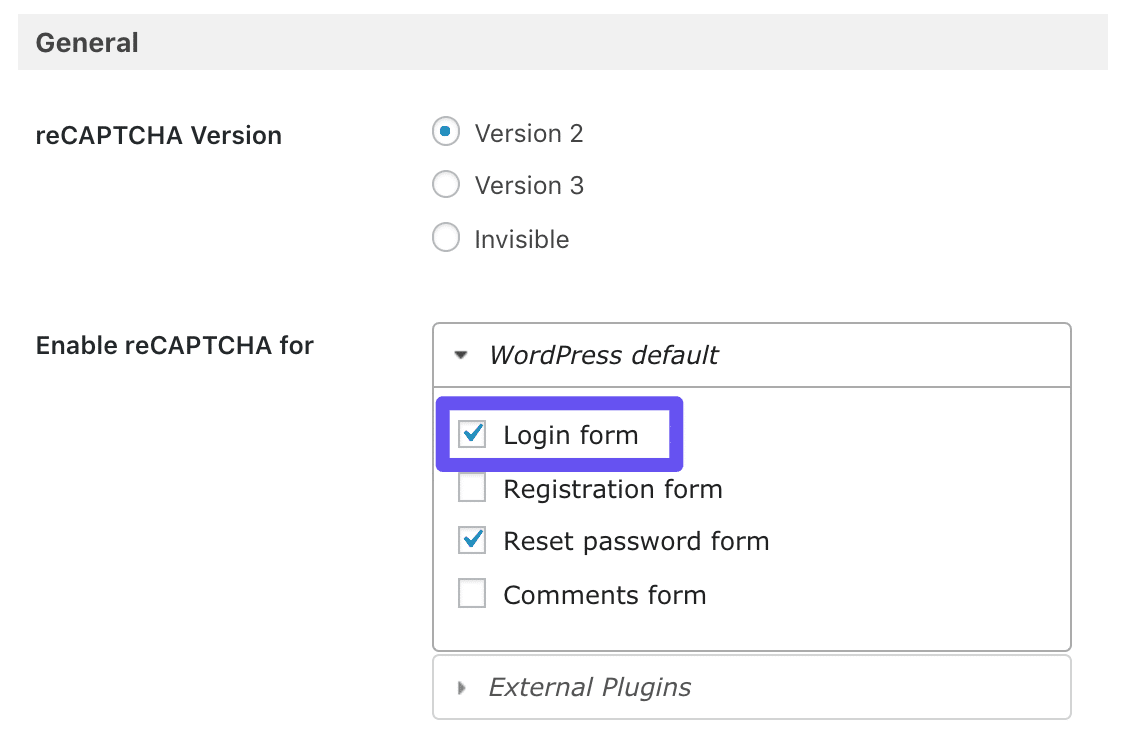
Go to the plugin’s form settings. Enable Captcha on login and registration pages by checking the boxes. You may also add Captcha to password reset forms. Make sure to save the settings after selecting the forms. This step ensures users must complete Captcha before submitting forms.
Testing Captcha On Your Site
Open your website in a new browser tab. Visit the login or registration page. Check if the Captcha appears correctly. Try submitting the form without completing the Captcha. The form should block submission and show an error. Complete the Captcha to confirm it works properly.
Customizing Captcha Appearance
Customizing Captcha appearance helps your website look clean and user-friendly. It fits better with your site’s design and keeps visitors happy. You can change size, colors, and where the Captcha shows up. Also, making Captcha easy for all users is important. Let’s explore how to make these changes on your WordPress site.
Adjusting Size And Colors
Changing Captcha size makes it clear but not too big. Small Captcha can be hard to read. Large Captcha might look distracting. Use your plugin settings to pick the right size. Colors should match your website’s theme. Choose contrasting colors for text and background. This helps users see Captcha easily. Some plugins let you pick custom colors or use default styles.
Placement Options
Where you place Captcha affects user experience. Common spots include login forms, comment sections, and registration pages. Put Captcha where you want to stop bots. Avoid placing it too many times on one page. It may annoy visitors. Use plugin options or page builders to choose placement. Test placement on mobile and desktop for best results.
Accessibility Features
Captcha should be easy for everyone to use. People with disabilities need accessible options. Look for Captcha plugins with audio or visual alternatives. Clear instructions help users understand Captcha tasks. Keyboard navigation support is also important. Check if your plugin follows accessibility standards. This ensures all visitors can interact with your site smoothly.
Troubleshooting Common Captcha Issues
Adding a captcha to your WordPress site helps block spam and keeps your site secure. Sometimes captchas do not work as expected. Troubleshooting common captcha issues saves time and improves user experience.
Here are some common problems and easy solutions to fix captcha on your site.
Captcha Not Showing
Check if the captcha plugin is active and up to date. Clear your browser cache to see changes. Make sure your theme supports the captcha feature. Some themes may hide or block captcha display. Also, verify your site and secret keys are correct in plugin settings.
User Complaints And Accessibility
Some users find captchas hard to read or use. Provide audio captcha options for visually impaired visitors. Use simple captcha types, like math questions or checkbox styles. Test your captcha on different devices and browsers. Easy access improves user satisfaction and reduces complaints.
Plugin Conflicts
Conflicts with other plugins can break captcha functions. Disable other plugins one by one to find the conflict. Look for updates for all plugins and WordPress itself. Use a staging site to test changes safely. Fixing conflicts ensures smooth captcha operation on your site.
Maintaining Captcha Security
Maintaining captcha security is key to protecting your WordPress site. Captchas stop bots and reduce spam. Keeping your captcha system strong takes regular care and attention. This section covers simple steps to keep your captcha working well and secure.
Regular Plugin Updates
Keep your captcha plugin updated. Updates fix bugs and add new security features. An outdated plugin can have weak spots. These weak spots let bots bypass your captcha. Check for updates often and install them quickly. This helps keep your site safe from new threats.
Monitoring Spam Activity
Watch your site for spam signs. Look at comments and form entries for suspicious content. Many spam attempts mean your captcha might be weak. Track how many bots try to get through. Use this data to improve your captcha settings. Regular checks help catch problems early.
Backup And Recovery Plans
Create backups of your site regularly. Backups protect your data if something goes wrong. If a captcha update causes issues, you can restore your site fast. Store backups in a safe place. Test your recovery plan to ensure it works well. This keeps your site running smoothly.

Credit: www.youtube.com
Frequently Asked Questions
What Is The Easiest Way To Add Captcha In WordPress?
The easiest way is to use a WordPress Captcha plugin. Plugins like Google Captcha (reCAPTCHA) integrate smoothly. Install and activate the plugin, then configure settings in your WordPress dashboard. It requires minimal technical knowledge and offers strong spam protection.
How Does Captcha Improve WordPress Website Security?
Captcha blocks automated bots from submitting forms. It helps prevent spam comments, fake registrations, and brute-force attacks. This reduces server load and protects user data. Captcha adds an extra verification step, making your WordPress site more secure and trustworthy.
Which Captcha Plugin Is Best For WordPress?
Google reCAPTCHA is the most popular and reliable plugin. It offers invisible and checkbox options, enhancing user experience. It’s free, easy to install, and compatible with many WordPress themes and forms. Other good options include WPForms and Really Simple CAPTCHA.
Can Captcha Reduce Spam Comments On WordPress?
Yes, Captcha effectively filters out spam comments by verifying human users. It stops bots from posting unwanted ads and malicious links. Adding Captcha to your comment form enhances site cleanliness and improves visitor engagement.
Conclusion
Adding CAPTCHA to your WordPress site helps stop spam and bots. It keeps your forms safe and your visitors happy. Choose a simple plugin and follow easy steps to set it up. Test it to make sure it works well.
Protect your website without making it hard for real users. Keep your site clean and secure with CAPTCHA today.


