
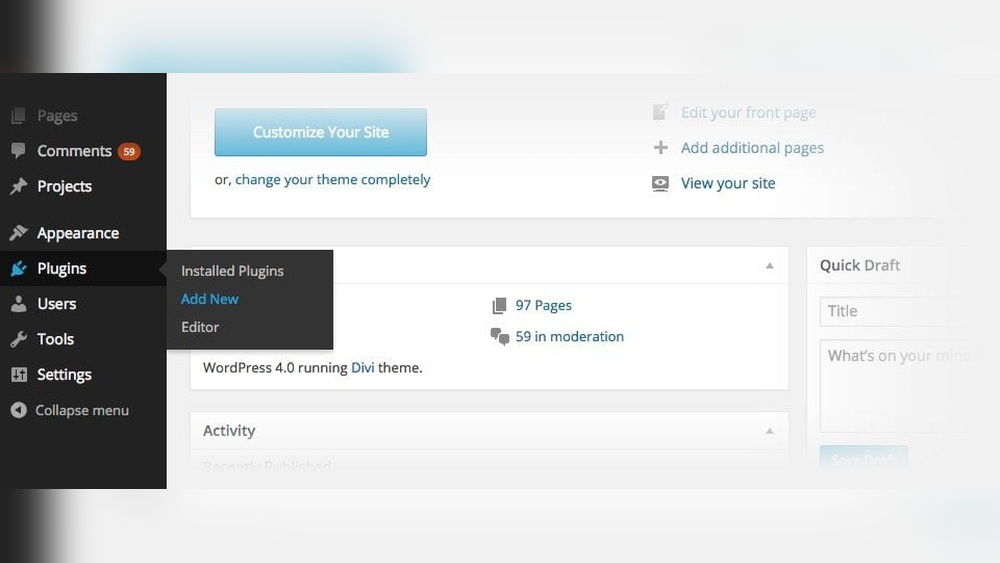
Are you looking to make your WordPress website stand out with a powerful and easy-to-use design tool? Adding Divi to your WordPress site can transform your web design experience, giving you full control without needing to code.
Imagine building beautiful pages quickly, with drag-and-drop simplicity and endless customization options. In this guide, you’ll learn exactly how to add Divi to your WordPress site step-by-step, so you can start creating stunning websites that grab attention and keep visitors coming back.
Keep reading, and you’ll be designing like a pro in no time!

Credit: divitheme.net
Why Choose Divi For WordPress
Choosing the right theme for your WordPress site is important. Divi stands out as a popular choice for many users. It offers a mix of power and simplicity, fitting both beginners and experts. The theme helps create good-looking websites fast without complex coding. Let’s explore why Divi is a smart pick for your WordPress site.
Key Features Of Divi
Divi comes with a visual drag-and-drop builder. This tool lets you design pages by moving elements on the screen. No coding needed. It has many pre-made layouts to start your design quickly. You can customize colors, fonts, and spacing easily. Divi also supports responsive design, so your site looks good on phones and tablets. The theme updates often for security and new features.
Benefits For Website Design
Divi makes website design simple and fast. You see changes live as you edit. The interface is user-friendly for beginners. It also allows deep customization for advanced users. The theme helps keep a consistent style across your pages. It saves time by reusing sections and layouts. Divi’s built-in options reduce the need for extra plugins.
Comparing Divi With Other Themes
Compared to many themes, Divi offers more design freedom. Some themes limit layout choices or require coding skills. Others may need many plugins for features Divi has built-in. Divi combines theme and page builder in one package. This reduces compatibility issues and speeds up workflow. Its large user base means plenty of tutorials and support.
Preparing Your WordPress Site
Preparing your WordPress site is an important step before adding Divi. It helps avoid problems during installation and ensures smooth performance. Taking time to prepare makes the process easier and safer for your website.
Backup Your Website
Backing up your website protects your data. Save a copy of all files and the database. Use plugins or your hosting provider’s tools. This way, you can restore your site if something goes wrong.
Check WordPress Compatibility
Divi works best with the latest WordPress version. Check your WordPress version in the dashboard. Update it if it is outdated. This step helps prevent conflicts and errors.
Ensure Hosting Requirements
Divi needs certain hosting features to run well. Check your hosting plan for PHP version and memory limits. Make sure it supports WordPress themes and plugins. Good hosting improves speed and stability.
Installing The Divi Theme
Installing the Divi theme on your WordPress site is a simple process. It does not need coding skills or complex steps. Just follow a few clear instructions, and you will have Divi ready to use in minutes.
This guide explains each step clearly. You will learn how to download, upload, and activate Divi easily. Let’s start with downloading the theme files.
Download Divi Theme Files
First, log in to your Elegant Themes account. Go to the Downloads section. Find the Divi theme package and click the download button. Save the ZIP file to your computer. Keep this file ready for the next step.
Upload Via WordPress Dashboard
Open your WordPress admin panel. Go to Appearance > Themes. Click the Add New button at the top. Then select Upload Theme. Choose the Divi ZIP file you downloaded. Click Install Now and wait for the upload to finish.
Activate Divi Theme
After installation, click the Activate button. Your site now uses the Divi theme. Check the site’s front end to see the new look. Divi is ready for customization and building pages.
Configuring Divi Settings
Configuring Divi settings is the next step after installation. It shapes your website’s look and feel. Proper setup ensures your site feels unique and professional. The settings control layout, colors, fonts, and more.
General Theme Options
Start with the General Theme Options to control basic settings. Enable or disable features like responsive design and animations. Upload your logo for branding. Set the default color scheme to match your style. These options help define your site’s foundation quickly.
Customize Header And Footer
The header and footer create the first and last impression. Customize the header by choosing its layout and style. Add menus for easy navigation. Include contact info or social media icons. For the footer, select widget areas and add copyright text. A clear header and footer improve user experience.
Set Up Typography And Colors
Typography and colors influence readability and mood. Pick fonts that are easy to read on all devices. Adjust font sizes for headings and body text. Choose colors that fit your brand and make content stand out. Consistent typography and colors keep your site looking clean and balanced.
Building Pages With Divi Builder
Building pages with Divi Builder is simple and fun. It allows you to design your website visually. You can drag and drop elements to create stunning layouts. This tool works well for beginners and experts alike. Let’s explore how to start building pages using Divi Builder.
Enable Divi Builder
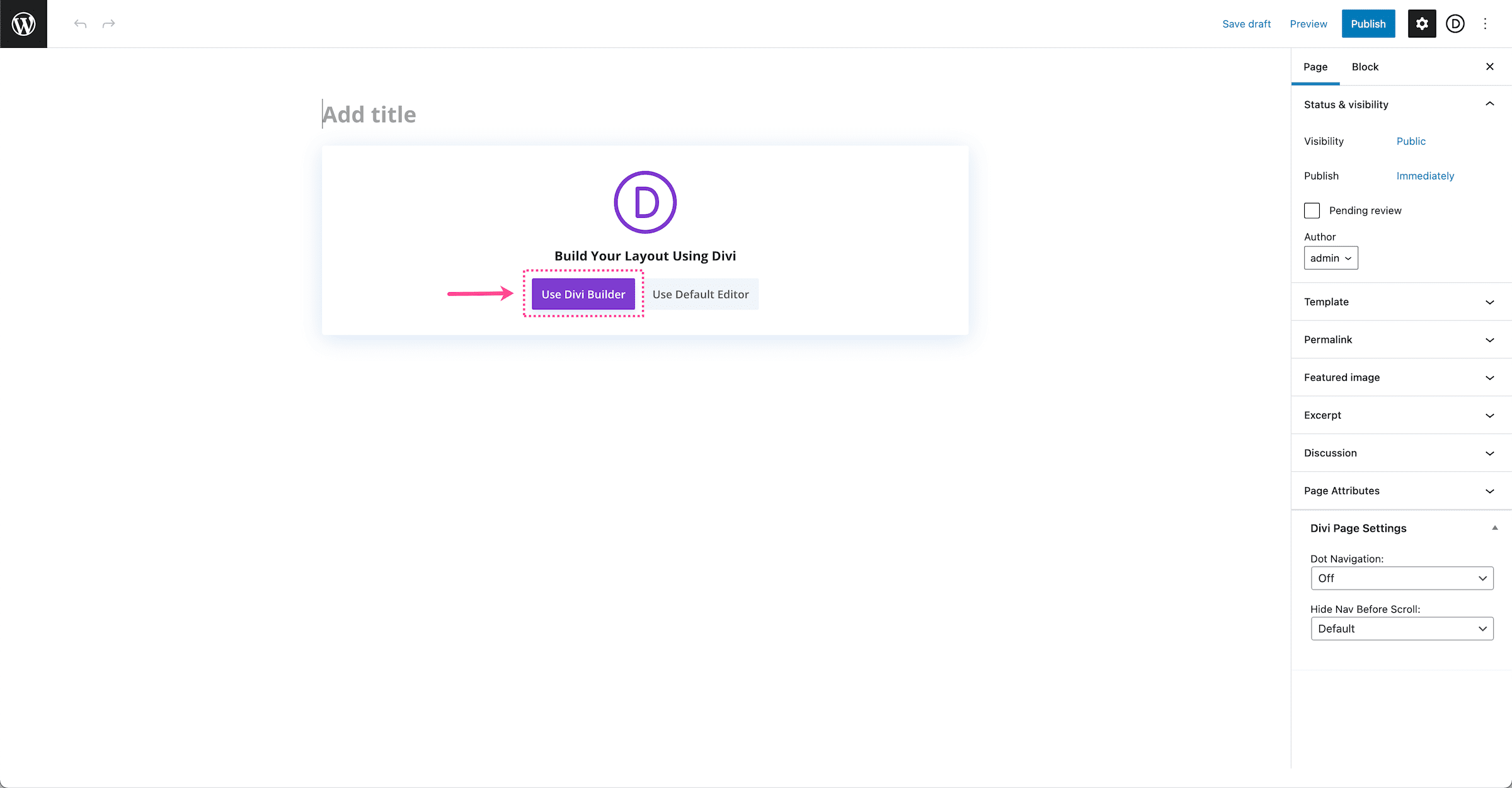
First, open your WordPress page editor. You will see a button called “Use Divi Builder.” Click it to enable the builder. The page will switch to Divi’s visual editor. Now, you can start designing your page right away. This mode gives you full control over the layout and content.
Using Layout Packs
Divi offers many pre-made layout packs to save time. These packs include ready-to-use page designs. Pick a layout pack that fits your website style. Import it with a single click. You can then customize the layout to match your needs. This helps create professional pages fast.
Adding Modules And Rows
Divi Builder uses rows and modules to build pages. Rows hold columns, and columns hold modules. Modules are content blocks like text, images, or buttons. To add a row, click the plus icon. Choose the column structure for your row. Next, add modules inside the columns. Drag modules to rearrange them easily. Each module has settings to customize its look and function.
Optimizing Divi For Performance
Optimizing Divi for performance helps your website load faster. A fast website improves user experience and search engine ranking. Small changes can make a big difference in speed and efficiency. Focus on key areas to get the best results.
Enable Caching And Minification
Caching stores parts of your website to load quickly next time. It reduces server load and speeds up page delivery. Minification removes extra spaces and characters from code files. This makes CSS, JavaScript, and HTML smaller and faster to load. Use plugins or Divi’s built-in options to enable both features easily.
Optimize Images
Large images slow down your website. Resize images to the correct dimensions before uploading. Compress images to reduce file size without losing quality. Use tools like TinyPNG or built-in WordPress features. Optimized images load faster and save bandwidth.
Use Lazy Loading Features
Lazy loading delays image loading until they are visible on the screen. It reduces initial page load time and saves data. Divi supports lazy loading through WordPress settings or plugins. This feature improves speed, especially on pages with many images.
Troubleshooting Common Issues
Adding Divi to WordPress is usually smooth. Sometimes, issues can appear. These problems can slow your progress. Troubleshooting helps fix these quickly. Understanding common problems saves time and effort.
Fixing Installation Errors
Installation errors happen often. They may occur due to file size limits or server settings. Check your WordPress version first. Divi needs a compatible WordPress version to work. Make sure your PHP version is updated. Also, check your internet connection. A slow connection can cause upload failure.
Try uploading the Divi zip file again. Use a different browser if needed. Clear your browser cache before retrying. If errors persist, increase your PHP memory limit. This can be done in the hosting control panel or by contacting support.
Resolving Plugin Conflicts
Divi may conflict with other plugins. These conflicts can break layout or functions. Deactivate all other plugins except Divi. Check if Divi works properly now. If yes, activate plugins one by one. This helps find the conflicting plugin.
Once found, look for updates for that plugin. Update it or replace it with a similar tool. Keep your plugins and Divi updated. Outdated software causes many compatibility issues.
Handling Layout Problems
Layout issues are common after installing Divi. Elements may not display correctly or overlap. Clear your browser cache and reload the page. Sometimes, the problem is just a cache glitch.
Check your theme and page builder settings. Incorrect settings can cause layout errors. Use Divi’s built-in troubleshooting tools. Enable safe mode to isolate problems. If problems continue, reset Divi’s custom CSS or settings.

Credit: www.wonderplugin.com
Tips For Stunning Website Design
Creating a stunning website design is key to capturing visitors’ attention. A well-designed site builds trust and keeps people coming back. Divi offers many tools to help you design with ease. Use these tips to make your website look clean, professional, and inviting.
Choosing The Right Color Scheme
Pick colors that match your brand’s personality. Use two or three main colors for a balanced look. Avoid colors that clash or are hard to read. Light backgrounds with dark text work best for readability. Use color to guide visitors to important parts of your site.
Maintaining Consistent Branding
Keep your logo, fonts, and colors consistent across all pages. Consistency helps visitors recognize your brand easily. Use the same style for buttons and headings. This creates a smooth experience and makes your site look professional. Avoid mixing too many fonts or styles.
Enhancing User Experience
Make your site easy to navigate. Use clear menus and simple layouts. Ensure pages load quickly for better user satisfaction. Add buttons that stand out and invite clicks. Test your site on phones and tablets to ensure it looks good everywhere.
Credit: www.elegantthemes.com
Frequently Asked Questions
What Is Divi And Why Use It With WordPress?
Divi is a popular WordPress theme and visual builder. It allows easy drag-and-drop website design without coding. Using Divi enhances customization, speeds up site building, and improves design flexibility on WordPress sites.
How Do I Install Divi On My WordPress Site?
Download Divi from the Elegant Themes website. In WordPress dashboard, go to Appearance > Themes > Add New. Upload the Divi zip file, install, and activate it. This process enables Divi’s features on your site.
Can I Use Divi With Existing WordPress Content?
Yes, Divi works with existing WordPress posts and pages. You can edit current content using Divi Builder. This lets you redesign pages without losing any data.
Is Divi Compatible With WordPress Plugins?
Divi is compatible with most popular WordPress plugins. However, always check plugin compatibility before installing. This ensures smooth performance and avoids conflicts on your site.
Conclusion
Adding Divi to WordPress is simple and fast. You can create beautiful websites without coding skills. Just follow the steps carefully and enjoy your new design tools. Divi helps you customize your site with ease. Start building your pages today and watch your site look professional.
Keep practicing, and your skills will grow. This guide makes the process clear and easy for everyone. Give Divi a try and see the difference it brings.


