
Are you struggling to clean up your WordPress site and want to delete a category but don’t know where to start? You’re not alone.
Managing categories can get confusing, especially when your site grows. But deleting a category is easier than you think—and it can make your site look more organized and user-friendly. You’ll learn simple, step-by-step instructions to delete a category quickly and safely.
Keep reading, and by the end, you’ll have one less thing to worry about on your WordPress site.
Accessing WordPress Categories
Accessing the categories in WordPress is simple. Categories help organize your content. Managing them well keeps your site tidy. You can add, edit, or delete categories easily. First, you need to find where WordPress stores these categories.
Navigating To The Categories Page
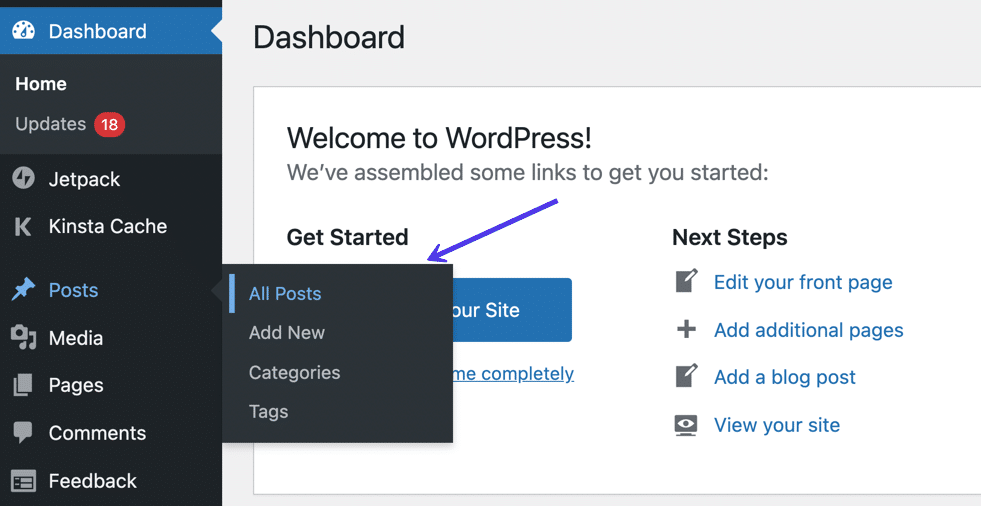
Log in to your WordPress dashboard. Look at the left menu panel. Find the “Posts” section. Hover over or click on “Posts.” A list will appear. Click on “Categories” from this list. This opens the Categories page. Here, you see all existing categories. You can also add new ones here.
Understanding Category Lists
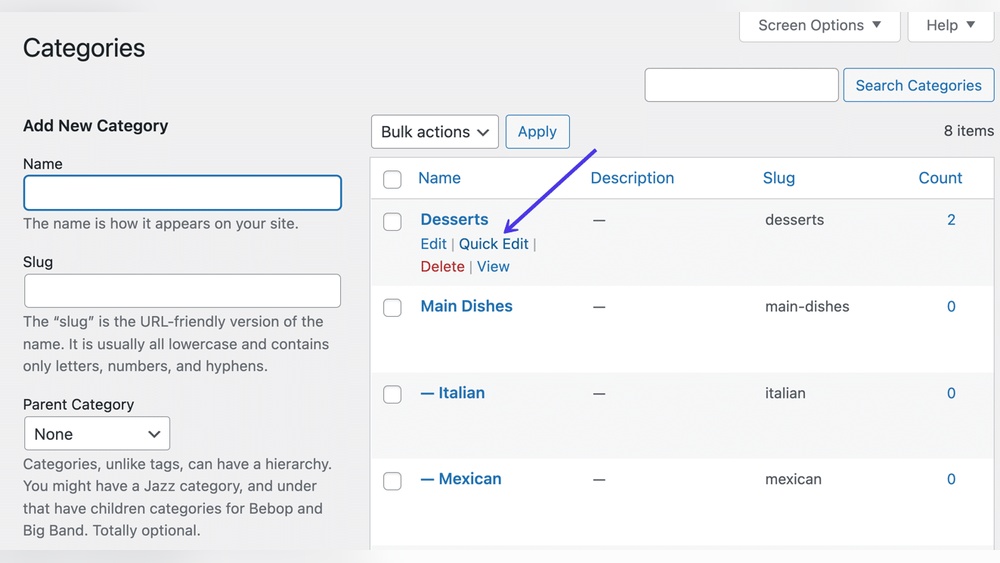
The Categories page shows a list of all categories. Each category has a name and description. You see how many posts belong to each category. Categories are sorted alphabetically by default. You can also find options to edit or delete categories. This page helps you manage your site’s content structure. It is the starting point for deleting any category.
Credit: rankmath.com
Deleting A Category
Deleting a category in WordPress helps keep your site organized. Removing unused or outdated categories improves navigation. It also cleans up your dashboard for easier management. Below are clear steps on how to delete categories safely and quickly.
Selecting The Category To Delete
Start by logging into your WordPress dashboard. Go to the “Posts” section and click “Categories.” You will see a list of all categories on your site. Find the category you want to delete. Use the search box if needed. Hover over the category name to reveal options. Click the “Delete” link under the category name.
Using The Bulk Delete Option
To delete multiple categories at once, use the bulk delete feature. Select the checkboxes beside the categories you want to remove. At the top of the list, find the “Bulk Actions” dropdown menu. Choose “Delete” from the options. Click the “Apply” button to remove all selected categories simultaneously.
Confirming Category Deletion
After clicking delete, WordPress asks for confirmation. This prevents accidental removal of categories. Confirm your choice by clicking “OK” or “Confirm.” The category disappears from the list. Posts under the deleted category will move to the default category. This keeps your posts safe without losing content.
Reassigning Posts From Deleted Categories
Deleting a category in WordPress affects the posts assigned to it. Posts cannot remain without a category. WordPress automatically reassigns posts to a default category. This step keeps your content organized and accessible. Understanding how to manage these settings helps maintain a clean site structure.
Default Category Settings
WordPress uses a default category to assign posts without a category. Usually, this category is named “Uncategorized.” You can change this default to any category you prefer. Go to Settings > Writing in your dashboard. Select your new default category from the dropdown menu. Save your changes to update the settings. This way, deleted categories won’t leave posts uncategorized.
Changing Post Categories
You can manually change categories for posts after deleting a category. Navigate to Posts > All Posts in your dashboard. Use the bulk edit option to select multiple posts. Choose a new category and apply the changes. This method lets you assign posts to relevant categories. It keeps your website organized and easy to navigate.
Credit: kinsta.com
Handling Common Issues
Deleting a category in WordPress usually works smoothly. Sometimes, issues can stop the process. Understanding these common problems helps fix them fast. Here are solutions for frequent troubles during category deletion.
Category Not Deleting
Sometimes, WordPress won’t delete a category. This happens if the category is still assigned to posts. Check if any posts use this category. Change their category or remove it first. Also, clear your browser cache and try again. Plugins or themes may block deletion. Disable them temporarily to see if that helps. Updating WordPress can solve bugs causing this issue.
Posts Losing Categories
Deleting a category removes it from all posts. Posts need at least one category. WordPress assigns the default category automatically. If the default category is deleted, posts may lose categories. Set a new default category before deleting any category. Check posts after deletion to ensure they still have categories. This keeps your site organized and easy to navigate.
Using Plugins For Advanced Category Management
Managing categories in WordPress can be simple with the right tools. Plugins offer advanced features to handle categories easily. These tools let you delete, edit, and organize categories without hassle. They save time and reduce errors during category management. Using plugins improves your site’s structure and user experience.
Popular Category Management Plugins
Several plugins help manage categories effectively. “Category Manager” allows easy bulk editing and deletion. “Taxonomy Manager” supports all taxonomy types, not just categories. “WP Bulk Delete” can remove categories based on specific rules. These plugins have user-friendly interfaces. They work well for beginners and experts alike.
Benefits Of Using Plugins
Plugins provide more control over categories than default tools. They simplify deleting multiple categories at once. Plugins can prevent accidental deletions by adding confirmation steps. They help keep your website tidy and organized. Using plugins reduces manual work and saves time. Some plugins also help merge similar categories easily.
Tips To Organize Categories Effectively
Organizing categories in WordPress helps visitors find content quickly. Clear categories improve site navigation and user experience. Proper organization also boosts SEO by making your site easier to understand for search engines. Use simple steps to keep categories useful and tidy.
Best Practices For Category Naming
Choose names that clearly describe the content inside. Use common words people search for. Avoid long or complex names. Keep names short and to the point. Use consistent style, such as all lowercase or capitalized. This consistency helps users recognize categories easily.
Keeping Categories Updated
Review categories regularly to remove old or unused ones. Add new categories when your content grows. Merge similar categories to avoid confusion. Update category names if your content focus changes. This keeps your site organized and relevant. Well-maintained categories help visitors find fresh content fast.

Credit: www.youtube.com
Frequently Asked Questions
How Do I Delete A Category In WordPress?
To delete a category, go to your WordPress dashboard. Navigate to Posts > Categories, find the category, and click “Delete. ” Confirm the deletion to remove it from your site.
Will Deleting A Category Remove My Posts?
No, deleting a category does not delete your posts. Posts assigned to the deleted category will be uncategorized but remain published.
Can I Recover A Deleted WordPress Category?
No, once a category is deleted, it cannot be recovered. You must recreate the category and reassign posts manually if needed.
What Happens To Posts In A Deleted Category?
Posts in a deleted category automatically move to the default “Uncategorized” category unless reassigned before deletion.
Conclusion
Deleting a category in WordPress is simple and quick. Just follow the steps carefully to avoid mistakes. Removing unused categories keeps your site organized and easy to navigate. Always check your posts after deleting a category to ensure they still show correctly.
Regularly cleaning up categories helps improve your website’s user experience. Now, you can manage your WordPress categories with confidence and ease.


