
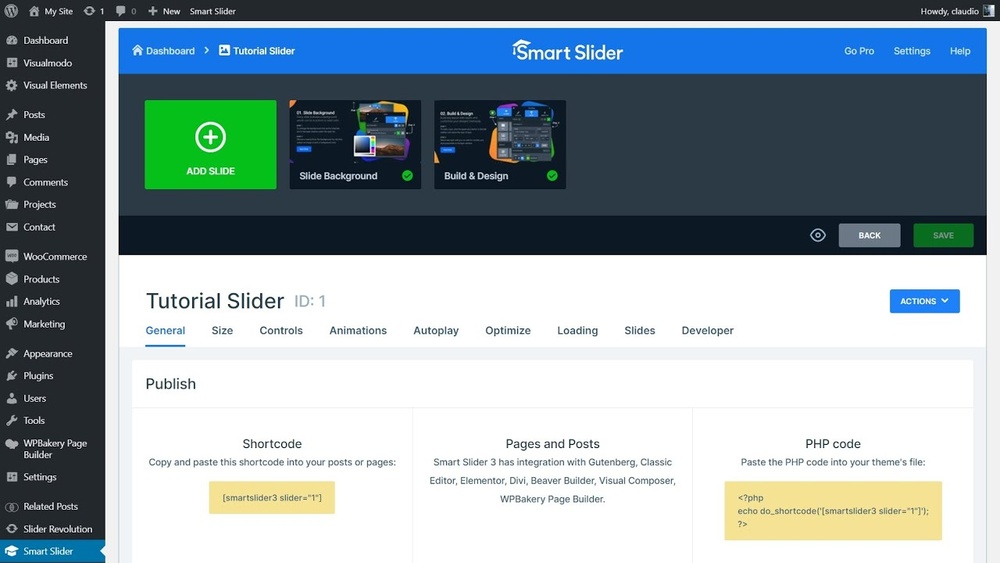
Looking to make your WordPress homepage stand out? Adding a Smart Slider can transform your site instantly, grabbing your visitors’ attention the moment they arrive.
Imagine showcasing your best images, offers, or messages in a sleek, interactive way—without any coding skills. If you want your site to look professional and keep people engaged, this guide will walk you through every simple step to add a Smart Slider to your homepage.
By the end, you’ll have a stunning slider that draws visitors in and keeps them coming back for more. Ready to boost your website’s appeal? Let’s dive in!

Credit: smartslider3.com
Choose The Right Slider Plugin
Choosing the right slider plugin for your WordPress homepage is important. It affects how your website looks and works. A good slider plugin can make your homepage attractive and user-friendly. It also helps your site load faster and stay secure. Many slider plugins exist, but not all fit your needs. Focus on finding one that matches your design and technical requirements.
Top Smart Slider Options
Several popular slider plugins work well with WordPress. Smart Slider 3 is one of the best choices. It offers easy drag-and-drop editing and many templates. MetaSlider is another option, known for simplicity and speed. Soliloquy provides good mobile responsiveness and SEO features. Each plugin has strengths. Choose one that fits your skill level and site goals.
Key Features To Consider
Look for a plugin with a simple interface. It saves time and avoids frustration. Check if it supports responsive design so your slider looks good on phones and tablets. SEO-friendly plugins help your site rank higher in search engines. Fast loading speed is crucial to keep visitors engaged. Also, consider plugins with regular updates and good support. These keep your site safe from bugs and hacks.

Credit: www.youtube.com
Install Smart Slider Plugin
Installing the Smart Slider plugin is the first step to creating beautiful sliders on your WordPress homepage. This plugin helps you showcase images, videos, and content in a dynamic way. The installation process is simple and can be done through the WordPress dashboard or by manually uploading the plugin files.
Using WordPress Dashboard
Open your WordPress admin area. Go to the Plugins menu and click “Add New.” In the search box, type “Smart Slider.” Find the plugin in the results and click “Install Now.” After installation, click “Activate” to start using the plugin. The plugin will now be ready to create sliders on your site.
Manual Upload Method
Download the Smart Slider plugin as a ZIP file from the official website. Go to your WordPress dashboard and click Plugins > Add New. Click the “Upload Plugin” button at the top. Choose the ZIP file you downloaded and click “Install Now.” Once installed, click “Activate” to enable the plugin. This method works well if you cannot access the plugin directory directly.
Create A New Slider
Creating a new slider in Smart Slider on your WordPress homepage is simple. This step is key to display images, text, or videos attractively. Start by opening the Smart Slider plugin in your WordPress dashboard. Follow the clear instructions to build your slider from scratch. Let’s explore how to select the slider type and add slides with content.
Selecting Slider Type
Choose the slider type based on your site’s style. Smart Slider offers options like simple sliders, carousels, and block sliders. Each type has unique features and layouts. Pick the one that fits your homepage design best. This choice affects how your content will appear to visitors.
Adding Slides And Content
After selecting the slider type, add your slides. Click the “Add Slide” button to upload images or videos. You can also add text, buttons, or icons to each slide. Customize the content to match your message clearly. Use simple words and keep designs clean. This makes your slider easy to understand and attractive.
Customize Slider Settings
Optimizing your Smart Slider ensures your homepage loads fast and runs smoothly. A well-optimized slider improves user experience and keeps visitors engaged. Slow sliders can make your site feel heavy and cause visitors to leave early.
Focus on reducing image size and loading times. Use techniques that keep quality but cut down file size. This helps your slider appear quickly without slowing your site down.
Image Optimization Tips
Choose the right image format like JPEG for photos and PNG for graphics. Compress images using free tools before uploading. Keep image dimensions as small as possible without losing clarity. Avoid using very large images that slow down the slider. Use consistent image sizes for a clean look and faster loading.
Lazy Loading Setup
Enable lazy loading to delay loading images until needed. This saves bandwidth and speeds up initial page load. Many WordPress plugins support lazy loading for sliders. Smart Slider also offers built-in lazy loading options. Activate it to load only visible slides first, then load others as users scroll.
Embed Slider On Homepage
Troubleshooting is an important step when adding Smart Slider to your WordPress homepage. Some issues may stop the slider from working properly. Knowing how to fix these common problems saves time and frustration. Here are solutions for two frequent issues.
Slider Not Showing
First, check if the slider shortcode is correctly placed on the homepage. A small typo can cause the slider to disappear. Clear your website cache and browser cache. Sometimes old files block new changes.
Deactivate other plugins temporarily to see if there is a conflict. Some plugins stop sliders from loading. Also, update your WordPress and Smart Slider plugin to the latest version. Outdated software often causes this issue.
Responsive Problems
The slider may look good on desktop but not on mobile devices. Check the slider settings for responsive options. Enable mobile view and set the correct width and height.
Use the built-in preview tool to see how the slider appears on different screen sizes. If images are cut off or text is hidden, adjust the layers inside the slider editor. Make sure each element fits smaller screens well.
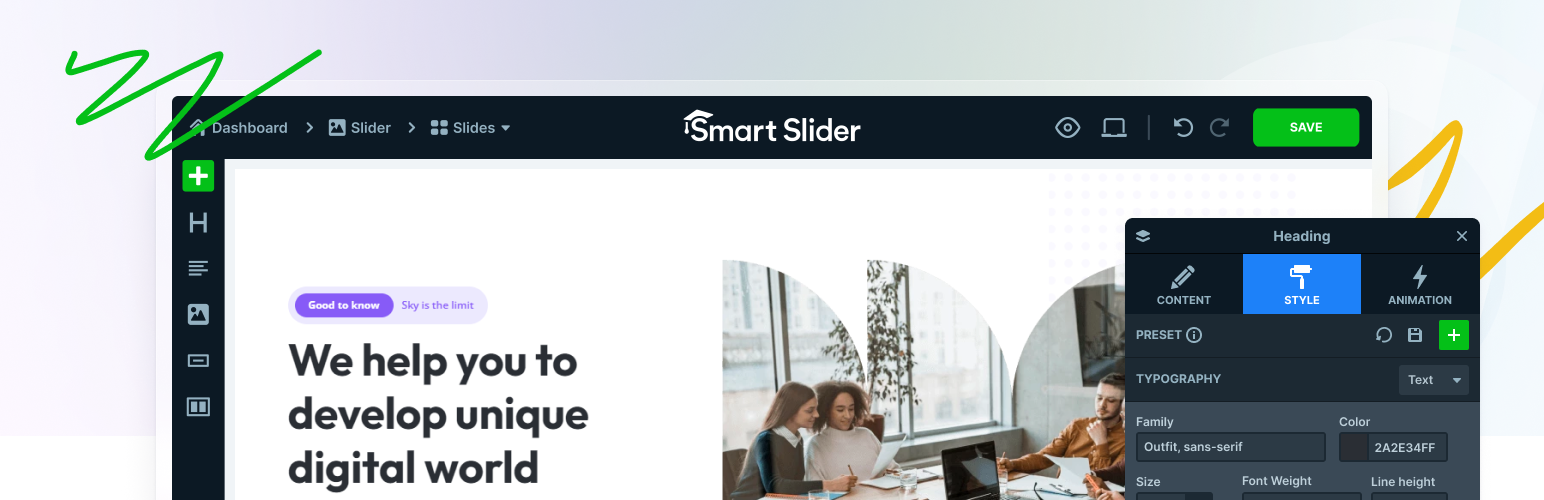
Credit: wordpress.org
Frequently Asked Questions
What Is Smart Slider In WordPress?
Smart Slider is a plugin that creates responsive sliders for WordPress sites. It allows easy addition of dynamic image and content sliders on your homepage to enhance user engagement and site appearance without coding skills.
How To Install Smart Slider On WordPress?
To install Smart Slider, go to WordPress dashboard > Plugins > Add New. Search “Smart Slider,” click Install, then Activate. This sets up the plugin for slider creation and customization on your site.
Can I Customize Smart Slider For My Homepage?
Yes, Smart Slider offers various templates and drag-and-drop options. You can customize images, text, animations, and slide transitions to match your homepage design and branding easily.
Is Smart Slider Mobile-friendly And Responsive?
Smart Slider is fully responsive and mobile-friendly. It automatically adjusts sliders to fit different screen sizes, ensuring an optimal viewing experience on smartphones, tablets, and desktops.
Conclusion
Adding a Smart Slider to your WordPress homepage is simple and effective. It helps your site look attractive and professional. You can show important images and messages clearly. This tool works well for all skill levels. Just follow the steps carefully, and your site will stand out.
Keep your content fresh by updating sliders regularly. Your visitors will enjoy a better browsing experience. Try it today and see the difference on your homepage.


