
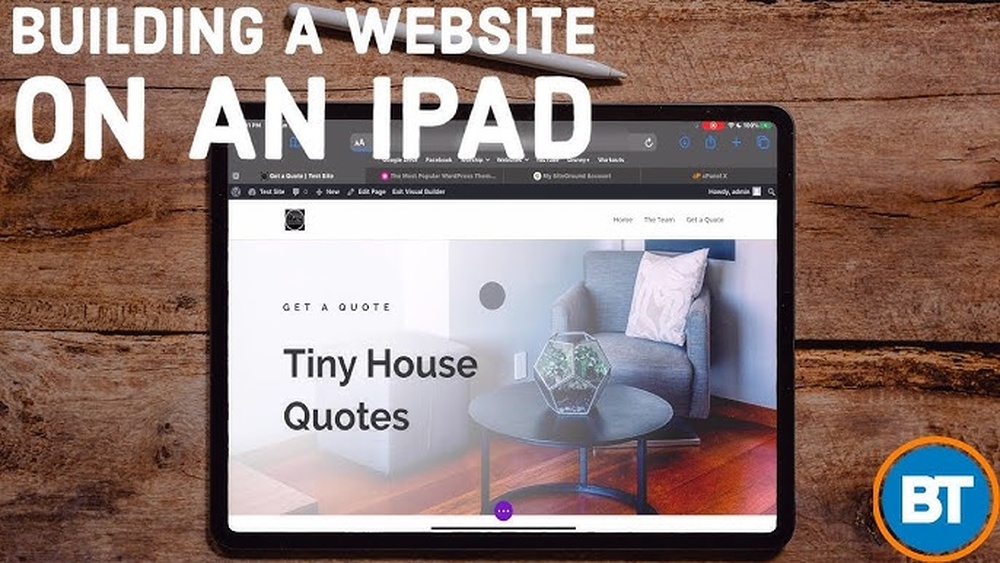
Have you ever wondered if you can build a WordPress website using just your iPad? If you think creating a professional site means sitting in front of a laptop or desktop, think again.
Your iPad is more powerful than you realize, and with the right tools, it can become your website-building companion. Imagine designing your site anytime, anywhere, without being tied to a bulky computer. You’ll discover exactly how to make it happen, step by step.
Ready to unlock your iPad’s hidden potential and bring your website ideas to life? Let’s dive in.
WordPress On Ipad: Is It Possible?
Building a WordPress website on an iPad is a question many ask. The iPad is popular for its portability and ease of use. But can it handle web development tasks? WordPress is a powerful platform, so the device must meet certain needs. Let’s explore if the iPad is a good fit for WordPress website creation.
Ipad Capabilities For Web Development
The iPad has a fast processor and good screen quality. It supports multitasking, which helps in managing apps. The touchscreen makes design work easier. However, some web tools might not work fully on iPadOS. Coding apps are available but limited compared to desktop software. Still, the iPad can handle basic web development tasks well.
WordPress App Features
The official WordPress app works on the iPad. It lets users write posts, upload images, and manage comments. You can customize basic settings and view stats. The app supports multiple sites under one login. Some advanced design features are missing. It is best for content creation and site management, not full design control.
Browser-based WordPress Access
Accessing WordPress via a browser on the iPad is possible. Safari and other browsers support the WordPress dashboard. The desktop version of WordPress runs on the iPad’s browser. Some features may be slow or hard to use on a touchscreen. Plugins and themes can be installed and managed. This method allows more control than the app but may feel less smooth.
Setting Up WordPress On Ipad
Setting up WordPress on an iPad is easier than you might think. With the right tools, you can create and manage a website directly from your tablet. This section guides you through the basic steps to get started.
Choosing A Hosting Provider
Pick a hosting provider that supports WordPress well. Look for providers with easy setup and good customer support. Some popular options include Bluehost, SiteGround, and DreamHost. Make sure the hosting plan fits your website’s needs. Check for mobile-friendly control panels to use on your iPad.
Installing WordPress
Many hosting providers offer one-click WordPress installation. This feature saves time and avoids technical trouble. After signing up with your host, find the WordPress install button in your control panel. Follow the simple steps to set up your site. You only need a few minutes before WordPress is ready to use.
Using WordPress Apps Vs Browsers
WordPress has dedicated apps for iPad that simplify content creation. The app offers a clean interface optimized for touch screens. You can write posts, upload images, and manage comments easily.
Alternatively, use a browser like Safari or Chrome to access the WordPress dashboard. The full dashboard provides all features but may be harder to navigate on a smaller screen. Choose the method that feels comfortable and fits your workflow best.
Designing Your Site On Ipad
Designing your WordPress site on an iPad offers a flexible and creative way to build your online presence. The touch screen lets you interact directly with your content. This makes editing and designing feel natural and hands-on. The iPad’s portability means you can work from anywhere, whether on the couch or at a café.
Some WordPress tools and themes work better on an iPad. Choosing the right ones helps your site look great and run smoothly. Customizing your site is simple with touch controls. You can change layouts, menus, and add media easily. This keeps your site fresh and engaging without needing a computer.
Selecting Themes Compatible With Ipad
Pick themes that respond well to touch screens. Responsive themes adjust to different screen sizes, including tablets. This ensures your site looks good on the iPad and desktops. Many themes in the WordPress library mention if they work on mobile devices. Test a few to see how they perform on your iPad before deciding.
Customizing Layouts And Menus
Use the WordPress customizer or block editor to change your layout. Drag and drop blocks to arrange your content. Menus can be edited with simple taps and swipes. This process feels intuitive on the iPad’s touch screen. Keep your layout clean and easy to navigate for visitors.
Adding Media And Content
Upload images, videos, and audio directly from your iPad. The iPad’s camera and photo library make adding media quick. Use the WordPress editor to place content exactly where you want. Adding text is simple with the on-screen keyboard. This helps keep your site lively and up to date.

Credit: www.youtube.com
Managing Plugins And Functionality
Managing plugins and functionality is a key part of building a WordPress website on an iPad. Plugins add features and tools that help the site work better. You can control and customize your site’s abilities from your iPad. This section explains how to install plugins, which ones help with mobile editing, and how to fix common plugin problems.
Installing Plugins Via Ipad
Installing plugins on an iPad is simple. Open your WordPress dashboard in a browser or the WordPress app. Navigate to the “Plugins” section. Tap “Add New” to search for the plugin you want. Select the plugin and tap “Install.” After installation, activate the plugin to start using it. The process is similar to a desktop but adapted for touch controls. Most plugins install smoothly on an iPad.
Essential Plugins For Mobile Editing
Some plugins work better on mobile devices. Choose lightweight plugins that do not slow down your site. A good editor plugin helps with content formatting on small screens. Security plugins keep your site safe from threats even when you work remotely. SEO plugins improve your site’s search engine ranking without complex steps. Pick plugins that offer a simple interface and fast performance on iPads.
Troubleshooting Plugin Issues
Plugins can sometimes cause problems on an iPad. If a plugin does not work, try deactivating it first. Clear your browser cache or refresh the page. Check if the plugin needs an update and install it. Disable all plugins and reactivate them one by one to find the issue. If problems persist, contact the plugin developer or seek help in WordPress forums. Patience helps fix most plugin errors on an iPad.
Optimizing Workflow On Ipad
Building a WordPress website on an iPad can be smooth and efficient. Optimizing your workflow helps save time and avoid frustration. Using the right tools and methods makes the process easier. Here are some tips to improve your experience on an iPad.
Keyboard And Accessory Recommendations
Typing on the iPad screen can be slow and tiring. A physical keyboard speeds up writing and editing tasks. Bluetooth keyboards are easy to connect and use. Consider a keyboard case that protects your iPad too. A stylus can help with precise navigation and design work. Choose accessories that fit your budget and needs.
Multitasking And App Integration
iPad supports multitasking features like Split View and Slide Over. Use these to run WordPress and other apps side by side. You can edit content while checking images or notes. Third-party apps like Google Drive or Dropbox integrate well with WordPress. This makes transferring files faster and simpler. Switching between apps is seamless and saves time.
Backing Up And Security
Backing up your website is crucial to avoid losing data. Use WordPress plugins or cloud services for automatic backups. Regularly save your work to iCloud or Google Drive. Keep your iPad updated to protect against security threats. Use strong passwords and enable two-factor authentication on WordPress. These steps keep your site and device safe.
Limitations And Challenges
Building a WordPress website on an iPad is possible but not without its limits. The iPad’s hardware and software have restrictions that affect the web design process. Understanding these challenges helps set realistic expectations before starting your project.
Performance Constraints
The iPad has less processing power than a desktop or laptop. Running multiple apps or heavy plugins slows down the device. Loading large media files or complex themes can cause lag. These limits make it hard to work quickly or multitask.
Editing Complex Code
Editing advanced code on an iPad is difficult. The touchscreen keyboard is less efficient than a physical one. Writing or fixing HTML, CSS, or PHP takes more time and effort. Many code editors on iPad have fewer features than desktop versions.
Compatibility Issues
Some WordPress plugins and themes do not work well on iPads. Certain functions require a desktop browser for full access. File management and FTP tools are limited or missing. These problems can block important tasks or slow progress.
Alternatives To Building Directly On Ipad
Building a WordPress website directly on an iPad can be tricky. The device has limits in screen size and app functions. Many users find it hard to do complex tasks on an iPad. Luckily, there are easier ways to work around these issues. These alternatives make website building smoother and more effective.
Using Cloud-based Website Builders
Cloud-based builders work well on iPads. They run in a web browser without extra apps. Tools like Wix, Squarespace, and Weebly offer simple drag-and-drop features. These platforms handle hosting and updates automatically. This means less hassle and faster site creation. You get good design options without technical skills.
Remote Desktop Solutions
Remote desktop apps let you access a full computer from your iPad. You can use apps like Microsoft Remote Desktop or TeamViewer. This way, you work on your PC or Mac through the iPad screen. It gives full access to desktop WordPress tools. You can use plugins and themes easily. This method needs a stable internet connection.
Collaborating With Desktop Users
Another option is to team up with someone using a desktop. They handle technical parts of the website. You can focus on content, images, and ideas on your iPad. Communication tools like Google Docs or Slack help keep ideas clear. This teamwork saves time and reduces frustration. It also combines skills for better results.
Credit: www.ehemisphere.com
Tips For A Smooth Ipad WordPress Experience
Building a WordPress website on an iPad can be smooth and efficient with the right approach. Small steps improve your workflow and reduce frustration. Focus on simple habits that keep your site safe and your creativity flowing. Here are some tips to help you work better on WordPress using an iPad.
Regular Updates And Maintenance
Keep WordPress and its plugins updated. Updates fix bugs and improve security. Check for updates often using the WordPress app or browser. Back up your site regularly to avoid data loss. Use cloud storage or WordPress plugins for easy backups. Regular maintenance keeps your site running fast and safe.
Using Offline Editing Tools
Use offline tools to write posts without internet. Apps like Notes or Microsoft Word work well. Write drafts and edit content before uploading. This saves time and helps avoid distractions. Sync your work to WordPress when back online. Offline editing keeps you productive anywhere.
Leveraging Ipad Features For Creativity
Use the iPad’s touch screen for easy editing. Drag and drop images or text with fingers. Use the Apple Pencil for precise design work. Take advantage of multitasking to run WordPress and other apps side-by-side. Use the camera to add real-time photos to your site. These features make your site more engaging and unique.

Credit: wpmudev.com
Frequently Asked Questions
Can I Install WordPress On An Ipad Directly?
No, you cannot install the full WordPress software on an iPad. Instead, use the WordPress app or access the dashboard via a web browser.
Is It Easy To Build A WordPress Site On An Ipad?
Yes, building a WordPress site on an iPad is easy with the official app or browser access. It supports content editing and basic management.
Can I Use Themes And Plugins On An Ipad WordPress Site?
You can install and manage themes and plugins through the WordPress dashboard on an iPad, but some advanced customization may be limited.
Does The WordPress App Support Full Website Customization On Ipad?
The WordPress app supports basic customization, but full theme editing and complex design changes require a desktop browser for best results.
Conclusion
Building a WordPress website on an iPad is possible and practical. The iPad offers useful apps and tools to create and edit websites. Some limitations exist, but they do not stop you from working efficiently. For simple sites, the iPad works well.
It suits users who want mobility and ease of use. Keep learning and exploring new features. Your website can grow with your skills. Start small, and build up step by step. The iPad can be a handy device for WordPress creation.


