
Want to make your WordPress site more connected and engaging? Adding links to your social media profiles is a simple step that can boost your online presence and help you reach more people.
Imagine your visitors clicking directly to your Instagram, Facebook, or Twitter with just one click. This guide will show you exactly how to do that—quickly and easily. Keep reading, and you’ll learn the best ways to add social media links that fit your site perfectly, so you never miss a chance to grow your audience.
Credit: www.wpbeginner.com
Choose The Right Social Media Platforms
Choosing the right social media platforms is key to growing your website’s reach. Not every platform fits every website or audience. Pick platforms that match your content and your visitors’ interests.
Focus on quality, not quantity. It’s better to be active on a few platforms than spread too thin across many. This helps build a strong, engaged community.
Understand Your Audience
Know who visits your website. What age group? What hobbies? What problems do they want to solve? Use this info to select platforms they use most.
For example, younger audiences prefer TikTok or Instagram. Professionals lean toward LinkedIn. Find where your visitors spend time.
Match Platform Type To Your Content
Each social platform suits different content types. Instagram and Pinterest are great for images. Twitter fits short updates. YouTube is best for videos.
Think about your content style. Choose platforms that show off your work well and attract the right followers.
Consider Platform Popularity And Features
Some platforms have millions of users. Others target specific groups. Check platform features like sharing options and link support.
Select platforms that allow easy link sharing. This makes adding your WordPress links simple and effective.
Credit: www.8theme.com
Select A Social Media Plugin
Selecting the right social media plugin is important for your WordPress site. It helps you connect your website with social networks easily. A good plugin lets visitors find and follow your social profiles without hassle. It can also improve your site’s look and functionality. Choose a plugin that fits your needs and skill level. Some plugins are simple, while others offer many features. Consider your budget and goals before making a choice.
Free Vs Premium Plugins
Free plugins are great for basic needs. They usually offer simple buttons and links. These plugins are easy to use and install. Free versions may have limited designs and fewer options. Premium plugins cost money but provide more features. They often include advanced styles and customization. Premium versions may add analytics and better support. Think about what features you need before buying. Free plugins work well for small sites. Premium plugins suit larger sites with more traffic.
Popular Plugin Options
Some plugins are widely used and trusted. “Simple Social Icons” is a free plugin that is easy to set up. It offers clean and basic icons. “Social Icons Widget” is another free option with many style choices. For premium users, “Monarch” by Elegant Themes is popular. It has many design options and placement settings. “Social Warfare” is also a favorite for sharing buttons and social links. Choose a plugin that updates regularly and has good reviews. This ensures it works well with the latest WordPress version.
Install And Activate Your Plugin
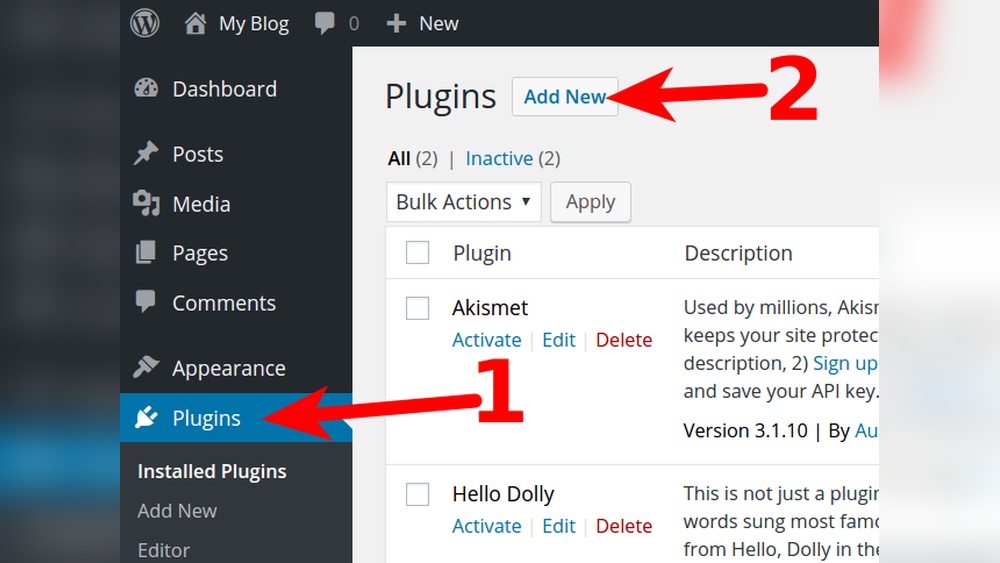
Installing and activating a plugin is the first step to add social media links on WordPress. Plugins make it easy to display icons that link to your social profiles. This process takes only a few minutes. No coding skills needed.
Choose a plugin that fits your needs. Popular options include Social Icons Widget, Simple Social Icons, and Smash Balloon Social Photo Feed. After selecting the plugin, follow the steps below to install and activate it.
Access The WordPress Dashboard
Log in to your WordPress site. Look for the dashboard menu on the left side. This is where you manage your website’s settings and plugins.
Navigate To Plugins Section
Find the “Plugins” option in the dashboard menu. Click on it to open the plugins page. Here, you see installed plugins and add new ones.
Click On “add New” Button
At the top of the plugins page, click “Add New.” This opens the WordPress plugin directory. You can search for the social media plugin you want.
Search For Your Plugin
Type the plugin name in the search box. Look for plugins with good reviews and regular updates. This ensures reliability and security.
Install The Plugin
Find the plugin in the search results. Click the “Install Now” button. WordPress will download and install the plugin files automatically.
Activate The Plugin
Once installed, click the “Activate” button. Activation makes the plugin ready to use on your site. You can now customize and add your social media links.
Credit: support.pipdig.co
Configure Plugin Settings
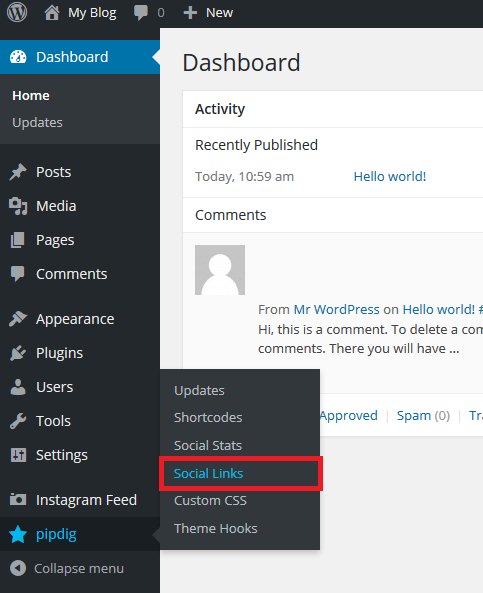
Configuring plugin settings is a key step to display social media links on your WordPress site. This step lets you control how your social icons look and work. Proper settings ensure your visitors can find your social profiles easily. It also keeps your site design neat and user-friendly.
Add Social Media Urls
Start by entering the URLs of your social media profiles. Each plugin will have a place to paste these links. Make sure to use the full URL, including “https://” or “http://”. This allows the icons to direct users straight to your pages. Double-check the URLs for accuracy to avoid broken links.
Add all the social networks you want to share. Popular ones include Facebook, Twitter, Instagram, and LinkedIn. Some plugins support less common platforms, too. Add only the profiles you actively use. This keeps your site clean and relevant.
Customize Icon Style And Size
Your plugin will offer options to change icon style and size. Choose icon shapes that fit your website’s design. Round, square, or simple flat icons are common choices. Pick colors that match your site’s color scheme for a balanced look.
Adjust icon size to make them visible but not overwhelming. Small icons blend well in headers or footers. Larger icons work better in sidebars or dedicated social sections. Preview your changes on desktop and mobile to ensure good appearance everywhere.
Place Social Media Links On Your Site
Placing social media links on your WordPress site helps visitors connect with you easily. These links show your social profiles and boost your online presence. There are simple ways to add social media links in visible spots on your site. This helps visitors find your social channels quickly and follow you.
Using Widgets
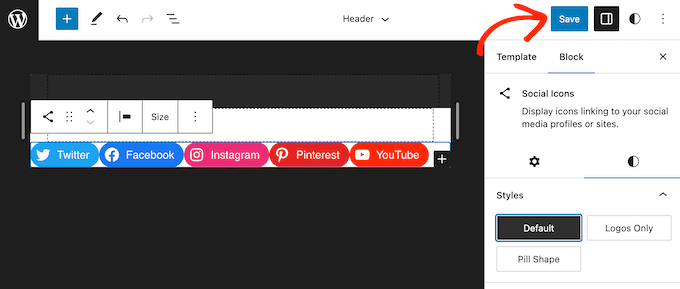
Widgets are small blocks that add content to sidebars or footers. WordPress has a built-in widget called “Social Icons.” You can drag it to a widget area and add your social media URLs. This shows clickable icons that link to your profiles. Widgets are easy to set up and update anytime.
Adding To Menus
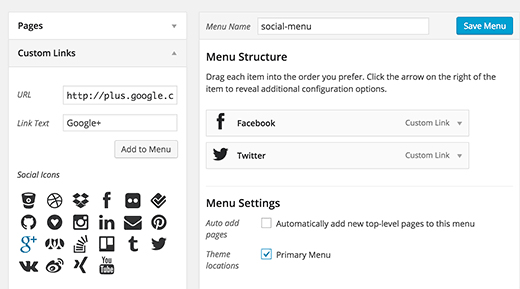
Menus help visitors navigate your site. You can add social media links to your main or footer menu. Go to Appearance > Menus, then create custom links for each social profile. Add the URLs and name the links clearly. Social icons can also be added using plugins for a cleaner look.
Embedding In Posts Or Pages
Embedding social media links directly inside posts or pages makes them more visible. Use WordPress block editor to add “Buttons” or “Custom HTML” blocks. Paste your social media URLs and customize the buttons. This method fits well for contact pages or blog posts about social updates.
Test Your Social Media Links
Testing your social media links on WordPress ensures they work correctly. Broken links confuse visitors and hurt your site’s credibility. It takes only a few minutes to check all links.
Make sure each link opens the right social media page. Confirm the URLs are accurate and complete. Test links on different devices like phones and tablets for best results.
Open Each Social Media Link
Click every social media icon on your WordPress site. Check if the link leads to the correct profile or page. Watch out for any error messages or wrong pages.
Check Links On Multiple Devices
View your site on a computer, phone, and tablet. Test the social media links on all these devices. Ensure links open quickly and correctly on each device.
Use Online Link Checker Tools
Use free online tools to scan your website for broken links. These tools find links that do not work or lead to errors. Fix any broken social media links the tool finds.
Optimize Links For Mobile
Optimizing social media links for mobile users improves website usability and engagement. Mobile devices have smaller screens, so links must be easy to see and tap. Proper link design helps visitors find your social profiles quickly.
Fast loading times also matter. Mobile users often use slower internet connections. Links that load quickly keep visitors on your site longer.
Use Large, Touchable Link Buttons
Make social media links big enough to tap easily. Small links frustrate mobile users. Use buttons with enough space around them. This prevents accidental clicks on nearby elements.
Place Links In Visible, Easy-to-reach Areas
Put social links where users expect to find them. The top or bottom of the screen works best. Avoid hiding links in menus or footers that require extra taps. Keep them accessible for faster navigation.
Choose Mobile-friendly Icons
Select simple and clear social media icons. Avoid complex or detailed images. Use icons that scale well on small screens. This improves recognition and saves space.
Test Links On Different Devices
Check how your links look and work on phones and tablets. Test various screen sizes and browsers. Fix any issues like overlapping or broken links. This ensures a smooth user experience.
Use Responsive Design Techniques
Apply CSS styles to adjust link size and layout on mobile. Responsive design adapts your site to any screen size. It keeps your social media links readable and easy to tap.
Troubleshooting Common Issues
Adding social media links on WordPress is simple most times. Some issues may occur during the process. These issues can block your links from showing or working right. Knowing common problems helps fix them fast. This saves time and keeps your site professional.
Plugin Conflicts
Plugins can clash with each other on WordPress. Some plugins might stop social media links from appearing. This happens when two plugins try to do the same job. To fix this, deactivate all plugins except the one for social links. Check if links work now. Reactivate plugins one by one to find the problem. Remove or replace the conflicting plugin.
Broken Links
Broken links do not lead to the right social media pages. This can happen if the URL is wrong or changed. Always copy the exact link from your social media profile. Paste it carefully into WordPress. Test each link after adding it. Use tools to check if links are broken. Fix any wrong URLs immediately to keep visitors happy.
Frequently Asked Questions
How Do I Add Social Media Links To WordPress?
To add social media links, use WordPress widgets or plugins. Simply go to Appearance > Widgets, then add a Social Icons widget. Alternatively, install plugins like Smash Balloon or Social Icons Widget & Block for more customization.
Which WordPress Plugins Help Add Social Media Links?
Popular plugins include Smash Balloon, Social Icons Widget & Block, and Simple Social Icons. These plugins offer easy setup, customization, and responsive designs to display social media links effectively on your site.
Can I Add Social Media Links To WordPress Menus?
Yes, you can add social media links to your WordPress menu. Go to Appearance > Menus, add custom links with your social media URLs, and place them in your primary or footer menu for easy access.
Is It Possible To Add Social Media Links In WordPress Footer?
Yes, adding social media links to the footer is simple. Use widgets or plugins to place icon links in your footer area, making them visible on all pages and improving user engagement.
Conclusion
Adding social media links to WordPress helps visitors connect with you easily. It boosts your site’s reach and keeps users engaged. Choose simple plugins or widgets to make the process smooth. Place links where visitors can see them clearly. Regularly check that all links work well.
Keep your social profiles updated for the best results. This small step can improve your website’s presence online. Try it today and watch your community grow.


