
Want to make your WordPress site more engaging and easy to connect with? Adding social icons to your footer is a simple yet powerful way to do that.
Imagine your visitors instantly spotting your social media profiles without searching around. This small change can boost your site’s credibility and keep your audience coming back. In this guide, you’ll learn exactly how to add social icons to your WordPress footer quickly and without any hassle.
Ready to enhance your site and grow your online presence? Let’s dive in!
Choose The Right Social Icons Plugin
Choosing the right social icons plugin for your WordPress footer is important. The plugin controls how your social media links look and work. A good plugin keeps your site fast and easy to use. It also helps visitors find and follow your social profiles easily.
Many plugins offer different styles and features. Some are free, while others need payment. Think about your needs and budget before picking one. Check if the plugin works well with your WordPress theme and other tools. This prevents problems later.
Popular Free Plugins
Several free plugins provide simple social icon options. “Simple Social Icons” lets you add clean and clear icons easily. “Social Icons Widget” offers many social network choices. These plugins are easy to set up. They suit small blogs or websites with basic needs.
Premium Plugin Options
Premium plugins often have more features and styles. “Monarch” by Elegant Themes includes many icon designs and placement options. “Social Warfare” adds sharing buttons and analytics. Paid plugins usually include support and updates. They fit websites needing advanced social integration.
Plugin Compatibility
Always check plugin compatibility before installing. Make sure it works with your WordPress version. Confirm it fits your theme without breaking site design. Test the plugin on a staging site if possible. Compatibility avoids errors and keeps your site stable.
Credit: ltheme.com
Install And Activate The Plugin
Adding social icons to your WordPress footer starts with installing a plugin. Plugins make this task easy and fast. They provide ready-made icons and simple settings. This section guides you through installing and activating the right plugin.
Finding The Plugin In WordPress
Open your WordPress dashboard. Go to the “Plugins” menu on the left side. Click “Add New” to open the plugin search page. Type “social icons” or “social media” in the search box. Look for plugins with good ratings and many active installs. Choose one that fits your needs and is updated recently.
Step-by-step Installation
After picking a plugin, click the “Install Now” button next to it. Wait a few seconds while WordPress downloads and installs the plugin. Do not close the page during this process. Once installed, the “Install Now” button changes to “Activate.”
Activating And Initial Setup
Click the “Activate” button to start using the plugin. After activation, find the plugin’s settings under the “Settings” or “Appearance” menu. Follow the setup guide or instructions provided. Usually, you will enter your social media links here. Save changes to apply your settings. Your social icons are now ready to show in the footer.
Customize Social Icons Appearance
Customizing the appearance of social icons in your WordPress footer helps match your website’s style. It makes your social links look neat and clear. You can change the icon style, size, color, and alignment. These small changes improve user experience and site design. Let’s explore how to customize these icons easily.
Selecting Icon Styles
Choose an icon style that fits your website theme. Options often include solid, outline, or colored icons. Solid icons give a bold look. Outline icons appear clean and simple. Colored icons add vibrancy and attract attention. Pick a style that suits your brand and page design.
Adjusting Size And Color
Set icon size to keep balance with other footer elements. Too large icons can look crowded. Too small icons may be hard to see. Adjust size for clear visibility without clutter. Choose colors that match your site palette. Use contrasting colors for better visibility. Colors should complement your background and text.
Setting Icon Alignment
Align icons to create a neat footer layout. Common options are left, center, or right alignment. Left alignment works well with text links. Center alignment draws focus to the icons. Right alignment balances other footer content. Choose alignment that fits your footer’s overall design.
Add Social Icons To Footer
Adding social icons to your website footer helps visitors connect with you on social media. It improves your site’s look and makes it easy for people to find your profiles. WordPress offers several ways to place social icons in the footer. Choose the method that fits your skill level and site design.
Using Widgets For Footer Placement
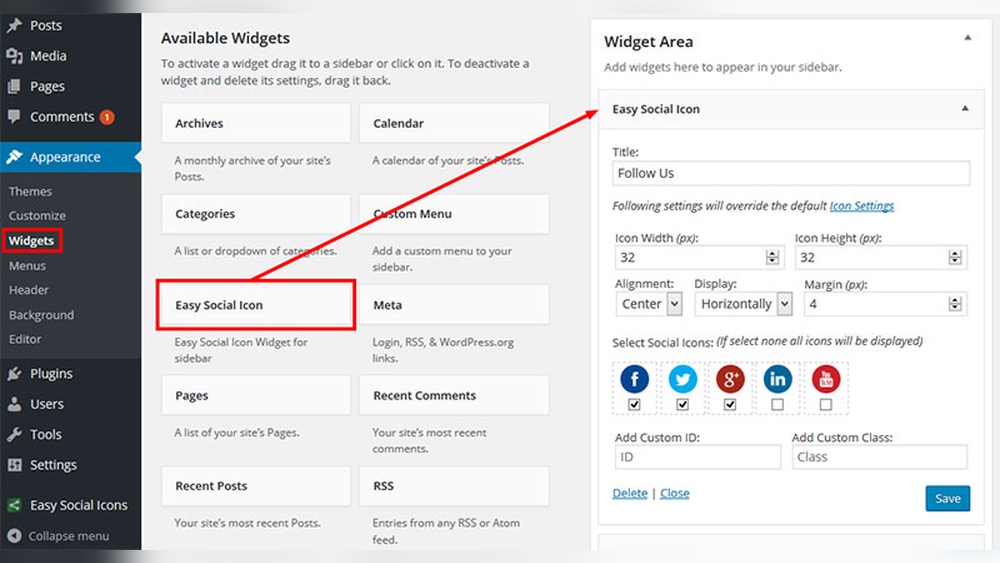
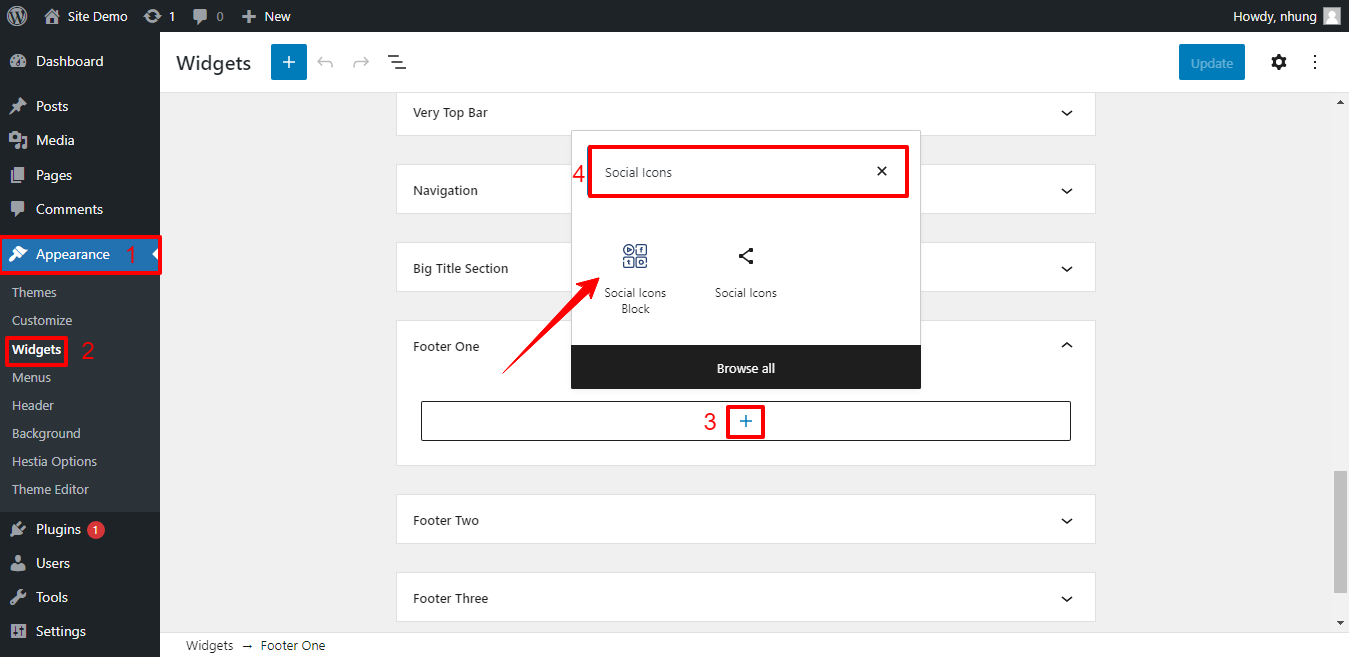
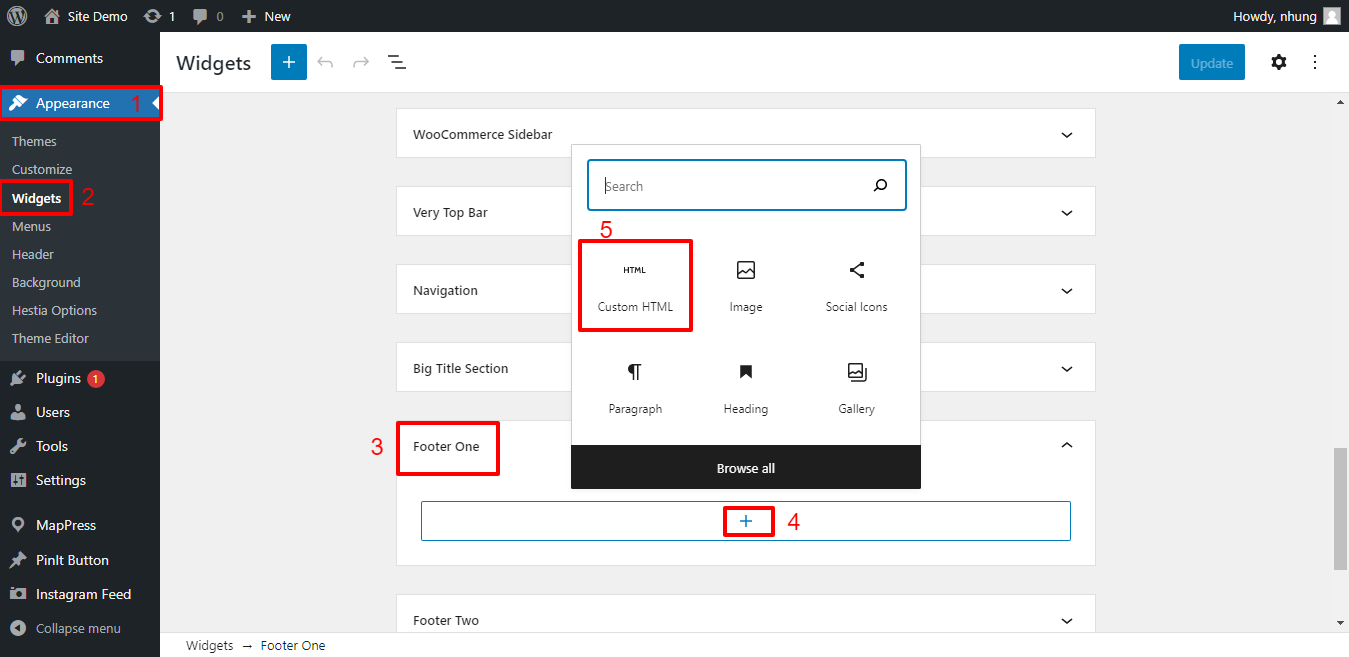
Widgets are simple tools in WordPress to add content blocks. Go to Appearance > Widgets in your dashboard. Look for a widget named “Social Icons” or “Custom HTML.” Drag it to the Footer area. Add your social media links or icon codes inside the widget. Save changes and check your site footer for the icons.
Adding Icons Via Customizer
The WordPress Customizer lets you change your site and see updates live. Go to Appearance > Customize and find Footer settings. Many themes include a social icons option here. Enter your social profile URLs in the designated fields. The Customizer will display the icons automatically. This method is quick and needs no coding.
Editing Footer With Page Builders
Page builders like Elementor or Beaver Builder give more control over footer design. Open your footer template in the page builder editor. Add a social icons element or widget from the builder’s panel. Insert your social links into the icons block. Style the icons to match your site’s look. Save and preview the footer with new icons.
Link Social Profiles
Linking your social profiles in the footer is an important step. It helps visitors find your social media pages quickly. Proper links make your site look professional and trustworthy. Follow these steps to add correct and accessible social profile links.
Entering Urls
Start by copying the full URL of your social media profile. Paste it exactly into the social icon link field. Double-check the link to avoid errors. Use the https:// format for better security. Incorrect URLs lead visitors to broken pages.
Opening Links In New Tabs
Set social links to open in new tabs. This keeps visitors on your website. Use the target=”_blank” attribute in the link code. It improves user experience by not interrupting browsing. Visitors can explore social sites and return easily.
Ensuring Accessibility
Add descriptive alt text to each social icon. Screen readers use alt text for better navigation. Use clear phrases like “Facebook profile” or “Twitter page.” Make sure links have keyboard focus styles. This helps users with disabilities navigate smoothly.
Test Social Icons Functionality
Testing the social icons in your WordPress footer ensures they work correctly. This step is important for a smooth user experience. It helps confirm the icons show well on all devices and link to the right places. Checking these details can prevent visitor frustration and keep your site professional.
Checking On Different Devices
View your website on a phone, tablet, and desktop. Make sure the social icons look good on each screen size. Check if the icons stay visible and do not overlap other content. Adjust sizes or spacing if the icons appear too big or small.
Verifying Links Work
Click each social icon and see if it opens the correct social media page. Test the links in different browsers to avoid compatibility issues. Confirm the links open in a new tab to keep visitors on your site.
Troubleshooting Common Issues
If icons do not show, clear your browser cache and reload the page. Check for plugin conflicts by disabling other plugins temporarily. Ensure the URLs are correctly entered without typos. Adjust the icon size or style if they look distorted.
Alternative Methods Without Plugins
Adding social icons to your WordPress footer can improve user engagement. Plugins are popular but not the only way. Alternative methods let you control your site’s look and speed. These methods work well for simple social links without extra plugin load.
Using Theme Settings
Many WordPress themes include built-in options for social icons. Check your theme’s customization panel in the WordPress dashboard. Look for a section like “Social Links” or “Footer Settings.” Enter your social profile URLs in the fields provided. The theme automatically shows icons in the footer area. This method is easy and needs no coding skills.
Adding Social Icons Manually With Html
You can add social icons by editing the footer.php file or a footer widget. Use simple HTML code with anchor tags for each social profile link. Insert icon images or font icons inside these links. Upload icon images to your media library first. Paste this code in the footer widget or footer template. This gives full control over the icon style and placement.
Employing Custom Css
Custom CSS helps style your social icons without plugins. Write CSS rules to change icon size, color, and spacing. Use CSS classes or IDs in your HTML code. Add the CSS code in the “Additional CSS” section of the WordPress Customizer. This approach improves the look and feel. It does not slow down your website.
Credit: ltheme.com

Credit: wpdatatables.com
Frequently Asked Questions
How Do I Add Social Icons To My WordPress Footer?
To add social icons, go to Appearance > Widgets. Drag a Social Icons widget to the footer area. Add your social media URLs, and save the changes.
Which Plugins Help Add Social Icons In WordPress Footer?
Popular plugins include Social Icons Widget, Simple Social Icons, and Smash Balloon. They offer easy customization and quick icon insertion in the footer.
Can I Customize Social Icons’ Style In The Footer?
Yes, most themes and plugins let you customize icon size, color, and shape. Some allow custom CSS for advanced styling options.
Is Adding Social Icons To The Footer Good For Seo?
Yes, adding social icons improves user engagement and site navigation. It can increase social signals, indirectly benefiting SEO rankings.
Conclusion
Adding social icons to your WordPress footer is simple and effective. It helps visitors connect with your social profiles easily. Use plugins or theme settings to place icons quickly. Keep the icons clear and consistent with your site’s look. Regularly check that links work well.
This small step can improve your site’s engagement and trust. Start today and make your footer more interactive and user-friendly.


