Are you looking to give your WordPress page a fresh, professional look without starting from scratch? Applying a template to a page can save you time and make your site stand out instantly.
But if you’re unsure how to do it, you’re not alone. This guide will walk you through simple steps to apply a template to your WordPress page quickly and easily. By the end, you’ll have the confidence to customize your site like a pro—and make your content shine.
Keep reading to unlock the full potential of your WordPress pages!
Choosing The Right Template
Choosing the right template for your WordPress page is important. It affects how your site looks and works. A good template fits your content and style. It also makes your site easy to use and fast. Picking the right one saves time and helps your site grow.
Types Of WordPress Templates
WordPress offers many template types. Page templates control the layout of a single page. Blog templates manage the look of your posts. Archive templates show lists of posts or categories. Each type has a different design and function. Choose one that matches your page’s purpose.
Where To Find Templates
Templates come from various sources. The WordPress theme directory has many free options. Premium sites sell templates with more features. Some developers share templates on GitHub or marketplaces. Always check reviews and ratings before downloading. Pick templates that update regularly and have good support.
Preparing Your WordPress Page
Preparing your WordPress page is the first step before applying a template. This process ensures your content fits well with the design. You can start by creating a new page or editing an existing one. Both methods are simple and take only a few minutes.
Creating A New Page
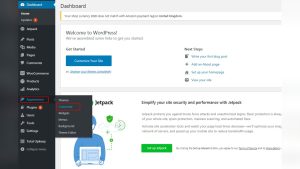
Log in to your WordPress dashboard. Find the “Pages” menu on the left side. Click on “Add New.”
Give your new page a clear and descriptive title. This helps visitors understand the page’s purpose. Avoid long titles.
Leave the content area empty or add some basic text. You can always edit this later. Now the page is ready for a template.
Editing An Existing Page
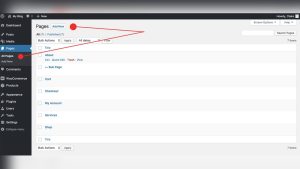
Go to the “Pages” section in your WordPress dashboard. Find the page you want to change. Click on its title to open it.
Check the current content and layout. Remove or adjust anything that might conflict with the new template.
Save your changes before applying the template. This keeps your work safe and ready for the next step.
Applying The Template
Applying a template to a WordPress page changes how your content looks. Templates control layout and style. Using the right template can make your page stand out. Follow these steps to apply a template easily.
Accessing Page Attributes
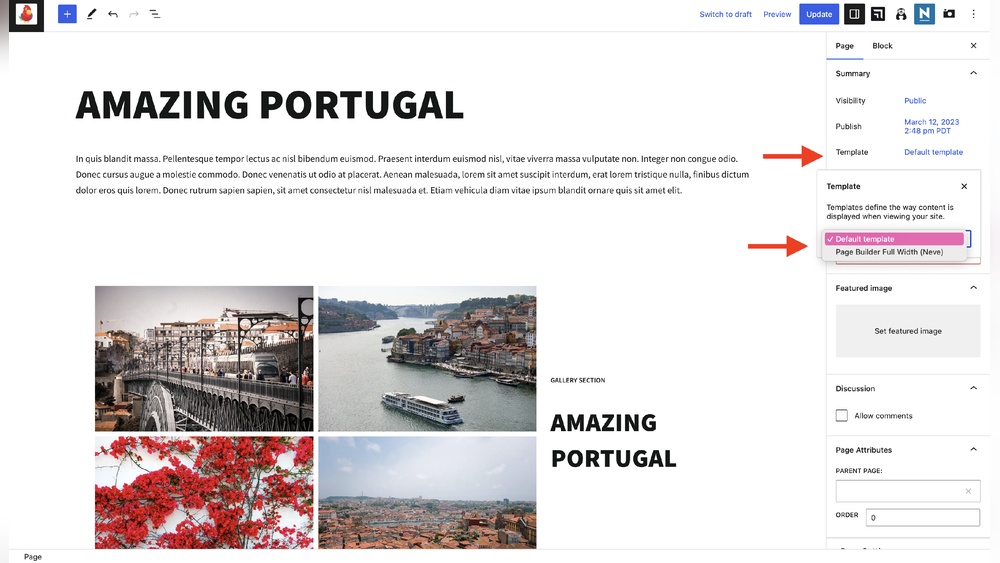
First, open the WordPress dashboard. Go to the Pages section and select the page to edit. On the right side, find the ‘Page Attributes’ box. This area shows options related to templates. If you do not see it, click on ‘Screen Options’ at the top and enable ‘Page Attributes’.
Selecting The Template
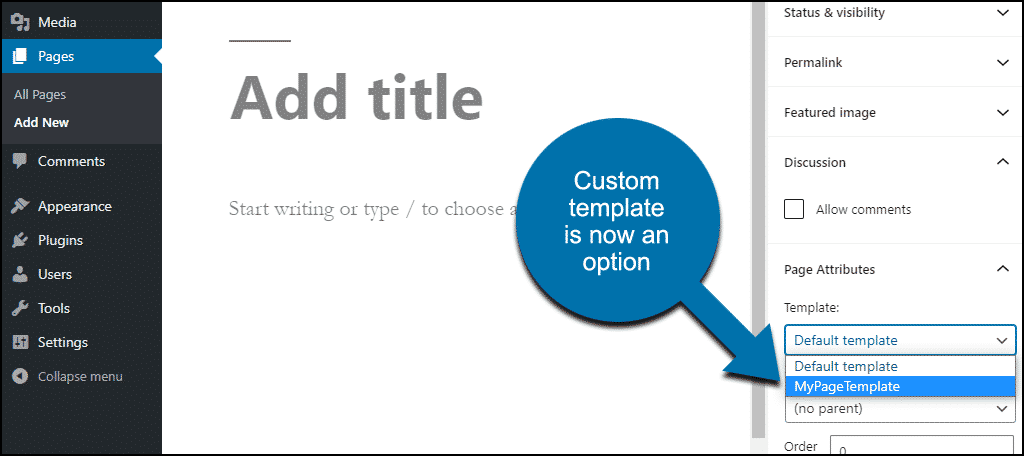
Inside the ‘Page Attributes’ box, find the ‘Template’ dropdown menu. Click it to see available templates. Choose the template that fits your page style. Each template has a different look or layout. Select carefully to match your content needs.
Saving Your Changes
After selecting the template, scroll up to the top right. Click the ‘Update’ button to save changes. For new pages, this button says ‘Publish’. Wait a moment for WordPress to apply the template. Visit your page to check how it looks with the new template.

Credit: wordpress.com
Using Page Builders For Templates
Using page builders to apply templates on WordPress pages makes the design process simple. These tools let you create and customize pages without coding. They offer many pre-made templates that fit different styles and purposes.
Page builders work with drag-and-drop features. This means you can place elements like text, images, and buttons anywhere on the page. It saves time and gives you control over your site’s look.
Popular Page Builders
Several page builders are popular among WordPress users. Elementor is one of the most used. It offers a free and a paid version with many design options. Beaver Builder is known for its user-friendly interface. Divi Builder comes with many ready-made templates and a visual editor. WPBakery Page Builder works well with many WordPress themes.
Importing Templates In Builders
Importing templates in page builders is easy. First, open the page builder on your WordPress page. Look for the template or library option. Choose a template that fits your needs. Click “import” or “insert” to add the template to your page. After importing, customize the template by changing text, images, or colors. Save your changes and publish the page.
Troubleshooting Common Issues
Applying a template to a WordPress page can sometimes cause issues. These problems may stop the template from appearing or working correctly. Knowing how to fix these common errors helps keep your site running smoothly.
Template Not Showing
Sometimes, the chosen template does not appear on the page. This can happen if the template file is missing or named incorrectly. Check the theme folder to ensure the template file is there and has the right name.
Clear your browser cache to avoid loading old versions of the page. Also, refresh the WordPress editor and try selecting the template again. Confirm that the page is set to use the custom template in the page attributes section.
Compatibility Problems
Templates may not work well with certain themes or WordPress versions. This can cause layout issues or broken features. Make sure your theme supports custom templates and that WordPress is up to date.
Plugins can also interfere with templates. Deactivate plugins one by one to find conflicts. Use a child theme to make template changes without breaking the main theme.

Credit: wordpress.com
Tips For Customizing Templates
Customizing templates helps make your WordPress page unique. It lets you match your site’s style and needs. Simple changes can improve how your site looks and works. Below are easy tips to customize templates effectively.
Modifying Template Layout
Changing the layout lets you organize content better. Use WordPress’s drag-and-drop editors if available. Move sections like headers, footers, or sidebars to fit your style. Remove parts you do not need to keep the page clean. Test changes on different devices to ensure it looks good everywhere.
Adding Custom Css
Custom CSS changes colors, fonts, and spacing. Use the WordPress Customizer or a child theme to add CSS safely. Keep CSS code simple and clear to avoid errors. Small tweaks can make big visual improvements. Save your work and refresh your page to see changes immediately.
Credit: www.greengeeks.com
Frequently Asked Questions
How Do I Select A Template For A WordPress Page?
To select a template, open the page editor in WordPress. On the right sidebar, find the “Template” dropdown under “Page Attributes. ” Choose your desired template from the list. Save or update the page to apply the selected template immediately.
Can I Use Custom Templates On Any WordPress Page?
Yes, custom templates can be used on any WordPress page if the theme supports them. Upload your custom template file to your theme folder. Then select it from the “Template” dropdown in the page editor to apply it.
What If The Template Option Is Missing In WordPress?
If the template option is missing, your active theme might not support multiple templates. Switch to a theme with template support or add custom templates manually by coding and uploading template files.
Will Applying A New Template Affect My Page Content?
No, applying a new template changes only the page layout and design. Your page content, such as text and images, remains intact. Always preview changes before publishing to ensure the design fits your content.
Conclusion
Applying a template to a WordPress page is simple and quick. It helps keep your site consistent and professional. Choose the right template that fits your content and style. Customize it to make your page unique and easy to read.
Check how it looks on different devices for the best user experience. With these steps, your website will look better and work smoothly. Keep practicing to feel confident using templates on WordPress pages.