
Have you ever stared at the WordPress login page, only to realize you can’t remember your username? It’s a frustrating moment, especially when you’re eager to update your site or post new content.
But don’t worry—finding your WordPress username is easier than you think. You’ll discover simple, step-by-step methods to quickly recover your username and get back to managing your website without stress. Keep reading, and you’ll never be locked out again!
Locate Username On Login Screen
Finding your WordPress username can be simple right on the login screen. This screen often holds clues that help you recall your username quickly. Focus on small hints and saved details that your browser might have kept. These steps save time and avoid the hassle of password resets.
Check Saved Browser Logins
Browsers like Chrome or Firefox may save your login details. Open your browser settings and find the section for saved passwords. Look for your website’s address. Your username might be saved along with the password. This is a quick way to see your username without extra steps.
Look For Username Hints
Some login screens show hints near the username field. Check for faded text inside the username box. Sometimes, the last username used appears automatically. These small hints guide you toward your correct username. Pay close attention to these details on the screen.

Credit: www.reddit.com
Retrieve Username Via Email
Retrieving your WordPress username via email is simple and quick. Your email inbox holds important information from WordPress. These emails often include your username. Checking your email can save time and avoid frustration.
Use Password Reset Email
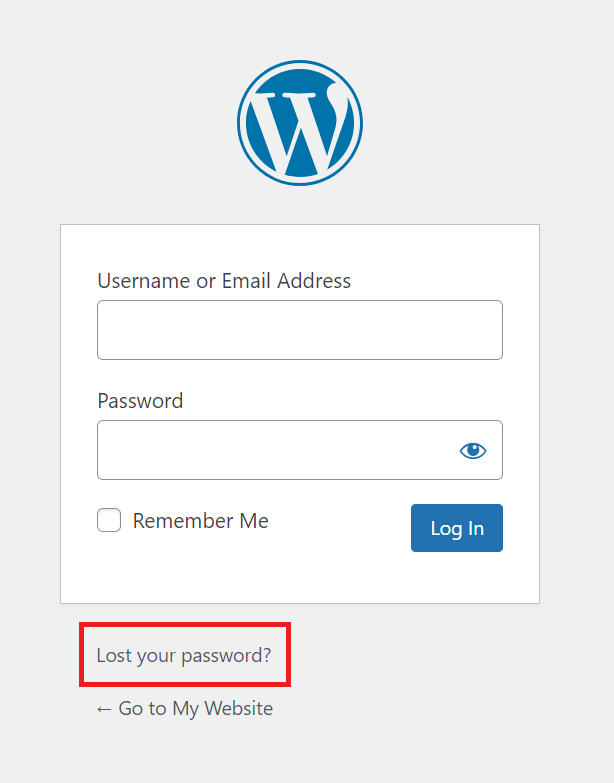
Start by going to the WordPress login page. Click the “Lost your password?” link. Enter your email address linked to your account. WordPress will send you a password reset email.
Open the email and look carefully. It usually shows your username near the reset link. Use this information to log in. This method works even if you forgot your username.
Search Old WordPress Notifications
Check your inbox for old WordPress emails. Search for terms like “WordPress,” “welcome,” or “account.” These emails often mention your username. Look in folders like Inbox, Spam, or Promotions.
Finding these notifications can quickly reveal your username. It avoids resetting your password unnecessarily. Keep your email organized to find these details fast next time.
Access Username From WordPress Dashboard
Accessing your WordPress username is simple when you use the WordPress dashboard. The dashboard is the control panel for your website. It holds all user information and settings. You can find your username quickly by checking your profile or viewing author archives on your site.
Check User Profile Details
Log in to your WordPress dashboard. On the left menu, find and click Users. Then select Your Profile. Your username appears at the top of the profile page. It is usually shown near your name and email. This method works best if you have admin or editor access. You can also confirm other details like your display name here.
View Author Archives On Site
Another way to find your username is by visiting your website. Open any post you wrote. Click on the author’s name under the post title. This link leads to the author archive page. Look at the URL in the browser address bar. Your username is often part of this URL. This method helps if you cannot access the dashboard. It shows usernames connected to published content.
Find Username Through Database
Finding your WordPress username through the database is a direct way to retrieve it. This method is useful when you cannot access your WordPress dashboard. You need access to your website’s database, usually through a control panel or hosting service.
The username is stored in the database in a table called wp_users. You can view and extract this information safely with the right tools.
Use Phpmyadmin To Query Users Table
phpMyAdmin is a popular tool to manage MySQL databases. Log in to your hosting control panel and open phpMyAdmin. Select your WordPress database from the list on the left side.
Find the table named wp_users. Click on it to see all user data stored in WordPress. Look for the column called user_login. This column shows all usernames.
You can also run a simple SQL query to find your username:
SELECT user_login FROM wp_users;This command lists all usernames in the database. Note that your table prefix might differ from wp_, so adjust accordingly.
Export User Data Safely
Exporting user data helps to keep a backup or review it offline. In phpMyAdmin, select the wp_users table and click the “Export” tab.
Choose the export format, such as CSV or SQL. CSV is easy to open with spreadsheet programs. Click “Go” to download the file.
Store this file securely to protect user information. Avoid sharing it publicly. Keep your database credentials private at all times.
Contact Hosting Provider For Help
Contacting your hosting provider offers a direct way to recover your WordPress username. Hosting companies manage your website’s backend and can help you access important account details. They have tools to verify your identity and assist with username retrieval quickly.
Request Access Assistance
Start by reaching out to your hosting provider’s support team. Explain that you need help finding your WordPress username. Provide your account information to speed up the process. Support staff will guide you through the steps to regain access.
Provide Site Verification
Your hosting provider may ask for proof that you own the website. This can include billing details, ID, or email confirmation. Verification protects your site from unauthorized access. After confirming your identity, they will share your username or help reset it.

Credit: wordpress.com
Prevent Future Username Loss
Preventing future username loss is important for smooth WordPress access. Losing your username can cause delays and stress. Taking simple steps keeps your login details safe. These steps protect your site and save time later.
Keep Login Details Secure
Write your username and password down in a safe place. Avoid storing them on public computers or shared devices. Use private notebooks or locked drawers for physical notes. Do not share login details with others. Keep your computer and browser free from viruses. Regularly update your security software to avoid hacks.
Use Password Managers
Password managers store usernames and passwords safely. They fill in login details automatically for you. This reduces typing errors and saves time. Many password managers also generate strong passwords. Choose a trusted password manager app or browser extension. Make sure to back up your password manager data. Using a manager helps avoid lost or forgotten usernames.
Credit: www.hostinger.com
Frequently Asked Questions
How Can I Find My WordPress Username From The Dashboard?
Log in to your WordPress dashboard. Navigate to Users > All Users. Your username appears in the list under the “Username” column. This method is quick and reliable for logged-in users.
What If I Forgot My WordPress Username?
Use the “Lost your password? ” Link on the login page. Enter your email address to receive a password reset link. The email usually includes your username or lets you reset it.
Can I Find My WordPress Username Via The Database?
Yes, access your website’s database using phpMyAdmin. Look for the “wp_users” table. Your username is listed in the “user_login” column. This method requires technical knowledge and hosting access.
Is My WordPress Username Visible In The Url?
Sometimes, yes. When viewing author archive pages, the username may appear in the URL after “/author/”. This depends on your permalink settings and user roles.
Conclusion
Finding your WordPress username is simple with these steps. Check your email for account details. You can also log in to your hosting provider to see your username. Access your WordPress database if needed, but be careful. Knowing your username helps keep your site secure.
Keep it safe and easy to remember. Take your time and follow each step carefully. This way, you will avoid login problems in the future. Stay confident managing your WordPress site.



