Are you ready to expand your online presence by adding another website in WordPress? Whether you want to create a new blog, launch a business site, or manage multiple projects, setting up an additional website can seem tricky at first.
But don’t worry—this guide will walk you through the process step-by-step, making it simple and stress-free. By the end, you’ll have the confidence to manage multiple sites effortlessly and grow your digital footprint like a pro. Keep reading to discover exactly how to add another website in WordPress without any hassle.
Choosing The Right Setup
Choosing the right setup for adding another website in WordPress matters a lot. It affects how you manage your sites and how they perform. Picking the best option saves time and avoids technical issues. This guide helps you understand key choices.
Single Site Vs Multisite
Single site means one WordPress installation for one website. It is simple and easy to manage. Good for separate sites with different purposes.
Multisite lets you run many websites from one WordPress install. You manage all sites from one dashboard. Useful for similar sites or networks. Requires more technical skill.
Choose single site for easy setup and low maintenance. Pick multisite if you want centralized control and shared resources.
Hosting Requirements
Hosting must support your chosen setup. Single sites need basic hosting plans. Shared hosting often works fine.
Multisite needs stronger hosting. Look for plans with more CPU, RAM, and storage. A VPS or dedicated server is best.
Check if your host allows multisite features and domain mapping. Good hosting boosts site speed and uptime.
Credit: www.inmotionhosting.com
Preparing Your WordPress Environment
Preparing your WordPress environment is important before adding another website. It helps keep your current site safe and makes the process smooth. Taking a few steps now can save you from problems later. Start by protecting your data and making sure your system is up to date.
Backing Up Your Site
Backing up your site means saving a copy of all your files and data. It protects your content if something goes wrong. Use a reliable plugin or your hosting service to create a full backup. Store the backup in a safe place, like your computer or cloud storage. This step is crucial before making big changes.
Updating WordPress
Update WordPress to the latest version before adding a new site. Updates fix security issues and improve performance. Check your plugins and themes for updates too. Running the newest software reduces risks and helps your website run better. Always update in a controlled way to avoid errors.
Creating A New Website On WordPress
Creating a new website on WordPress can be simple and quick. WordPress offers different ways to manage multiple sites. Each method suits different needs and skill levels. Understanding these methods helps you choose the best option for your project.
Two common ways to add a new website are using the Multisite Network or adding a new site manually. Both methods allow you to expand your online presence without much hassle. Let’s explore each one step-by-step.
Using Multisite Network
The Multisite Network lets you run many websites from one WordPress installation. It saves time and server space. You can manage all sites under one dashboard.
To enable Multisite, edit your wp-config.php file. Add a line to activate the network feature. After this, a new menu appears in your dashboard for network setup.
Once set up, you can add new sites in the Network Admin panel. Each site gets its own address and settings. Users can share themes and plugins across all sites.
Adding A New Site Manually
Manual site addition means installing WordPress separately for each website. This method gives full control over each site. It suits those who want unique setups or different hosting.
Start by creating a new database and user in your hosting control panel. Download WordPress and upload it to a new folder or domain. Run the installation by visiting the new URL.
Follow the setup steps to configure your new site. This method requires more work but offers complete independence. You can customize each site without affecting others.
Configuring Domain And Urls
Configuring your domain and URLs correctly is essential for a smooth WordPress website experience. Proper setup helps visitors find your site easily and improves search engine rankings. This section explains how to map a domain and set up permalinks for your new WordPress website.
Mapping A Domain
Mapping a domain means connecting your domain name to your WordPress site. First, buy a domain from a domain registrar if you don’t have one. Then, go to your hosting provider’s control panel. Find the domain management area and add your new domain.
Next, update the domain’s DNS settings. Point the domain to your hosting server’s IP address. This process can take a few hours to complete. After DNS updates, log in to your WordPress dashboard. Navigate to Settings > General. Enter your new domain name in the WordPress Address and Site Address fields. Save the changes. Your site now uses the new domain name.
Setting Permalinks
Permalinks are the URLs for your posts and pages. Setting them correctly improves site navigation and SEO. Go to your WordPress dashboard. Click on Settings > Permalinks. Choose a permalink structure that is simple and descriptive.
The “Post name” option is popular and easy to understand. It creates URLs based on your post titles. After selecting, click “Save Changes.” Your site will now use the new permalink structure. This helps visitors and search engines understand your content better.
Installing Themes And Plugins
Installing themes and plugins is a key step in setting up a new WordPress website. Themes control the look and feel of your site. Plugins add extra features and functions. Both are easy to install and customize.
Choosing the right themes and plugins helps your site run smoothly and look great. This section explains how to pick and manage these tools.
Choosing Themes
Themes change your website’s design with one click. Pick a theme that fits your site’s purpose. Look for clean layouts and fast loading times. Check if the theme works well on phones and tablets. Read reviews and ratings from other users. Avoid themes with too many features you do not need. A simple theme keeps your site fast and easy to manage.
Managing Plugins
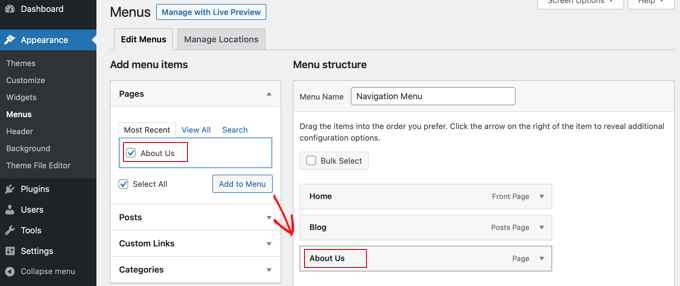
Plugins add tools like contact forms, SEO, and security. Install only the plugins you really need. Too many plugins can slow your site down. Keep your plugins updated to fix bugs and improve security. Deactivate and delete plugins that you no longer use. Test new plugins on a staging site before using them live. Always check if plugins are compatible with your WordPress version.
Credit: www.wpbeginner.com
Managing Users And Permissions
Managing users and permissions is important when you add another website in WordPress. It helps control who can do what on your site. You can keep your site safe and organized by giving the right access to the right people.
Adding New Users
To add a new user, go to your WordPress dashboard. Find the “Users” section and click “Add New.” Enter the user’s name and email address. Create a strong password for their account. You can send them a notification email. This lets them know about their new account. Adding users lets others help manage your site.
Assigning Roles
WordPress has different roles for users. Each role has specific permissions. Choose a role based on what the user needs to do. For example, “Administrator” can do everything. “Editor” can manage and publish content. “Author” can write and publish their own posts. “Contributor” can write but not publish. “Subscriber” can only read content. Assign roles carefully to protect your site.
Troubleshooting Common Issues
Adding another website in WordPress can sometimes cause issues. These problems can stop your new site from working correctly. Knowing how to fix common problems can save time and stress. This section covers the most frequent issues and how to solve them.
Fixing Url Conflicts
URL conflicts happen when two sites use the same address. This causes confusion and errors. To fix this, check your WordPress settings for the site address. Make sure each site has a unique URL. Change the URL in the WordPress dashboard if needed. Also, clear your browser cache after making changes. This helps show the new URLs properly.
Resolving Permission Errors
Permission errors block access to files or folders. This stops WordPress from adding your new site. Check the file permissions on your server. Folders should have 755 and files 644 permission settings. Change them using an FTP client or hosting control panel. Also, verify your user role in WordPress. You need admin rights to add another website.

Credit: www.youtube.com
Frequently Asked Questions
How Do I Add A New Website In WordPress?
To add another website, use WordPress Multisite or install WordPress in a new directory or subdomain. Multisite allows managing multiple sites under one dashboard efficiently.
Can I Use One WordPress Account For Multiple Websites?
Yes, with WordPress Multisite, a single account manages multiple websites. It simplifies updates and user roles across all sites in the network.
What Are The Steps To Enable WordPress Multisite?
Enable Multisite by editing wp-config. php, adding a network setup, and configuring. htaccess. Then create new sites from the network admin dashboard.
Is Adding Another Website In WordPress Free?
Yes, creating additional WordPress sites via Multisite or separate installations is free. Hosting costs may vary based on resources used by multiple websites.
Conclusion
Adding another website in WordPress is simple and useful. You can manage multiple sites from one dashboard. This saves time and keeps things organized. Just follow the steps carefully and check your settings. Soon, you will have more websites running smoothly.
Keep learning and exploring WordPress features. Your online presence will grow with ease. Start adding your next site today and enjoy the benefits.