
Are you tired of the same old look on your WordPress site? Changing your default theme color can give your website a fresh, new appearance that captures your brand’s essence and attracts more visitors.
Imagine the perfect color palette that resonates with your audience and sets you apart from the competition. With just a few simple steps, you can transform the aesthetic of your site and enhance the user experience. In this guide, you’ll discover how to easily change the default theme color in WordPress, making your site visually appealing and more engaging.
Ready to give your website the makeover it deserves? Let’s dive in and explore how you can make this quick yet impactful change.
Credit: developer.wordpress.org
Accessing WordPress Dashboard
Open your browser. Go to your website login page. Enter your username and password. Click the login button. This takes you to the WordPress Dashboard. Here, you see many options. Look for Appearance in the menu. Click on it. The theme settings appear.
Find the Customize option. Click it. A new screen opens. This screen lets you change your theme color. You can see live changes. This helps you pick the best color. Choose the color you like. Click Publish to save changes. Your website now has a new theme color. Enjoy your fresh look!
Navigating To Appearance Settings
Start by logging into your WordPress dashboard. Look on the left side. Find the Appearance option. Click on it. This opens a new page. You can see Themes here. There are many options. You can change your theme color. Select Customize under your theme. This opens a new menu.
Here, find the Colors option. Click on it. You can see color choices. You can pick your favorite color. This will change the default color. If you want, save changes. Your site now has a new theme color.
Choosing A New Theme
WordPress offers many themes. Each theme has a different style. You can find themes in the WordPress Theme Directory. Some are free, and others need payment. Pick a theme that fits your style. Make sure it is responsive for mobile users.
Before you choose, you can preview themes. Click on the theme image, then click Live Preview. This shows how your site will look. Check all the pages. See if the colors and fonts are right. If you like it, you can activate it.
Credit: motopress.com
Customizing Theme Colors
The WordPress Customizer is easy to use. It helps change colors. Start by logging into your WordPress dashboard. Find the Appearance menu on the left. Click on Customize. This opens the Customizer. Here, you can see many options.
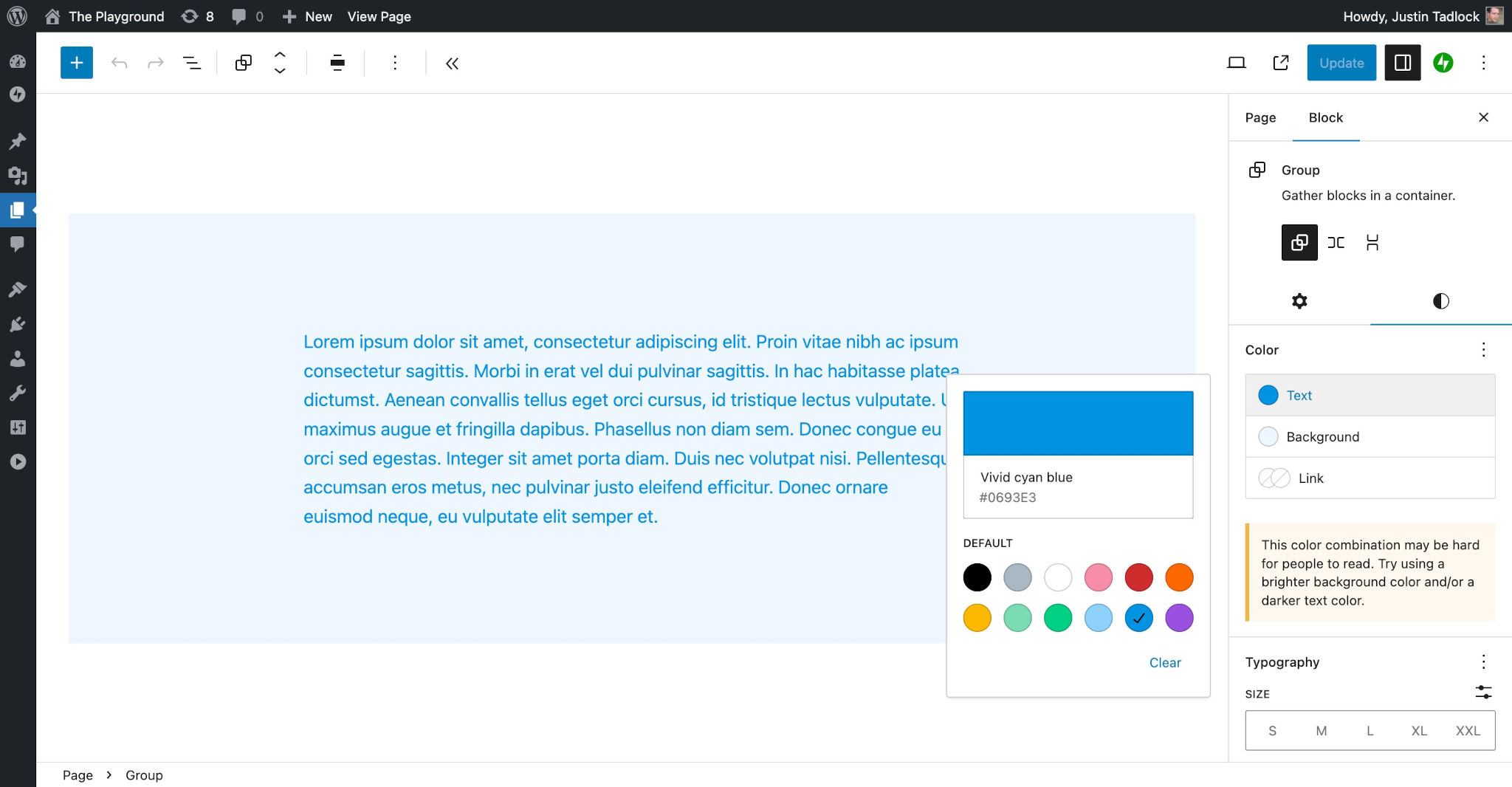
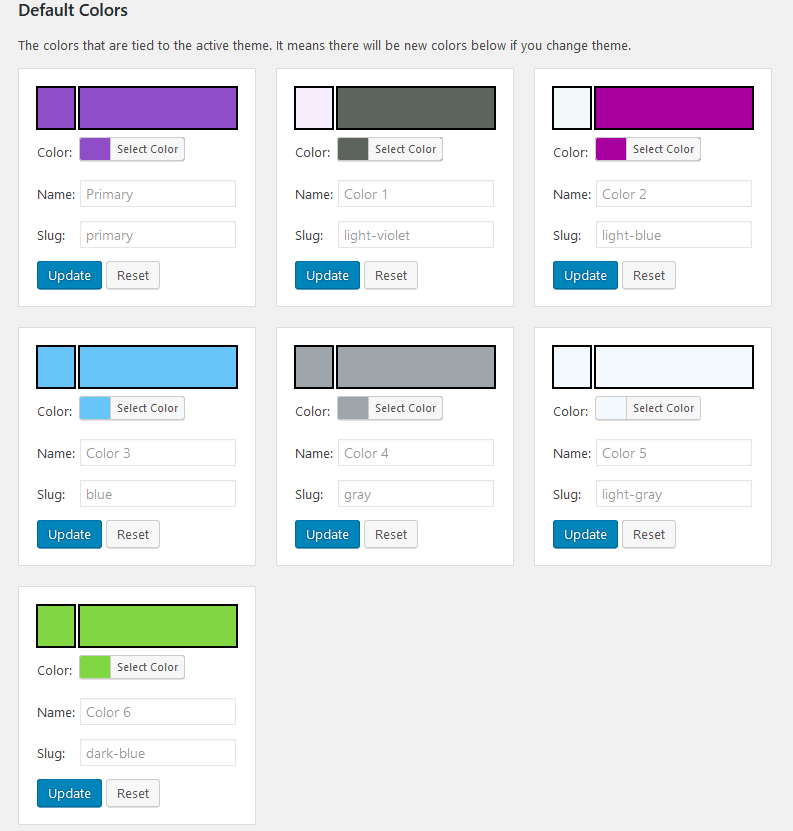
Find the Colors section in the Customizer. Click on it. You will see the Primary Color option. Pick a new color using the color picker. This will change your site’s main look. Remember to click Publish to save changes. Your site now has a new color!
Saving And Publishing Changes
After choosing the new theme color, it’s time to save. Locate the save or publish button. This button is usually at the top or bottom of the page. Click it to make your changes live. It’s important to save your work often. This prevents losing any changes you made.
Test your website after saving the changes. Visit different pages to ensure the new color appears correctly. Sometimes, refreshing the page helps see the changes. If the color doesn’t look right, go back to the theme settings. Adjust the color and save again. Always keep your website looking neat and easy to read. An attractive website keeps visitors happy.
Utilizing Theme-specific Options
Start by logging into your WordPress dashboard. Click on the Appearance tab. Next, select Customize. This opens the theme settings panel. Many themes offer color options here. Find the section labeled Colors or Theme Options. Click on it to open the color settings.
Some themes offer multiple color schemes. These are preset color groups. You can choose from these for a quick change. Look for a dropdown menu or buttons to switch schemes. Remember to save changes after selecting a new scheme. This ensures your website updates with the new look.
Implementing Custom Css
Open your WordPress dashboard. Go to Appearance and click Customize. Find the Additional CSS section. This is where you can add custom code. Make sure to save changes after adding code.
In the Additional CSS section, type your color codes. Use CSS selectors to change theme colors. Example: body { background-color: #000000; }. This changes the background to black. You can also change text colors. Example: h1 { color: #ff0000; }. This makes heading text red. Always check your changes after saving.
Checking Responsive Design
Explore changing your default theme color in WordPress to improve your site’s responsive design. Navigate to the WordPress dashboard, select ‘Appearance,’ then ‘Customize,’ and find ‘Colors’ to make adjustments. Tailor the color scheme to ensure a visually appealing experience across all devices.
Testing On Different Devices
Try your site on a phone. Then, test it on a tablet. Check if colors look the same. This is very important. Different screens can show colors differently. Use online tools to test your site. Some tools show how your site looks on many devices. This helps a lot. Make sure your site looks good everywhere. This is key for a good user experience.
Ensuring Consistent Color Display
Colors must look the same on all devices. Use web-safe colors for better results. These colors work on most screens. Adjust brightness and contrast too. This helps colors look the same. Check your site in different browsers. Each browser may show colors differently. Fix any color issues you find. This ensures your site looks great for everyone.
Troubleshooting Common Issues
Changing the default theme color in WordPress can enhance your site’s look. Navigate to the WordPress dashboard, select Appearance, then Customize. Adjust the colors under the Colors section to match your desired theme.
Resetting To Default Theme
Sometimes the theme color won’t change as expected. One solution is to reset the theme. Go to your WordPress dashboard. Click on Appearance then Customize. Find the option to reset to default settings. This will revert the theme back to its original state. Make sure to save changes. This step often fixes color issues.
Resolving Conflicting Plugins
Some plugins can cause problems with theme colors. First, check if you have any conflicting plugins. Go to Plugins in your dashboard. Deactivate one plugin at a time. Check if the color issue is solved. If it is, the last plugin deactivated is the problem. You can look for alternative plugins or contact support for help.

Credit: fullsiteediting.com
Exploring Advanced Color Plugins
Many plugins help change theme color in WordPress. Some popular options include Colorlib and CSS Hero. These plugins offer simple ways to adjust your site colors. Colorlib provides easy-to-use tools for beginners. CSS Hero is great for more advanced users. Each plugin offers unique features. Choosing the right one depends on your needs. Plugins are tools. They make tasks easier. Choosing a plugin can be tough. Consider your skills and site goals.
Installing a plugin is simple. First, go to your WordPress dashboard. Click on Plugins. Then, click Add New. Search for your chosen plugin. Click Install Now. After installing, activate the plugin. Click Activate to start using it. Plugins need activation to work. Without activation, plugins will not function. Always activate after installing. It is a simple step but very important. After activation, explore the plugin settings. Adjust colors as needed.
Frequently Asked Questions
How Do I Change The Primary Color Of My WordPress Theme?
Access your WordPress dashboard, navigate to “Appearance” and select “Customize”. Go to “Colors” and change the primary color. Save changes. This process may vary slightly depending on your theme. Always check theme documentation for detailed instructions.
How Do I Change The Default Theme In WordPress?
To change the default theme in WordPress, go to your dashboard. Click on “Appearance” then “Themes. ” Browse available themes, click “Activate” on your preferred one. Your site will now use the new theme. Ensure it’s compatible with your plugins and design preferences for optimal performance.
What Is The Default Color Scheme In WordPress?
The default color scheme in WordPress is “Light. ” It features a clean and straightforward design with a white background and dark text. Users can customize it in the admin panel under “Appearance” and “Themes” for a personalized look.
How Do I Change The Whole Website Color In WordPress?
Go to your WordPress dashboard, select “Appearance”, then “Customize”. Choose “Colors” to change your website’s color scheme. Save changes.
Conclusion
Changing your WordPress theme color can enhance your site’s look. A simple tweak makes a big difference. Following the steps above ensures a smooth process. Experiment with colors to find the perfect match. Your site’s personality shines through with the right choice.
Don’t rush; take your time to explore options. Always preview before making final changes. Regular updates to your design keep your site fresh. Engage visitors with appealing visuals. Remember, consistency in design builds trust. Keep learning and improving your site.
WordPress offers endless possibilities for customization. Enjoy the creative process and watch your site transform.


