
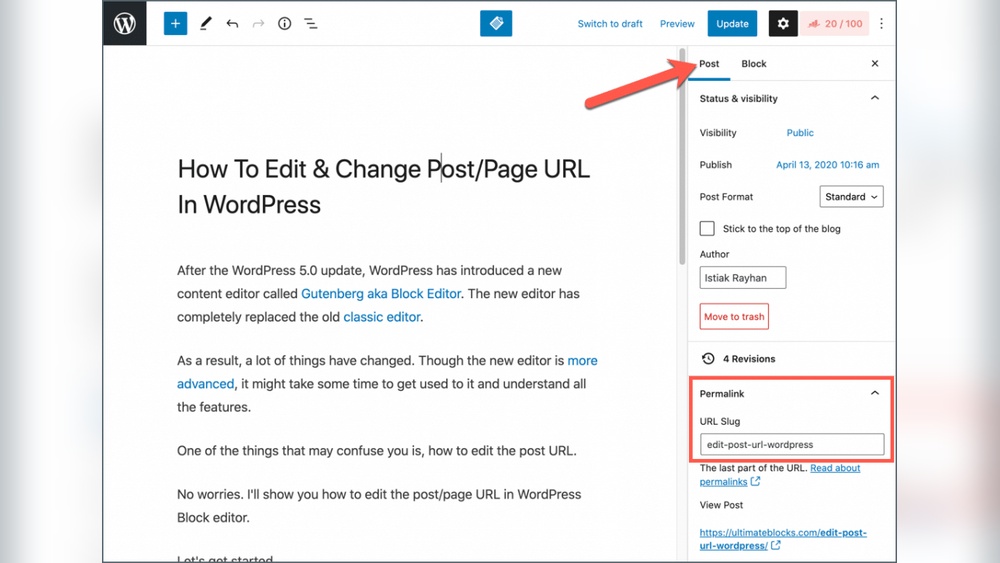
Are you struggling to change a page URL in WordPress? Whether you want to make your links cleaner, improve SEO, or simply fix a typo, knowing how to update your page URL is a must.
The good news is, it’s easier than you think. You’ll discover simple, step-by-step instructions to change your WordPress page URL quickly and safely. Stick with me, and by the end, you’ll have full control over your website’s links—no technical skills needed.
Let’s get started!
Why Change A Page Url
Changing a page URL in WordPress can improve your website’s structure and user experience. A good URL helps visitors know what to expect from the page. It also plays a role in how search engines rank your site. Updating URLs is not just about looks; it can impact your site’s performance and visibility.
Benefits Of Custom Urls
Custom URLs are clear and easy to read. They help users remember the web address. Search engines use URLs to understand page content. A simple URL with keywords can boost your page rank. Custom URLs also look professional and trustworthy. They make sharing links easier on social media or emails.
When To Update Urls
Update URLs when page content changes significantly. Fix URLs that are long or confusing. Change URLs to include important keywords. Avoid changing URLs too often to keep SEO stable. Update URLs if you rebrand or rename pages. Always redirect old URLs to new ones to avoid broken links.
Preparing For Url Changes
Changing page URLs in WordPress needs careful preparation. The process affects your website’s structure and visitor experience. Preparing well helps avoid broken links and lost traffic.
Two important steps are backing up your website and planning redirects. These steps protect your content and keep visitors on your site.
Backup Your Website
Always create a full backup before changing URLs. This includes your database and all website files. Use a trusted plugin or your hosting service for backups. A backup allows you to restore your site if something goes wrong. It saves time and prevents data loss.
Plan Redirects
Redirects send visitors from old URLs to new ones automatically. Without redirects, users may find broken pages. Search engines also drop rankings for missing pages. Use 301 redirects to tell search engines about permanent URL changes. Plan each redirect carefully to match old and new URLs. This keeps your site’s SEO intact and users happy.
Changing The Url In WordPress
Changing the URL in WordPress is simple and useful. It helps improve your website’s SEO and makes links easier to read. You can customize the address of any page on your site.
This process takes only a few steps. No special skills are needed. Just follow the instructions below to change your page URL quickly.
Accessing The Page Editor
First, log in to your WordPress dashboard. Find the “Pages” option in the menu. Click on it to see all your pages.
Choose the page you want to edit. Click the title or the “Edit” link. This opens the page editor where you can change content and settings.
Editing The Permalink
Look for the permalink or URL section. It usually appears below the page title. Click the “Edit” button next to the current URL.
Type the new URL slug you want. Use simple words and separate them with hyphens. Avoid spaces or special characters for better SEO.
Saving The Changes
After editing, click the “OK” button to confirm the new URL. Check the URL once more to avoid mistakes.
Finally, click the “Update” or “Publish” button on the page editor. This saves your changes and updates the page URL.
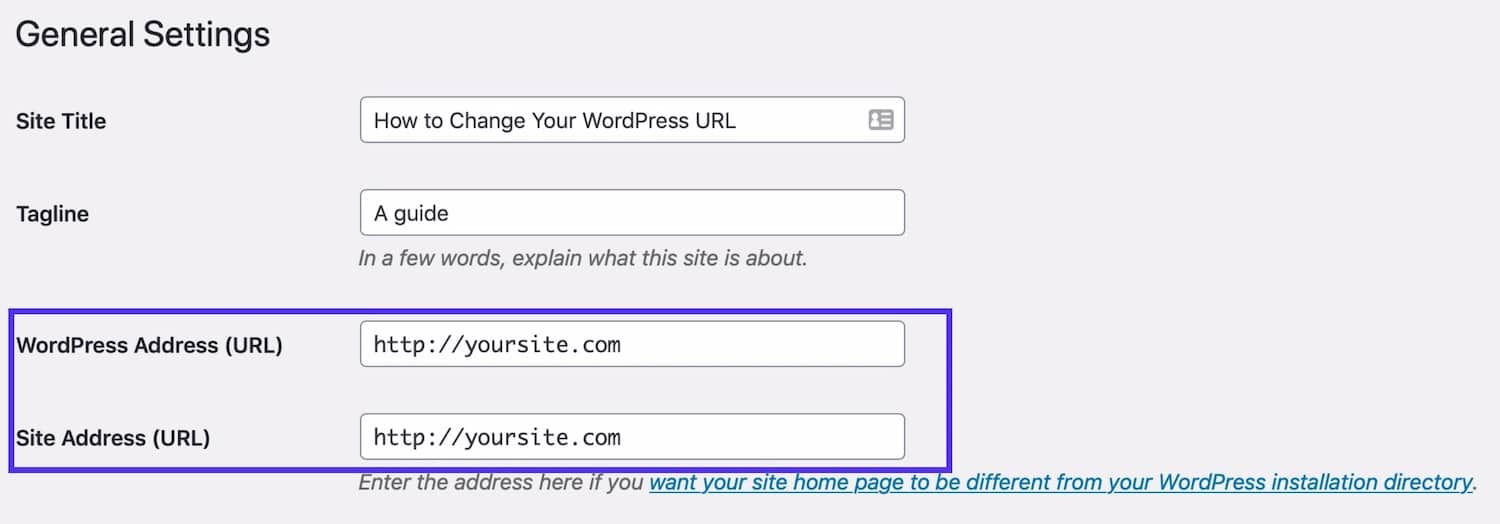
Credit: kinsta.com
Setting Up Redirects
Setting up redirects is important after changing a page URL in WordPress. Redirects send visitors from the old URL to the new one. This helps keep your website traffic steady. It also avoids broken links that can hurt your site’s SEO. Redirects make sure users and search engines find the right page.
Using Plugins For Redirects
WordPress plugins make setting up redirects simple. Popular options include Redirection and Yoast SEO. These plugins provide easy tools to create redirects without coding. You just add the old URL and the new URL. The plugin handles the redirect automatically. This method is fast and user-friendly. It also tracks redirect activity to spot errors.
Manual Redirect Setup
Manual redirects need editing your site’s .htaccess file or server settings. This method requires basic knowledge of web hosting and code. You add a line of code that points the old URL to the new one. For example, a 301 redirect tells search engines the page moved permanently. Manual setup is precise and does not rely on plugins. It suits users comfortable with technical tasks and code editing.
Testing The New Url
After changing your page URL in WordPress, testing the new URL is important. This step ensures your website works well and visitors find your page easily. Testing helps spot broken links or SEO issues early.
Checking Link Functionality
Start by clicking the new URL to see if the page loads correctly. Check all links on the page. Make sure buttons and menus lead to the right places. Broken links can frustrate users and harm your site’s reputation. Use different devices and browsers to test. This reveals any display or loading problems.
Using Seo Tools
Use SEO tools to analyze the new URL. Tools like Google Search Console show if the page is indexed. They also report errors or warnings related to the URL. Check for proper redirects if the old URL still exists. SEO tools help maintain your site’s search ranking. Regular checks keep your website healthy and user-friendly.

Credit: wordpress.org
Tips To Avoid Url Issues
Changing page URLs in WordPress can cause problems if not done carefully. Simple steps help avoid broken links and loss of traffic. This section shares tips to keep URLs safe and effective.
Keep Urls Simple
Use clear and short URLs. Avoid long strings of numbers or confusing words. Simple URLs are easy to remember and share. They help search engines understand your page better. Use keywords that relate to the page content. This improves your site’s ranking and user experience.
Avoid Frequent Changes
Changing URLs often can confuse visitors and search engines. It may lead to broken links and loss of traffic. Plan your URLs before publishing pages. Make changes only when absolutely necessary. Use redirects to guide users from old URLs to new ones. This keeps your site organized and user-friendly.

Credit: quadlayers.com
Frequently Asked Questions
How Do I Change A Page Url In WordPress?
To change a page URL, go to the WordPress dashboard. Edit the page, find the permalink below the title, and click “Edit. ” Enter your new URL slug, then save or update the page to apply the change.
Can I Customize Urls For Seo In WordPress?
Yes, WordPress allows URL customization for SEO. Use keywords in your URL slug to improve search rankings. Keep URLs short, descriptive, and relevant to the page content for better SEO performance.
Will Changing A WordPress Page Url Affect Seo?
Changing URLs can impact SEO if not managed properly. Always set up 301 redirects from old URLs to new ones to preserve search rankings and avoid broken links.
Is It Possible To Change Urls For Published Pages?
Yes, you can change URLs of published pages anytime. Just edit the permalink and update the page. Remember to use redirects to maintain SEO and user experience.
Conclusion
Changing your page URL in WordPress is simple and quick. You can update URLs anytime to keep your site organized. Just follow the steps carefully to avoid errors. Remember to check your links after changes to prevent broken pages. Clear URLs help visitors and search engines find your content easily.
Keep your website user-friendly and up to date. Practice these tips to improve your site’s performance and appearance. Small changes make a big difference over time.


