

Are you ready to give your WordPress site a fresh new look? Changing your WordPress template can transform your website’s appearance and functionality without needing to start from scratch.
Whether you want a modern design, better performance, or improved user experience, switching your theme is the first step. In this guide, you’ll discover simple, step-by-step instructions to change your WordPress template quickly and safely. By the end, you’ll have the confidence to update your site’s style and make it truly your own.
Keep reading to unlock the secrets of a seamless WordPress makeover!

Credit: www.wpzoom.com
Choosing The Right Theme
Choosing the right theme is key to your WordPress site’s success. It affects your site’s look, speed, and user experience. A good theme helps your content shine and keeps visitors engaged. Think about your site’s purpose and audience before picking a theme.
Free Vs Premium Themes
Free themes come at no cost and offer basic features. They are easy to use but may lack advanced options. Premium themes cost money but provide more customization and support. They often include updates and extra tools. Choose based on your budget and needs.
Responsive Design Importance
Your theme must work well on phones and tablets. Responsive design changes the layout to fit different screens. This improves user experience and helps with search rankings. A non-responsive theme can lose visitors quickly.
Checking Theme Compatibility
Make sure the theme works with your WordPress version. It should also support popular plugins you use. Check for any known issues or bugs in the theme. Compatibility ensures smooth site performance and fewer problems later.
Credit: wpengine.com
Preparing Your Site
Preparing your WordPress site before changing the template is very important. It helps avoid problems and keeps your site safe. Taking the right steps makes the process smooth and stress-free.
Backing Up Your Website
Always create a full backup of your website first. This includes your files and database. Backups protect your content if something goes wrong. Use backup plugins or your hosting provider’s tools for this.
Testing On A Staging Site
Test the new template on a staging site before applying it live. A staging site is a copy of your website used for experiments. This helps you find issues without affecting visitors. Many hosts offer easy staging setups.
Listing Current Customizations
Write down any custom changes you made to your current template. This includes code edits, widgets, or special settings. Keeping a list helps you recreate important features. It also saves time during the switch.
Installing A New Theme
Installing a new theme in WordPress changes your site’s look and feel. This process is simple and quick. You can choose from many free and paid themes. Two main ways exist to install a theme: using the WordPress theme directory or uploading a theme manually.
Using WordPress Theme Directory
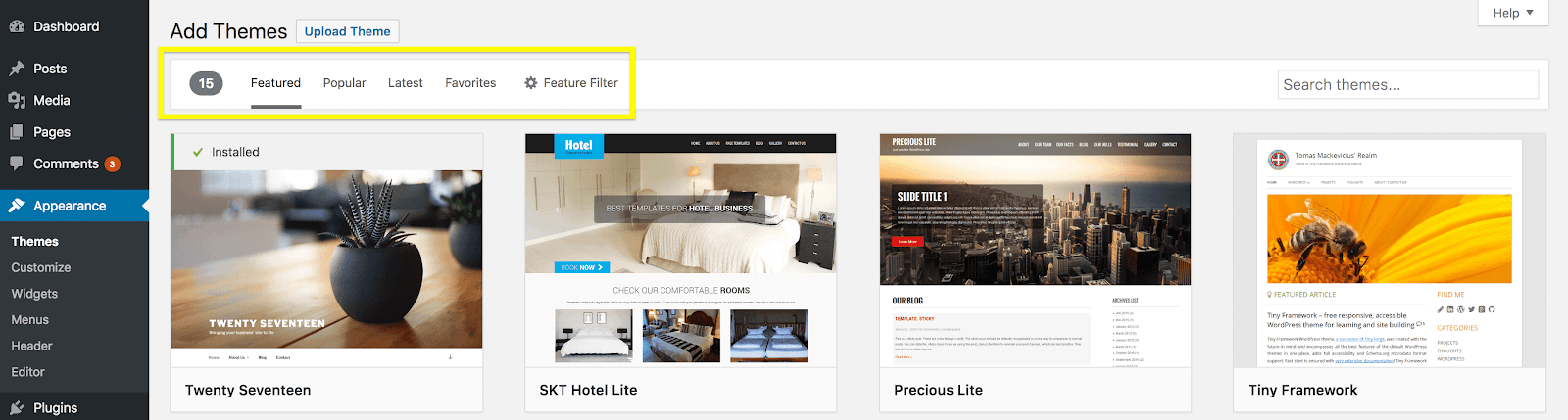
Go to your WordPress dashboard. Click on “Appearance” and then “Themes.” Click “Add New” at the top. Browse themes by features, popularity, or latest. Use the search bar to find specific themes. Hover over a theme and click “Install.” WordPress downloads and installs the theme automatically.
Uploading A Theme Manually
Download the theme file from a trusted source. The file should be in .zip format. Go to the WordPress dashboard and click “Appearance” then “Themes.” Click “Add New” and then “Upload Theme.” Choose the .zip file from your computer. Click “Install Now” to upload and install the theme.
Activating The Theme
After installation, click the “Activate” button. Your website will immediately use the new theme. Check your site to see how it looks. Customize the theme settings to fit your style. Activation makes the theme live for all visitors.
Customizing Your Template
Customizing your WordPress template lets you make your website unique. It helps your site reflect your style and needs. You can change colors, fonts, layouts, and more. These changes improve your site’s look and user experience.
Adjusting Theme Settings
Start by exploring the theme settings. These settings control your site’s appearance. You can change colors, fonts, and header styles. Many themes also let you adjust layout options. Small changes make a big difference in design.
Find the theme settings under the Appearance menu in WordPress. Each theme offers different options. Spend some time trying various settings. Save your changes to see them live.
Using The WordPress Customizer
The WordPress Customizer is a tool for live editing. It shows your site as you make changes. Access it from Appearance > Customize in your dashboard. You can change site identity, colors, and menus here.
The Customizer is easy to use and beginner-friendly. You see updates immediately, so you know how your site looks. Use the preview to test changes before publishing.
Adding Widgets And Menus
Widgets add extra features to your site. They can show recent posts, search bars, or calendars. Place widgets in sidebars, footers, or other areas. Go to Appearance > Widgets to manage them.
Menus help visitors navigate your site. You can create custom menus with links to pages, posts, or categories. Manage menus under Appearance > Menus. Organize menu items by dragging and dropping.
Troubleshooting Common Issues
Changing a WordPress template can cause some common problems. These problems may stop your site from looking right or working well. Knowing how to fix these issues helps keep your site running smoothly. The following tips cover common troubles and easy fixes.
Fixing Broken Layouts
Broken layouts often happen after switching templates. The site may look messy or parts may overlap. Check if the new template supports all your content types. Clear your browser cache to see the latest changes. Use WordPress’s Customizer to adjust layout settings. If problems persist, try disabling custom CSS that may conflict with the new design.
Resolving Plugin Conflicts
Plugins can cause conflicts with new templates. Some features may stop working or cause errors. Deactivate all plugins and check if the issue disappears. Reactivate plugins one by one to find the culprit. Update all plugins to their latest versions. Use plugins tested with your template for best results.
Handling Missing Features
New templates may lack features from your old design. Some widgets, menus, or sliders might be missing. Check the template documentation for included features. Use plugin alternatives to replace missing functions. Customize the template with simple code or page builders. Always back up your site before making big changes.

Credit: docs.themeisle.com
Optimizing For Performance
Optimizing your WordPress template for performance is key to a smooth user experience. Fast websites keep visitors happy and reduce bounce rates. Slow sites lose attention quickly. Small changes can make a big difference in speed and usability.
Focus on ways to reduce load times and improve efficiency. Use tools and techniques that help your site run faster. This section covers simple steps to boost performance after changing your WordPress template.
Improving Load Times
Load time means how fast your site appears on screen. Visitors expect pages to load in seconds. Choose a lightweight theme with clean code. Avoid themes with heavy features you do not need.
Limit the number of plugins and scripts running on your site. Each extra script slows your page down. Use a content delivery network (CDN) to serve files faster worldwide.
Using Caching Plugins
Caching saves a copy of your page for quick delivery. It reduces the work your server must do. Plugins like W3 Total Cache or WP Super Cache can help. They store static versions of pages for visitors.
Set caching to refresh regularly. This keeps your site updated without slowing it down. Caching improves speed especially for repeat visitors.
Optimizing Images
Images often cause slow loading times. Large files take longer to download. Compress images before uploading without losing quality. Use tools like TinyPNG or ShortPixel.
Choose the right format. JPEG works well for photos, PNG for graphics with fewer colors. Use lazy loading so images load only when visible on screen. This saves bandwidth and speeds up the initial page load.
Maintaining Your New Theme
After changing your WordPress template, proper maintenance ensures your site runs smoothly. A new theme can bring fresh design and features. It also needs care to stay secure and fast. Regular checks and updates keep your website healthy. Follow simple steps to maintain your new theme with ease.
Regular Updates
Keep your theme updated to the latest version. Updates fix bugs and improve security. They also add new features and enhance performance. Check for updates in your WordPress dashboard often. Apply updates promptly to avoid problems.
Monitoring For Errors
Watch your website for any errors after switching themes. Look for broken links, missing images, or layout issues. Test your site on different devices and browsers. Fix issues quickly to keep visitors happy. Use tools to scan your site for problems regularly.
Keeping Backups
Always back up your website before making changes. Regular backups protect your content and settings. Use reliable backup plugins or hosting services. Store backups in multiple safe locations. Restore your site easily if something goes wrong.
Frequently Asked Questions
How Do I Change My WordPress Template Safely?
To change your WordPress template safely, first back up your website. Then, go to Appearance > Themes and activate a new theme. Test your site thoroughly to ensure compatibility and fix any issues before making the change permanent.
Can I Customize A WordPress Template After Switching?
Yes, you can customize your WordPress template after switching. Use the WordPress Customizer or theme options to adjust colors, fonts, layouts, and more. Customization helps tailor the design to your brand and improve user experience.
Will Changing A WordPress Template Affect Seo?
Changing a WordPress template can affect SEO if not done properly. Ensure your new theme is SEO-friendly, fast, and mobile responsive. Maintain your site’s structure, metadata, and content to avoid negative SEO impacts.
How Do I Preview A New WordPress Template Before Activation?
You can preview a new WordPress template by clicking “Live Preview” under Appearance > Themes. This lets you see how your site looks with the new theme without activating it, ensuring it fits your style and functionality needs.
Conclusion
Changing your WordPress template is simple and quick. Pick a theme that fits your website’s style and purpose. Always back up your site before making changes. Test your new template on different devices to ensure it looks good everywhere. Keep your site updated to avoid problems.
A fresh template can make your site more attractive and user-friendly. Take your time and enjoy customizing your WordPress site to match your vision.


