
Imagine losing all your hard work on your WordPress site in an instant. Your posts, images, and settings—gone without a trace.
Scary, right? But here’s the good news: backing up your WordPress site is easier than you think, and it can save you from major headaches later. You’ll discover simple, step-by-step ways to protect your site. By the end, you’ll have the confidence to keep your content safe and secure—no tech skills needed.
Keep reading to learn how to back up your WordPress site and avoid disaster before it strikes.

Credit: www.youtube.com
Why Backup Matters
Backing up your WordPress site protects your hard work. It saves your data and files from unexpected problems. Without backups, you risk losing everything in seconds. Regular backups give you peace of mind. You can restore your site quickly if something goes wrong.
Common Risks To WordPress Sites
WordPress sites face many risks daily. Hackers try to steal or damage your content. Malware can infect your files and slow your site. Updates might cause errors or break your site. Server crashes can delete your data without warning. Human mistakes like accidental deletions happen too. Any risk can cost you time and money.
Benefits Of Regular Backups
Regular backups keep your site safe. They let you recover your site fast after a problem. Backups protect your content, images, and settings. You avoid losing visitors and revenue. Backups also help when testing new features. You can try changes without fear. In short, backups reduce stress and save effort.
Backup Methods
Backing up your WordPress site protects your data from loss or damage. There are several ways to create backups, each with its own benefits. Choose the method that fits your skills and needs best. This section explains three main backup methods.
Manual Backup Process
Manual backup means you copy your files and database yourself. Use an FTP client to download your WordPress files. Also, export your database through phpMyAdmin in your hosting control panel. Save these files on your computer or external drive. This method gives you full control but takes time and technical knowledge.
Using WordPress Plugins
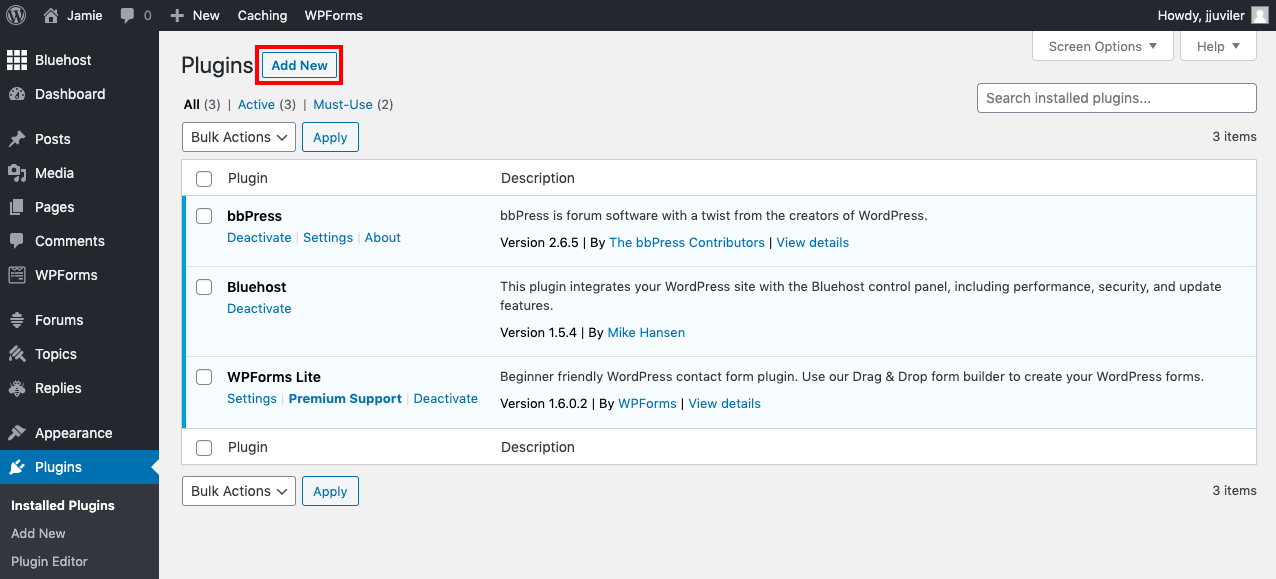
Plugins automate the backup process. Install a backup plugin from the WordPress library. These plugins create backups of your files and database with one click. Some plugins allow scheduling automatic backups. You can save backups to cloud storage or email. This method is easy and suits beginners.
Backup Through Hosting Providers
Many hosts offer backup services as part of their plans. You can access backups from your hosting control panel. Some hosts create automatic daily or weekly backups. This method requires little effort and offers quick restoration. Check with your hosting provider for backup options available.
Step-by-step Manual Backup
Backing up your WordPress site manually gives you full control over your data. This method saves your website files and database separately. You can restore your site easily if anything goes wrong. Follow these clear steps to keep your site safe.
Backing Up Files Via Ftp
Start by connecting to your website using an FTP client. FileZilla is a popular free option. Enter your FTP login details provided by your hosting provider. Navigate to your WordPress root folder. This folder usually contains wp-content, wp-includes, and wp-admin.
Select all files and folders inside this root directory. Download them to a safe folder on your computer. This process saves your themes, plugins, images, and other important files. Make sure the transfer completes without errors.
Exporting The Database
Log in to your hosting control panel and open phpMyAdmin. Choose your WordPress database from the list on the left. Click the Export tab at the top of the page. Select the “Quick” export method and SQL format.
Click Go to download your database backup. Save this file with your website files. Your database contains all posts, pages, comments, and settings. Keep both your files and database backups secure and updated regularly.
Top Backup Plugins
Backing up your WordPress site is essential to keep your data safe. Using the right backup plugin makes the process simple and reliable. Many plugins offer different features to fit your needs. Choose one that protects your site without adding extra work.
Features To Look For
Easy setup is important. You want a plugin that works quickly and without hassle. Automatic backups save time and avoid forgetting. Look for storage options like cloud or local backups. Email notifications help confirm backups are complete. The ability to restore files fast is key. Compatibility with your WordPress version ensures smooth operation. Some plugins offer incremental backups to save space. Security features protect backup files from hackers.
Popular Plugin Options
UpdraftPlus is a top choice for many users. It offers automatic backups and cloud storage support. BackupBuddy lets you schedule backups and move sites easily. BackWPup includes database backups and supports many storage services. Duplicator helps with site migration and backups. All these plugins work well for beginners and experts. They provide peace of mind with regular, secure backups.
Setting Up Automated Backups
Setting up automated backups saves time and protects your WordPress site. It ensures your data is safe without manual effort. Automation reduces the risk of forgetting to back up. It creates regular copies of your site and files. This way, you can restore your site quickly after a problem.
Scheduling Backup Frequency
Choose how often backups should happen. Daily backups are best for active sites with new content. Weekly backups work for sites that change less often. Some plugins allow you to schedule backups by hour or day. Set a time when your site has low traffic. This avoids slowing down your site during busy hours.
Choosing Storage Locations
Select where to save your backup files. Cloud storage options like Google Drive or Dropbox are safe. They keep your backups off your website server. Storing backups externally prevents loss if your server fails. Local storage on your computer is another option. Use multiple storage locations for extra security. This ensures you always have access to your backups.
Credit: agethemes.com
Restoring Your Site From Backup
Restoring your WordPress site from a backup is a vital skill. It helps you fix problems and recover lost data. This process involves two main parts: restoring files and restoring the database. Both parts work together to bring your site back online smoothly.
Restoring Files And Database
Start with restoring your website files. These include themes, plugins, and media uploads. Use your backup tool or a file manager in your hosting control panel. Upload all files to the correct WordPress directory.
Next, restore your database. The database holds all your posts, pages, and settings. Access your hosting control panel and open the database management tool, like phpMyAdmin. Import the backup database file to replace the current one.
Make sure the database user and password in the wp-config.php file match the restored database details. This step keeps your site connected to the database without errors.
Testing The Restored Site
After restoring, test your site carefully. Visit the homepage and other pages to check if they load correctly. Look for broken images or missing content. Test forms, links, and login to the admin panel.
Clear your browser cache to see the latest version of your site. If anything looks wrong, revisit the backup files or database. Confirm that all plugins and themes work as expected. Testing ensures your site runs without issues after restoration.
Backup Best Practices
Backing up your WordPress site is important. Following best practices helps keep your data safe. It also makes recovery easier after any problem. Simple steps can protect your website from data loss or hacks.
Keeping Multiple Backup Copies
Store several backup copies in different locations. This reduces the risk of losing all data at once. Use cloud storage, external drives, and your computer. Regularly update these backups to keep them current. Avoid relying on just one backup source.
Securing Backup Data
Protect your backup files with strong passwords. Encrypt backups to keep hackers out. Limit access to backups only to trusted people. Use secure storage services with good safety records. Regularly check your backups for any signs of damage.
Credit: www.wpbeginner.com
Frequently Asked Questions
What Are The Best Methods To Back Up A WordPress Site?
The best methods include using plugins, manual backups via cPanel, and hosting provider tools. Plugins like UpdraftPlus automate backups. Manual backups require downloading files and databases. Hosting tools often offer one-click backups. Combining methods ensures maximum safety for your site data.
How Often Should I Back Up My WordPress Site?
Back up your site at least once a week. For active sites with frequent updates, daily backups are ideal. Regular backups prevent data loss from hacks or errors. Choose a schedule that matches your site’s update frequency and traffic volume.
Can I Restore My WordPress Site From A Backup Easily?
Yes, restoring is straightforward with backups. Most plugins offer one-click restore options. Manual restores involve uploading files and importing databases. Always test the backup file before restoration. Keeping multiple backup copies ensures recovery options.
Which WordPress Backup Plugin Is Most Reliable?
UpdraftPlus, BackupBuddy, and Duplicator are top reliable plugins. They offer scheduled backups, cloud storage, and easy restores. These plugins support incremental backups to save resources. Choose based on your budget and feature needs.
Conclusion
Backing up your WordPress site protects your work and data. Regular backups help you recover from errors or hacks fast. Choose a method that fits your skill and needs. Store backups safely, both online and offline. Test your backups to ensure they work well.
Keep a schedule to avoid losing important content. Stay safe by backing up today and avoid future stress. Simple steps can save hours of trouble later. Don’t wait until it’s too late.


