
You’ve spent hours perfecting your website’s design. Your CSS file is a masterpiece, ready to bring your creative vision to life.
But there’s a problem: your web host isn’t reading your CSS file. Frustration mounts as your site looks nothing like you planned. You wonder what went wrong. Don’t worry, you’re not alone. Many web developers and site owners face this issue.
But why does it happen? And more importantly, how can you fix it? You’ll discover the reasons behind this common problem and learn actionable steps to ensure your CSS file is read correctly. Keep reading to transform confusion into clarity and regain control over your website’s appearance. Your perfect design is just a few clicks away.

Credit: stackoverflow.com
Common Css File Issues
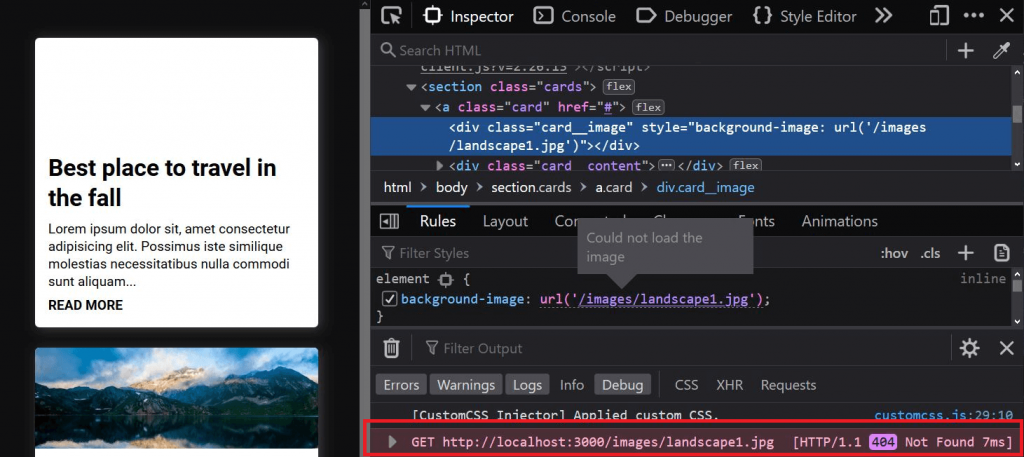
File path mistakes often cause CSS problems. A wrong path means the browser can’t find the file. Always check the path is correct. Look for missing or extra slashes. Ensure folders are named correctly. Paths must be exact.
Names matter. CSS files should have the right name. Misspelled names won’t work. Double-check file names. Ensure extensions are “.css”. Mistakes in names stop files from loading.
File names are case-sensitive. “style.css” is different from “Style.css”. Always match the case exactly. Check folders and file names. Be consistent with uppercase and lowercase letters. It makes a big difference.
Credit: www.oreilly.com
Server Configuration Problems
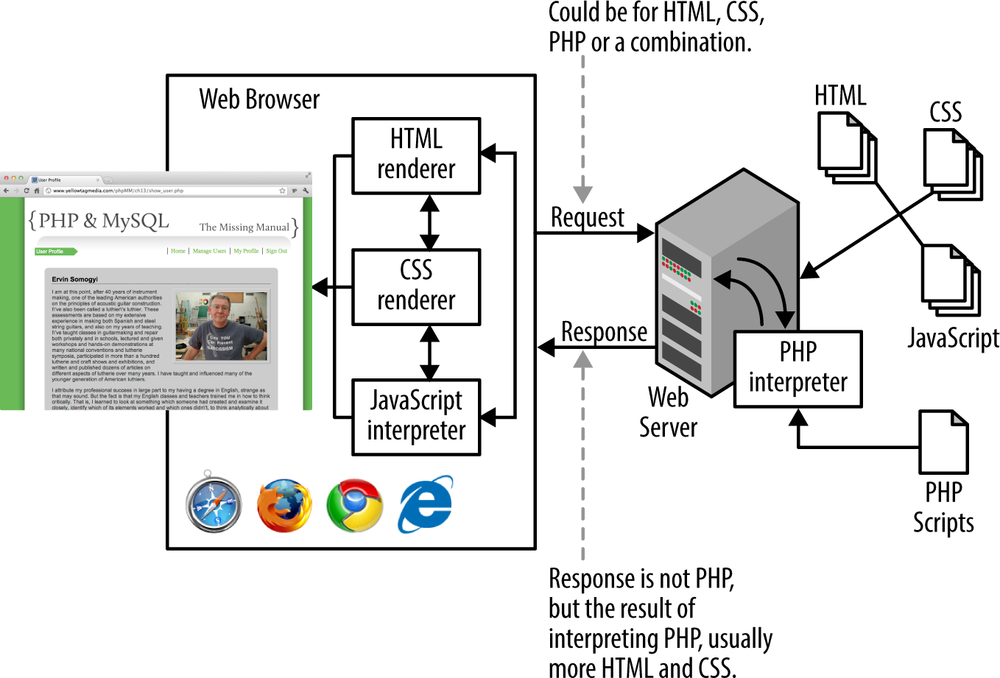
MIME types tell browsers how to handle files. If the server sends the wrong type, browsers won’t read your CSS file. It might see it as plain text. This stops your styles from showing. Checking the server settings can fix this. Ensure the server knows your file is CSS. Check the .htaccess file or the server’s control panel. Correct any wrong MIME type settings.
File permissions control who can see your files. If the settings are wrong, your CSS file won’t load. This happens if the server blocks access. You need to check these permissions. Make sure your CSS file is readable by all. Use your server’s file manager to adjust settings. Set permissions to allow public read access. This step ensures browsers can load your styles.
Browser Cache Interference
Browser cache can cause display issues. It stores old data. This includes CSS files. Clearing cache helps solve the problem. Open settings in your browser. Find privacy or history options. Choose clear browsing data. Select cached images and files. Click clear data. This removes stored files. Now, your website can load fresh data. It updates changes in the CSS file.
Hard refresh forces the browser to load fresh files. It ignores cached content. Press Ctrl + F5 on Windows. On Mac, use Cmd + Shift + R. This ensures your CSS file loads correctly. Helps if regular refresh fails. Hard refresh is quick and effective. Try it to see changes instantly. Hard refresh can solve many display problems. It is simple and helpful.
Cdn And Proxy Complications
CDNs store files to make them load faster. Sometimes, they keep old CSS files. The new changes might not show up. Clearing the CDN cache can help. It forces the CDN to get the latest files. Check settings for cache duration. Shorter times can fix this issue. Always update the cache after changes. This ensures visitors see the right content.
Proxy servers act as middlemen. They can slow down CSS loading. Sometimes, they hold old files too long. Regular updates are essential. This ensures they fetch the latest CSS. Configuring the proxy for faster refresh rates might help. Monitoring their activity is crucial. It helps in identifying delays quickly. Quick actions prevent prolonged issues.
Impact Of File Corruption
File corruption can make your CSS unreadable. This stops your web host from using it. Corrupted files often look strange. They might have missing or jumbled text. An error message may show up when files get corrupted. This makes your web pages appear broken.
Detecting Corrupted Files
Check the CSS file for unexpected changes. Missing brackets or extra symbols are a sign. Use a file checker tool. It helps find errors fast. Compare the file with a working version. Look for differences. This helps spot problems quickly.
Restoring From Backup
Always keep a backup of your CSS files. If a file gets corrupted, use the backup. This restores the original content. Save backups on a different drive. This protects them from damage. Regular backups help keep your site working.
Debugging Tools And Techniques
Browser developer tools help find CSS errors. Press F12 or right-click and select “Inspect”. Check the Console for error messages. Look at the Network tab for failed file loads. Verify the CSS file path. Ensure the file is in the right folder.
Online CSS validators check code for mistakes. Paste your CSS code into a validator. It highlights syntax errors. Use W3C’s CSS Validator. It is free and easy to use. Correct errors and upload the file again. Ensure links are correct and files are not missing.
Contacting Web Host Support
Experiencing issues with your web host not reading your CSS file can be frustrating. It’s essential to check file paths and permissions first. Reach out to your web host’s support for guidance if the issue persists.
Information To Provide
Give your web host clear details. Mention your website URL. Tell them which CSS file is not loading. Share any error messages you see. Include the steps you took to solve the issue. This helps support understand your problem better.
Questions To Ask
Ask if there’s a problem on their end. Check if your CSS file is blocked. Verify if the server has access to the file. Inquire if there’s a cache issue. Request them to clear any server cache. Confirm if your file path is correct. These questions help find the issue quickly.
Credit: coder-coder.com
Frequently Asked Questions
Why Is My Css File Not Linking?
Your CSS file might not link due to incorrect file path, missing file extension, or syntax error in HTML. Ensure the link tag is correctly placed in the head section. Check for typos in filenames and confirm the server hosts the CSS file correctly.
Why Is My Css Not Displaying?
Check file path, ensure correct link in HTML. Verify CSS syntax errors. Use browser inspect tool for debugging. Confirm stylesheet is linked properly. Ensure no CSS conflicts or overwrites exist.
How To Make A Css File Readable?
Use clear naming conventions for classes and IDs. Add comments for sections. Organize CSS with indentation and spacing. Group related styles together. Use consistent formatting and prioritize readability over compactness.
Why Is My Css Not Updating On My Website?
Clear your browser cache to see CSS updates. Ensure no syntax errors exist in your CSS file. Check if your CSS file is correctly linked in HTML. Verify there’s no CSS file caching on your server. Reload your website after making changes.
Conclusion
Resolving CSS file issues can enhance your website’s appearance. Check your file paths and ensure correct file permissions. Clear your browser cache regularly. This simple step can solve many display problems. Verify server settings and check for any errors in your CSS code.
Understanding these basics helps you troubleshoot more efficiently. A well-functioning CSS file ensures a consistent and professional look. It improves user experience and keeps visitors engaged. Pay attention to these details for smoother website performance. Your web host’s support team can also provide valuable assistance.
Don’t hesitate to reach out for help.


