
Ready to create your own website but unsure where to start? Building a website with WordPress is easier than you might think.
Whether you want a blog, an online store, or a portfolio, WordPress gives you the tools to make it happen—without needing to write a single line of code. In this guide, you’ll discover simple, step-by-step instructions that anyone can follow.
By the end, you’ll have a professional-looking website that reflects your style and goals. Keep reading, and let’s unlock the power to build your online presence today.
Credit: www.crazyegg.com
Choosing Between WordPress.com And WordPress.org
Choosing between WordPress.com and WordPress.org is a key step in building your website. Both platforms use WordPress software, but they serve different needs. Understanding their differences helps you pick the best fit for your project.
WordPress.com is a hosted service that manages your site for you. WordPress.org offers software you install on your own hosting. Each option has unique advantages and challenges.
Free Vs Paid Options
WordPress.com offers a free plan with basic features. You get a subdomain like yoursite.wordpress.com and limited storage. Paid plans add more storage, custom domains, and extra tools.
WordPress.org software is free to use. You must pay for hosting and a domain name. This means upfront costs, but no limits on your site’s size or features.
Control And Customization
WordPress.com restricts plugin and theme choices on free and lower plans. You cannot upload custom themes or plugins. This limits design and function changes.
WordPress.org gives full control. You can install any theme or plugin. Edit code freely to create a unique site. Ideal for advanced users or those wanting growth.
Hosting And Domain Needs
WordPress.com includes hosting in all plans. You do not worry about server setup or maintenance. It is easier for beginners who want a simple start.
WordPress.org requires separate hosting service. You choose your provider and manage the server. Buying a domain is also your responsibility. This setup offers flexibility and independence.
Setting Up Your Domain And Hosting
Setting up your domain and hosting is the first step to build a WordPress website. This step makes your site live and accessible on the internet. Choose a good domain and reliable hosting for better performance. Let’s break down how to start.
Selecting A Domain Name
Pick a domain name that matches your brand or website purpose. Keep it short, easy to spell, and memorable. Avoid numbers and hyphens to reduce confusion. Use keywords if possible, but keep it natural. Check domain availability using domain registrars. Once chosen, register the domain to secure it for your site.
Choosing A Hosting Provider
Hosting stores your website files and makes them available online. Choose a hosting provider with good speed, uptime, and support. Shared hosting is affordable for beginners. Managed WordPress hosting offers easier maintenance and better security. Compare plans, features, and prices before deciding. A good host improves your site’s loading speed and user experience.
Installing WordPress
Most hosting providers offer one-click WordPress installation. Log into your hosting control panel and find the WordPress installer. Follow simple steps to set your site name, username, and password. After installation, log into your WordPress dashboard to start customizing your site. Installation usually takes just a few minutes and requires no coding skills.
Configuring Basic WordPress Settings
Configuring basic WordPress settings is essential after installing the platform. It ensures your website runs smoothly and matches your needs. These settings control how your site looks, functions, and who can access it. Taking time here saves you effort later.
General Settings
General Settings include the site title, tagline, and address. These appear in the browser tab and search results. Set your email address for admin notifications. Choose the correct time zone and date format. This keeps your posts and comments properly timed.
Permalinks Setup
Permalinks control the URLs of your posts and pages. Clear, readable links help visitors and search engines understand your content. The “Post name” option is best for SEO and user-friendliness. Avoid using default numeric URLs as they look confusing and less professional.
User Roles And Permissions
WordPress lets you assign roles to users with specific permissions. The main roles are Administrator, Editor, Author, Contributor, and Subscriber. Assign roles based on tasks users will perform. This keeps your website secure and organized by limiting access to important functions.
Credit: kairaweb.com
Picking And Installing Themes
Choosing the right theme is a key step in building your WordPress website. The theme shapes how your site looks and feels. It also impacts how visitors use your site. Picking and installing themes correctly helps create a strong foundation for your website’s design and usability.
Free Vs Premium Themes
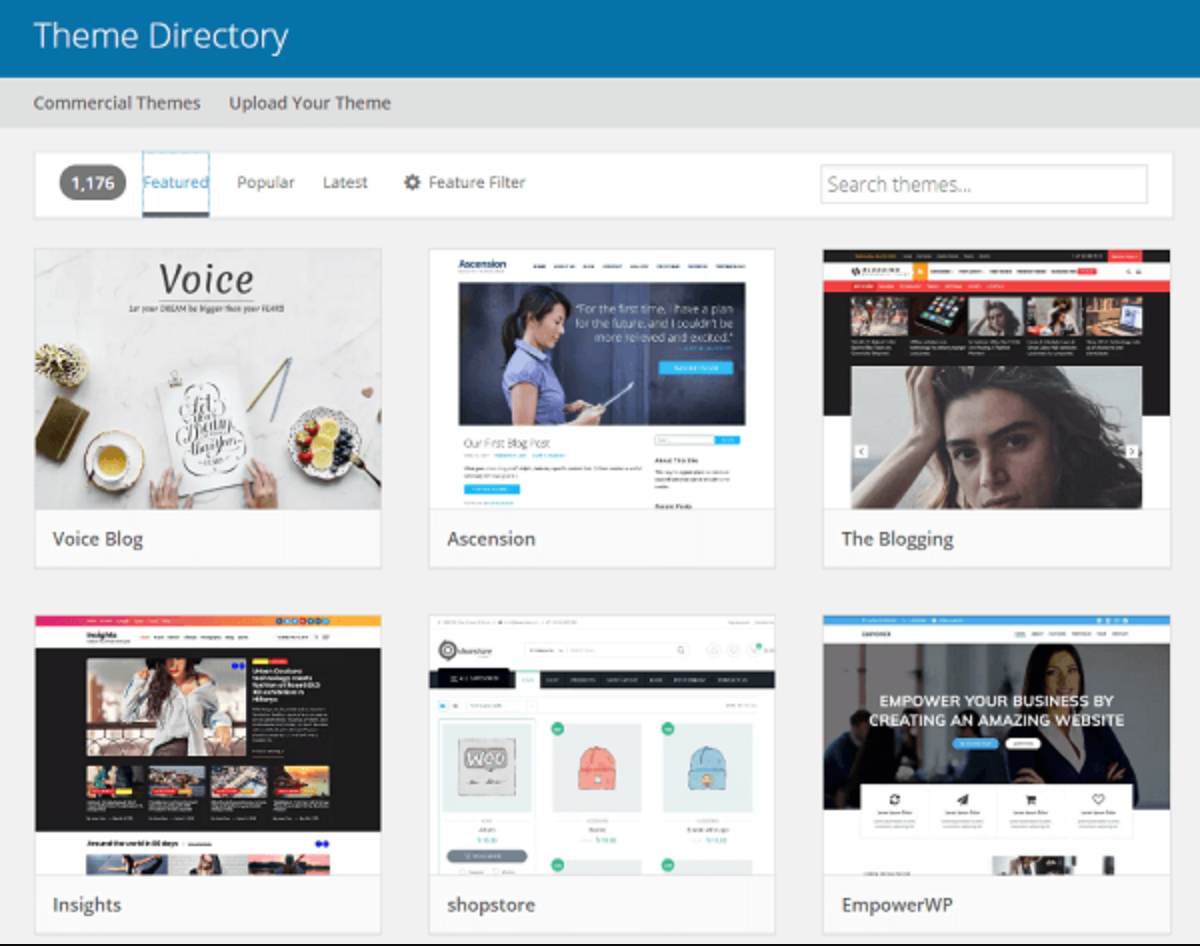
Free themes are easy to find in the WordPress theme directory. They offer basic features and good designs. Many free themes suit simple blogs or small websites. Premium themes cost money but provide more features and support. They include advanced design options and regular updates. Premium themes suit business sites or online stores.
Consider your website’s needs before choosing. Free themes save money but may lack customization. Premium themes give more control and professional look. Both types can work well if chosen carefully.
Installing Themes
Installing a theme in WordPress is simple. Go to your WordPress dashboard and click “Appearance.” Then select “Themes.” Use the search bar to find a free theme or upload a premium theme file. Click “Install” and then “Activate” to make it live. The theme changes your website’s look instantly.
You can install multiple themes but only activate one at a time. Keep themes updated to avoid security issues and bugs. Always back up your site before switching themes to save your content.
Customizing Your Theme
After installation, customize your theme to match your brand. Use the WordPress Customizer found under “Appearance” > “Customize.” Change colors, fonts, and layouts easily. Add your logo and set your homepage style. Some themes include extra settings for headers, footers, and widgets.
Test your site on different devices to ensure it looks good everywhere. Small tweaks improve visitor experience and site performance. Customization helps make your website unique and professional.
Adding Essential Plugins
Adding essential plugins is a key step in building a WordPress website. Plugins add features and improve site performance. They help you customize your site without coding. Choosing the right plugins makes your site secure and user-friendly.
Must-have Plugins For Beginners
Start with plugins that improve security, speed, and SEO. A security plugin protects your site from attacks. A caching plugin helps your site load faster. SEO plugins help your pages rank better on search engines. Contact form plugins allow visitors to reach you easily. These basic plugins create a strong foundation for your website.
Installing And Activating Plugins
Go to your WordPress dashboard and click on “Plugins”. Select “Add New” to search for plugins. Type the plugin name in the search bar. Click “Install Now” on the plugin you want. After installing, click “Activate” to enable it on your site. Only activate plugins you need to keep your site fast and secure.
Managing Plugin Updates
Keep your plugins updated to ensure site security and performance. Check your dashboard regularly for update notifications. Click “Update Now” to install the latest version. Outdated plugins can cause errors or security risks. Always back up your website before updating plugins to avoid data loss.
Creating Pages And Posts
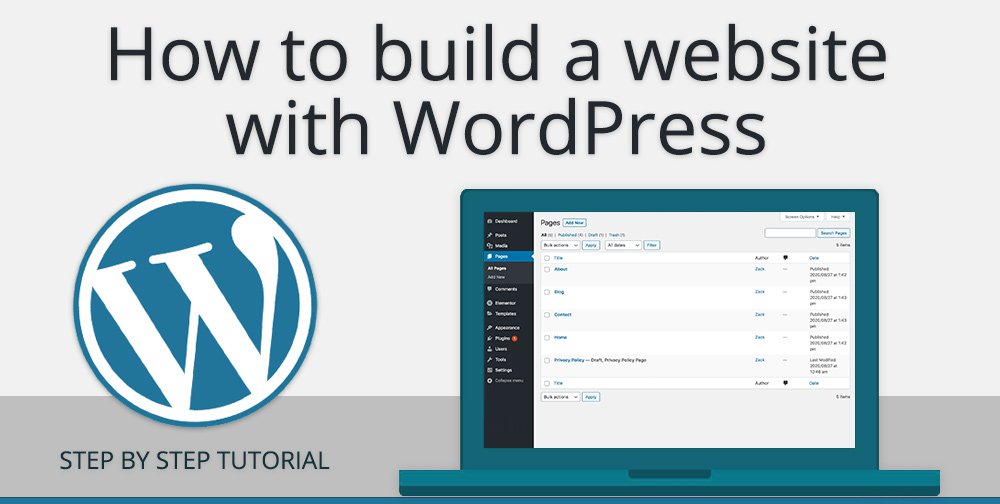
Creating pages and posts is a key part of building a website with WordPress. Pages hold static content like About or Contact information. Posts share timely updates or blog entries. Both help organize your site’s content clearly and attract visitors.
Understanding how to create and manage these elements will make your site easier to use and navigate. WordPress offers tools that simplify this process. Learn how to use them effectively to build your website’s structure.
Difference Between Pages And Posts
Pages are for permanent content. They stay the same over time. Common pages include Home, About, and Services. Posts are for content that changes often. They appear in reverse order on your blog or news section. Posts encourage reader interaction with comments.
Think of pages as chapters in a book. Posts are like daily journal entries. Use pages for main information. Use posts to share news or stories.
Using The Block Editor
WordPress uses a block editor to create pages and posts. Each block is a piece of content like text, image, or video. Blocks can be moved and customized easily. This makes designing your page simple and flexible.
The block editor lets you add headings, paragraphs, lists, and more. You can preview your work before publishing. It helps you create visually appealing content without coding.
Organizing Content With Categories And Tags
Categories and tags help group your posts. Categories are broad topics. Tags are specific keywords related to the post. Using both improves site navigation and SEO.
Choose categories that cover main subjects. Add tags for details like topics or themes. This makes it easier for visitors to find related content. It also helps search engines understand your site better.
Designing Your Site Layout
Designing your site layout shapes how visitors experience your website. A clean, organized layout helps users find information quickly. WordPress offers simple tools to design your site without coding. You can control the look and feel by using widgets, menus, headers, and footers. Focus on clear sections and easy navigation to keep visitors engaged.
Using Widgets And Menus
Widgets add content blocks to sidebars, footers, or other areas. Use them to display recent posts, search bars, or contact info. Menus organize links to important pages or categories. WordPress lets you drag and drop widgets for easy placement. Create menus in the dashboard and assign them to locations like the header or footer.
Customizing Headers And Footers
The header is the top part visitors see first. It usually contains your logo, site title, and main menu. Footers appear at the bottom and hold extra info like copyright or social links. Customize these areas from the theme settings or WordPress customizer. Keep headers simple and footers informative but not crowded.
Adding A Navigation Menu
Navigation menus guide visitors through your site. Create menus in WordPress under Appearance > Menus. Add important pages, posts, or custom links to the menu. Assign the menu to a theme location, typically the primary navigation area. A clear menu helps users explore your site and find what they need fast.

Credit: wordpress.org
Optimizing For Speed And Security
Speed and security are key to a good WordPress website. Fast sites keep visitors happy and improve search rankings. Safe sites protect your data and your users. Focus on these areas early to avoid problems later.
Choosing A Fast Hosting
Start with a hosting provider known for speed. Look for servers close to your audience. Check if they use solid-state drives (SSD) for storage. Good hosting offers fast loading times and uptime guarantees. Avoid shared hosting if possible. Managed WordPress hosting often provides better performance.
Using Caching Plugins
Caching plugins save copies of your pages. They deliver content quickly to repeat visitors. Popular plugins include WP Super Cache and W3 Total Cache. Set caching rules to update content regularly. This reduces server load and speeds up your site. Always test your site after installing a cache plugin.
Implementing Security Measures
Protect your site with strong security steps. Use a security plugin like Wordfence or Sucuri. Keep WordPress, themes, and plugins updated. Use strong passwords and change the admin username. Limit login attempts to stop brute force attacks. Regular backups help recover data if needed.
Launching And Maintaining Your Site
Launching your WordPress website marks an exciting milestone. Your site is now ready to welcome visitors and share your content with the world. Maintaining your site keeps it fast, secure, and reliable over time. Regular care prevents issues and ensures a smooth experience for users. Focus on testing, backing up, and updating to keep your site healthy and growing.
Testing Your Website
Test your site on different devices and browsers. Check links, images, and forms to ensure they work well. Look for slow pages or errors that could affect visitors. Use tools like Google PageSpeed Insights to improve loading times. Testing helps catch problems early and boosts user satisfaction.
Regular Backups
Back up your website files and database regularly. Store backups in a secure location outside your hosting server. Use plugins like UpdraftPlus or BackupBuddy for easy backups. Regular backups protect your site from data loss due to hacks or crashes. Restore your site quickly if something goes wrong.
Updating WordPress, Themes, And Plugins
Keep WordPress, themes, and plugins up to date. Updates fix security issues and add new features. Outdated software can make your site vulnerable to attacks. Update one item at a time and check your site after each update. Always back up your site before performing updates for safety.
Frequently Asked Questions
Can A Beginner Build A Website On WordPress?
Yes, beginners can build websites on WordPress easily using its drag-and-drop tools. No coding skills are needed.
Why Are People Moving Away From WordPress?
People move away from WordPress due to security risks, frequent updates, plugin conflicts, and complex customization needs.
Is Building A Website On WordPress Free?
Yes, building a website on WordPress. com is free but comes with limitations like a subdomain and limited storage. Using WordPress. org software is free, but you must pay for hosting and a domain.
Is WordPress Good To Build A Website?
WordPress is an excellent platform to build websites. It offers flexibility, ease of use, and extensive customization options. Beginners and experts can create professional, responsive, and SEO-friendly sites without coding. Its large community supports themes, plugins, and security, making it a top choice for website building.
Conclusion
Building a website with WordPress is simple and flexible. You can create a site that fits your needs without coding skills. Choose between WordPress. com for ease or WordPress. org for more control. Remember to pick a good host and keep your site updated for security.
With patience and practice, your website will grow and improve. Start today and enjoy sharing your ideas online.


