
Are you feeling overwhelmed by the sheer number of plugins on your WordPress site? You’re not alone.
Many website owners install a variety of plugins to enhance functionality, only to face slow loading times and performance issues. But here’s the thing: not all plugins are created equal. Some can be resource hogs, dragging down your site’s speed and user experience.
What if you could easily identify which plugins are the culprits? Imagine the boost in performance and relief you’d feel by pinpointing and optimizing these resource-heavy plugins. We’re diving into a WordPress plugin that does just that. By the end, you’ll know exactly how to streamline your site and keep it running smoothly. Ready to take control of your WordPress performance? Let’s get started!
Importance Of Monitoring Plugin Performance
Plugins help websites run smoothly. Some plugins slow down sites. Monitoring plugin performance is crucial. It keeps sites fast and efficient. Slow plugins can make visitors leave. Checking plugin load time is important. It helps identify problem plugins.
Good plugins enhance site speed. Bad plugins reduce it. Track plugin speed regularly. Use tools to find slow plugins. Slow plugins affect user experience. Regular checks keep sites running well. They improve user satisfaction.
Site speed impacts search rankings. Faster sites rank higher. Optimize plugins for better speed. Faster sites get more visitors. Monitoring plugins is a simple step. It ensures better performance. It makes your site better.
Challenges With Multiple Plugins
Many plugins slow down your website. They need extra resources to run. Loading time increases. Visitors leave if the site is slow. It’s hard to find which plugin uses the most resources. Tracking plugin performance is important.
Compatibility issues arise. Plugins may not work well together. Some plugins break features on your site. Finding the cause is tough. Regular updates are necessary. Some plugins don’t update often. Outdated plugins are risky.
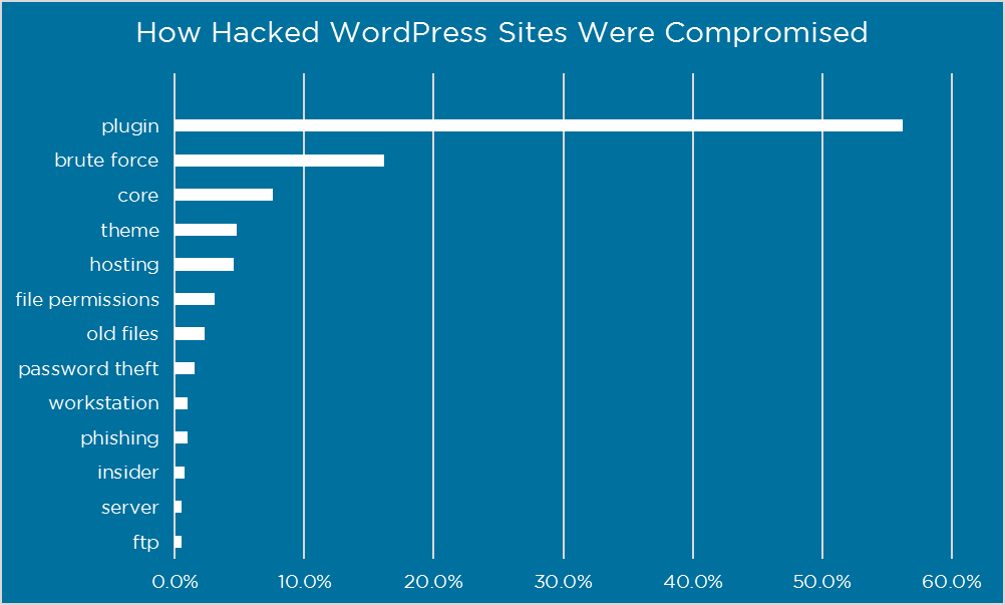
Security risks increase with more plugins. Hackers find ways into sites through plugins. Keeping plugins secure is crucial. Too many plugins can make your site vulnerable. Choose plugins wisely for safety.
Features Of Plugin Performance Checkers
Resource Usage Analysis shows how much power each plugin uses. This helps in finding heavy plugins. Heavy plugins slow down your website. Memory usage and CPU load are checked. You can see which plugins take the most resources. This helps in removing unwanted plugins. Your website runs smoother and faster.
Load Time Monitoring checks how long a plugin takes to load. A plugin taking too long can slow down your site. You can see which plugins are slow. Fixing slow plugins makes your site faster. Faster sites make visitors happy. Happy visitors stay longer on your site.
Conflict Detection finds plugins that don’t work well together. Some plugins can cause errors when combined. This feature shows which plugins cause issues. Solving conflicts makes your site stable. A stable site works better and attracts more users.
Credit: www.wordfence.com
Top WordPress Plugins For Performance Monitoring
This plugin helps you find which plugins slow your site. It shows performance data in easy charts. Easy to use for beginners and pros. Helps you make your site faster and better. Saves your time.
This plugin checks how plugins affect your site’s speed. Offers detailed reports on plugin usage. Real-time monitoring of plugin performance. User-friendly interface makes it simple. Improve your site speed. Boost user experience.
This plugin lets you see plugin performance. Shows which plugins use most resources. Gives actionable insights to optimize your site. Helps you keep your site running smoothly. Quick setup and easy to manage.
Installation And Setup Guide
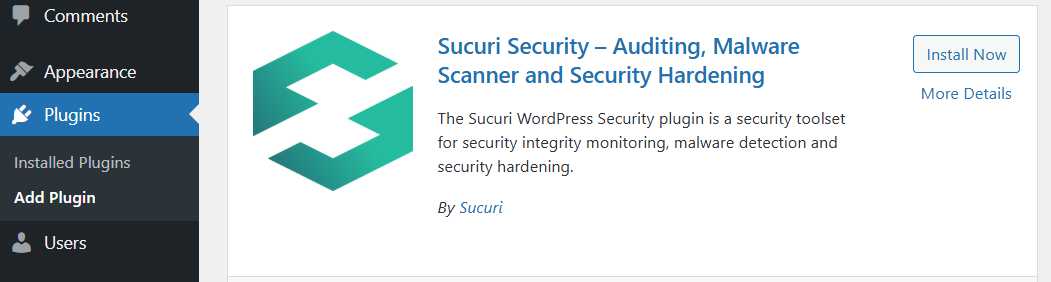
First, go to your WordPress dashboard. Find the “Plugins” section and click “Add New”. Search for the plugin by its name. Click “Install Now”. Wait a few seconds. Then, click “Activate” to start using it.
Open the plugin settings. Find the options that fit your needs. Adjust the settings for better performance. Save changes when done. Check the plugin’s documentation for advanced tips.

Credit: www.amazon.com
Interpreting Performance Data
Performance data helps us see how plugins affect our site. Each plugin uses resources like memory and speed. This data shows which plugins use more resources. We can check the CPU and RAM usage. This tells us how hard our server is working. Plugins that use too much CPU or RAM can slow down the site. They make our website less responsive.
Understanding Resource Usage Metrics
Metrics show how plugins use resources. These metrics include disk space, network usage, and database queries. Disk space tells us how much space a plugin takes. Network usage shows the data a plugin sends and receives. Database queries count the times a plugin asks the database for info. High numbers can mean the plugin uses many resources.
Identifying High-impact Plugins
Some plugins impact site performance more. High-impact plugins use more resources. They slow down the site. High-impact plugins may use too much memory or bandwidth. These plugins often have complex features. It’s wise to check which plugins use the most resources. This helps keep the website fast and stable.
Optimizing Plugin Performance
Plugins can slow down your website. Some plugins use too many resources. This makes your site slow. You can reduce plugin load. Choose plugins that use fewer resources.
Remove plugins you do not need. Update plugins to their latest versions. This helps them run better. Check plugin reviews before you add them.
High-resource plugins can be replaced. Use simpler plugins instead. Search for plugins that do the same job but use less power.
Some plugins offer the same features. But they are lighter and faster. Always compare plugin performance. This will help your website stay fast and smooth.
Credit: sucuri.net
Future Trends In Plugin Performance Tools
Tech changes fast. New tools will help check plugin speed. They will show which plugins slow down websites. This helps keep sites fast. Plugins will have better updates. These will make them work better. Some tools might use AI. This can help find slow plugins quicker.
More people will ask for easy-to-use tools. Tools will need to be simple. Everyone should understand them. Some tools may come with new features. Like showing plugin impact in real-time. This helps fix problems quickly.
Frequently Asked Questions
How Can I Identify Slow Plugins In WordPress?
To identify slow plugins, use a performance analysis plugin like Query Monitor. It provides detailed insights on plugin load times. This allows you to pinpoint which plugins are slowing down your site. Disabling unnecessary plugins can also help improve your website’s speed and performance.
What Are The Best Plugins To Analyze WordPress Performance?
Popular plugins for performance analysis include Query Monitor, P3 (Plugin Performance Profiler), and GTmetrix. These tools help diagnose performance issues. They provide insights on plugin load times and resource usage. This information aids in optimizing your WordPress site efficiently.
Why Is It Important To Check Plugin Performance?
Checking plugin performance helps maintain your website’s speed and efficiency. Slow plugins can negatively impact user experience and SEO rankings. By identifying and optimizing these plugins, you ensure a smoother, faster website. This enhances user satisfaction and improves your search engine visibility.
Can Too Many Plugins Slow Down WordPress?
Yes, too many plugins can slow down WordPress. Each plugin adds extra load time and resource usage. This can lead to slower page speeds and poor performance. Regularly review and deactivate unnecessary plugins to maintain optimal site speed and performance.
Conclusion
Discovering the right plugins can enhance your WordPress site’s performance. Knowing which plugins consume the most resources is essential. This insight helps optimize your site for speed and efficiency. A plugin that evaluates others can save you time and effort.
It gives you the information needed for smarter choices. Your site can run smoother with fewer delays. Regular checks ensure your site remains fast and user-friendly. Make informed decisions for a better WordPress experience. Always prioritize plugins that offer value and efficiency.
Your audience will appreciate a responsive and quick-loading site.


