
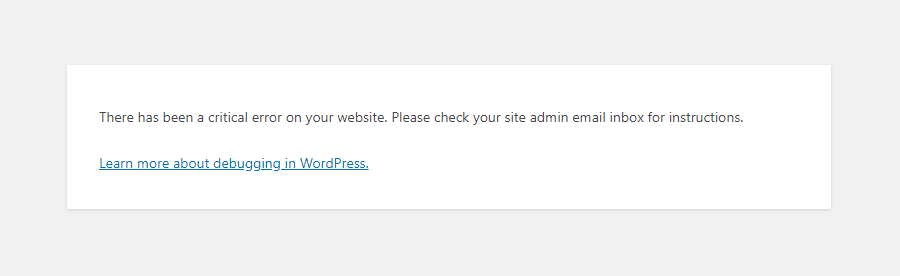
You’ve just encountered a WordPress fatal error. Your heart races, and your mind floods with questions: What just happened?
Will my website survive? Take a deep breath. You’re not alone, and you’re certainly not powerless. In this guide, we’ll unravel the mystery behind WordPress fatal errors and equip you with the tools to tackle them head-on. Imagine the relief you’ll feel, knowing you can restore your website and keep it running smoothly.
Let’s dive in, empower you with knowledge, and transform this moment of panic into a triumph of problem-solving. Ready to turn the page on errors? Let’s get started!
Identifying The Error
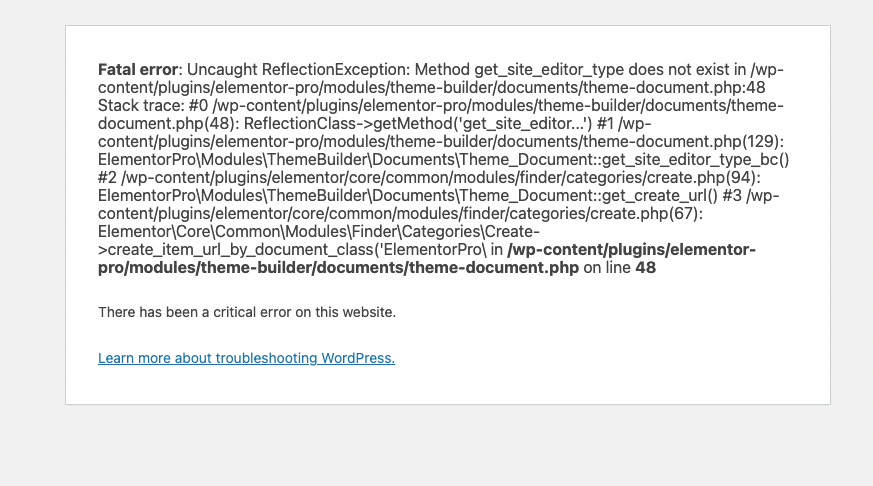
Common Error Messages are like clues. They help find the problem. “Parse error” means there’s a problem with the code. “Memory exhausted” shows the site needs more memory. “Syntax error” often means a typing mistake in the code. These messages tell what went wrong. They guide fixing the issue.
Causes of Fatal Errors can be different. A plugin might not work well. Themes can break the site too. Updates sometimes cause errors. Memory problems might stop the site. Code issues often lead to fatal errors. Finding the cause is key to fixing it.
Credit: kinsta.com
Initial Troubleshooting Steps
It’s crucial to backup your site before making changes. Use a plugin like UpdraftPlus or BackupBuddy. They are easy to use. You can also save your files manually. Make sure to copy the database too. This keeps your data safe.
Check your site’s error logs. They give clues about issues. Find the logs in the wp-content folder. They are often named error_log. Open them with a text editor. Look for recent errors. These may show what’s wrong. Fixing them might solve the problem.
Resolving Plugin Conflicts
Start by deactivating all plugins. This helps find the problem. Go to the plugins page. Click “Deactivate” for each plugin. This action is safe. It won’t delete any data. It pauses the plugins. The website will be back to normal. This step often fixes the error.
Now, turn on each plugin one by one. Begin with the first plugin. Activate it. Check the website. Is everything okay? If yes, move to the next plugin. Continue this way. If the error returns, the last plugin is the problem. Keep it off. Find an update or a replacement. This method finds the faulty plugin quickly.
Theme-related Issues
A default theme can help fix errors. These themes are simple. They often work well with most plugins. If your site breaks, switch to a default theme. This can be done from your WordPress dashboard. Look for themes like Twenty Twenty-One. These themes are updated by WordPress. They are safe and reliable.
Keep your theme updated. An outdated theme can cause errors. New updates fix bugs and improve security. If updates are not available, consider replacing the theme. Choose a theme that is compatible with your plugins. Read user reviews before choosing a new theme. A popular theme might be a good choice.
Php Memory Limit
Sometimes websites show errors. These errors often relate to PHP memory limit. Increasing this limit can help. First, locate the wp-config.php file. This file is in your website’s folder. Open it. Add this line of code: define('WP_MEMORY_LIMIT', '256M'); This increases the memory. Save the file after adding the code. Refresh your website. Check if the error is gone. If not, try asking your host provider.
Hosting providers can help with errors. Contacting them is easy. Use their support chat or email. Explain the issue clearly. Mention the PHP memory limit. They might increase it for you. Sometimes they offer better plans. These plans have more memory. Choose one if needed. They can guide you. Follow their advice to fix the error.
Corrupted Core Files
Corrupted core files can cause a fatal error in WordPress. These files are essential for the website. They help it run smoothly. Errors can make the site break. It’s important to fix them quickly.
Reinstalling WordPress Core
Reinstalling WordPress core can fix many errors. First, back up your website. This saves your data. Next, download WordPress from the official site. Replace old files with new ones. This can solve the problem.
Using Ftp For File Management
FTP helps manage files easily. It’s a tool for transferring files. Use FTP to access your website files. You can upload, download, or delete them. It’s useful for fixing errors. Keep your FTP login details safe. They are important.
Database Connection Problems
Database credentials are key to connecting your WordPress site. They include username, password, and host. Check these credentials in the wp-config.php file. This file is in your site’s root folder. Make sure each credential is correct. If you change your database password, update it here. Sometimes, a small typo can cause big errors. Verify each detail carefully. It helps in preventing connection problems.
Repairing the database can fix many errors. WordPress has a built-in repair tool. To use it, add a line to your wp-config.php file: define('WP_ALLOW_REPAIR', true);. After adding, visit yoursite.com/wp-admin/maint/repair.php. Choose repair database option. This tool will check and fix issues. Remember to remove the line from wp-config.php after repair. Keeping it might pose security risks. Always backup your database before repair. It ensures data safety.
Credit: wordify.com
Seeking Professional Help
Experiencing a WordPress fatal error can be frustrating and confusing. Professional help can diagnose and fix the problem quickly. Experts ensure your website runs smoothly, preventing future issues.
Hiring A WordPress Developer
Finding the right WordPress developer can solve many problems. They know how to fix errors quickly. Developers have skills to make sites run smoothly. Hiring a professional saves time and effort. Look for someone with good reviews. Check their past work for quality. Ask them about their process. Make sure they understand your needs. A skilled developer keeps your site safe.
Using Support Forums
Support forums are helpful for solving WordPress errors. Many experts share advice there. You can learn from other people’s experiences. Search for your error in the forum. Read the answers carefully. Sometimes, you find the exact solution needed. Ask questions if unsure. Community members often respond quickly. It’s a free way to get help. Forums are good for learning new skills too.
Credit: www.wpzoom.com
Frequently Asked Questions
What Causes A WordPress Fatal Error?
A WordPress fatal error often occurs due to plugin or theme conflicts, memory limits, or corrupted files. Misconfigured PHP settings can also trigger these errors. It’s essential to identify the root cause to apply the correct solution. Regular updates and backups can prevent such issues from recurring.
How Can I Fix A WordPress Fatal Error?
To fix a WordPress fatal error, deactivate plugins and themes via FTP or hosting panel. Increase your PHP memory limit by editing the wp-config. php file. If the issue persists, consult your hosting provider for assistance. Regular backups and updates can help prevent future errors.
Can Plugins Cause WordPress Fatal Errors?
Yes, plugins can cause WordPress fatal errors due to compatibility issues or outdated versions. Conflicting plugins may also trigger errors. Always update plugins regularly and check for compatibility with your WordPress version. Deactivate suspicious plugins to troubleshoot and identify the culprit.
How To Troubleshoot WordPress Fatal Error?
To troubleshoot a WordPress fatal error, enable WP_DEBUG in wp-config. php to identify issues. Check error logs for specific error messages. Deactivate all plugins and switch to a default theme to isolate the problem. Consulting your hosting provider can also provide insights into server-related issues.
Conclusion
Facing a WordPress fatal error can feel overwhelming. But don’t worry. You can tackle it step by step. First, identify the error type. Next, disable plugins or themes causing the issue. Still stuck? Check for updates or seek expert help.
Remember, backups are your safety net. Keep your WordPress site secure and updated. Learning these troubleshooting skills boosts your confidence. Stay patient and persistent. With practice, handling errors becomes easier. Your site will run smoothly again. Enjoy a seamless WordPress experience with these tips.


