
Are you concerned about which parts of your WordPress site are being indexed by search engines? Managing your site’s visibility is crucial, and that’s where the robots.txt file comes into play.
This tiny file wields significant power, allowing you to instruct search engines on which pages they can and cannot crawl. But figuring out the right directions to disallow can be tricky. You might be wondering: What exactly should you block?
How do you ensure you’re not accidentally hiding important content from potential visitors? In this guide, we’ll break down the essentials of using robots. txt in WordPress, helping you take control of your site’s search engine destiny. Stay with us, and you’ll gain the confidence to fine-tune your site’s visibility like a pro!
Disallowing Robots.txt
Robots.txt tells search engines where they can go on your site. Disallowing some parts can keep private areas hidden. You may want to hide the admin panel. This keeps it safe. It also stops search engines from wasting time there.
Disallowing can help or hurt your site’s SEO. Hiding unimportant pages helps search engines focus. They find important pages faster. This can improve your site’s rank. But, hiding key pages can hurt your SEO. Ensure you choose wisely.
Configuring Robots.txt
First, find the robots.txt file in your website’s root folder. This file tells search engines which pages to crawl. Use an FTP client to reach it. If you use a hosting panel, access it through the file manager. Always make a backup of the file before changes. This ensures safety if you need to restore it later.
Edit the robots.txt file with care. Open it in a text editor to make changes. Add lines to disallow bots from certain areas. Use the format: User-agent: and Disallow: /folder/. Remember, wrong settings can block important pages. Always check changes after saving. Use online tools to test the robots.txt file. This helps you find any errors quickly.
WordPress Specific Directives
WordPress uses a file called robots.txt. This file tells search engines what to do. One common directive is Disallow. It stops robots from looking at certain pages. For example, Disallow: /wp-admin/ protects your admin area. Another directive is Disallow: /wp-includes/. It keeps certain files hidden.
Sometimes, you need custom rules. These rules help with special needs. You might add Disallow: /private/. This rule hides private folders. Or, use Disallow: /drafts/. This hides unfinished posts. Always check your rules. Make sure they work well. This helps search engines understand your site.
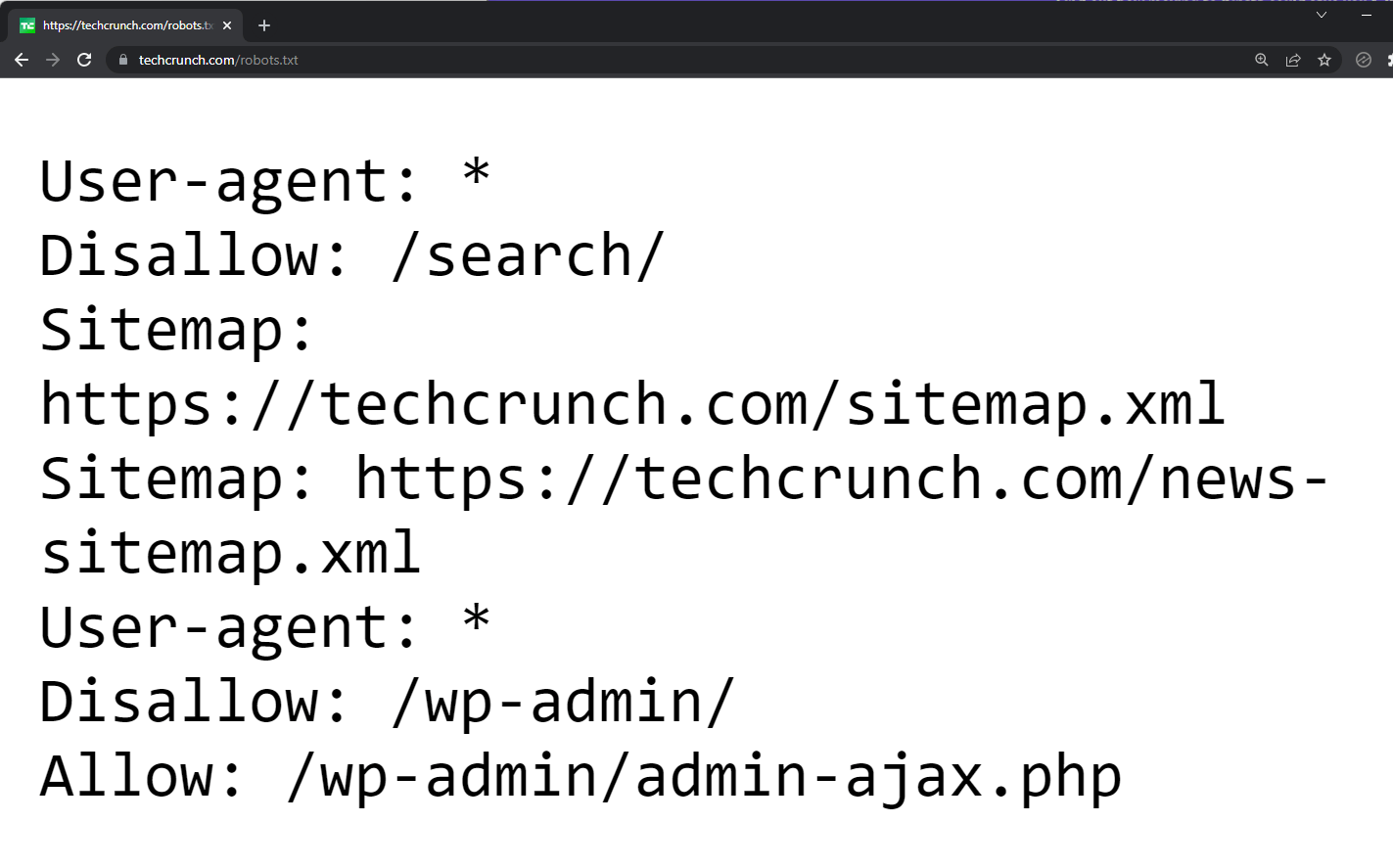
Credit: wordify.com
Tools For Managing Robots.txt
WordPress offers many plugins for editing robots.txt. These plugins are easy to use. Yoast SEO is a popular choice. It allows simple changes to robots.txt. All in One SEO is another great option. It helps you manage your site’s visibility. Rank Math also offers robots.txt features. It lets you control what search engines see. These plugins are available in the WordPress plugin directory. They are mostly free. Some offer premium features. They make your website management easy.
Online generators can also help with robots.txt. They are easy and fast. SEOBook is a helpful tool. It generates robots.txt for you. Google’s Robots.txt Generator is another option. It gives you a basic file. Robots.txt Generator by Small SEO Tools is user-friendly. You just input your needs. Then it makes the file. These tools help keep your site organized. They are great for beginners. No coding needed.
Testing And Verification
To make sure your robots.txt works, use Webmaster Tools. These tools help check if your site is safe from unwanted crawlers. They show which pages are blocked by robots.txt. Fix any mistakes found in the file. This step is crucial for keeping your site healthy. You want search engines to find your site easily. Use Webmaster Tools regularly for this.
Using Webmaster Tools
Webmaster Tools help manage your site. They give insights into how crawlers behave. Use them to spot problems early. This ensures smooth access for search engines. The tools will show if your robots.txt is correct. They provide ways to improve it. This helps your site rank better.
Monitoring Crawlers
Crawlers are like tiny robots. They explore your site for information. Monitoring them helps control what they see. You can block or allow them using robots.txt. It’s important to keep an eye on them. This ensures your site stays secure and performs well. Regular checks can prevent issues. Keep your site safe from unwanted visits.
Troubleshooting Issues
Robots.txt issues often cause trouble. You might see common errors in your file. One error is a missing slash after “Disallow.” Another is using wrong paths. These errors confuse search engines.
Sometimes, files are not saved correctly. Always check your file’s format. Mistakes can block important pages from search engines. This affects site traffic.
Access problems occur if robots.txt blocks necessary pages. Ensure that important URLs are not disallowed. Use the right syntax. Check for typos in your file. Correct spelling helps search engines.
Use tools to test your robots.txt file. These tools show you blocked pages. Fixing access problems improves website visibility. This is vital for attracting visitors.
Best Practices
It’s key to not block too many pages. Blocking everything can hide your site from search engines. Search engines help people find your site. Be careful with the robots.txt file. If you block important pages, people may not find them. Check your file often. Make sure only unimportant pages are blocked.
Keep your site easy to change. Sometimes, you want to show new pages. Allow search engines to see these new pages. Flexibility helps with this. If you block all pages, it can be hard to update your site. Make sure your robots.txt file allows changes. This way, you can add or remove pages easily. Keeping flexible rules helps your site grow.

Credit: www.youtube.com
Credit: aioseo.com
Frequently Asked Questions
What Is Robots.txt In WordPress?
Robots. txt is a file that guides search engines on which parts of your site to crawl. It helps manage web traffic and prevent overloading your server. In WordPress, you can customize this file to disallow or allow specific directories for search engines.
How Do I Disallow Directories In Robots.txt?
To disallow directories, add a line in your robots. txt file specifying “Disallow: /directory-name/”. This tells search engines not to crawl the specified directory. Make sure to replace “directory-name” with the actual name of the directory you wish to block.
Why Disallow WordPress Admin In Robots.txt?
Disallowing the WordPress admin area in robots. txt prevents search engines from indexing sensitive backend information. This helps in safeguarding your site’s privacy and security by keeping administrative pages hidden from search engine crawlers.
Can Robots.txt Improve Seo?
Yes, robots. txt can improve SEO by controlling search engine access. By blocking unnecessary or duplicate content, you help search engines focus on important pages. This can lead to a more efficient crawl and potentially improve your site’s search rankings.
Conclusion
Disallowing robots. txt in WordPress is crucial for site control. It helps manage search engine access to your site. Following the right directions ensures your content remains protected. Always review your settings carefully. Make adjustments as needed for your site’s needs.
Keep your site secure and optimized. This way, you maintain better control over your site’s visibility. Remember, a well-configured robots. txt file is key. It helps in managing how search engines interact with your website. Ensure regular checks and updates.
Your site’s performance will benefit from it. Stay informed and proactive in managing your site.


