
Have you ever found yourself wondering, “What version of WordPress do I have in 2018?” You’re not alone.
Knowing your WordPress version is crucial for maintaining a secure and efficient website. It can be the difference between smooth sailing and facing unexpected challenges. Imagine the peace of mind you’d feel knowing your site is up-to-date and secure. This article will guide you through the simple steps to check your WordPress version and explain why it’s so important.
Whether you’re a seasoned website owner or just getting started, we’ve got you covered. Stay tuned to discover how easy it is to keep your website in top shape!

Credit: core.trac.wordpress.org
Identifying Your WordPress Version
Click on your Dashboard. Look for the At a Glance box. Here, you can see your WordPress version.
The version number is at the bottom. It is easy to find. You do not need any special skills.
Open your site. Right-click anywhere. Click View Page Source.
Press Ctrl + F. Type “generator”. You will see a line with the version number. This is your WordPress version.
Using these steps, finding your version is simple. No need to worry. You can do it.
Using WordPress Admin Area
To find your WordPress version, first log into your admin area. This is also called the dashboard. You need your username and password. After logging in, you will see the dashboard. The dashboard shows all your site information. It is the heart of your website.
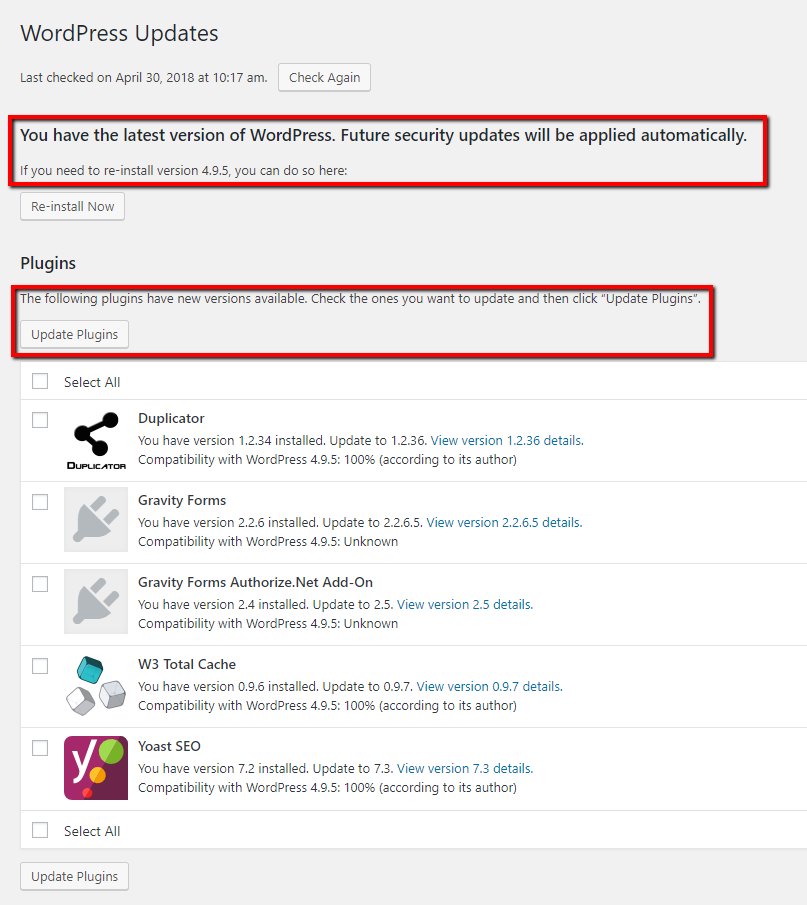
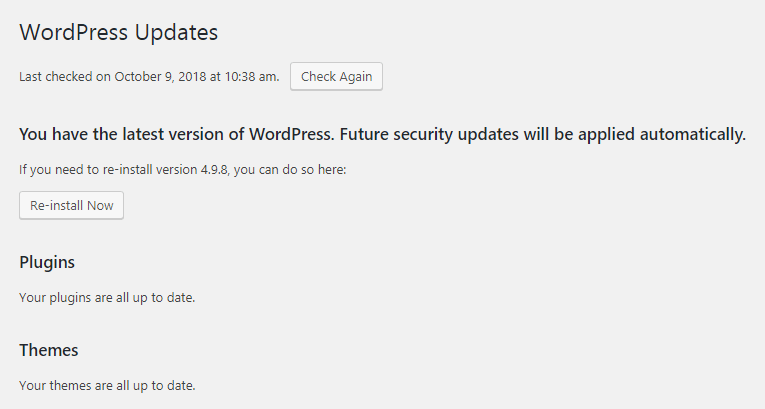
Look at the bottom right corner of the dashboard. You will see the WordPress version number there. If not, click on the “Updates” section. This is found in the left menu. Here, you can also see the version number. Knowing your version helps with updates and plugins. Keep your site safe and running well.
Checking Version Via Ftp
First, you need to use an FTP client like FileZilla. Open the client and enter your server’s details. These details include the host, username, and password. After entering them, click on Connect. You will then be connected to your server.
Once connected, navigate to the WordPress folder. Look for a folder named wp-includes. Open this folder. Find a file named version.php. Open this file using a text editor. You will see the WordPress version number. It is written as $wp_version. This is your current WordPress version.
Credit: www.theedigital.com
Utilizing Online Tools
Using free online checkers is easy. These tools help you find your WordPress version fast. Most of them are simple to use. Just enter your website URL. The tool does the rest. It checks your site and shows the version. No need to log into your dashboard. You can stay safe with these checks.
Online tools save you time and effort. They give quick answers. You don’t have to be a tech expert. Anyone can use them. Plus, they are free. This means no cost to you. Enjoy the peace of mind with these handy tools.
Reasons To Know Your WordPress Version
Security is vital for your website. Older versions may have weak spots. Hackers look for these to break in. New versions fix these security holes. Knowing your version helps keep your site safe. Updates can save your site from attacks. Check your version to stay secure.
Plugins and themes need the right version. Old versions might not work well. New features may not show properly. Updates help plugins function smoothly. Know your version for best performance. Compatibility ensures everything runs as it should. Avoid problems with the right WordPress version.
Updating Your WordPress Version
Discovering your WordPress version helps keep your site secure. Navigate to your dashboard, then click on “Updates”. There, the current version appears at the top.
Importance Of Updates
Updates keep your WordPress site safe from hackers. They fix bugs that can cause problems. New features make your site better. Updates also improve speed and performance. Your site will run smoother with each update. They are important for security and functionality.
Steps To Update
- First, back up your website. This keeps your data safe.
- Next, go to your WordPress dashboard. It’s the main control panel.
- Look for the Update Now button. Click it to start.
- Wait while WordPress updates. This may take a few minutes.
- Check your site after the update. Make sure everything works.
- If there are problems, restore your backup. Try updating again.
Credit: www.awardspace.com
Frequently Asked Questions
How Do I Check My WordPress Version 2018?
To find your WordPress version in 2018, log into your dashboard. Look at the bottom right corner for the version number. Alternatively, you can check the “wp-includes/version. php” file using an FTP client for the exact version.
Why Is Knowing My WordPress Version Important?
Knowing your WordPress version helps ensure your site is secure and up-to-date. Updates often include security patches and new features. Running an outdated version can make your site vulnerable to attacks and compatibility issues.
Can I Update WordPress From An Older Version?
Yes, you can update WordPress from an older version. It’s crucial to back up your site first. Use the one-click update feature in your dashboard for a seamless process. This ensures you have the latest features and security patches.
What If My WordPress Version Is Outdated?
If your WordPress version is outdated, update it immediately. Outdated versions are prone to security vulnerabilities. Regular updates keep your site secure and compatible with plugins. Always back up your site before making any updates.
Conclusion
Identifying your WordPress version is crucial for security and updates. Regular checks help maintain your site’s performance. You can find your version through the dashboard or file manager. Keeping WordPress updated prevents security risks and ensures compatibility. Consider installing plugins for automatic updates.
Always back up your site before making changes. This ensures you can restore it if needed. A well-maintained WordPress site supports your online goals. So, stay informed and keep your WordPress current. It benefits both you and your visitors. Happy blogging!


