
Imagine crafting the perfect blog post, only to find out your readers are seeing it hours after you intended. Frustrating, right?
If you’re wondering, “What time zone is my WordPress site using? ” You’re not alone. Time zones can be tricky, but they play a crucial role in ensuring your content reaches your audience at the right moment. Knowing the time zone settings on your WordPress site can make a world of difference in your publishing strategy.
In this post, you’ll discover how to check and adjust these settings so your posts go live exactly when you want them to. Get ready to take control of your site’s timing, enhancing your readers’ experience and boosting your engagement like never before. Don’t miss out on this essential guide!
Understanding Time Zones In WordPress
Setting the right time zone is crucial for your WordPress site. It affects when posts appear online. Scheduled posts might not publish at the right time. Readers expect content on time. They might miss important updates if time zones are wrong.
Global visitors check your site at different times. Correct settings help them see updates on time. Website analytics are also affected. You need accurate data to understand visitor behavior. Wrong time zones can confuse this data.
Time zone settings impact post scheduling. You plan posts for future dates. Wrong settings can delay or advance these posts. Comments might show wrong times too. This can confuse conversations. Accurate settings ensure proper publication times. This maintains trust with your audience.
Your site runs smoothly with correct time zones. Visitors get information when expected. You avoid publishing errors and maintain credibility. Proper settings are easy to fix. Check your WordPress settings for accuracy.
Credit: www.inmotionhosting.com
Checking Your Site’s Time Zone
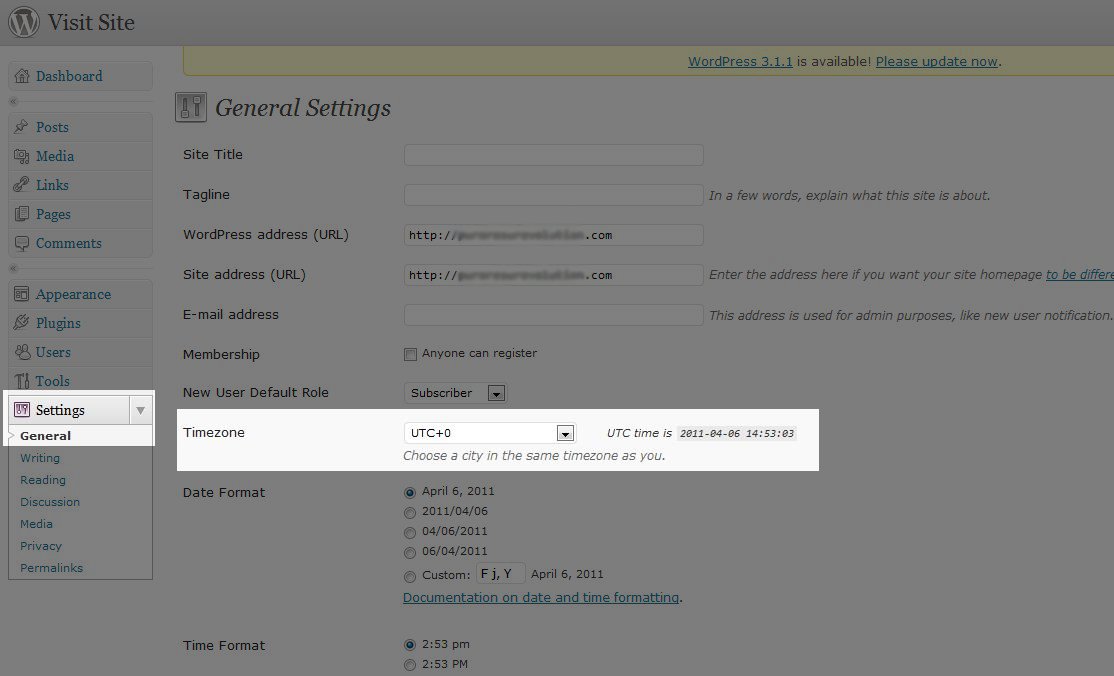
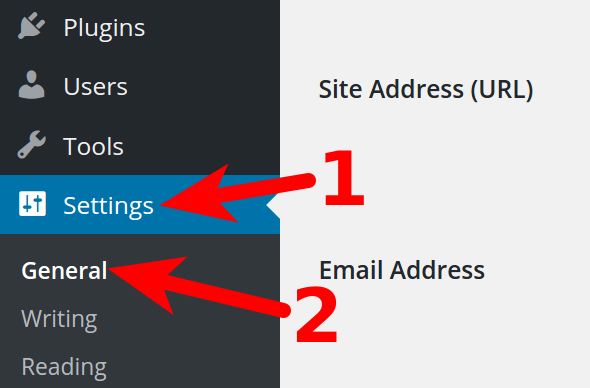
Start by visiting your WordPress dashboard. Look for the Settings menu on the left side. Click on it. A drop-down menu will appear. Choose General. This will take you to the settings page.
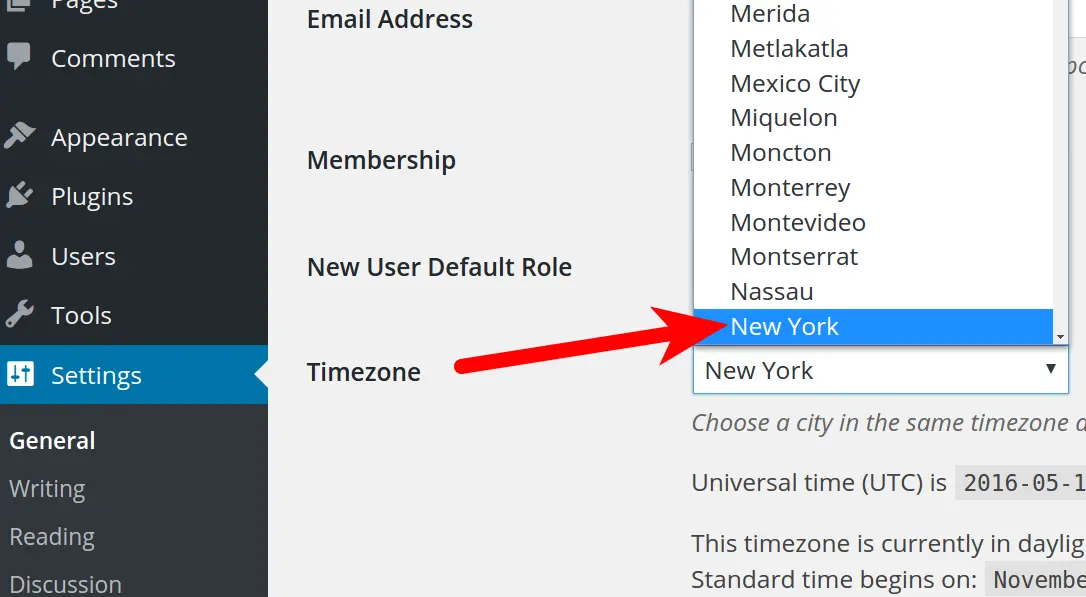
Scroll down the General settings page. Find the Time Zone section. You will see a list of cities. These represent different time zones. Select the city closest to your location. If unsure, pick the city with your current time. This ensures your site shows the right time.
Changing Time Zone Settings
First, go to your WordPress dashboard. Find the Settings option. Click it. Then, choose General. Look for the Time Zone section. Here, you can change the time zone. Choose the city that matches your zone. You can also pick a UTC time. Make sure to save your changes. Now, your site has the right time zone. It is easy to update if needed.
Picking the right time zone is key. It helps with post scheduling. Your readers will see the correct time. Choose the city closest to you. This ensures accuracy. If unsure, check online for your correct zone. You want to keep your site organized. A correct time zone helps with this.
Common Issues With Time Zone Settings
Sometimes, your WordPress site shows the wrong time. This can confuse users. The time may not match your local time. This is a common issue. It can affect your site’s schedule. Posts may publish at unexpected times. Also, events might show incorrect times. It’s important to check your time zone settings. Fixing this can help avoid confusion.
Go to your WordPress dashboard. Find “Settings” and click on “General.” Look for the time zone settings. Choose the correct time zone for your area. Save your changes. This should fix most issues. If problems persist, check your server settings. Contact your hosting provider for help. They can guide you in fixing server-related time zone issues. Keeping your time zone correct ensures smooth operations.
Implications Of Time Zone Changes
Scheduled posts might appear at unexpected times. Time zone changes can confuse readers. They may miss important updates. Posts set for future dates might show up early. They could also appear later than planned. This affects your site’s reliability. Readers trust your timing. Consistency matters for engagement. Check the time zone settings. Ensure everything aligns as intended. Regular checks prevent mishaps. These help maintain your site’s integrity.
Plugins need correct time settings to work well. Some plugins rely heavily on time data. Wrong time zones can cause errors. Features might not work as expected. This affects user experience negatively. Plugin updates may become necessary. Developers fix issues related to time zones. Keep plugins updated regularly. Stay informed about any changes. This ensures smooth functionality. Your site remains efficient and effective.
Credit: www.webhostinghub.com
Best Practices For Time Zone Management
Discovering the time zone settings in WordPress is crucial for accurate scheduling. Navigate to the dashboard, select “Settings,” then “General. ” Check the “Timezone” section to ensure correct date and time display on your site. This practice helps in managing global content effectively.
Regularly Reviewing Time Zone Settings
Regular checks on your site’s time zone are important. Ensure accuracy by going to your settings. Time zones can affect your site’s content scheduling. Wrong settings may confuse readers. Adjusting settings is simple. It helps keep everything on track. Remember to review settings after updates. This keeps your site running smoothly.
Utilizing Plugins For Enhanced Management
Plugins can help with time zone tasks. They are easy to use. Popular plugins offer many features. They can automate time zone settings. Some plugins send reminders. Others can adjust time zones by location. Choose plugins that fit your needs. This makes managing time easier. It also helps avoid errors. Always check plugin reviews. This ensures you pick the right one.
Credit: www.inmotionhosting.com
Frequently Asked Questions
How Do I Check My WordPress Site’s Time Zone?
You can check your WordPress site’s time zone by navigating to the Settings menu. Under ‘General’, you’ll find the ‘Timezone’ setting where the current time zone is displayed. Adjust it as needed to match your desired location.
Can I Change The Time Zone In WordPress?
Yes, you can change the time zone in WordPress. Go to Settings, then General. There, you’ll find the Timezone option. You can select your preferred time zone from the dropdown list. This ensures your site’s timestamps match your local time.
Why Is The WordPress Time Zone Important?
The WordPress time zone is important for accurately displaying timestamps on posts and pages. It affects scheduled posts, comments, and other time-sensitive elements. Ensuring the correct time zone helps maintain consistency and reliability on your website.
Does Changing Time Zone Affect My Site’s Content?
Changing the time zone doesn’t affect your site’s content directly. However, timestamps on posts, comments, and scheduled tasks might differ. It’s important to update the time zone to reflect accurate timing for your audience.
Conclusion
Understanding your WordPress site’s time zone is crucial. It impacts scheduling and post timing. Incorrect settings can cause confusion. Ensure your settings reflect your desired time zone. Check your WordPress dashboard for easy adjustments. Always verify after changes. This ensures accuracy for future posts.
A correct time zone setting aids in consistent content delivery. Stay mindful of global audience timing. Adapt as needed to maintain engagement. Explore plugins if deeper customization is necessary. Keep your site aligned with your goals. Consistency is key for successful blogging.
Happy blogging with the right time zone!


