
Are you struggling to keep your WordPress site secure and running smoothly? Understanding the right permissions for your WordPress folders is crucial.
Imagine your site as a house; if the doors and windows aren’t properly locked, anyone can wander in. The same goes for your WordPress folders. With the correct settings, you can protect your site from hackers and ensure everything functions as it should.
We’ll unravel the mystery of WordPress folder permissions, empowering you to safeguard your online presence. Ready to take control of your website’s security and performance? Let’s dive in!
Credit: quadlayers.com
WordPress File Permissions
Correct file permissions keep your WordPress site safe. They stop unauthorized access. They prevent malicious attacks. Permissions protect important files. Your site stays secure. Wrong permissions can cause errors. Files may become unreadable. Pages might not load. Security is at risk. Regular checks are important. Permissions need to be updated. This keeps your site running smoothly.
| File Type | Permission Setting |
|---|---|
| Files | 644 |
| Directories | 755 |
Files should have 644 permissions. This means files are readable and writable by the owner. Others can only read. Directories should have 755 permissions. The owner can read, write, and execute. Others can read and execute. These settings help keep your site secure and functional.
Directory Permissions
Setting the right permissions is key for security. WordPress folders need careful settings. The recommended setting for directories is 755. This means the owner has full rights. Others can read and execute. This keeps your site safe.
The wp-content folder holds important files. Themes, plugins, and uploads go here. Use 755 permissions for this folder. Keep it safe from unwanted changes. Only the site owner should make changes. This helps protect your site from harm.
File Permissions
File permissions are important. They keep your website safe. Correct settings stop bad access. They also ensure smooth running of your site.
Files need safe settings. Use 644 for most files. It lets the owner read and write. Others can only read. Folders need different settings. Use 755 for folders. This allows listing and entering.
Some files are sensitive. Protect them well. The wp-config.php file is crucial. It holds database details. Use 600 for this file. It stops others from reading or writing. This keeps your data safe.
Role Of .htaccess
.htaccess is a small but mighty file. It keeps your website safe. It sets rules for your server. These rules guide how visitors see your site. They protect important files. They manage who can access your website.
Configuring .htaccess For Security
Configuring .htaccess boosts security. It blocks unwanted visitors. It stops hackers. It hides files from strangers. It prevents hotlinking. Hotlinking steals your site’s bandwidth. Blocking it saves resources. This file restricts IP addresses. Only trusted ones can access. It helps keep your site safe.
Common .htaccess Rules
- Redirects: Send visitors to new pages.
- Custom error pages: Show friendly messages.
- Blocking IPs: Stop bad visitors.
- Prevent directory browsing: Hide files from view.
- Limit access: Control who sees your site.
Hosting Environment Impact
Shared hosting means many websites on one server. Security risks are higher here. Files need correct permissions to stay safe. Folders should be set to 755. This keeps them readable and executable but not writable by others. File permissions should be 644. This allows reading but restricts writing.
VPS and dedicated servers offer better control. Users can set custom permissions. Folders may use 750 settings. This gives owners more power. Files might use 640 settings. It’s crucial to keep things secure. Control helps in managing security better. Always monitor settings. Ensure proper permissions.
Credit: bookzoompa.wordpress.com
Tools For Permission Management
WordPress folders should have specific permissions for security. The ‘wp-content’ folder typically needs 755 permission. This setting allows user access while restricting unauthorized changes.
Using Ftp For Adjustments
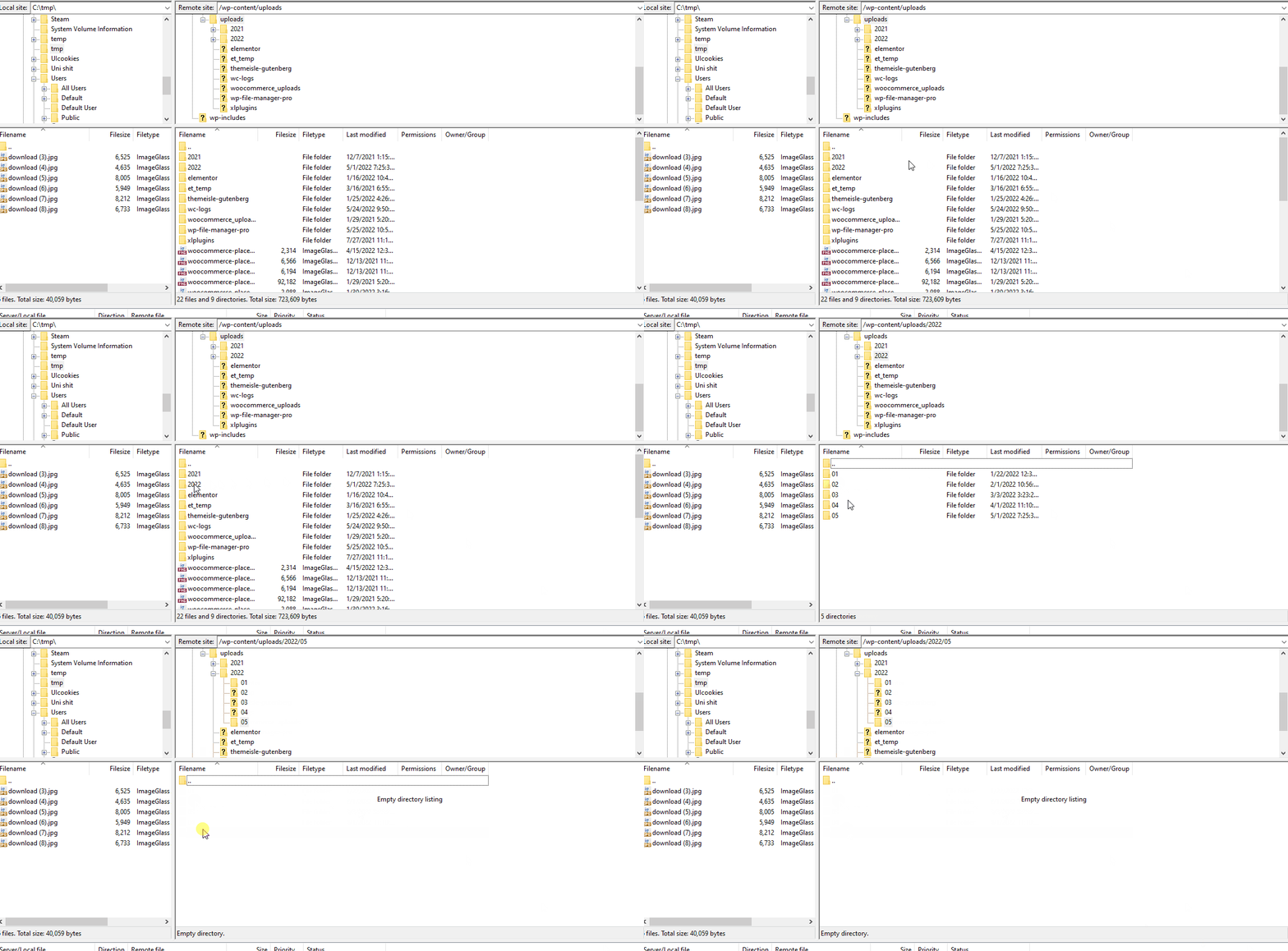
File Transfer Protocol (FTP) helps change folder permissions easily. Connect to your server using an FTP client. Popular clients include FileZilla or Cyberduck. Right-click on the WordPress folder. Choose “Permissions” or “Attributes.” A window appears. It shows numeric values or checkboxes. Adjust these to change permissions. For WordPress folders, set permissions to 755. This ensures security and functionality. Files inside should have 644 permissions. This prevents unauthorized access. Always double-check settings. Mistakes can cause issues.
Command Line Approaches
Command Line Interface (CLI) is another method. It requires basic coding knowledge. Open your terminal or command prompt. Navigate to your WordPress directory. Use the chmod command to adjust permissions. Type chmod 755 /path/to/your/folder. This sets folder permissions correctly. For files, use chmod 644 /path/to/your/files. Be careful with commands. Incorrect usage can break your site. Always backup your site before making changes. This prevents data loss.
Troubleshooting Permission Issues
Websites can face permission issues often. Files might not load correctly. This happens when permissions are too strict or too loose. Users might see errors instead of content. Sometimes, plugins won’t work. Or themes won’t update. Check file and folder settings. They should not be mismatched. Permissions often need a balance. Too open can be risky. Too tight can cause problems.
First, check the error logs. They give clues. Next, adjust permissions to 644 for files. Folders should be 755. This is a common fix. Then, see if the problem is gone. If not, check user roles. Sometimes, roles need reviewing. Test changes on a small scale first. This avoids big issues. Always backup before major changes. Safety first. Lastly, ask for help if needed. Experts can guide you.
Best Practices
Every WordPress folder must have the right permissions. It keeps your site safe. Regular audits help ensure these permissions stay correct. Check permissions often to find any changes. This can stop hackers from getting in.
Stay informed on security updates to protect your site. New threats appear often. Updates fix these problems. Always update your WordPress site and plugins. This keeps your site secure. It is a simple yet vital task.
Credit: www.codester.com
Frequently Asked Questions
What Permissions Should WordPress Folders Have?
WordPress folders should generally have permissions set to 755. This ensures they are readable and executable by the server. It also protects against unauthorized changes. Keeping these permissions helps maintain the security and functionality of your WordPress site.
How Do I Change WordPress Folder Permissions?
You can change folder permissions using FTP or your hosting control panel. Locate the folder, right-click, and select ‘Permissions’ or ‘Attributes. ‘ Set it to 755 for folders. This helps secure your site while allowing necessary server access.
Why Is Folder Permission Important In WordPress?
Folder permissions are crucial for security and functionality. Incorrect settings can lead to vulnerabilities or functionality issues. Proper permissions prevent unauthorized access, ensuring your site remains secure and operational. Regularly checking permissions helps maintain site integrity.
Can Wrong Permissions Affect WordPress Performance?
Yes, incorrect permissions can hinder WordPress performance. They can cause errors or prevent access to necessary files. Proper settings ensure smooth operation and reduce security risks. Regularly verifying permissions can help maintain optimal site performance.
Conclusion
Understanding WordPress folder rights is crucial for site security. Proper permissions protect your files from unauthorized access. Set directories to 755 and files to 644 for safety. These settings maintain a balance between functionality and protection. Regularly check and update permissions to prevent vulnerabilities.
Ignoring this step can lead to security breaches. Keep your WordPress site secure by following these guidelines. A secure site ensures a smooth user experience. Always prioritize safety over convenience. Your site’s health depends on these configurations. Stay informed and protect your digital space effectively.


