
You’ve just installed a shiny new plugin on your WordPress site, and suddenly, things start to slow down. Pages take forever to load, and you’re left wondering if you’ve made a mistake.
Sound familiar? You’re not alone. One of the most common issues WordPress users face is setting the right memory limit. Too low, and your site could crawl to a halt; too high, and you could be wasting valuable resources. But what should your memory limit actually be?
In this blog post, we’ll break down the mystery of WordPress memory limits, helping you optimize your site for better performance and a smoother user experience. Stay with us, because the solution might be simpler than you think, and it could make all the difference for your website.
Credit: support.undsgn.com
Memory Limit Basics
Determining the ideal memory limit for a WordPress site is crucial for smooth performance. A typical limit ranges from 128MB to 256MB, depending on your site’s size and plugins. Adjust according to your hosting plan and site’s needs to ensure optimal functionality.
Importance Of Memory Limit
Memory limit is crucial for your WordPress site. It affects how smoothly your site runs. A low memory limit may slow down your site. Users might face loading issues. Increasing memory can improve site performance. It helps handle more visitors. It supports plugins and themes better. A good memory limit ensures stability. It reduces errors and crashes. Your site stays responsive.
Common Default Settings
WordPress often sets a default memory limit. This is usually 40MB or 64MB. Some sites need more memory. Complex sites may require 128MB or even 256MB. Check your current memory limit. Adjust it based on your site needs. More memory helps manage larger sites. It supports complex themes and plugins. Always test after changing memory settings. Ensure your site runs smoothly.
Factors Affecting Memory Limit
More visitors need more memory. High traffic sites often slow down. Ensure enough memory to handle all visitors.
Plugins need memory. Some plugins use more than others. Limit plugins for better speed.
Complex themes need more memory. Simple themes work faster. Choose themes wisely for better performance.
Images and videos require memory. Large files can slow the site. Optimize media for quicker loading.
Recommended Memory Limits
Determining the right memory limit for a WordPress site is crucial. Typically, a 128 MB limit is sufficient. Complex sites may require more, like 256 MB, for better performance.
Small Websites
Small websites need less memory. 32MB is often enough. These sites have fewer plugins. They also have low traffic. Less memory keeps them fast. Avoid too many images. It saves memory.
Medium Websites
Medium websites need more power. 64MB is a good choice. They have more plugins. Medium traffic needs more memory. It keeps the site working well. Optimize images for speed. It’s very important.
Large Websites
Large websites require 128MB or more. Many plugins are used here. High traffic needs extra memory. Helps site run smoothly. Large images need memory. Optimize them for best results. Keep the site efficient.
Increasing Memory Limit
Open the wp-config.php file. Find the line that says define('WP_MEMORY_LIMIT'). Change the value to 256M or more. Save the file and check your site. This can help improve site speed.
Locate the php.ini file in your server. Find the line called memory_limit. Change it to 256M or more. This will increase the memory for all PHP scripts. Save the changes and restart your server. This makes your site work better.
Call your hosting provider for help. They can increase the memory limit for you. Tell them your site needs more memory. They will know what to do. This is a good option if you are unsure.
Monitoring Memory Usage
WordPress offers many tools to check memory use. Plugins like WP Memory Usage help. They show how much memory your site uses. These tools give real-time data. Real-time data helps in quick decisions.
Another helpful tool is Query Monitor. It finds problems in themes and plugins. This ensures memory is used well. Good memory use means a fast site. A fast site makes users happy.
Memory affects site speed. Slow sites can lose visitors. Plugins can help check this. P3 Plugin Profiler shows which plugins slow the site. Removing slow plugins can help. This way, your site runs better.
Check memory often. Regular checks find problems early. Fixing them keeps your site running well. A well-running site is important for users.
Credit: www.hostinger.com
Troubleshooting Memory Issues
Many WordPress users see the “Allowed memory size exhausted” error. This means your site needs more memory. Another common message is “Fatal error: Out of memory”. This shows your site cannot handle the task. These errors can stop your site from working.
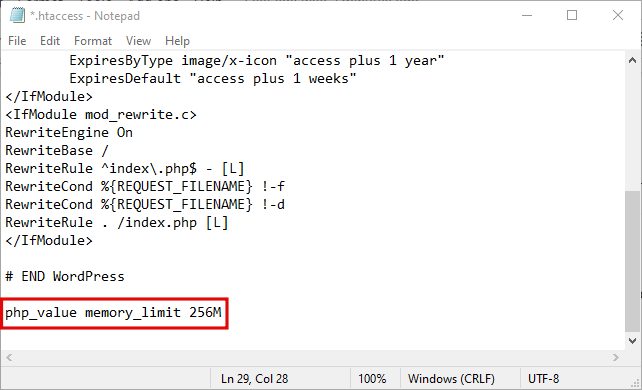
First, check your current memory limit in the wp-config.php file. Look for define(‘WP_MEMORY_LIMIT’, ‘xxM’). Increase this number to 128M or 256M. Next, go to your hosting control panel. Look for PHP settings and increase memory there. If these steps do not work, contact your host provider. They can help with server settings.

Credit: melapress.com
Frequently Asked Questions
What Is The Default Memory Limit For WordPress?
The default memory limit for WordPress is typically set at 32MB. However, this may vary depending on your hosting provider. Increasing the memory limit can enhance site performance, especially for larger sites or those with many plugins. Always check your hosting plan and adjust accordingly for optimal performance.
How Can I Increase WordPress Memory Limit?
To increase the WordPress memory limit, edit the wp-config. php file. Add the line `define(‘WP_MEMORY_LIMIT’, ‘128M’);`. This sets the memory limit to 128MB. Ensure your hosting plan supports this limit. Consult your host’s documentation or support for specific instructions and limitations.
Does Higher Memory Limit Improve WordPress Speed?
A higher memory limit can improve WordPress speed, especially for resource-intensive sites. It allows for smoother plugin and theme operation. However, it’s not the only factor. Optimize images, use caching, and choose efficient plugins for better performance. Regular updates and maintenance also contribute to faster site speed.
What Risks Come With Increasing Memory Limit?
Increasing memory limit can lead to higher resource usage and potential server strain. It might affect overall site performance if not managed well. Ensure your hosting plan can handle increased memory demands. Monitor site performance and consult with your hosting provider to mitigate risks.
Conclusion
Choosing the right memory limit boosts your WordPress site’s performance. It prevents slowdowns and errors. A good memory limit ensures smooth operations. Users enjoy a better experience. Increasing memory is often necessary for complex sites. But don’t exceed your server’s capacity.
Check your hosting plan’s limits first. Always monitor your site’s performance. Adjustments might be needed over time. Stay informed about updates and best practices. This helps maintain an efficient website. Your site’s success depends on optimal settings. Happy website management!


