
Ever found yourself scrolling through a blog post and suddenly stopping in your tracks because of a captivating image? That’s the magic of an inline image in WordPress.
It’s a simple tool that can transform your content from bland to brilliant, keeping your readers hooked. Imagine having the power to draw your audience’s eyes exactly where you want them, enhancing their experience and understanding with just a picture.
Curious to learn how you can leverage this feature to make your posts more engaging and visually appealing? Stick around, because this guide is about to reveal everything you need to know about using inline images in WordPress to captivate your audience and make your content pop.

Credit: www.youtube.com
Inline Images Basics
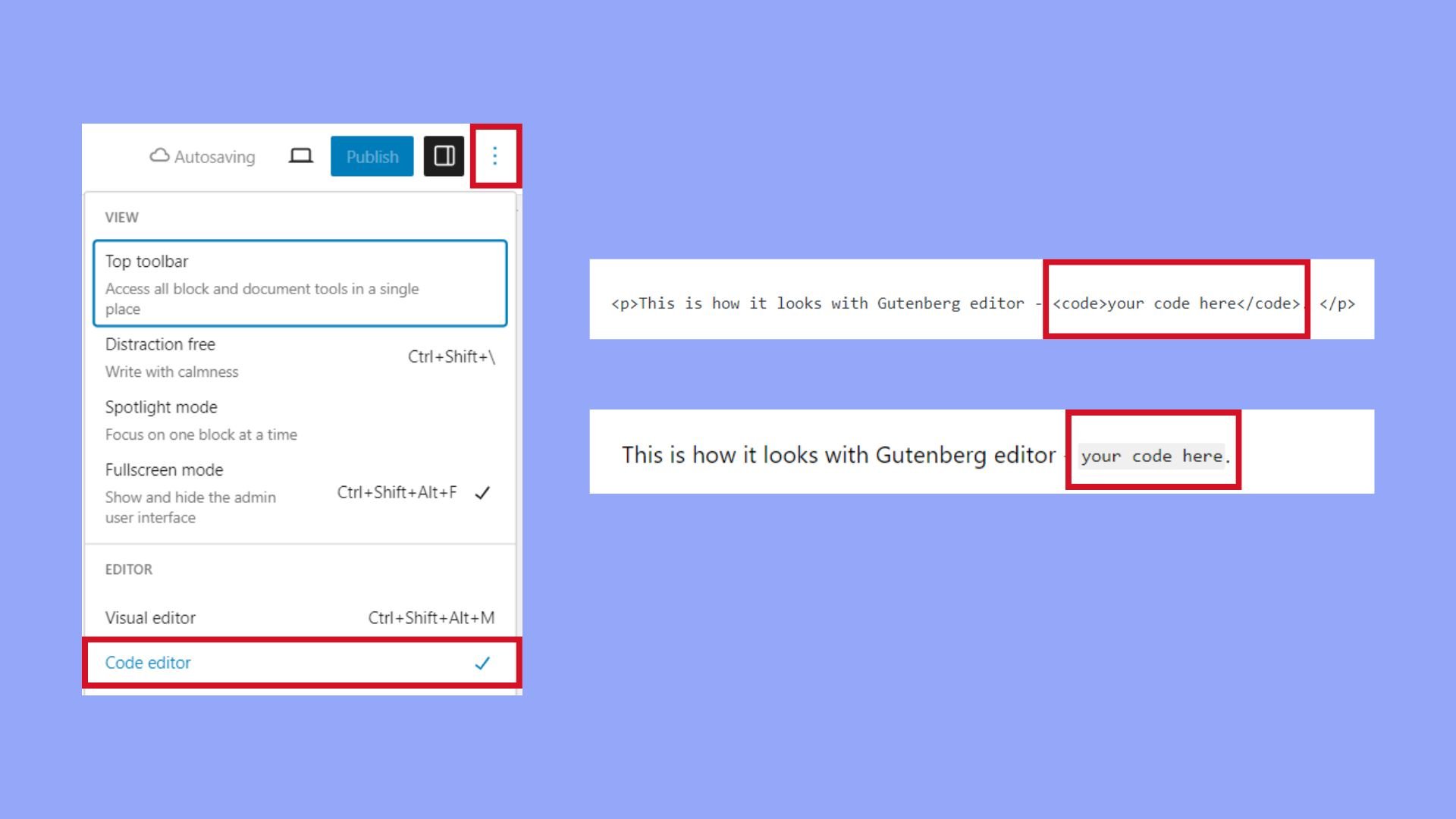
Inline images are pictures placed in the middle of text. They make the text look nice and clear. These images help to show ideas better. Adding images makes reading fun. Readers stay interested longer. They are part of the post. They are not separate. This is different from featured images.
Featured images are special. They sit at the top. They are like a cover for the post. They don’t mix with the text. They catch the reader’s eyes first. They are not part of the text. They just introduce the topic. Inline images, on the other hand, fit into the story. They explain points in the text. Both have special jobs.
Credit: 10web.io
Benefits Of Using Inline Images
Enhanced Visual Appeal makes your content look better. People love colors and pictures. Images catch the eye. They draw readers in. Inline images break up long text. They make reading easier.
Improved Content Engagement is key. Pictures tell stories. They explain ideas quickly. Readers stay longer with images. They scroll less. Images help understanding. Visuals make things clear.
SEO Advantages are important. Search engines like images. They rank pages higher. Use alt text for images. It helps search engines. Better ranking means more visitors. Inline images boost SEO.
Adding Inline Images In WordPress
Adding images can make a post look nice. Use the WordPress Editor to do this. Find the plus sign to add a new block. Choose the Image Block. It is easy and quick.
Click on the image block. Now, choose to upload an image. Pick a picture from your computer. Wait for the upload to finish. It is fun to see your image in the post.
Click on the image to see options. You can change the size of the image. Drag the corners to resize. Align the image to the left, center, or right. It makes your post look neat.
Best Practices For Inline Images
Inline images in WordPress are pictures placed within the text of a post or page. These images help break up text and make content engaging. Using descriptive alt text and optimized file sizes ensures better loading times and accessibility.
Optimizing Image Quality
High-quality images look great on your site. Use clear and sharp pictures. Avoid blurriness. Choose the right file format. JPEGs are good for photos. PNGs work for graphics. Keep images under 500KB to load fast. Use tools to compress images without losing quality. This helps your page load faster.
Ensuring Mobile Responsiveness
Many people use phones to browse. Images must fit all screens. Use responsive design techniques. CSS can help. Set image widths in percentages. This makes images adapt to screen sizes. Test images on different devices. Make sure they look good.
Using Captions And Alt Text
Captions explain images. They help users understand pictures. Keep captions short and clear. Alt text is for screen readers. It describes images for the visually impaired. Use simple words. Describe the main part of the image. Good alt text also helps with SEO. It makes your site more visible.
Common Issues And Solutions
Inline images in WordPress often cause alignment issues, disrupting content flow. Adjust image size and alignment settings to improve layout. Use the media library to easily manage and insert images directly into posts, ensuring a seamless visual experience.
Image Formatting Problems
Images might not look good on WordPress. Alignment can be off. Size might be wrong. Pictures might not fit well. To fix this, check your image settings. Use WordPress tools to adjust size and alignment. Make sure images are in the right format. JPG, PNG, or GIF work best. Wrong formats cause trouble. Resize images before uploading. Use simple tools online.
Troubleshooting Image Upload Errors
Sometimes, images don’t upload. This is frustrating. File size can be too big. WordPress has limits. Check file size before uploading. Internet connection can be weak. Try again with a strong connection. File type matters too. Use allowed formats like JPG or PNG. Permissions can block uploads. Check WordPress settings. Fix permissions if needed. Images should upload smoothly.
Plugins For Managing Inline Images
Inline images in WordPress are pictures placed directly within text blocks. These enhance content by breaking up large text sections, making articles more visually appealing. Plugins simplify the management of these images, ensuring they display correctly and fit seamlessly with the content layout.
Popular Plugins Overview
Plugins help add and manage inline images in WordPress. They offer easy-to-use features for users. Some plugins allow you to drag and drop images. Others provide extra tools to edit and resize images quickly. Here is a table showing some popular plugins:
| Plugin Name | Main Feature |
|---|---|
| Smash Balloon | Displays Instagram photos |
| Envira Gallery | Creates stunning photo galleries |
| NextGEN Gallery | Offers robust gallery management |
Choosing The Right Plugin
Selecting the right plugin can be important. Look for plugins that are user-friendly. Make sure they have good reviews. Check if they are updated regularly. A good plugin makes work easier. It improves your website’s look. Choose wisely for the best results.
Credit: fluentforms.com
Frequently Asked Questions
What Is An Inline Image In WordPress?
An inline image in WordPress is an image inserted directly within the text content. It enhances readability and engagement by visually breaking up text. Inline images are typically used to illustrate points or provide examples related to the surrounding content.
How Do I Add Inline Images In WordPress?
To add inline images in WordPress, use the media library. Click the ‘Add Media’ button in the editor to upload or select images. After choosing, insert the image into your post or page where you want it inline with the text.
Why Use Inline Images On WordPress Posts?
Inline images improve content by adding visual interest and clarity. They help illustrate concepts, making posts more engaging and easier to understand. Properly placed images can attract attention and keep readers engaged longer.
Can Inline Images Affect Seo In WordPress?
Yes, inline images can impact SEO positively when optimized. Use relevant alt text, descriptive filenames, and proper sizing. Optimized images improve user experience and can enhance search rankings by making content more appealing and accessible.
Conclusion
Inline images in WordPress enhance your blog’s visual appeal. They make content more engaging. Readers interact better with images. They break text monotony. Easy to insert and customize. Add depth to your posts. Use them wisely for clarity. Avoid cluttering your page.
Optimize images for faster loading. Boosts user experience. Inline images enrich storytelling. They create a more dynamic blog atmosphere. Explore different styles and layouts. Improve your content strategy. Keep it simple, effective, and visually pleasing. Your blog can stand out with thoughtful image placement.
Enhance reader engagement with well-placed visuals.


