
Have you ever wondered how to make your WordPress posts look exactly the way you envision them while editing? Enter the realm of Editor Style in WordPress—a powerful tool that can transform your editing experience.
Imagine crafting your content with the confidence that what you see is truly what you get. With Editor Style, you can align your editing view with the final look of your website, making the design process smoother and more intuitive.
In this blog post, we will demystify what Editor Style is and how it can revolutionize your content creation process. Whether you’re a blogger, developer, or business owner, understanding this feature can save you time and enhance your site’s visual consistency. Get ready to discover how Editor Style can be the secret weapon in your WordPress toolkit. Keep reading to unlock the full potential of your website’s content presentation.
Editor Style Basics
Editor Style helps in designing the content you see while editing. It makes sure the content looks the same in the editor and on the website. This feature is part of WordPress. It helps you to create better designs.
It gives a consistent look to your pages. You can see the real style before you publish. This makes editing easy and fun. No surprises when you go live. It saves time and effort for everyone.
Use a theme that supports Editor Style. Some themes come with this feature. You might need to add a CSS file. This file tells the editor what styles to use. Follow the theme’s instructions to set it up.
Importance Of Editor Style
Editor Style is very important in WordPress. It helps you make your blog look good. You can see how your text will look on the site. This makes writing easy and fun. With Editor Style, you can change fonts. You can also adjust colors and styles. This helps in keeping the design consistent. It saves a lot of time. No need to switch between editor and preview.
Your posts will look neat. Readers will find it easy to read. This makes your site more attractive. People will like to visit again. Editor Style is a great tool. It makes blogging simple. Use it to make your blog shine.
Integrating Custom Styles
Custom CSS makes your site unique. It changes the look. Add CSS in the WordPress editor. Go to Appearance and click Customize. Find the Additional CSS option. Paste your CSS code there. Save changes to see results.
Functions.php lets you add styles easily. Open your theme folder. Find the functions.php file. Add your CSS code. Use wp_enqueue_style() to link styles. This method keeps your code neat. It’s safe and works well.
Editor Style Vs. Frontend Style
Editor style and frontend style are different in WordPress. The editor style changes how the text looks in the WordPress editor. This helps writers see their content as it will appear. The frontend style affects how content looks to visitors. Both styles serve different purposes.
The editor style lets writers preview their work. This makes editing easier. The frontend style ensures a good user experience. It makes the site look nice for visitors. Both styles must work well together. This balance makes a site look great and is easy to use.
Best Practices
Editor Style in WordPress ensures content looks consistent during editing. This feature matches editor visuals with the theme’s design. It aids users in crafting posts that seamlessly blend with the final website appearance.
Consistency Across Platforms
Consistency is key in design. Styles must match across devices. Users get confused by different looks. Keep fonts and colors the same. Branding stays strong with uniformity. Make sure images fit all screens. Check that buttons work everywhere. Consistent design builds trust. Users feel more comfortable.
Testing And Optimization
Testing ensures styles look good. Try them on different devices. Fix any problems you find. Test on browsers like Chrome and Firefox. Optimize for speed. Slow sites lose visitors. Quick loading keeps users happy. Check mobile and desktop views. Make changes for best performance. Regular testing helps maintain quality.

Credit: wordpress.org
Common Issues And Solutions
Editor style in WordPress defines how content appears in the editor. Common issues include mismatched fonts and layout inconsistencies. Solutions involve updating theme editor styles and ensuring compatibility with page builders for a seamless editing experience.
Style Conflicts
Many themes have their own styles. These styles can clash with the editor styles. Conflicts can change the look of your editor. They make editing hard and confusing. Use custom CSS to fix conflicts. Add CSS to the theme or child theme. This keeps the editor looking right. Check style changes often. This ensures everything looks as it should.
Responsive Design Challenges
Responsive design keeps your site looking good on all devices. Sometimes, editor styles don’t adjust well. This can cause issues on mobile devices. Use media queries to fix this. Media queries help styles fit different screens. Check the editor on various devices. Make sure it looks and works well everywhere.
Tools And Resources
Plugins help change the look of the WordPress editor. Gutenberg is a popular plugin. It makes editing easy. TinyMCE Advanced adds more buttons to the editor. This makes writing fun. Advanced Editor Tools offers extra features. They make editing simple. Yoast SEO helps with writing. It checks grammar and more. These plugins are easy to install. You can find them in the WordPress store. Choose the one that suits you best. Enjoy writing with these tools!
Many online guides teach about editor style. YouTube has many videos. They show step-by-step how to use plugins. Blogs also offer tips. They help with writing. WordPress’s own site has a help section. It answers many questions. Forums let you ask others for help. They are a good place to learn. Check these resources often. They keep your skills sharp. Start exploring and have fun learning!
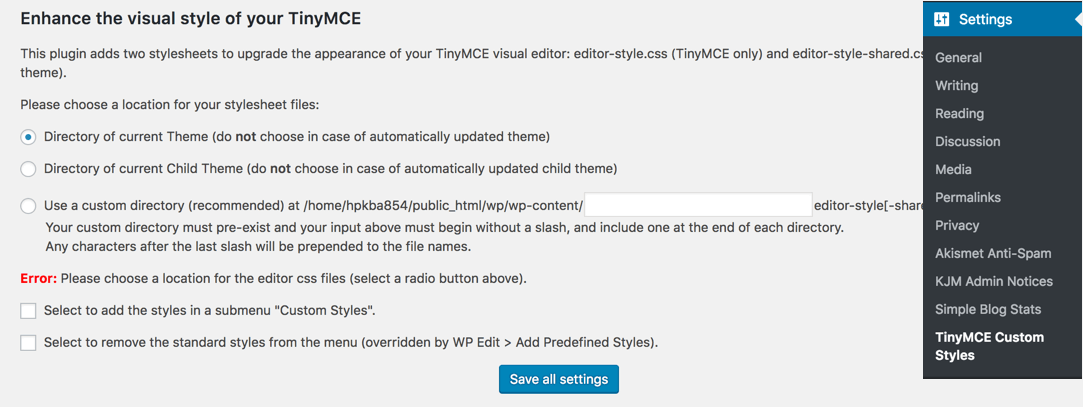
Credit: www.hostpapa.com

Credit: shellcreeper.com
Frequently Asked Questions
What Is The Purpose Of Editor Style In WordPress?
Editor style in WordPress ensures consistency between the post editor and the site’s front end. It helps maintain uniformity in typography, colors, and layout. By using editor styles, you can preview how your content will appear once published, improving the overall user experience and reducing editing time.
How To Enable Editor Style In WordPress?
To enable editor style, add a custom editor stylesheet in your theme. Locate your theme’s functions. php file and register the stylesheet using `add_editor_style()`. This links your chosen styles to the editor, allowing you to see how content will appear on your site before publishing.
Can Editor Style Affect Website Performance?
Editor style generally does not impact website performance. It only affects the appearance of the WordPress editor and not the front-end. However, overly complex styles may slow down the editor interface. It’s important to keep editor styles optimized to ensure a smooth editing experience.
Is Editor Style Customizable In WordPress?
Yes, editor style is fully customizable in WordPress. You can tailor the appearance by creating a custom stylesheet. This allows you to match the editor’s look with your site’s design. Use CSS to define typography, colors, and layouts to achieve desired consistency in your WordPress editor.
Conclusion
Editor Style in WordPress offers customization. It shapes the look of your content. You can make your posts unique. Explore different styles for better visual appeal. Simple changes can boost engagement. Good styling draws attention. It helps your blog stand out.
Keep experimenting for best results. Remember, style affects readability. Choose wisely to enhance user experience. The right style makes a difference. So, dive into WordPress Editor Style. Create content that resonates. Engage your audience effectively. Your blog deserves a distinctive touch.


