
Have you ever wondered how to make your WordPress posts more engaging? Maybe you’ve seen other websites with images seamlessly integrated into their content and thought, “How do they do that?” Well, you’re about to uncover the secret: inline images.
Imagine scrolling through a post and encountering an image that perfectly complements the text, drawing your eyes in and helping you understand the story better. Inline images can transform your WordPress posts from plain text into visually appealing masterpieces. They make your content more dynamic, improve readability, and keep your audience hooked.
Curious about how you can leverage this powerful tool to enhance your website? Stick around, because this article will show you everything you need to know about inline images in WordPress, and how they can elevate your content to new heights.
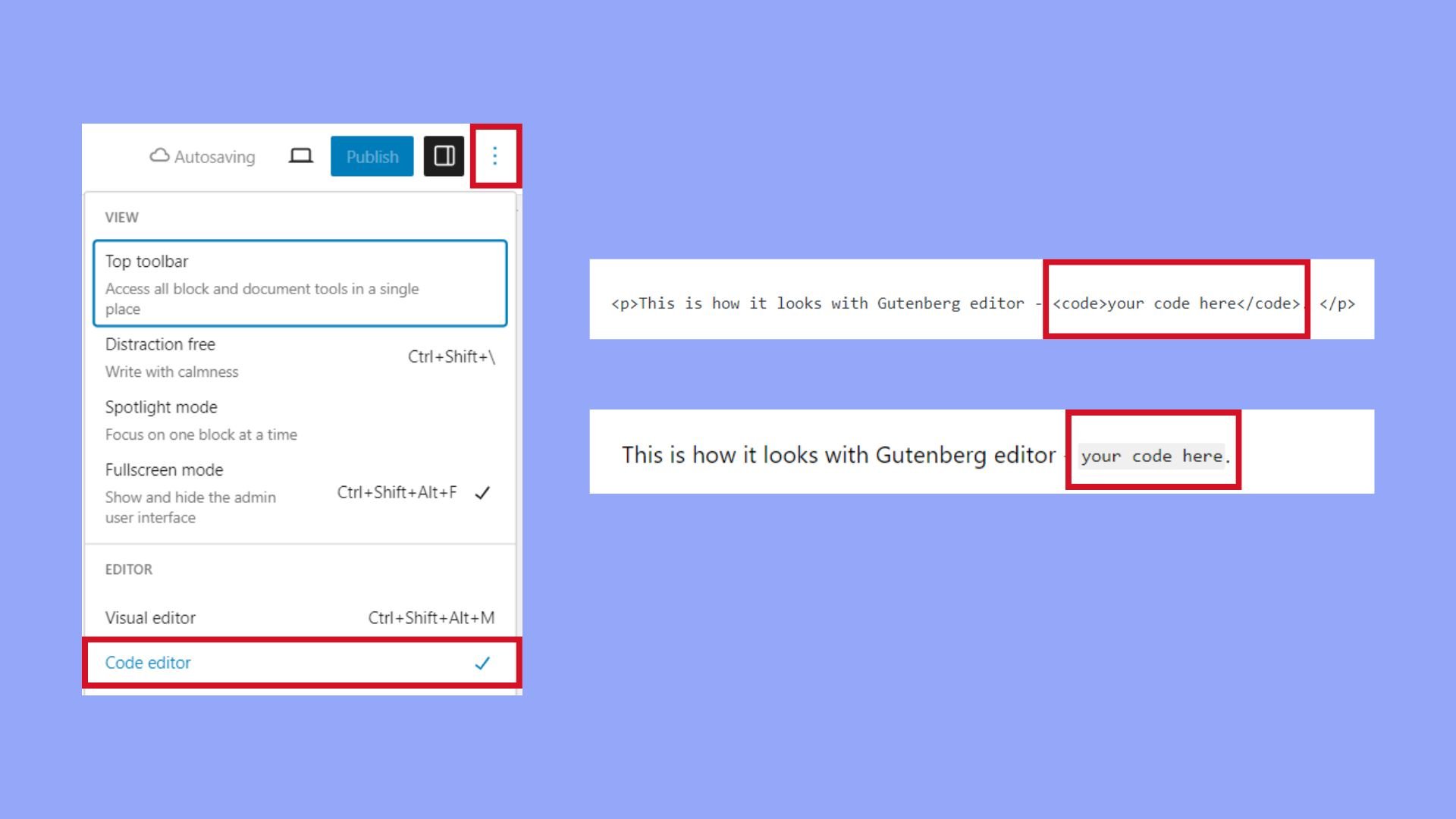
Credit: 10web.io
Inline Image Concept
An inline image is a picture placed within the text. It sits alongside the words, making the page more lively. Readers can see the image and text together. This helps them understand the content better. Inline images break the monotony of long text. They make the article more engaging and attractive.
Placing an image inline is easy in WordPress. Just click the add media button. Choose your image, then insert it into the post. The image will appear where the cursor was. You can adjust the size and alignment. This ensures it fits well with the surrounding text.
Benefits Of Inline Images
Inline images make your blog posts more engaging. They help to break up long blocks of text. This makes reading easier for visitors. Readers can understand the content better. Pictures can show complex ideas simply. They add visual interest to your pages.
Images can improve SEO too. Search engines like pages with images. They rank higher in results. Adding alt text helps search engines understand images. This improves your website’s visibility.
Inline images can also support your brand. Use pictures related to your content. They make your posts unique. People remember your brand more. Readers enjoy content that looks good.
How To Add Inline Images
Inline images make posts look nice. Open the WordPress editor. Click the “Add Media” button. Choose an image from the library. Or, upload a new one. The image will appear in the post. Drag and drop to move it. Resize by dragging the corners. Remember to add alt text. This helps people understand the image. Also, it helps search engines.
HTML makes images part of the text. First, switch to the HTML view. Then, use the 
width and height. Make sure it fits well.
Best Practices For Inline Images
Inline images should be optimized for size. Large images can make a page slow. Slow pages can make visitors unhappy. Use tools to compress images. Keep quality good but make size smaller. Small files load fast. Fast pages mean happy visitors.
Alt text is important for images. It helps people who can’t see the image. It also helps search engines understand the image. Use clear and simple words. Describe the image well. Good alt text helps in SEO too.
Websites should look good on all devices. Images should be responsive. Responsive images change size with the screen. Use tools to make images flexible. This way, images look good on phones and computers. Good design makes everyone happy.
Common Issues And Solutions
Inline images in WordPress help enhance visual appeal. A common issue is incorrect alignment, which can disrupt layout. Adjusting the image block settings usually solves this problem.
Alignment Problems
Images sometimes don’t align as you want them to. This can make your site look messy. Check your image settings in WordPress. Use the alignment options like left, center, or right. Make sure your theme supports these settings. If not, you might need custom CSS. This can help fix the alignment.
Loading Speed Concerns
Images can make a site slow. This is bad for visitors. Use image optimization tools to reduce file size. Smaller files load faster. Also, use lazy loading. This loads images as you scroll down the page. It helps speed up your site. Always choose the right image format. JPEGs are usually smaller than PNGs. Smaller images mean faster load times.

Credit: www.youtube.com
Plugins For Inline Image Management
WordPress plugins help manage inline imagesImage optimization is crucial for better website speed. Plugins like WP Smush compress images without losing quality. Users love improved loading times. Imagify is another good choice. Converts images to WebP format. Smaller size, same quality. Simple setup process. Great for beginners. ShortPixel is popular too. Offers bulk image optimization. Saves time. Automatic backup ensures safety of original images. Choose plugins wisely. Features and ease of use matter. Regular updates ensure smooth functionality.
Credit: fluentforms.com
Frequently Asked Questions
What Is An Inline Image In WordPress?
An inline image in WordPress is an image embedded within your text content. It enhances visual appeal and context. You can easily insert it using the WordPress editor. This image is part of the text flow, allowing seamless integration with your written content.
How Do You Add Inline Images In WordPress?
To add inline images in WordPress, use the WordPress editor. Click ‘Add Media’, select your image, and insert it. Ensure proper alignment and size for optimal display. Inline images enhance your post’s visual appeal and readability.
Why Use Inline Images In WordPress Posts?
Inline images in WordPress posts enhance visual engagement and context. They break up text, making content more readable. These images help illustrate points and increase audience interaction, improving the overall user experience.
Can Inline Images Improve Seo?
Yes, inline images can improve SEO by increasing engagement and reducing bounce rates. They make content more attractive and shareable. Remember to use alt text and descriptive file names. This helps search engines understand your images better.
Conclusion
Inline images in WordPress enhance content visually. They make posts engaging and easier to understand. Readers connect better with images. This boosts the overall experience. Using inline images effectively is simple. Just keep them relevant to the content. Balance text and visuals for clarity.
This helps maintain reader interest. Consistent use of images enriches your blog. They add value without complicating the message. So, explore the potential of inline images. Improve your WordPress posts today. Keep it simple and impactful. Your readers will appreciate the effort.


